
Knowing how to fix Windows key not working problems saves a lot of frustration, because shortcuts like Win+D, Win+E and Win+L suddenly stop responding. The cause is usually a software setting, a gaming lock feature or a driver glitch, and only occasionally a failed switch under the keycap. This guide walks through the checks in the order that solves the problem fastest.
Key Takeaways
- Most cases come from a Windows key lock (Game Mode, Fn combo or a lock switch), not broken hardware.
- Testing with a second keyboard quickly shows whether the problem is the keyboard or Windows itself.
- Keyboard drivers, Filter Keys, Group Policy and registry entries can all disable the key.
- System file repair with SFC and DISM fixes the cases caused by corrupted Windows files.
- A key that fails on every keyboard and inside the BIOS usually points to a worn switch or liquid damage.
Common Causes of the Windows Key Not Working
Narrowing down the cause first prevents wasted effort. These are the most frequent culprits.
- Windows key lock: Gaming keyboards and many laptops include a Game Mode button, a Win Lock switch or an Fn shortcut that deliberately disables the key so it does not interrupt a game.
- Filter Keys or Sticky Keys: These accessibility features can change how key presses register and sometimes interfere with shortcuts.
- Outdated or corrupted keyboard driver: A driver glitch after an update can leave the key unresponsive while the rest of the keyboard works.
- Policy or registry restrictions: A Group Policy setting, a NoWinKeys entry or a Scancode Map entry can block the key. Some keyboard remapping tools create these entries.
- Corrupted system files: Damaged Windows components can stop the Start menu and shortcuts from responding.
- Dirt, debris or a worn switch: Crumbs, dust or spilled liquid can stop the key from making contact.
Before You Start
Most of these fixes are software based, so no disassembly is needed. A few items make the process smoother.
- A second keyboard (USB or Bluetooth) for testing, and a mouse for navigating Windows.
- Compressed air and a soft brush if the key feels stuck or gritty.
- A restore point before touching the registry or Group Policy. Registry mistakes can cause other problems, so stop and ask a professional if any step feels unclear.
- Opening a laptop to reach the keyboard may affect the warranty, so avoid it unless the warranty is already expired.
How to Fix Windows Key Not Working Step by Step
Start With the Quick Checks
- Step 1: Restart the PC. A restart clears temporary glitches and stuck modifier states, and it fixes more cases than most people expect.
- Step 2: Test the key on another keyboard. Plug in a spare USB keyboard and press the Windows key. If it works there, the original keyboard or its software is the problem. If it fails on both, the cause is inside Windows.
- Step 3: Look for a Windows key lock. On gaming keyboards, check for a Game Mode or Win Lock button, often marked with a key and a padlock or a joystick icon. On laptops, try Fn plus Windows key, or Fn plus F6 or F12, because some models use those combinations. Check the keyboard utility from the manufacturer, since many have a Game Mode toggle.
- Step 4: Test the Windows key in the BIOS or UEFI setup if the keyboard supports it. If the key fails there as well, the issue is almost certainly hardware.

Tip: Press Win+R after any fix. If the Run box opens, the key is working, even if the Start menu looks unresponsive.
Clean the Key and Check for Stuck Keys
- Step 5: Power off the computer, or unplug the keyboard if it is external.
- Step 6: Hold the keyboard at an angle and use short bursts of compressed air around the Windows key. Brush loose debris away with a soft brush.
- Step 7: Press the key several times. A key that feels mushy, sticky or silent after cleaning may have a worn membrane or switch.
Turn Off Filter Keys and Sticky Keys
- Step 8: Open Settings, go to Accessibility, then Keyboard.
- Step 9: Switch off Sticky Keys and Filter Keys, then test the Windows key again.
Run the Keyboard Troubleshooter and Reinstall the Driver
- Step 10: Open Settings, go to System, then Troubleshoot, then Other troubleshooters, and run the Keyboard troubleshooter if it is listed.
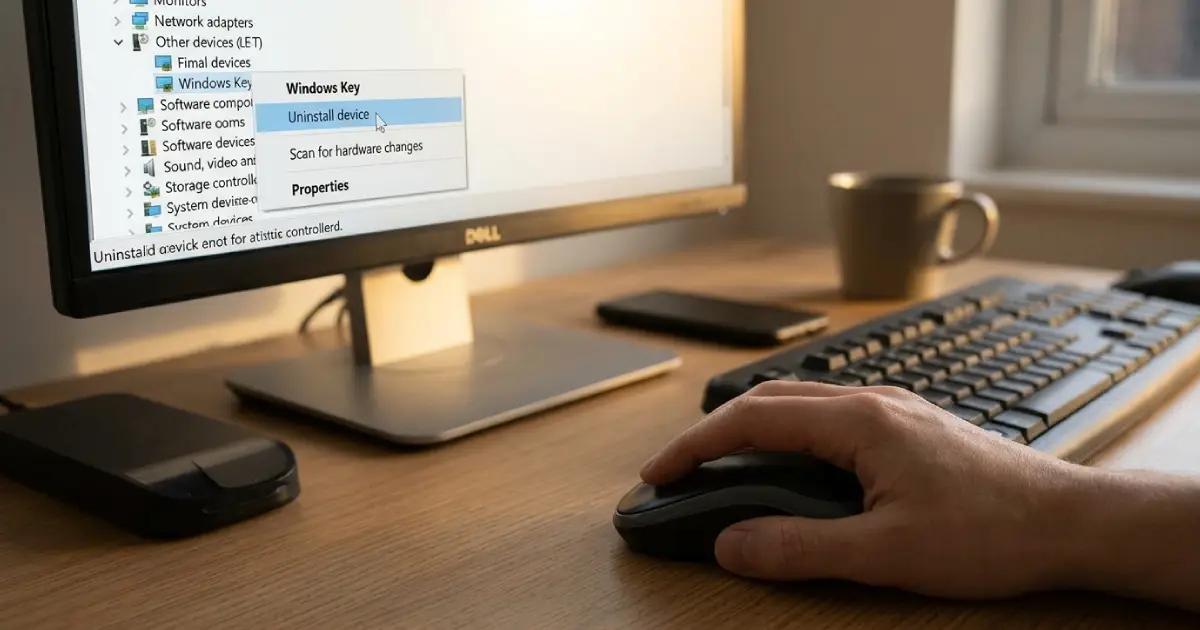
- Step 11: Right-click Start (or press Win+X if that still works), open Device Manager, and expand Keyboards.
- Step 12: Right-click the keyboard entry, choose Uninstall device, and restart the PC. Windows reinstalls the standard driver automatically on boot.
- Step 13: If the keyboard has its own software, install the latest version from the manufacturer website and check that no remapping or key-disable rule is active.
Check Group Policy and the Registry
These steps apply when the key was working before and software changed something. Group Policy is available on Windows Pro, Enterprise and Education editions.
- Step 14: Press Win+R if possible, or open the Start search, and run gpedit.msc.
- Step 15: Go to User Configuration, Administrative Templates, Windows Components, File Explorer, and open the setting named Turn off Windows Key hotkeys. Set it to Not Configured or Disabled, then restart.
- Step 16: On Windows Home, or if the policy was already unset, check the registry. Open Registry Editor with regedit and go to HKEY_CURRENT_USER\Software\Microsoft\Windows\CurrentVersion\Policies\Explorer. If a value named NoWinKeys exists, set it to 0 or delete it.
- Step 17: Go to HKEY_LOCAL_MACHINE\SYSTEM\CurrentControlSet\Control\Keyboard Layout. If a value named Scancode Map exists, a remapping tool or script created it and may be disabling the key. Export a backup of the key first, delete the Scancode Map value, and restart.
Tip: Right-click a registry key and choose Export before changing anything. That one file makes it easy to undo a mistake.
Repair Windows System Files
- Step 18: Open Command Prompt as administrator. If the Start menu is unresponsive, press Ctrl+Shift+Esc to open Task Manager, choose Run new task, type cmd, and tick the option to create the task with administrative privileges.
- Step 19: Run sfc /scannow and wait for it to finish.
- Step 20: Run DISM /Online /Cleanup-Image /RestoreHealth, then run sfc /scannow once more and restart.
Restart Windows Explorer and Rule Out Software Conflicts
- Step 21: Open Task Manager, find Windows Explorer, right-click it and choose Restart. This refreshes the shell that handles the Start menu and shortcuts.
- Step 22: Perform a clean boot by opening msconfig, hiding all Microsoft services on the Services tab, and disabling startup items. If the key works after that, re-enable items in small groups to find the conflicting app, such as a remapping utility or overlay.
Common Problems and Fixes
The Windows Key Works in the BIOS but Not in Windows
This points to software. Recheck Game Mode, Group Policy, the registry entries and the keyboard driver. A clean boot helps to identify a conflicting program.
The Windows Key Fails on Every Keyboard
If a second keyboard also fails, the problem sits in Windows. Focus on the policy, registry and system file repair steps, and check for a recent update or newly installed software that changed keyboard behavior.
The Windows Key Fails on One Keyboard Only and Not in the BIOS
That combination suggests a hardware fault. Cleaning may help if debris is the cause. If a spill happened, power the device off and have it inspected rather than pressing on. For a laptop, a technician can replace the keyboard module, and an external keyboard is usually cheaper to replace outright.
The Key Works but the Start Menu Does Not Open
The key is fine, and the Start menu process is the problem. Restart Windows Explorer, run SFC and DISM, and install pending Windows updates.
The Key Stops Working Only During Games
Game Mode on the keyboard, or a game overlay that captures keys, is the likely reason. Turn Game Mode off in the keyboard utility or on the hardware button.
Frequently Asked Questions
Why is my Windows key not working on my laptop?
The most common reasons are a Windows key lock triggered by an Fn combination, Filter Keys or Sticky Keys settings, a keyboard driver issue, or a policy or registry entry that disables the key. Debris under the key can also stop it from registering.
How do I unlock the Windows key?
Check for a Game Mode or Win Lock button on the keyboard, try Fn plus the Windows key or the Fn plus F6 or F12 combination on laptops, and look for a Game Mode toggle in the keyboard manufacturer software. Pressing the same toggle again re-enables the key.
Can Game Mode on a keyboard disable the Windows key?
Yes. Many gaming keyboards and some laptops use Game Mode to disable the Windows key so it does not minimize a game by accident. Turning Game Mode off restores normal behavior.
How can I tell if the Windows key is broken or just disabled?
Test it on a second keyboard and in the BIOS or UEFI setup. If it works on another keyboard or in the BIOS, the key is not broken and a software setting is disabling it. If it fails everywhere on the same keyboard, the switch is likely faulty.
Can a Windows update stop the Windows key from working?
It can happen when an update replaces a keyboard driver or changes a setting. Reinstalling the keyboard driver in Device Manager, running SFC and DISM, and installing the newest updates usually resolve it.
Does the Windows key need a registry edit to work again?
Only if a NoWinKeys or Scancode Map value is blocking it. Check those entries in Registry Editor, back up the key first, remove the offending value, and restart the PC.
Will cleaning the keyboard fix a Windows key that does not respond?
It can, if dust, crumbs or sticky residue are stopping the switch from making contact. Use compressed air and a soft brush with the device powered off. If the key still feels dead afterward, the switch itself may be worn.
When should the keyboard be replaced instead of repaired?
Replacement makes sense when the key fails on its own in the BIOS, after cleaning, and after all software fixes. Liquid damage is another reason. An external keyboard can be swapped easily, while a laptop keyboard replacement is best left to a technician.
