
When one data series is measured in thousands and another in percentages, the smaller series flattens into a line at the bottom of the chart. The fix is to add a secondary axis to an Excel chart so each series gets its own scale. The whole job takes about a minute once the right menu is open.
Key Takeaways
- A secondary axis gives one data series its own vertical scale on the right side of the chart.
- The fastest route is Chart Design, then Change Chart Type, then Combo, then the Secondary Axis checkbox.
- Right-clicking a series and choosing Format Data Series is a quick alternative.
- Changing the second series to a line chart type keeps columns from hiding each other.
- An axis title on the secondary axis tells readers which scale belongs to which series.
How to Add a Secondary Axis to an Excel Chart
This method works best when a chart already exists and one series is too small or too large to read against the others. A common example is monthly revenue in dollars plotted next to profit margin in percent.
Method 1: Use the Combo Chart Option
- Step 1: Click anywhere inside the chart so the Chart Design and Format tabs appear on the ribbon.
- Step 2: Select the Chart Design tab, then click Change Chart Type in the Type group.
- Step 3: In the dialog box, choose Combo from the list on the left (listed under All Charts).
- Step 4: Find the series that needs its own scale. In the series list, tick the Secondary Axis checkbox beside it.
- Step 5: Open the Chart Type drop-down next to that same series and pick Line or Line with Markers. Leaving both series as columns makes them overlap and hide each other.
- Step 6: Click OK. The second scale now appears on the right side of the chart.
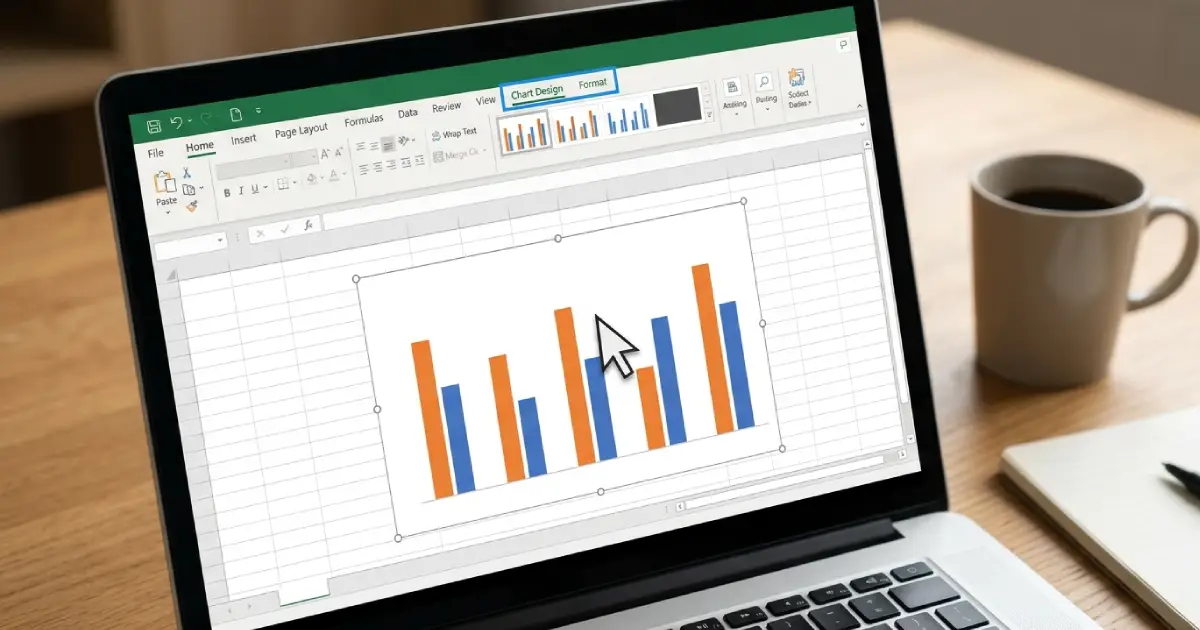
Tip: Before opening the dialog, check the preview at the top of the Combo screen. It updates live, so mismatched chart types are easy to spot before clicking OK.
Method 2: Use Format Data Series
This route suits anyone who prefers right-clicking on the chart itself.
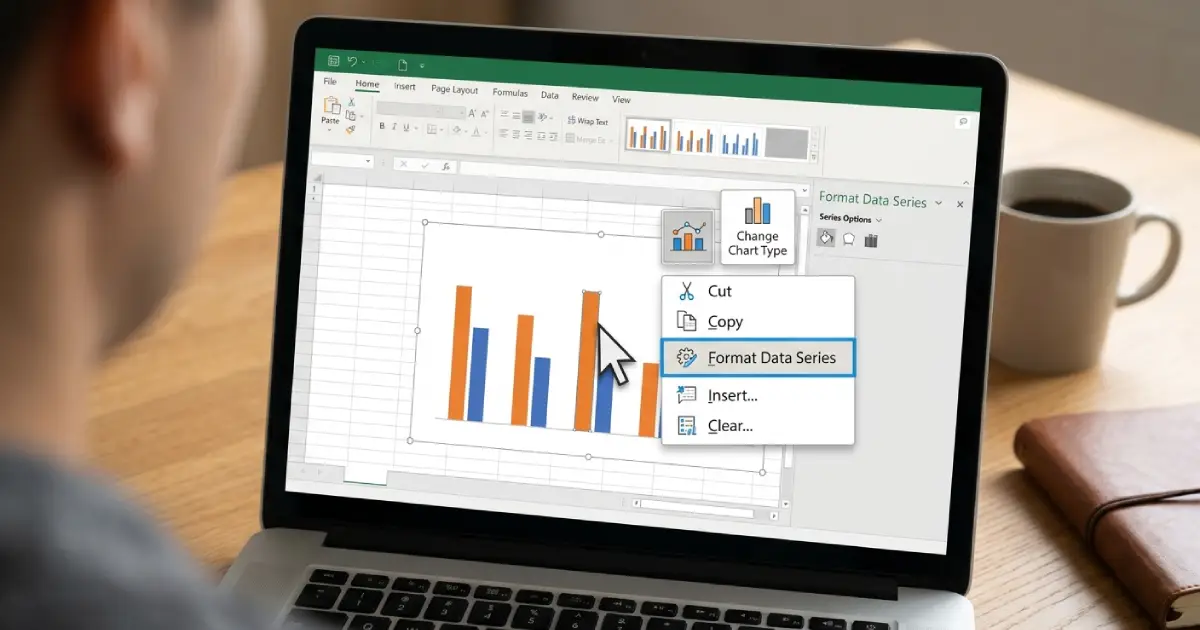
- Step 1: Right-click the data series that needs the second scale, such as the thin line or the short columns.
- Step 2: Choose Format Data Series. The task pane opens on the right.
- Step 3: Under Series Options, find Plot Series On and select Secondary Axis.
- Step 4: Right-click the same series again, choose Change Series Chart Type, and switch it to a line if both series are still columns.
How to Label and Adjust the Secondary Axis
A second scale without a label leaves readers guessing. A few quick edits make the chart easy to read at a glance.
Add a Title to the Secondary Axis
- Step 1: Select the chart, then click the Chart Design tab.
- Step 2: Click Add Chart Element, point to Axis Titles, and choose Secondary Vertical.
- Step 3: Click the new title box, type a label such as Profit Margin (%), and press Enter.
Change the Scale of the Secondary Axis
- Step 1: Right-click the numbers on the right-hand axis and choose Format Axis.
- Step 2: Under Axis Options, type new values into the Minimum and Maximum boxes under Bounds.
- Step 3: Adjust the Major box under Units if the tick marks feel too crowded or too sparse.
Tip: Keep the number of tick intervals similar on both axes. When the gridlines of the two scales line up, the chart looks much cleaner.
Common Problems and Fixes
The Secondary Axis Option Is Missing or Greyed Out
Secondary axes are not available on pie charts or 3-D chart types. Switch the chart to a 2-D column, line, or combo chart, then repeat the steps above.
The Secondary Axis Does Not Appear After Ticking the Box
The axis may be hidden. Click the chart, select the plus icon (Chart Elements) beside it, expand Axes, and tick Secondary Vertical.
Columns Cover Each Other
Both series are likely still set to column. Open Change Chart Type, choose Combo, and set the secondary series to Line.
The Wrong Series Moved to the Secondary Axis
Right-click the series, choose Format Data Series, and under Plot Series On select Primary Axis to move it back. Then repeat for the correct series.
It Is Hard to Select One Series
When a series is tiny, clicking it can be fiddly. Select the chart, open the Format tab, and use the Chart Elements drop-down at the top left to pick the series by name.
Frequently Asked Questions
What does a secondary axis do in an Excel chart?
A secondary axis adds a second vertical scale on the right side of the chart. It lets a series with very different values be plotted at a readable height next to the other series.
How do I add a secondary axis to an existing chart?
Select the chart, open Chart Design, click Change Chart Type, choose Combo, and tick Secondary Axis next to the series that needs its own scale. Then click OK.
Can I add a secondary axis to a column chart?
Yes. Excel will place the chosen series on the secondary axis, though it works best when that series is changed to a line so the columns do not overlap.
Why is the Secondary Axis checkbox greyed out?
The chart is probably a pie chart or a 3-D chart type, neither of which supports a secondary axis. Change it to a 2-D column, line, or combo chart first.
How do I add a secondary horizontal axis?
Click the chart, select the Chart Elements plus icon, expand Axes, and tick Secondary Horizontal. This option appears only after a series has been moved to the secondary axis.
How do I remove a secondary axis?
Right-click the series on the secondary axis, choose Format Data Series, and under Plot Series On select Primary Axis. The right-hand axis disappears once no series uses it.
How do I change the numbers on the secondary axis?
Right-click the right-hand axis, choose Format Axis, and enter new Minimum and Maximum values under Bounds in the Axis Options section.
How do I label the secondary axis?
Select the chart, go to Chart Design, click Add Chart Element, choose Axis Titles, and pick Secondary Vertical. Then type the label into the title box.
Can more than one series use the secondary axis?
Yes. Tick the Secondary Axis box for each series in the Combo dialog, or set Plot Series On to Secondary Axis for each one in Format Data Series. All of them will share the same right-hand scale.
