
Knowing how to turn on Night Light in Windows 11 takes only a few clicks and makes late-night screen time much easier on the eyes. The feature shifts display colors to a warmer tone, so the screen looks softer after dark. Night light works on all Windows 11 editions, but it needs a compatible display driver to show up.
Key Takeaways
- The main path is Settings > System > Display > Night light, then select Turn on now.
- Quick Settings offers a faster route through the Night light tile.
- The Strength slider controls how warm the screen looks.
- A schedule can switch Night light on and off automatically.
Step-by-Step Guide to Turn On Night Light in Windows 11
Method 1: Use the Settings App
This is the easiest method for most people, since every option lives on one page.
- Press Windows + I to open Settings.
- Select System in the left sidebar.
- Click Display.
- Click Night light to open its settings page.
- Select Turn on now.
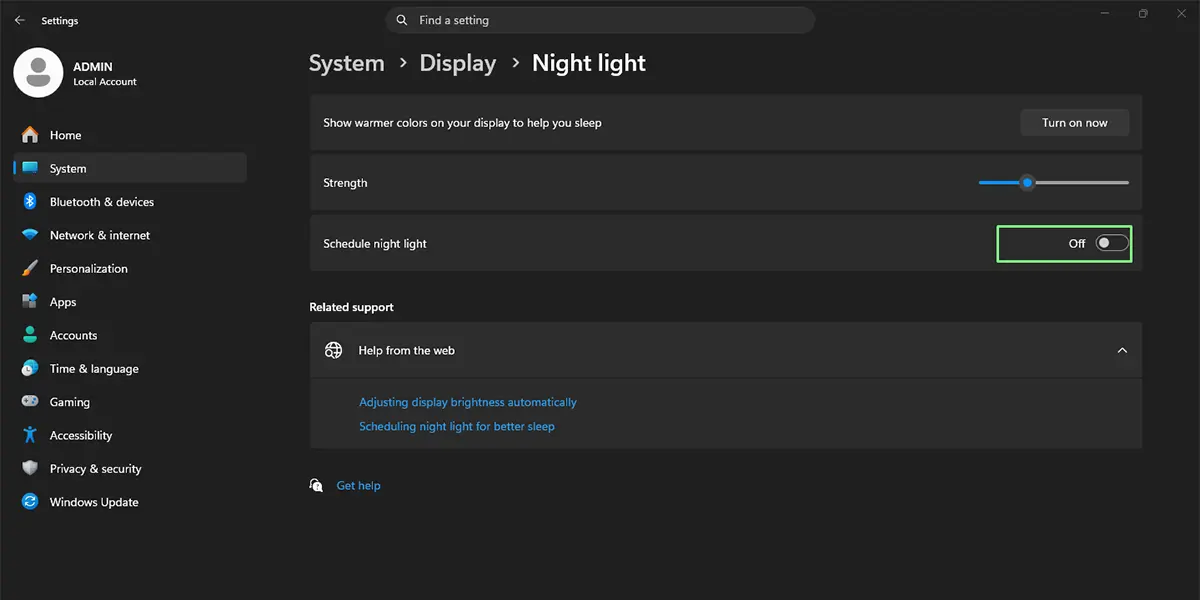
The screen turns warmer right away, and the button changes to Turn off now. That change confirms Night light is active.
Tip: The Strength slider on the same page sets how warm the colors look. Dragging it to the right gives a stronger amber tint, which suits a dark bedroom. A lower setting works better in a room with the lights on.
Method 2: Use Quick Settings
This works best when Night light is toggled often, such as on a laptop used on the couch every evening.
- Press Windows + A to open Quick Settings, or click the network, volume, and battery icons in the taskbar.
- Click the Night light tile.
The screen shifts to warmer colors immediately, and the tile turns highlighted.
If the tile is not visible, click the pencil icon (Edit quick settings), select Add, choose Night light, and then click Done.
How to Schedule Night Light Automatically
Turning Night light on by hand gets old quickly. A schedule handles it, so the screen warms up as evening arrives.
- Open Settings > System > Display > Night light.
- Switch on Schedule night light.
- Choose Sunset to sunrise to follow daylight in the current location, or choose Set hours to pick exact times.
- If Set hours is selected, enter the times for turning Night light on and off.
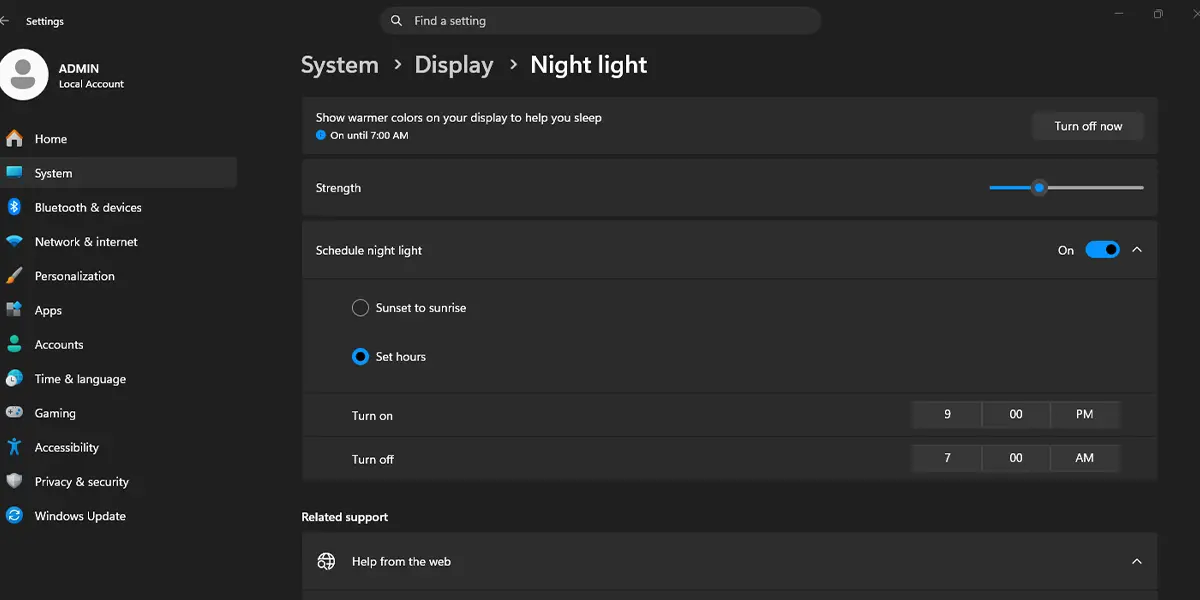
Tip: Sunset to sunrise depends on location services, so it only works if Windows can detect where the PC is. Set hours works regardless of location.
How to Undo or Reverse This Change
To switch Night light off, open Settings > System > Display > Night light and select Turn off now. The Night light tile in Quick Settings does the same thing with one click. To stop automatic switching, turn off the Schedule night light toggle.
Common Problems and Fixes
Night Light Is Greyed Out or Missing
The most common cause is a missing or outdated display driver. Installing the latest graphics driver through Windows Update or from the PC or graphics card manufacturer usually brings the option back. After the update, restart the computer and check Settings > System > Display again.
Sunset to Sunrise Does Not Work
This schedule needs location access. Open Settings > Privacy & security > Location and make sure location services are on. Alternatively, switch the schedule to Set hours and enter the times manually.
The Screen Does Not Look Any Different
A very low Strength setting makes the change almost invisible. Open the Night light page and move the slider further to the right until the warmer tone is clearly noticeable.
Frequently Asked Questions
Does Night light work on Windows 11 Home?
Yes. Night light is available in all Windows 11 editions, including Home and Pro.
Does Night light need a restart?
No. The screen changes immediately after selecting Turn on now or clicking the Night light tile in Quick Settings.
Is there a keyboard shortcut for Night light?
Windows 11 has no dedicated default shortcut for Night light. Pressing Windows + A opens Quick Settings, where the Night light tile is one click away.
Why is the Night light option missing?
A missing or outdated display driver is the usual reason. Updating the graphics driver and restarting the PC typically fixes it.
Can Night light turn on automatically?
Yes. Turn on Schedule night light in Settings > System > Display > Night light, then choose Sunset to sunrise or Set hours.
How can the Night light color be made warmer?
Open the Night light page and drag the Strength slider to the right. The screen becomes warmer as the slider moves.
Why does Sunset to sunrise not work?
The option depends on location services. Turning on location under Settings > Privacy & security > Location lets Windows calculate sunset and sunrise times.
Does Night light save battery?
Night light only changes the color temperature of the screen, so it is not a battery-saving feature. Its purpose is a softer look in dim lighting.
