
Learning how to enable HDR in Windows 11 takes less than a minute, and the payoff is brighter highlights and deeper colors in games and video. HDR works on all Windows 11 editions, but it needs a display that supports HDR and an up-to-date graphics driver. Without both, the option will not appear.
Key Takeaways
- The main path is Settings > System > Display > HDR, then switch on Use HDR.
- The keyboard shortcut Windows + Alt + B toggles HDR for the display in use.
- On a multi-monitor setup, the correct display must be selected first.
- The Use HDR toggle only appears when the display supports HDR.
Step-by-Step Guide to Enable HDR in Windows 11
Method 1: Use the Settings App
This is the easiest method for most people, and it also shows whether the display supports HDR at all.
- Press Windows + I to open Settings.
- Select System in the left sidebar.
- Click Display.
- If more than one monitor is connected, select the HDR-capable display from the list at the top of the page.
- Click HDR to open the HDR settings.
- Turn on the Use HDR toggle.
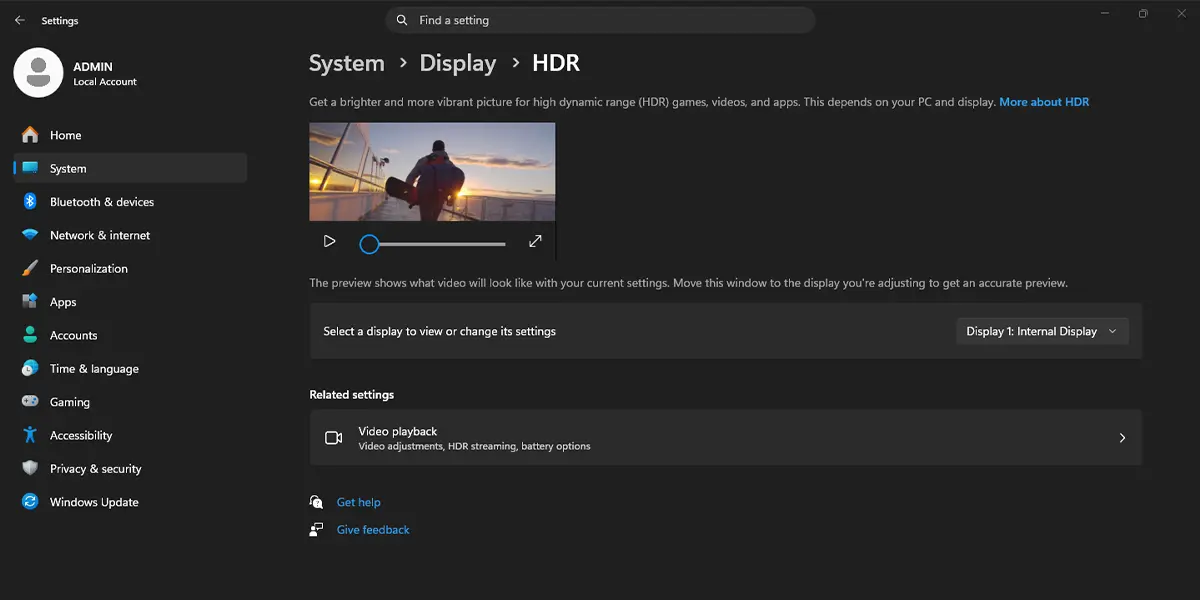
The screen flickers or goes dark for a moment, and the toggle shows as on. Colors may look a little different at first because Windows is now working in a wider range of brightness.
Tip: On the same HDR page, the Auto HDR toggle upgrades the look of many older games that were never built for HDR. It is worth switching on for gaming PCs once Use HDR is enabled.
Method 2: Use the Keyboard Shortcut
This works best when HDR needs to be switched on and off often, such as moving between a movie night and everyday desktop work.
- Press Windows + Alt + B.
The screen flickers briefly, and HDR turns on. Pressing the same keys again turns it off. The shortcut applies to a display that supports HDR, so the Settings method is the better choice when several monitors are connected.
Check the Basics Before Using HDR on a Laptop
Laptops add one extra consideration. HDR video streaming is turned off by default while a laptop runs on battery, since HDR playback draws more power. To change this, open Settings > System > Display > HDR, expand Battery options, and adjust the setting for HDR video on battery.
Tip: A laptop plugged into power is the easiest way to confirm that HDR is working before any battery settings are touched.
How to Undo or Reverse This Change
To turn HDR off, open Settings > System > Display > HDR and switch off the Use HDR toggle. Pressing Windows + Alt + B also switches it off. Colors return to the standard look right away.
Common Problems and Fixes
The Use HDR Toggle Is Missing or Greyed Out
The display or connection usually does not meet HDR requirements. Confirm that the monitor or TV supports HDR, that it is connected with a cable and port that handle HDR, and that HDR is not turned off in the monitor’s own menu. After that, install the latest graphics driver and restart the PC. A work or school PC may also have settings limited by the organization.
Everyday Windows Content Looks Washed Out
This is a common first impression, because standard content is displayed in an HDR container. On the HDR settings page, move the SDR content brightness slider until normal windows and text look natural again.
HDR Does Not Work on Battery
Windows limits HDR video on battery by default. Open Settings > System > Display > HDR, expand Battery options, and change the HDR video setting, or plug the laptop into power.
HDR Turns Off on the Wrong Monitor
On a multi-monitor setup, HDR is set per display. Return to Settings > System > Display, select the correct monitor at the top of the page, and then switch on Use HDR for that screen.
Frequently Asked Questions
Does HDR work on Windows 11 Home?
Yes. HDR is available on all Windows 11 editions, as long as the display and graphics driver support it.
Does enabling HDR need a restart?
No. The change applies right away, with only a brief screen flicker.
What is the keyboard shortcut to turn HDR on or off?
Press Windows + Alt + B to toggle HDR for a display that supports it.
Why is the Use HDR option missing?
The connected display may not support HDR, the cable or port may not carry it, or the graphics driver may be out of date. Fixing those usually brings the option back.
Does HDR affect laptop battery life?
Yes. HDR playback uses more power, which is why Windows turns off HDR video streaming on battery by default.
Can HDR be turned on for one monitor only?
Yes. HDR is controlled per display, so select the monitor in Settings > System > Display and switch on Use HDR for just that screen.
What is Auto HDR?
Auto HDR is a toggle on the HDR settings page that adds HDR-style color and brightness to many older games that were not made for HDR.
How can the washed-out look after enabling HDR be fixed?
Adjust the SDR content brightness slider on the HDR settings page until everyday apps and text look comfortable.
