
Knowing how to rearrange multiple monitors in Display Settings on Windows 11 fixes the classic problem of the mouse leaving the wrong side of the screen. The task takes about a minute and works on every edition, with no administrator rights needed. It only applies when two or more displays are connected and set to extend the desktop.
Key Takeaways
- Open Settings > System > Display to see numbered tiles that represent each connected monitor.
- Drag the tiles so the on-screen layout matches the real position of the monitors on the desk.
- Rearranging only works when the displays are set to Extend these displays.
- Use Identify to match each tile to a physical screen, and test the layout by moving the mouse across the edges.
Step-by-Step Guide to Rearrange Multiple Monitors in Display Settings
Method 1: Use the Settings App
- Press Windows + I to open Settings.
- Select System in the left pane, then select Display. The full path is Settings > System > Display.
- Look at the box near the top of the page. Each connected monitor appears there as a numbered tile.
- Select Identify. A large number flashes on each physical screen, so it is easy to see which tile belongs to which monitor.
- Scroll down and expand the Multiple displays section.
- Open the drop-down menu and choose Extend these displays. Tiles can only be moved in this mode, because duplicated screens share one layout.
- Scroll back up and drag a tile to the side, above, or below the other tile so it mirrors the real desk setup. A monitor on the left of the desk should be the left tile.
- Release the tile so its edge snaps against the neighboring tile. The two tiles must touch.
- Select Apply if the button appears. The desktop layout updates right away.
- Move the mouse across the shared edge of the two screens. The pointer should pass smoothly from one monitor to the other.
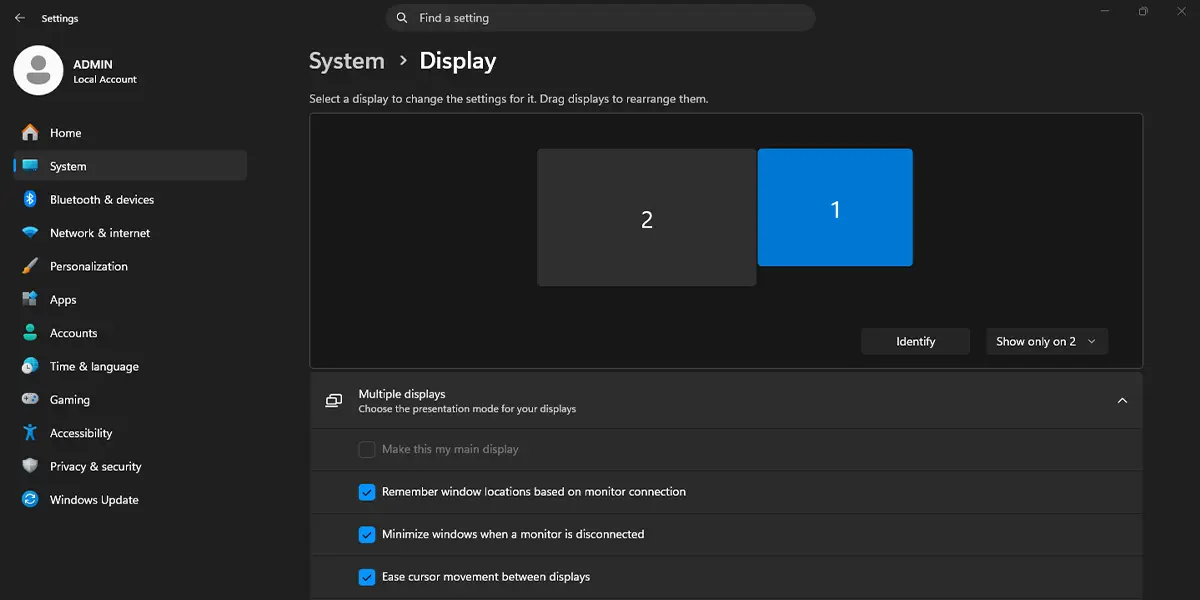
Tip: To change which monitor holds the Start button and taskbar by default, select its tile, expand Multiple displays, and tick Make this my main display.
Method 2: Open Display Settings From the Desktop
- Right-click an empty area of the desktop.
- Select Display settings. The Display page opens directly, with no need to browse through Settings.
- Drag the numbered tiles into the correct positions.
- Select Apply if it appears, then test the layout by moving the mouse between screens.
Tip: Press Windows + P to switch the display mode quickly. Choose Extend from the list that appears, and the tiles become draggable in Settings.
Getting the Layout Right
Match the Tiles to the Desk
Think of the tiles as a tiny map of the desk. A laptop sitting below a bigger monitor should be the lower tile, and a monitor mounted on the right should be the right tile. Most people find that a quick look at the flashing numbers from Identify removes all the guesswork.
Line Up the Edges
The mouse crosses between screens only where the tiles touch. Tiles can be offset slightly up or down, which suits two monitors of different heights, but a tile placed only at a corner can leave the pointer stuck at the edge. Sliding the tiles until they share a clear side usually solves it.
How to Undo or Reverse This Change
Go back to Settings > System > Display and drag the tiles into their earlier positions. Select Apply if it appears. Nothing is permanent, so the layout can be changed as often as needed.
Common Problems and Fixes
The Tiles Will Not Move
This usually means the displays are set to duplicate. Expand Multiple displays and choose Extend these displays, or press Windows + P and select Extend.
Only One Tile Is Showing
Windows may not have detected the second monitor. Check that the cable is firmly connected and that the monitor is powered on and set to the correct input. Then use the detect option inside the Multiple displays section. If the monitor still does not appear, restart the PC with the monitor connected and update the graphics driver.
The Mouse Stops or Jumps at the Wrong Edge
The tiles are probably not touching, or they only meet at a corner. Drag one tile until the two share a clear edge, then test the pointer again.
The Layout Resets After a Restart or Reconnect
Windows normally remembers the arrangement. A different cable, port, or docking station can make Windows treat a monitor as a new display, so the tiles may need to be arranged once more. Using the same ports each time helps the layout stay put.
Frequently Asked Questions
Does rearranging monitors work on Windows 11 Home?
Yes. The display arrangement feature is available on Windows 11 Home, Pro, and Enterprise, and it needs no administrator rights.
Does the new layout need a restart?
No. The layout changes as soon as it is applied, and no restart is needed.
Why can the tiles not be dragged in Display settings?
Tiles can only be moved when the displays are extended. In duplicate mode, both screens show the same image, so there is nothing to arrange. Switch to Extend in the Multiple displays section or with Windows + P.
Can a monitor be placed above or below another one?
Yes. A tile can sit on the left, right, above, or below the other tile, which suits stacked monitors or a laptop screen under a larger display.
Is there a keyboard shortcut to rearrange monitors?
No shortcut rearranges the tiles. The tiles are dragged with the mouse on the Display page. Windows + I opens Settings, and Windows + P switches between PC screen only, Duplicate, Extend, and Second screen only.
Why does the mouse pointer get stuck between two monitors?
The tiles are likely offset so that they do not share an edge, or they only touch at a corner. Drag one tile until the two share a clear side, and the pointer will cross freely.
Does changing the arrangement affect resolution or performance?
No. Rearranging only changes where each screen sits in the desktop layout. Resolution, scaling, and refresh rate stay the same, and there is no meaningful effect on performance or battery life.
Why does the arrangement change when a monitor is reconnected?
Windows may see a different cable, port, or dock as a new display. Open Settings > System > Display and drag the tiles back into place, and the layout will usually be remembered from then on.
