
Knowing how to calibrate your HDR display with the Windows HDR Calibration app in Windows 11 takes only a few minutes and makes bright highlights and dark scenes look far more accurate. The app is a free download from the Microsoft Store and works with any HDR-capable monitor, TV, or laptop screen. Administrator rights are not needed, but HDR must be switched on for the display being calibrated.
Key Takeaways
- Turn on HDR first under Settings > System > Display > HDR, because the calibration app only works while HDR is active.
- Install the free Windows HDR Calibration app from the Microsoft Store, then run it in full screen on the HDR display.
- Adjust the minimum luminance, maximum luminance, and color saturation sliders until each test pattern matches what the app describes.
- Save the result so Windows applies the new HDR color profile to that display.
Step-by-Step: Calibrate Your HDR Display with the Windows HDR Calibration App
Part 1: Turn On HDR and Install the App
- Press Windows + I to open Settings.
- Go to Settings > System > Display.
- If more than one screen is connected, select the HDR-capable display at the top of the page.
- Click HDR, then switch the Use HDR toggle to On. The screen may flicker for a second, and colors can look slightly washed out until calibration is done.
- Open the Microsoft Store, search for Windows HDR Calibration, and click Get or Install.
- Click Open once the download finishes. The app can also be launched later by typing Windows HDR Calibration into the Start menu search box.
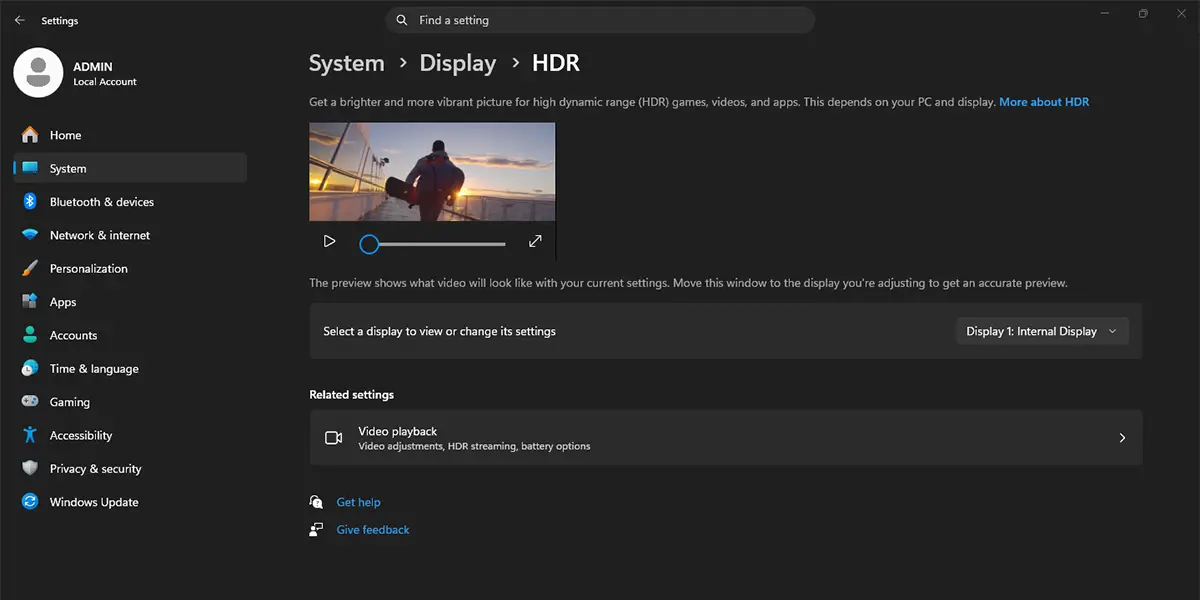
Tip: On an external monitor, check that the monitor’s own on-screen menu is set to an HDR-friendly mode. Some monitors keep HDR disabled at the hardware level, and Windows then cannot turn it on.
Part 2: Run the Calibration
- Make sure the app window is on the display that needs calibrating. This matters most on a multi-monitor desk where the app may open on the wrong screen.
- Let the app run in full screen. For the most accurate result, dim the room lights and let the display warm up for a few minutes first.
- Follow the first test, the minimum luminance pattern. Move the slider until the pattern just disappears into the black background, then click Next.
- Follow the second test, the maximum luminance pattern. Move the slider until the pattern is no longer visible against the bright background, then click Next.
- Repeat the same process for the max full frame luminance test, which checks how bright the screen stays when the whole panel is lit.
- On the color saturation screen, adjust the slider until the colors look rich but not exaggerated. Most people find that the middle of the range looks the most natural.
- Click Save to store the calibrated HDR profile. The picture on screen changes right away, and highlights should look cleaner with less clipping.
Tip: A good test after saving is to open a familiar HDR video or game scene with both very bright and very dark areas. If both look detailed, the calibration worked.
How to Undo or Reverse This Change
If the calibrated look is not right, run the Windows HDR Calibration app again and redo the sliders. To remove the saved profile entirely, type Color Management into the Start menu search box and open it. On the Devices tab, pick the display from the drop-down list, select the HDR profile in the list, and click Remove. To stop using HDR altogether, go to Settings > System > Display > HDR and switch Use HDR to Off.
Common Problems and Fixes
The Use HDR Toggle Is Greyed Out or Missing
This usually means the display, cable, or graphics driver does not support HDR. Confirm that the screen is HDR-capable, use a cable and port that carry HDR (a recent HDMI or DisplayPort connection), and update the graphics driver. On some laptops, HDR is limited while running on battery, so plug in the charger and check again.
The App Says HDR Is Not Turned On
The calibration app only works on a display that currently has HDR active. Return to Settings > System > Display > HDR, select the correct display, and switch Use HDR to On. Then reopen the app.
The App Opens on the Wrong Monitor
Close the app, drag it to the HDR display, and reopen it so the test patterns appear on the screen being calibrated. Calibrating the wrong screen is the most common reason results look off.
The Screen Looks Washed Out After Saving
Run the app again and take more time with the minimum and maximum luminance sliders. Small movements make a visible difference. Also check the SDR content brightness slider on the HDR settings page, since it controls how regular desktop content looks while HDR is on.
Frequently Asked Questions
Does the Windows HDR Calibration app work on Windows 11 Home?
Yes. The app is not tied to a specific edition, so it runs on Windows 11 Home and Pro as long as the display supports HDR.
Do I need a special monitor to calibrate HDR in Windows 11?
Yes. The display must support HDR. Without it, the HDR toggle stays unavailable and the calibration app has nothing to adjust.
Does the calibration need a restart?
No. The saved profile is applied right away, and a restart is not required.
Do I need administrator rights to run the app?
No. A standard user account can install the app from the Microsoft Store and run the calibration, unless a work or school policy blocks Store installs.
Can I calibrate more than one HDR display?
Yes. Calibrate them one at a time by selecting each display in Settings > System > Display, turning on HDR, and running the app on that screen.
Does HDR calibration work while a laptop is on battery?
Some laptops limit or disable HDR on battery power. For the most reliable result, plug in the charger before calibrating.
How often should an HDR display be recalibrated?
Calibrating once after setup is enough for most people. Running it again makes sense after switching to a new monitor, changing the room lighting a lot, or changing display settings on the monitor itself.
Will calibration change how normal non-HDR content looks?
The calibration targets HDR mode. Regular desktop content brightness is controlled separately by the SDR content brightness slider under Settings > System > Display > HDR.
