
Want brighter highlights and richer colors in games that were never built for HDR? This guide shows how to turn on Auto HDR for games in Windows 11 in a few clicks. It works on every Windows 11 edition, but it needs a display that supports HDR and a graphics driver that is up to date. No administrator rights are required.
Key Takeaways
- Auto HDR lives at Settings > System > Display > HDR.
- The Use HDR toggle must be on before the Auto HDR toggle can be switched on.
- No restart is needed, and the change applies the next time a supported game starts.
- Windows + Alt + B is a quick shortcut to turn HDR on or off for the active display.
Step-by-Step Guide to Turn On Auto HDR for Games in Windows 11
Before starting, make sure the HDR monitor or laptop screen is connected and shows up as active. On a desktop PC with more than one monitor, this matters even more, because the settings below apply to one display at a time.
- Press Windows + I to open Settings.
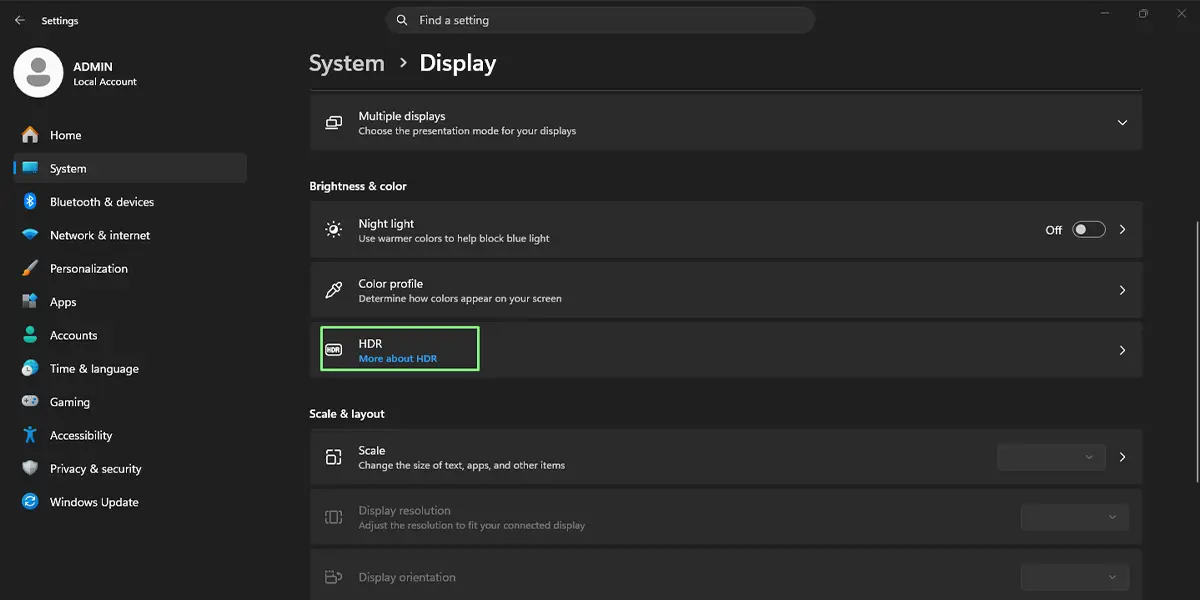
- Click System in the left sidebar, then click Display.
- If more than one monitor is connected, select the HDR-capable one from the display preview at the top of the page.
- Under Brightness & color, click HDR.
- Turn on the Use HDR toggle. The screen may flicker or go dark for a second, then return with a different look. That is normal.
- Turn on the Auto HDR toggle just below it.
- Close Settings and start a game. Auto HDR now enhances the colors and brightness range of supported games automatically.
Tip: Windows + Alt + B switches HDR on or off for the display in use, which is handy when a game looks better with HDR and a spreadsheet does not. The Auto HDR toggle itself still has to be set in Settings.
What Auto HDR Does to Your Games
Most older games output a standard dynamic range picture. Once Auto HDR is on, Windows 11 expands the colors and the brightness range of those games on an HDR display, so bright skies, explosions, and neon signs stand out more. Most people notice the difference in the first few minutes, especially in dark scenes with a few strong lights.
Auto HDR is aimed at games built on DirectX 11 or DirectX 12. Games that already include their own HDR option handle HDR by themselves, so the in-game setting is the one to use there.
Tip: If the desktop and apps look dim after turning on Use HDR, move the SDR content brightness slider on the same HDR page until everyday windows look comfortable again.
How to Undo or Reverse This Change
To stop using Auto HDR, go back to Settings > System > Display > HDR and turn off the Auto HDR toggle. To switch HDR off completely, turn off Use HDR on the same page, or press Windows + Alt + B. The screen returns to its normal standard dynamic range look right away.
Common Problems and Fixes
The Use HDR Toggle Is Greyed Out or Missing
This usually means Windows does not detect an HDR-capable display. Check that the monitor really supports HDR, that HDR is enabled in the monitor’s own on-screen menu, and that the cable and port support HDR. On a laptop, the built-in panel must support HDR. Updating the graphics driver also fixes this in many cases. On a work or school PC, display settings may be locked by the organization.
The Auto HDR Toggle Is Not Showing
The Auto HDR toggle appears only when Use HDR is on for that display. Turn Use HDR on first, then look again. If it is still missing, install the latest graphics driver and restart the PC.
Colors Look Washed Out or Too Dim
This is almost always an SDR brightness issue. Open Settings > System > Display > HDR and adjust the SDR content brightness slider. Small changes make a big difference, so move it a little at a time.
A Game Does Not Seem to Change
Auto HDR works with supported DirectX 11 and DirectX 12 games, and games that offer native HDR use their own setting. Check that the game is running on the same display where HDR is turned on, then restart the game so it picks up the new setting.
Frequently Asked Questions
Does Auto HDR work on Windows 11 Home?
Yes. Auto HDR is available on Windows 11 Home and Pro. The requirement is an HDR-capable display and a compatible graphics driver, not a particular edition.
Does Auto HDR need an HDR monitor?
Yes. Without a display that supports HDR, the HDR options stay greyed out, and Auto HDR cannot be turned on.
Does turning on Auto HDR need a restart?
No. The change takes effect right away, and games pick it up the next time they start. If a game was already running, close it and open it again.
Does Auto HDR work with every game?
No. It is designed for DirectX 11 and DirectX 12 games. Games with built-in HDR support manage HDR on their own, so the in-game HDR option is the one to use for those.
Is there a keyboard shortcut for Auto HDR?
Windows + Alt + B turns HDR on or off for the active display, which is the first step Auto HDR needs. The Auto HDR toggle itself is set at Settings > System > Display > HDR.
Why is the Auto HDR option missing in Settings?
The most common reasons are that Use HDR is still off, the display does not support HDR, or the graphics driver is outdated. Turn on Use HDR first and update the driver if the toggle still does not appear.
Will Auto HDR drain the battery on a laptop?
HDR can push the screen brighter and use more power, so battery life may drop during long gaming sessions. Plugging the laptop in is the easiest way to avoid that.
Does Auto HDR have to be turned on for each game separately?
No. The Auto HDR toggle is a single setting for the display, and it applies to supported games automatically.
Why does the desktop look dim after turning on HDR?
Standard content is mapped into the HDR range, which can look flatter at first. Raise the SDR content brightness slider at Settings > System > Display > HDR until the desktop looks right.
