
Learning how to change the orientation of a second monitor in Windows 11 takes less than a minute, and the option is built into the Settings app on every edition. No administrator rights are needed. This works well when a second screen is turned sideways for coding, reading long documents, or scrolling spreadsheets.
Key Takeaways
- Open Settings > System > Display, then select the second monitor before changing anything.
- Use the Display orientation dropdown under Scale & layout to pick Landscape, Portrait, Landscape (flipped), or Portrait (flipped).
- Click Keep changes within 15 seconds, or Windows reverts the screen automatically.
- The setting applies only to the selected monitor, so the main display stays untouched.
Step-by-Step Guide to Rotate a Second Monitor in Windows 11
Method 1: Use the Settings App
This is the easiest route for most people, and it works the same on a desktop PC or a laptop with an external screen.
- Press Windows + I to open Settings.
- Click System in the left pane.
- Click Display.
- In the numbered monitor preview at the top, click the rectangle that represents the second monitor. If it is unclear which one is which, click Identify, and a large number appears on each screen.
- Scroll down to the Scale & layout section.
- Open the Display orientation dropdown.
- Choose Portrait for a standard upright rotation, or pick another option if the image ends up upside down or turned the wrong way.
- When the Keep these display settings? box appears, click Keep changes.
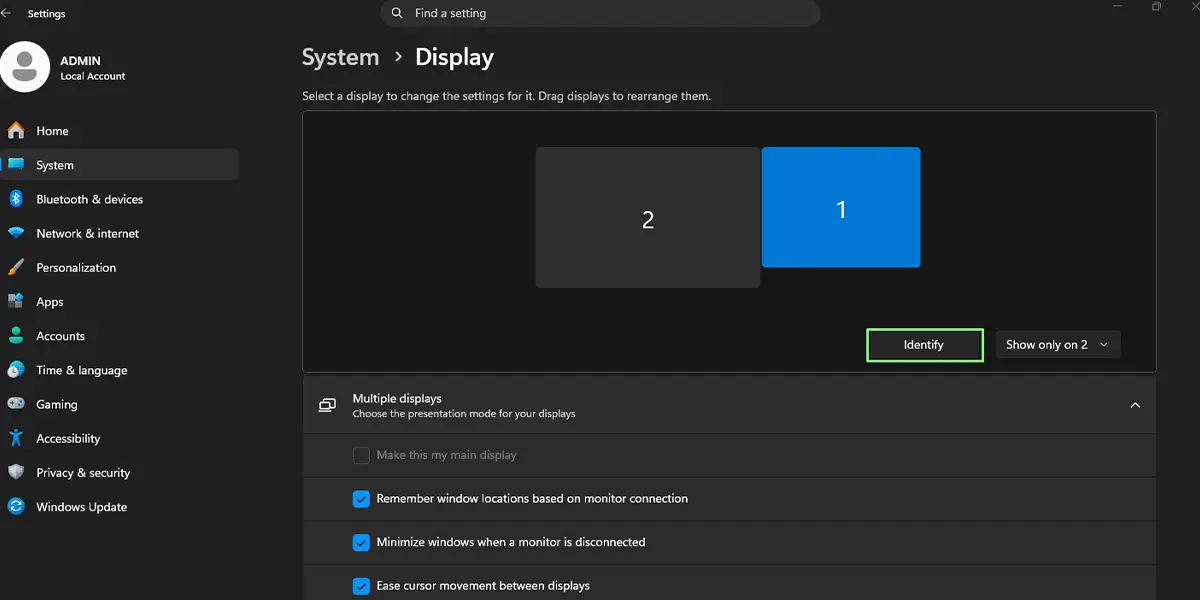
The second screen rotates almost instantly, and the desktop, windows, and icons redraw to match the new direction. The first monitor stays as it was.
Tip: Rotating the image in Windows does not turn the physical screen. For a vertical setup, rotate the monitor on its stand or mount first, then choose Portrait so the picture lines up with the new position.
Method 2: Open Display Settings from the Desktop
This shortcut skips a few clicks when the desktop is already in view.
- Right-click an empty area of the desktop.
- Click Display settings.
- Click the second monitor in the preview at the top of the page.
- Under Scale & layout, open the Display orientation dropdown and choose the orientation needed.
- Click Keep changes in the confirmation box.
The result is identical to Method 1, since both routes lead to the same Display page.
Fix the Mouse Movement After Rotating the Screen
After a rotation, the mouse pointer may not cross from one screen to the other where expected. This happens because the monitor shapes in the preview no longer match the real desk layout.
- Go back to Settings > System > Display.
- Drag the monitor rectangles at the top of the page until they match how the screens physically sit side by side.
- Click Apply if the button appears.
Moving the pointer off the edge of one screen now lands on the other screen at the expected spot.
Tip: A portrait monitor is taller than it is wide, so aligning the tops of both rectangles usually feels the most natural when working across two screens.
How to Undo or Reverse This Change
To go back to the original layout, open Settings > System > Display, select the second monitor, and set Display orientation to Landscape. Click Keep changes to confirm. If the new orientation looks wrong and nothing is clicked, Windows restores the previous setting by itself after about 15 seconds.
Common Problems and Fixes
The Display Orientation Option Is Greyed Out or Missing
The most common cause is that the second monitor is not selected. Click it in the preview at the top of the Display page first. If the option is still unavailable, open the Multiple displays section and make sure the screens are set to Extend these displays rather than duplicated. A missing or generic graphics driver can also hide the option, so installing the latest driver from the PC or graphics card maker often brings it back.
The Second Monitor Does Not Appear on the Display Page
Check that the cable is firmly connected at both ends and that the monitor is powered on and set to the correct input. Then open Multiple displays on the Display page and click Detect. The monitor should show up as a numbered rectangle within a few seconds.
The Screen Is Rotated the Wrong Way
Portrait and Portrait (flipped) turn the image in opposite directions. If the picture is sideways in the wrong direction, switch to the flipped version of the same option and click Keep changes.
The Screen Goes Black After Changing the Orientation
Wait about 15 seconds without pressing anything. Windows reverts to the last working setting on its own, and the picture returns. After that, try the change again, and consider updating the graphics driver if the black screen repeats.
The Orientation Resets After Restarting the PC
Reapply the setting from Settings > System > Display and click Keep changes. If it keeps resetting, an outdated graphics driver is the usual cause, and updating it generally makes the rotation stick.
Frequently Asked Questions
Does changing the orientation of a second monitor work on Windows 11 Home?
Yes. The Display orientation setting is available on Windows 11 Home, Pro, and Enterprise.
Do I need administrator rights to rotate a second monitor?
No. A standard user account can change the orientation from Settings > System > Display.
Will the main monitor rotate too?
No. The setting applies only to the monitor selected in the preview at the top of the Display page, so each screen can have its own orientation.
Is there a keyboard shortcut to rotate the screen in Windows 11?
Windows itself does not include a built-in shortcut for orientation. Press Windows + I to jump straight to Settings, then go to System > Display to make the change.
Does the PC need a restart after changing the orientation?
No. The screen rotates immediately after the setting is chosen, and a restart is not required.
Does rotating the screen affect battery life or performance?
Not in any noticeable way. Rotation is a display setting and does not add meaningful load on a laptop or desktop.
Why is the Display orientation option greyed out?
The second monitor may not be selected, the displays may be set to duplicate instead of extend, or the graphics driver may be missing or outdated. Selecting the monitor, switching to Extend these displays, and updating the driver covers most cases.
Can each monitor have a different orientation?
Yes. Select each monitor in turn on the Display page and set its own Display orientation, for example Landscape for the main screen and Portrait for the second one.
What does Landscape (flipped) do?
It turns the image upside down on the selected monitor. It is mainly useful when a screen is mounted upside down or in an unusual position.
