
If the cursor jumps on its own or taps barely register, it is time to adjust touchpad sensitivity in Windows 11. The setting takes under a minute to change and works on laptops with a precision touchpad, which covers most modern models. No administrator rights are needed.
Key Takeaways
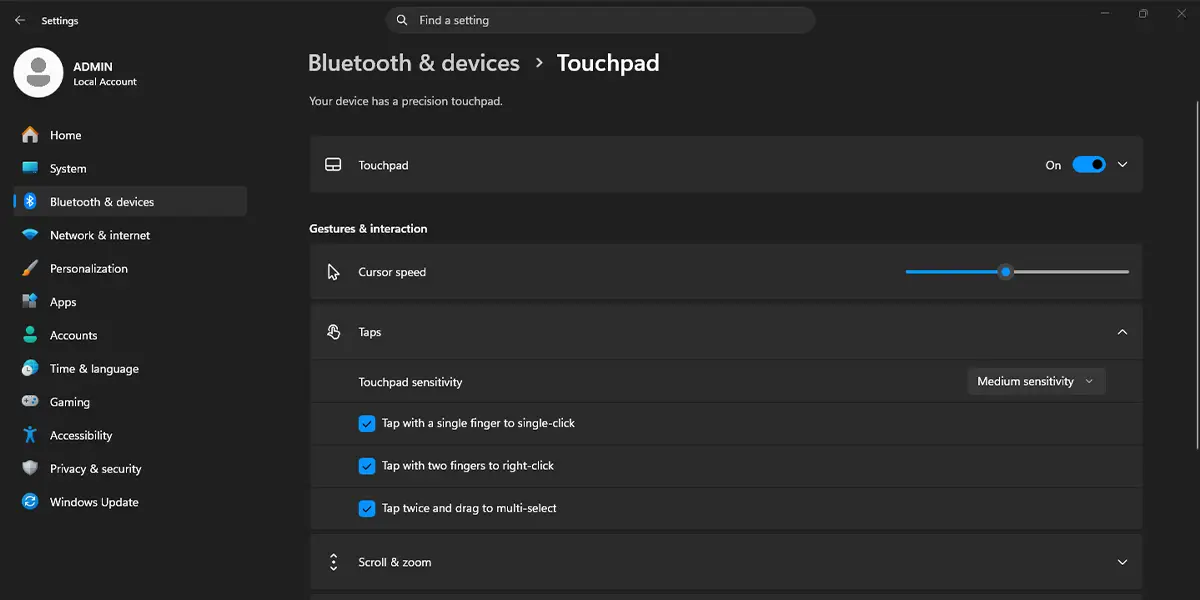
- The main control lives at Settings > Bluetooth & devices > Touchpad > Taps > Touchpad sensitivity.
- Four levels are available: Most sensitive, High sensitivity, Medium sensitivity, and Low sensitivity.
- The Cursor speed slider on the same page controls how fast the pointer travels, which is separate from tap sensitivity.
- Changes apply instantly, so there is no need to restart the PC.
Step-by-Step Guide to Adjust Touchpad Sensitivity in Windows 11
Method 1: Use the Settings App
This is the easiest route and the only one that offers the full set of tap sensitivity levels. It works best on a laptop with a precision touchpad.
- Press Windows + I to open Settings.
- Select Bluetooth & devices from the left sidebar.
- Click Touchpad.
- Make sure the Touchpad toggle at the top is switched On.
- Drag the Cursor speed slider to the right for a faster pointer or to the left for a slower one. The pointer reacts right away, so a quick swipe across the pad shows whether the speed feels right.
- Click Taps to expand the section.
- Open the Touchpad sensitivity drop-down menu.
- Choose Most sensitive, High sensitivity, Medium sensitivity, or Low sensitivity.
- Close Settings and test the touchpad with a few taps and swipes.
Tip: Typing often triggers accidental clicks when a palm brushes the pad. Switching to Low sensitivity usually cures that, while High sensitivity suits anyone who prefers a feather-light touch.
Method 2: Use the Mouse Properties Window in Control Panel
This method changes the pointer speed only, not the tap sensitivity level. It is handy when the pointer feels sluggish or too quick and the Settings page is not available.
- Press Windows + R to open the Run box.
- Type main.cpl and press Enter. The Mouse Properties window opens.
- Click the Pointer Options tab.
- Under Motion, drag the Select a pointer speed slider to the preferred position.
- Click Apply, then click OK.
The pointer speeds up or slows down immediately after clicking Apply, which makes fine-tuning quick.
Finding the Right Sensitivity Level
Most people find that Medium sensitivity is the sweet spot, and it is the default on a fresh Windows 11 install. Someone using a laptop on a couch with the pad resting at an angle might prefer a lower level to avoid ghost taps. A student who mostly browses and scrolls may want High sensitivity so light taps register without effort. The key is to change one level at a time and test for a minute or two before moving again.
Tip: Cursor speed and touchpad sensitivity solve different problems. A pointer that crosses the screen too fast needs the Cursor speed slider, while taps that register too easily or not at all need Touchpad sensitivity.
How to Undo or Reverse This Change
To go back to the original behavior, return to Settings > Bluetooth & devices > Touchpad, expand Taps, and set Touchpad sensitivity to Medium sensitivity. If the pointer speed was changed as well, move the Cursor speed slider back to its earlier position. The same applies to the Select a pointer speed slider in Mouse Properties.
Common Problems and Fixes
The Touchpad Sensitivity Option Is Missing
The Touchpad sensitivity drop-down only appears on devices with a precision touchpad driver. If the Touchpad page shows very few options, or does not appear at all, the device may be using a basic or outdated driver. Right-click the Start button, select Device Manager, expand Mice and other pointing devices, right-click the touchpad entry, and choose Update driver. Then select Search automatically for drivers. Restart the PC afterward and check the Touchpad page again.
The Touchpad Toggle or Settings Are Greyed Out
A work or school PC may lock these settings through a policy set by the organization. In that case, the administrator controls the options, and only they can unlock them. A missing driver can cause the same symptom on a personal laptop, so the driver update above is worth trying.
The Setting Does Not Stick After a Restart
Occasionally an older touchpad driver resets the sensitivity at startup. Updating the driver through Device Manager, as described above, normally fixes this. After the update, set Touchpad sensitivity again and restart once to confirm the choice was saved.
The Touchpad Stops Responding After Changing Settings
First, check that the Touchpad toggle is still switched On at Settings > Bluetooth & devices > Touchpad. If the box under it says Leave touchpad on when a mouse is connected is unchecked, the pad switches off whenever a USB or wireless mouse is plugged in. Tick that box to keep both devices active.
Frequently Asked Questions
Does adjusting touchpad sensitivity work on Windows 11 Home?
Yes. The Touchpad page in Settings is available on every Windows 11 edition, including Home and Pro. The only requirement is a laptop with a precision touchpad driver.
Do I need to restart the PC after changing touchpad sensitivity?
No. The new level applies the moment it is selected in the drop-down menu. A restart is only useful if the setting keeps reverting.
What is the difference between touchpad sensitivity and cursor speed?
Touchpad sensitivity controls how easily the pad registers taps and touches, which helps with accidental clicks. Cursor speed controls how far the pointer moves for each swipe of a finger.
Which sensitivity level is the default in Windows 11?
The default is Medium sensitivity. It balances comfortable tap detection with protection against stray touches.
How can accidental taps while typing be reduced?
Set Touchpad sensitivity to Low sensitivity at Settings > Bluetooth & devices > Touchpad > Taps. This asks for a firmer touch before a tap counts, so a resting palm is less likely to trigger a click.
Why is the touchpad sensitivity option missing on my laptop?
The option depends on a precision touchpad driver. Updating the touchpad driver in Device Manager under Mice and other pointing devices usually brings the option back.
Is there a keyboard shortcut to change touchpad sensitivity?
Windows 11 does not include a built-in keyboard shortcut for sensitivity. Press Windows + I to open Settings quickly, then go to Bluetooth & devices and select Touchpad.
Does touchpad sensitivity affect battery life?
No noticeable effect. The sensitivity setting changes how touches are interpreted, not how much power the touchpad draws.
