
Need to change the audio sample rate and bit depth in Windows 11 for a speaker, headset, or microphone? The setting takes about a minute and works on both Home and Pro editions without administrator rights. The formats listed depend on the audio driver and the device, so some PCs show a short list and others show several high-quality options.
Key Takeaways
- The quickest route is Settings > System > Sound, then the device, then the Format dropdown.
- Output devices and input devices (microphones) each have their own format setting.
- The classic Sound window (Windows + R, then mmsys.cpl) offers a Test button to hear the new format straight away.
- Only the formats the driver reports are listed, so a missing option usually points to the device or its driver.
Step-by-Step Guide to Change Audio Sample Rate and Bit Depth
Method 1: Use the Settings App
This is the easiest route for most people, and it works for both speakers and microphones.
- Press Windows + I to open Settings.
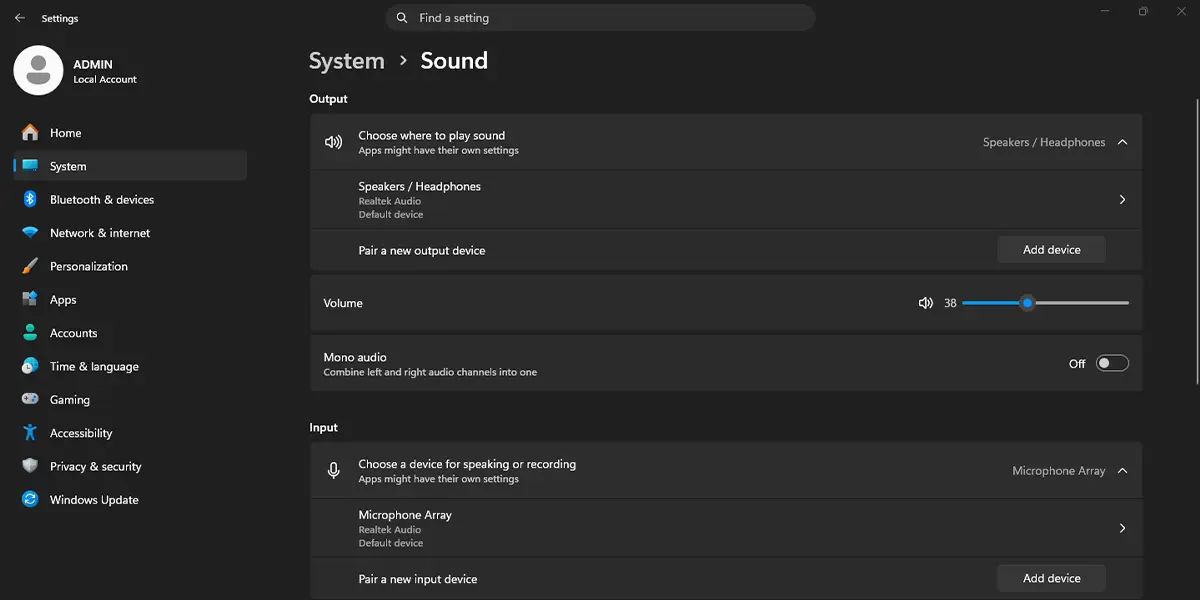
- Click System in the left pane, then click Sound.
- Under Output, click the speaker, headphones, or other playback device that needs the new format. For a microphone, click the device under Input instead.
- On the device page, find Output settings (or Input settings for a microphone).
- Open the Format dropdown. Each entry shows the channel count, bit depth, and sample rate, for example a 24 bit, 48000 Hz entry.
- Choose the format that suits the job. The list closes and the new format is applied immediately.
Tip: A rate of 48000 Hz matches most video and streaming content, while 44100 Hz matches standard music files. Picking the rate that matches what is played most often keeps things simple.
Method 2: Use the Classic Sound Control Panel
This older window has a Test button, which is handy when a change needs to be confirmed by ear. It also covers playback and recording devices in one place.
- Press Windows + R, type mmsys.cpl, and press Enter. The Sound window opens.
- Stay on the Playback tab for speakers and headphones, or click the Recording tab for a microphone.
- Right-click the device and click Properties.
- Click the Advanced tab.
- Under Default Format, open the dropdown and pick the sample rate and bit depth wanted.
- Click Test. A short sound plays through the device if the format works.
- Click Apply, then click OK.
Tip: The same window can be reached from Settings > System > Sound by scrolling down and clicking More sound settings.
How to Undo or Reverse This Change
Open the same device page in Settings > System > Sound, or the Advanced tab in the Sound window, and pick the previous entry in the Format or Default Format dropdown. Many PCs ship with a 24 bit, 48000 Hz format, so that entry is a safe one to return to if the original was not noted.
Common Problems and Fixes
The Format Dropdown Is Missing or Greyed Out
This usually means the device is disabled, the driver does not expose format choices, or the PC is managed by a work or school account. Check the device is enabled first: in the Sound window, right-click an empty area of the Playback tab and click Show Disabled Devices. If the option is still missing, installing the latest audio driver from the PC or sound card maker often brings it back.
Only a Few Formats Are Listed
Windows lists only the formats the driver reports as supported. A basic laptop speaker may offer a couple of choices, while a USB audio interface or DAC may list many more. Higher rates cannot be added from Windows if the hardware does not support them.
Sound Crackles or Disappears After the Change
The device or driver may not handle the chosen format well. Return to the Format dropdown and select a lower rate, such as 24 bit, 48000 Hz or 16 bit, 44100 Hz, then play audio again.
The Format Changes Back After a Restart
Some audio drivers include their own control app that can override the Windows setting. Check that app for a sample rate option, and set the same format there. Updating the audio driver can also stop the setting from reverting.
Frequently Asked Questions
Does changing the sample rate and bit depth need a restart?
No. The new format takes effect as soon as it is selected in Settings or applied in the Sound window. Audio that is already playing may need to be paused and resumed in some apps.
Does this work on Windows 11 Home?
Yes. Both the Settings method and the classic Sound window are available on Home, Pro, and other editions.
Is administrator access required?
No. A standard user account can change the format for an audio device in most cases. A PC managed by work or school may lock the setting.
Which format should be chosen for everyday use?
A 24 bit, 48000 Hz format suits most video, calls, and streaming, while 16 bit, 44100 Hz is a common match for standard music files. The best choice is the one that matches the content played most often and that the device handles without glitches.
Can the sample rate be changed for a microphone too?
Yes. Under Settings > System > Sound, click the microphone under Input and use the Format dropdown, or use the Recording tab in the classic Sound window.
Why is the Format option missing for a Bluetooth headset?
Some wireless devices and their drivers do not expose a selectable format, so the dropdown may be limited or absent. Wired headphones, speakers, and USB audio devices more often list several choices.
Will a higher sample rate or bit depth affect battery life or performance?
A higher format asks the audio hardware to process more data, which can slightly increase resource use. On a laptop running on battery, a standard format such as 48000 Hz is a sensible balance.
How can the new format be tested?
Open the Sound window with Windows + R and mmsys.cpl, right-click the device, click Properties, open the Advanced tab, and click Test after choosing a format.
