
Need to follow a video, a call, or a podcast without turning the volume up? Here is how to turn on live captions in Windows 11 so spoken audio appears as text on the screen in real time. The feature is built into Windows 11 version 22H2 and later, works on every edition including Home and Pro, and needs no administrator rights.
Key Takeaways
- The main route is Settings > Accessibility > Captions, then switch on the Live captions toggle.
- The fastest route is the keyboard shortcut Windows + Ctrl + L.
- The first time live captions starts, Windows asks to download speech files, so an internet connection is needed once.
- After setup, the caption bar can be moved, styled, and set to include microphone audio.
Step-by-Step Guide to Turn On Live Captions in Windows 11
Method 1: Use the Settings App
- Press Windows + I to open Settings.
- Select Accessibility from the left sidebar.
- Scroll down to the Hearing section and click Captions.
- Switch the Live captions toggle to On.
- If a prompt asks to download speech files, allow the download and wait for it to finish.
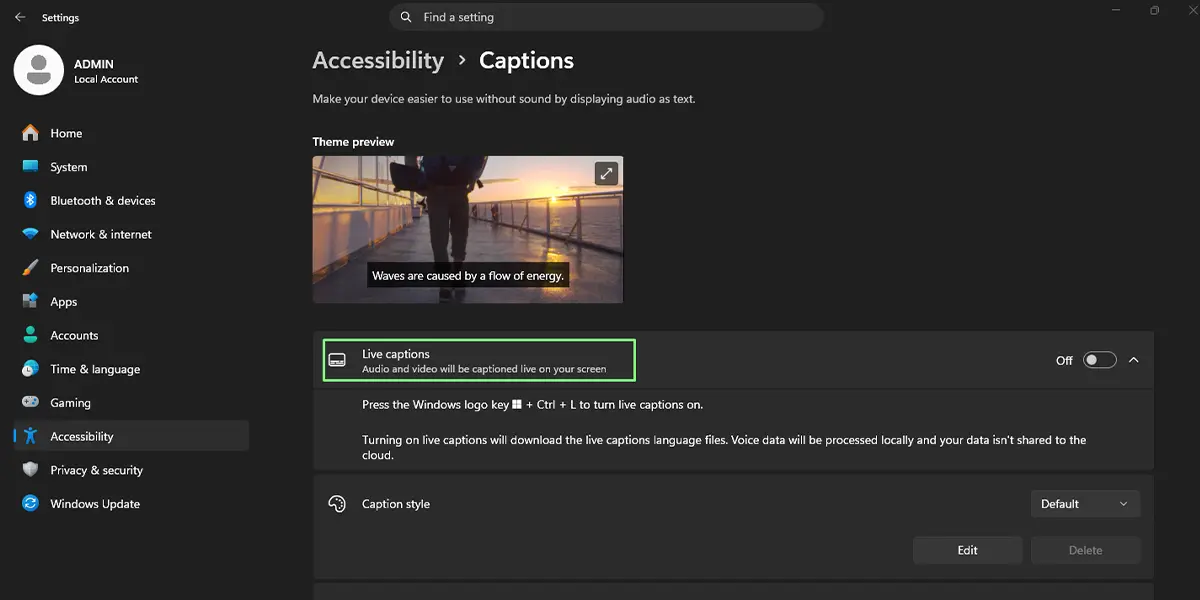
A caption bar appears at the top of the screen. Play any video or audio, and the spoken words show up as text within a second or two.
Tip: The same page lets caption text be restyled through the caption style options, which helps when white text is hard to read against a bright wallpaper.
Method 2: Use Quick Settings
- Click the network, speaker, and battery icons at the right end of the taskbar to open Quick Settings.
- Click the Accessibility tile.
- Switch on Live captions.
If the Accessibility tile is not visible, click the pencil icon at the bottom of Quick Settings, choose Add, and pick Accessibility from the list. This method suits a laptop on the couch, where opening the full Settings app feels like too much effort.
Method 3: Use the Keyboard Shortcut
- Press Windows + Ctrl + L.
- Allow the speech file download if Windows asks for it.
The caption bar opens straight away. Pressing the same shortcut again turns live captions off, which makes it handy during a meeting when audio quality suddenly drops.
Customize the Live Captions Bar
Once captions are running, a few quick changes make them far more comfortable to read. These options sit behind the gear icon on the caption bar.
Change the Caption Position
- Click the Settings gear icon on the caption bar.
- Choose Position.
- Pick the placement that suits the screen, such as the top, the bottom, or a floating window.
Moving the bar to the bottom is useful when a video player or a work app has controls along the top edge.
Include Microphone Audio
- Click the Settings gear icon on the caption bar.
- Choose Preferences.
- Turn on Include microphone audio.
With this on, the PC captions the reader’s own voice as well as the audio playing from apps. It works well for practicing a presentation or checking how clearly a voice comes through.
How to Undo or Reverse This Change
To switch live captions off, go back to Settings > Accessibility > Captions and set the Live captions toggle to Off. Pressing Windows + Ctrl + L again or closing the caption bar also stops them.
Common Problems and Fixes
The Captions Page or Live Captions Option Is Missing
Live captions requires Windows 11 version 22H2 or later. Open Settings > Windows Update, install any pending updates, restart the PC, and check Settings > Accessibility > Captions again.
The Caption Bar Appears but Stays Empty
This usually means the speech files have not finished downloading or no sound is playing. Confirm the internet connection is active, make sure the volume is not muted, and play audio from an app to test. If the language of the audio does not match the caption language, open the gear icon on the caption bar and check the language choice.
The Caption Bar Covers Part of an App
Click the Settings gear icon on the caption bar, choose Position, and switch to a different placement so the bar no longer sits over the content.
Captions Do Not Include the Reader’s Own Voice
Microphone captions are off by default. Open the gear icon on the caption bar, choose Preferences, and turn on Include microphone audio.
Frequently Asked Questions
Does live captions work on Windows 11 Home?
Yes. Live captions is available on Home, Pro, and the other editions, as long as the PC runs Windows 11 version 22H2 or later.
Does turning on live captions need a restart?
No. The caption bar starts immediately after the toggle is switched on or the shortcut is pressed.
What is the keyboard shortcut for live captions in Windows 11?
Press Windows + Ctrl + L to turn live captions on, and press it again to turn them off.
Does live captions need an internet connection?
An internet connection is needed only the first time, to download the speech files. After that, captions are generated on the device itself.
Can live captions caption the microphone as well?
Yes. Open the gear icon on the caption bar, choose Preferences, and turn on Include microphone audio.
Will live captions slow down the PC or drain the battery faster?
Live captions runs on the device, so it uses some processing power. On a laptop running on battery, a slightly faster drain is possible, so switching captions off when they are not needed is a sensible habit.
Why is the live captions option missing on my PC?
The most common reason is an older Windows 11 version. Installing the latest updates from Settings > Windows Update normally brings the option to Settings > Accessibility > Captions.
Does live captions work with any audio on the PC?
It captions audio played through the PC, including videos, music, and online calls, which makes it useful in quiet places or when sound is hard to hear.
