
Crackling or popping sound in Windows 11 is usually caused by a mismatched audio format, a sound effect that misbehaves, or an outdated audio driver. The fixes below work on every Windows 11 edition, and only the driver method needs administrator rights. Most people hear the difference right after the first or second change.
Key Takeaways
- Change the audio format under Settings > System > Sound, then select your speakers or headphones.
- Turn off audio enhancements on the same device page, since effects are a common cause of crackling.
- Turn off exclusive mode in the Control Panel sound settings if an app is fighting for the audio device.
- Update or roll back the audio driver in Device Manager if the problem remains.
How to Fix Crackling or Popping Sound in Windows 11 Step by Step
Method 1: Use the Settings App
This is the quickest route, and it fixes the problem for most laptops and desktops. Play some music or a video in the background so the result is audible after each change.
- Press Windows + I to open Settings.
- Click System in the left sidebar, then click Sound.
- Under Output, click the speakers or headphones that are crackling.
- Find the Format drop-down and pick 16 bit, 44100 Hz (CD Quality). Many sound chips handle this setting more smoothly than higher ones.
- Click Test. A short test tone plays, and it should sound clean if the format was the cause.
- Switch the audio enhancements option to Off. Depending on the build, it is labeled Enhance audio or Audio enhancements.
- Go back to the Sound page and click Troubleshoot common sound problems under the Output section if the crackling continues. Pick the affected device and follow the prompts.
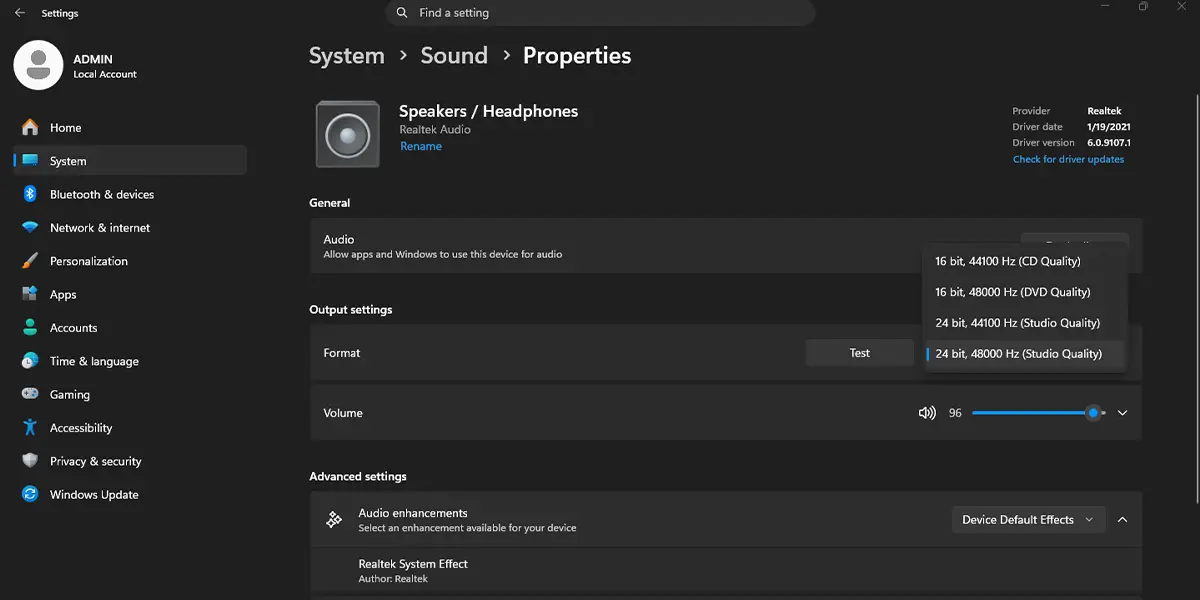
Tip: If 16 bit, 44100 Hz does not help, try 24 bit, 48000 Hz (Studio Quality) instead. Some devices crackle on one rate and play perfectly on the other.
Method 2: Use the Classic Sound Control Panel
This method adds one extra fix that the Settings app does not offer: turning off exclusive mode. It helps when a music player, a game, or a video call app grabs the speakers and causes popping when another app plays a sound.
- Press Windows + R, type mmsys.cpl, and press Enter.
- On the Playback tab, click the device that is crackling, then click Properties.
- Open the Advanced tab.
- Choose a different value in the Default Format drop-down, then click Test.
- Untick Allow applications to take exclusive control of this device.
- Click Apply, then OK.
The sound may cut out for a second when the setting applies. After that, playback should be steady, even with several apps making noise at once.
Method 3: Update or Roll Back the Audio Driver in Device Manager
Administrator rights are needed for this method. A faulty or outdated driver is a very common reason for crackling that returns after every restart, especially after a Windows update.
- Press Windows + X and click Device Manager.
- Expand Sound, video and game controllers.
- Right-click your audio device, such as the Realtek audio entry, and click Update driver.
- Click Search automatically for drivers and let Windows finish.
- Restart the computer and play some audio to check the result.
If the crackling began right after a driver update, roll it back instead. Right-click the device, click Properties, open the Driver tab, and click Roll Back Driver. This button is greyed out when no earlier driver is stored.
Tip: On a laptop running on battery, also check Settings > System > Power & battery > Power mode. Setting Power mode to Best performance can reduce popping that appears only when the laptop is unplugged.
How to Undo or Reverse This Change
To go back, open Settings > System > Sound, select the device, set Format to its original value, and turn the audio enhancements option back on. In the Control Panel, tick Allow applications to take exclusive control of this device again on the Advanced tab. A driver can be restored with Roll Back Driver in Device Manager.
Common Problems and Fixes
The Audio Enhancements Option Is Missing
Not every sound device shows this option. Some drivers hide it, and a missing audio driver can also be the reason. Update the driver with Method 3, then check the device page again.
The Format Setting Is Greyed Out or Will Not Change
A work or school PC may be managed by an organization that locks audio settings. A generic driver can also limit the choices. Install the latest audio driver and try again.
The Crackling Returns After a Restart
This usually points to the driver rather than the settings. Update it, or roll back to the previous version if the problem started after an update.
The Crackling Only Happens in One App
Turn off exclusive mode using Method 2. Then check the app’s own audio output setting, since it may be using a different device or format than the rest of the system.
Frequently Asked Questions
Why does my Windows 11 PC make crackling or popping sounds?
The most common causes are a mismatched audio format, audio enhancements, exclusive mode conflicts, and an outdated or faulty audio driver.
Does this fix work on Windows 11 Home?
Yes. The Settings app, Control Panel, and Device Manager methods are all available on Windows 11 Home and Pro.
Do I need to restart the computer after changing the audio format?
No. The format change applies right away. A restart is only needed after a driver update or rollback.
Which audio format is best for stopping crackling?
Start with 16 bit, 44100 Hz (CD Quality). If that does not help, try 24 bit, 48000 Hz (Studio Quality), because different sound chips prefer different rates.
Is there a shortcut to open the sound settings quickly?
Press Windows + R, type mmsys.cpl, and press Enter to open the classic Sound window. Press Windows + I and go to System > Sound for the modern Settings page.
Can turning off audio enhancements hurt sound quality?
It removes effects such as loudness or bass boost added by the driver, so the sound may seem slightly flatter. For most people, clean playback matters more.
Can crackling happen only on battery power?
Yes. A laptop may reduce performance on battery, and that can cause popping. Setting Power mode to Best performance under Settings > System > Power & battery can help.
What if none of the methods stop the crackling?
Try a different output device, such as another pair of headphones or a different USB or audio port. If the problem stays with only one device, the cable or the hardware itself may be faulty.
