
Want music in the living room speakers while a video call plays through a headset? Here is how to send different apps to different speakers in Windows 11, so each app plays through the output device it should. The feature works on every edition of Windows 11 and needs no administrator rights, but at least two audio output devices must be connected or available, such as speakers, headphones, a monitor with built-in speakers, or a Bluetooth device.
Key Takeaways
- Open Settings > System > Sound > Volume mixer to choose an output device for each app.
- Expand an app in the Volume mixer and pick a device from its Output device list.
- The app must be open and playing audio at least once to appear in the list.
- Windows remembers the choice for that app, so the setup only needs to be done once.
- Right-clicking the speaker icon on the taskbar is a faster way to reach the same page.
Step-by-Step Guide to Send Different Apps to Different Speakers
Before starting, connect every speaker or headset that will be used and open the apps involved. Start playing a song, video, or call in each one for a moment so Windows lists them.
Method 1: Use the Settings App
- Press Windows + I to open Settings.
- Click System in the left sidebar.
- Click Sound.
- Scroll down to the Advanced section and click Volume mixer.
- Find the app in the list. Apps that are open and have played sound appear here with their own volume slider.
- Click the arrow next to the app name to expand its options.
- Open the Output device drop-down list and select the speakers or headphones that app should use.
- Repeat steps 6 and 7 for the next app, choosing a different device.
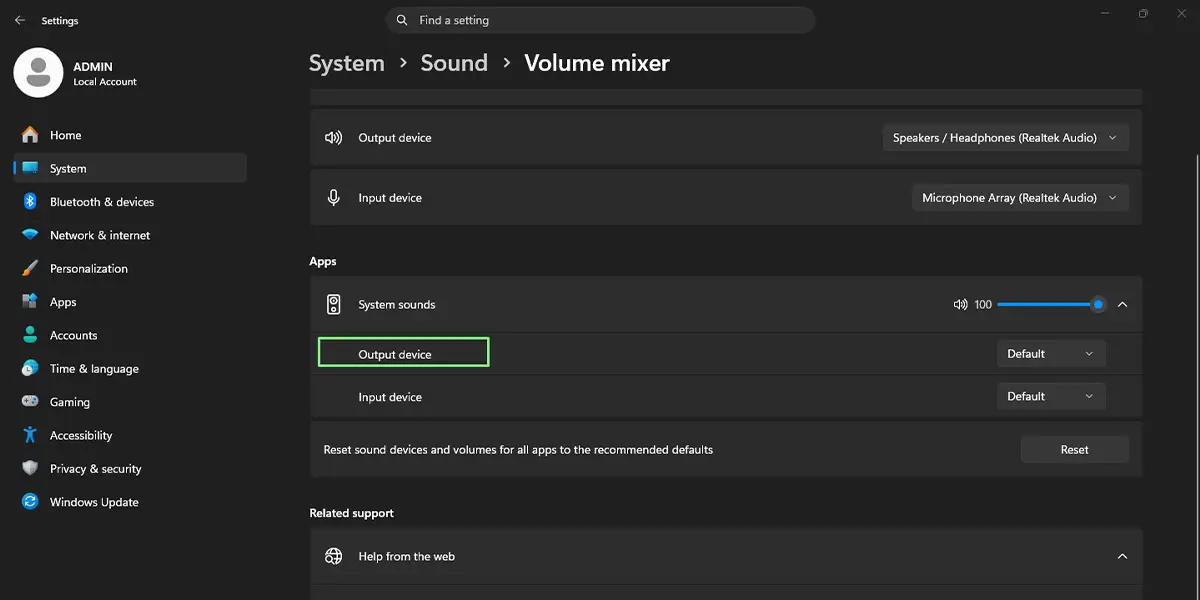
The sound from the app moves to the chosen device right away, usually without any pause in playback. If a song is playing, it should switch to the new speakers within a second or two.
Tip: A common setup is a browser playing music on the desktop speakers while a meeting app uses a headset. Set each app once and Windows keeps the pairing for later sessions.
Method 2: Use the Taskbar Speaker Icon
- Right-click the speaker icon in the system tray at the right end of the taskbar.
- Click Open Volume mixer.
- Click the arrow next to the app that needs a different output.
- Choose the device from the Output device drop-down list.
This opens the same Volume mixer page found in Settings, so the result is identical. It saves several clicks when the setup needs a quick adjustment in the middle of a session.
How to Check That Each App Uses the Right Speakers
Play something in each app one at a time. The sound should come from the device chosen for that app and stay silent on the others. A simple test is to start a video in one app and a music track in another, then confirm the two sounds come out of separate devices.
Tip: Each app has its own volume slider in the Volume mixer, so the loudness of the headset and the speakers can be set independently without touching the main system volume.
How to Undo or Reverse This Change
To send an app back to the default device, open Settings > System > Sound > Volume mixer, expand the app, and choose the default option from its Output device list. To clear the choices for every app at once, use the Reset button at the bottom of the Volume mixer page.
Common Problems and Fixes
The App Is Missing From the Volume Mixer
Windows only lists apps that are currently open. Open the app, play a sound in it, and then check the Volume mixer again. If the app was already open, pause and restart playback so it registers as an audio source.
The Second Speaker or Headset Is Not in the Output Device List
Confirm the device is switched on and connected. For a Bluetooth device, check that it shows as connected in Settings > Bluetooth & devices. If it is connected but still missing, open Settings > System > Sound > All sound devices and make sure the device is not disabled. A missing or outdated audio driver can also hide a device, so restarting the PC or reconnecting the device is a good first move.
The App Ignores the Chosen Output Device
Some apps have their own audio output setting inside their preferences, and that setting can override what Windows picks. Check the sound or audio options inside the app and set the output device there to match the choice made in the Volume mixer, or set it to the system default.
The Choice Resets After Unplugging a Device
When a USB or Bluetooth device is disconnected, apps assigned to it fall back to another output. After reconnecting the device, open the Volume mixer again and reselect it for the apps that need it.
Frequently Asked Questions
Does sending apps to different speakers work on Windows 11 Home?
Yes. The Volume mixer and its per-app output options are available on Windows 11 Home, Pro, and Enterprise.
Do administrator rights apply to this setting?
No. A standard user account can change the output device for each app without administrator permission.
Does the PC need to restart after changing the output device?
No. The change takes effect immediately, and a restart is not needed.
Can two apps play on two different Bluetooth devices at once?
Yes, as long as both devices are paired and connected. Each app can then be assigned to its own device in the Volume mixer.
Will Windows remember the choice the next time the app opens?
Yes. Windows stores the output device for each app, so the setting normally stays in place after the app or the PC is restarted, provided the device is still connected.
Is there a keyboard shortcut to open the Volume mixer?
There is no dedicated shortcut for the Volume mixer. Press Windows + I to open Settings, then go to System > Sound > Volume mixer, or right-click the taskbar speaker icon and choose Open Volume mixer.
Why does an app not appear in the Volume mixer list?
The app is probably closed or has not played any sound yet. Open it and start playback, and it should show up in the list.
Does using two output devices affect battery life or performance?
The effect is small. Playing audio through two devices uses slightly more resources than one, but a normal laptop on battery should not notice a meaningful difference.
