
Knowing how to use the Volume Mixer in Quick Settings on Windows 11 means a loud video call never has to drown out the music, and a noisy browser tab never has to ruin a game. The mixer sits right next to the main volume slider, so each app gets its own level in a couple of clicks. It works on every Windows 11 edition and needs version 22H2 (build 22621.2361) or later, which includes 24H2 and 25H2. No administrator rights are required.
Key Takeaways
- Open Quick Settings with Windows + A, then click the arrow next to the volume slider to reach the mixer.
- Press Windows + Ctrl + V to jump straight to the Volume Mixer panel.
- Each app that is playing sound gets its own slider and mute button.
- The fuller version of the same tool lives at Settings > System > Sound > Volume mixer.
Steps to Use the Volume Mixer in Quick Settings on Windows 11
Method 1: Use the Settings App
This is the easiest route for most people, and it shows the same per-app sliders on a full page.
- Press Windows + I to open Settings.
- Click System in the left sidebar.
- Click Sound.
- Scroll to the Advanced section and click Volume mixer.
- Find the app in the list and drag its slider to the level you want.
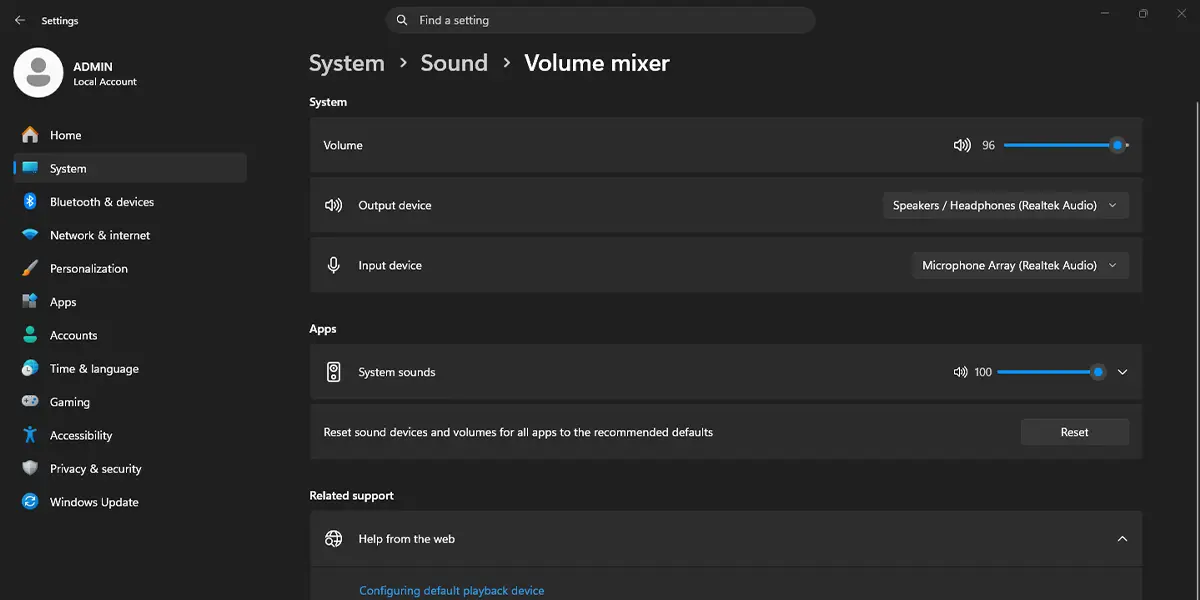
The sound from that app changes right away while everything else stays put. Apps appear in this list only while they are open and producing audio, so start the video or song first.
Tip: Use the speaker icon next to an app to mute just that app, which is handy when a game keeps playing menu music during a meeting.
Method 2: Use Quick Settings from the Taskbar
This is the fastest option once the mixer is part of the daily routine, because it never leaves the desktop.
- Click the group of network, speaker, and battery icons at the right end of the taskbar, or press Windows + A, to open Quick Settings.
- Click the arrow next to the volume slider, which is the Select a sound output button.
- Look under Volume Mixer for the list of System sounds and the apps currently playing audio.
- Drag the slider for any app up or down to set its volume.
- Click the speaker icon beside an app to mute or unmute it.
The sound changes instantly, so it is easy to judge the right level by ear. On a laptop running on battery, this is a quick way to quiet a noisy app without lowering the volume of everything else.
Tip: The same panel lists the available speakers and headphones, so a different output device can be picked here without opening Settings.
Method 3: Use the Keyboard Shortcut
For anyone who prefers to keep both hands on the keyboard, one shortcut skips the clicking.
- Press Windows + Ctrl + V.
- Wait for the Volume Mixer panel to appear above the taskbar.
- Click or tap the slider for the app that needs adjusting.
The panel opens directly on the mixer, so there is no need to open Quick Settings first. Changes are made with the mouse or by touch once the panel is open.
How to Undo or Reverse This Change
To go back to the earlier sound level, open the Volume Mixer using any method above and drag the app slider back to its old position. If an app was muted, click its speaker icon once to bring the sound back. Nothing else on the PC is affected.
Common Problems and Fixes
An App Is Missing From the Volume Mixer
The mixer lists only apps that are open and currently making sound. Start playing a video, song, or call in that app, then open the mixer again. The app should show up with its own slider.
The Volume Mixer Option Does Not Appear in Quick Settings
The Quick Settings mixer arrived with Windows 11 version 22H2 build 22621.2361. On an older build, the arrow next to the volume slider will not show the mixer. Go to Settings > Windows Update, click Check for updates, install everything offered, and restart the computer.
Windows + Ctrl + V Does Nothing
The shortcut depends on the same updated build, so the first fix is installing pending Windows updates. After that, click the Quick Settings icons once to wake the panel, then try the shortcut again.
The App Volume Keeps Changing on Its Own
Some apps, such as video call tools and streaming players, manage their own volume level inside the app. If the mixer slider keeps moving, check the volume control inside that app and set both to the level you want.
No Sound Comes From Any App
The sound may be going to the wrong device. Open Quick Settings, click the arrow next to the volume slider, and choose the correct speakers or headphones from the output list. Then confirm that no app slider is dragged down to zero or muted.
Frequently Asked Questions
Does the Volume Mixer in Quick Settings work on Windows 11 Home?
Yes. The mixer is part of Windows 11 itself, so it works on Home, Pro, and the other editions without any extra setup.
Which Windows 11 version is needed for the Quick Settings Volume Mixer?
Version 22H2 build 22621.2361 or later. Both 24H2 and 25H2 include it, so a fully updated PC has it.
What is the keyboard shortcut for the Volume Mixer?
Press Windows + Ctrl + V. The Volume Mixer panel opens directly above the taskbar.
Does changing app volume need a restart?
No. The sound changes the moment the slider moves, and no restart or sign-out is needed.
Why is my app not listed in the Volume Mixer?
Apps appear only while they are open and playing audio. Start playback, and the app will appear with its own slider.
Can one app be muted without muting the rest of the PC?
Yes. Click the speaker icon next to that app in the Volume Mixer. All other apps and system sounds keep playing at their current levels.
Can the sound output device be changed from the same panel?
Yes. Click the arrow next to the volume slider in Quick Settings, and the available speakers and headphones are listed so a different one can be selected.
Where is the full Volume Mixer in the Settings app?
Open Settings > System > Sound, scroll to the Advanced section, and click Volume mixer. It shows the same per-app sliders on a larger page.
Does using the Volume Mixer affect battery life or performance?
No noticeable effect. The mixer only adjusts volume levels, so it does not slow down the PC or drain a laptop battery.
