
Learning how to fix HDMI audio not working in Windows 11 is usually quicker than it seems, because the picture often shows up fine while the sound stays stuck on the laptop speakers or headphones. These steps work on every edition of Windows 11, and only the driver method in Method 3 needs administrator rights.
Key Takeaways
- The most common cause is that Windows is still sending sound to another device instead of the HDMI display.
- Pick the HDMI device under Settings > System > Sound > Output.
- If the HDMI device is missing or silent, run the Audio troubleshooter or update the audio driver in Device Manager.
- A monitor or TV with no built-in speakers cannot play HDMI audio at all.
Step-by-Step Guide to Fix HDMI Audio Not Working in Windows 11
Method 1: Use the Settings App to Choose the HDMI Output
- Check that the HDMI cable is pushed firmly into both the computer and the TV or monitor, and that the display is set to the matching HDMI input.
- Press Windows + I to open Settings.
- Go to Settings > System > Sound.
- Under Output, look for the entry that carries the name of the TV or monitor, or a label such as a High Definition Audio device from the graphics card maker.
- Select that entry so the radio button beside it is filled.
- Drag the Volume slider for that device above zero and play a video or song.
- Sound should now come out of the TV or monitor straight away, and the speaker icon in the taskbar should no longer show a mute mark.
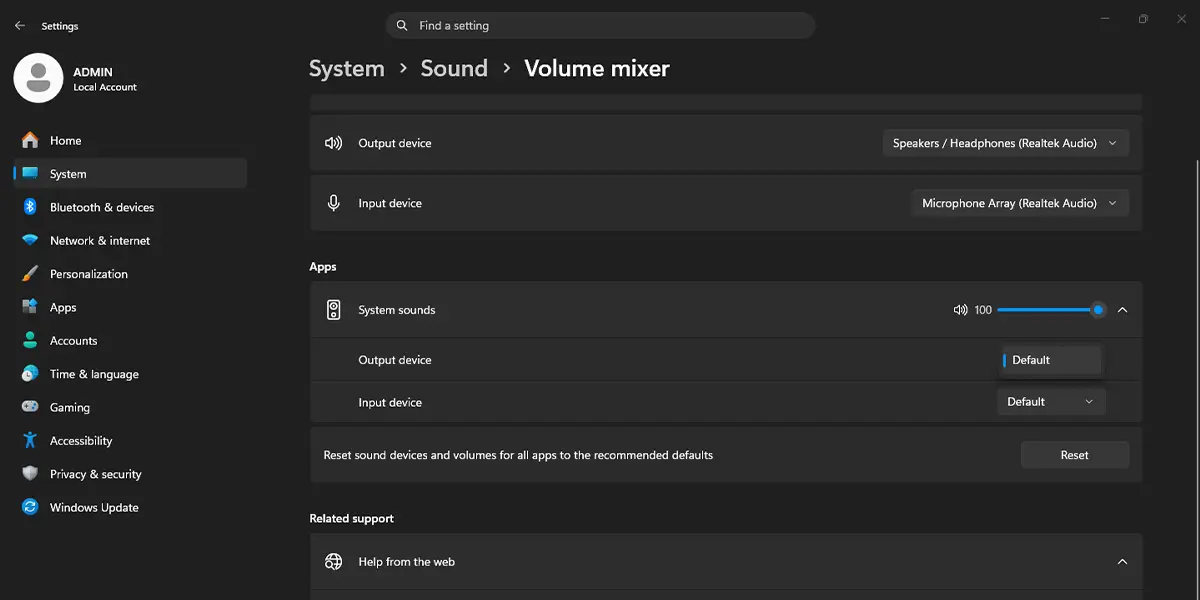
Tip: Press Windows + A to open Quick Settings, then use the sound output button beside the volume slider to switch between the HDMI display and the laptop speakers without opening Settings.
Method 2: Run the Audio Troubleshooter
- Press Windows + I to open Settings.
- Go to Settings > System > Troubleshoot > Other troubleshooters.
- Find Audio in the list and click Run.
- When asked which device to check, choose the HDMI display and click Next.
- Apply any fix the troubleshooter offers, then test the sound again.
This works best when the cause is a muted or disabled device that Windows can correct on its own.
Method 3: Update the Audio Driver in Device Manager
This method needs an administrator account. A missing or outdated driver is a common reason HDMI sound disappears after a Windows update or after connecting a new TV.
- Press Windows + X and click Device Manager.
- Expand Sound, video and game controllers.
- Right-click the HDMI audio entry, such as a High Definition Audio device or a Display Audio device tied to the graphics card, and click Update driver.
- Click Search automatically for drivers and let Windows finish.
- Restart the computer if Windows asks for it, then test the sound again.
If Windows reports that the best driver is already installed, right-click the same entry, click Uninstall device, and restart the PC. Windows reinstalls a fresh driver on startup.
Tip: If the HDMI audio device is not in the list at all, expand Display adapters and update the graphics driver the same way, since HDMI sound is delivered through the graphics hardware.
How to Undo or Reverse This Change
To go back to the laptop speakers or headphones, open Settings > System > Sound and select the original device under Output. If a new driver caused trouble, open Device Manager, right-click the audio entry, click Properties, open the Driver tab, and click Roll Back Driver when that button is available.
Common Problems and Fixes
The HDMI Device Is Missing from the Output List
Reseat the cable at both ends, try another HDMI port on the TV, and make sure the TV is switched on and set to that input. If the entry still does not appear, update the driver using Method 3.
The HDMI Device Shows but Is Turned Off
Go to Settings > System > Sound > All sound devices, select the HDMI device, and set Audio to Allow. The device then returns to the Output list.
The Monitor Has No Speakers
Many office monitors have no built-in speakers, so Windows has nothing to play through even though the connection works. Use the audio jack on the monitor with headphones or external speakers, or switch Windows back to the PC speakers.
Sound Is Very Quiet
Raise the Windows volume slider first, then raise the volume on the TV or monitor itself. Both controls work together, so a low level on either one keeps the sound faint.
Sound Disappears After Sleep or Restart
Reselect the HDMI device under Output, then update the audio and graphics drivers. Fresh drivers usually keep the setting in place after the PC wakes up.
Frequently Asked Questions
Does HDMI audio work on Windows 11 Home?
Yes. HDMI audio works the same way on Windows 11 Home, Pro, and Enterprise, and none of the methods above depend on a specific edition.
Why does the picture work but the HDMI sound does not?
Video and audio are handled as separate devices in Windows. The display can work perfectly while sound is still routed to the speakers or headphones, so the HDMI output must be selected under Settings > System > Sound.
Do I need to restart after choosing the HDMI output?
No. Selecting the device in Settings takes effect right away. A restart is only needed when a driver update asks for one.
Why is my TV or monitor not listed under Output?
The usual causes are a loose cable, a display that is switched off or set to another input, a disabled device, or a missing driver. Check the connection first, then try Method 3.
Can a monitor without speakers play HDMI audio?
No. If the monitor has no speakers and no audio jack, there is nowhere for the sound to go. Use the PC speakers, headphones, or external speakers instead.
Does it help to try a different HDMI port?
It can. Some TV ports are labeled for specific functions, so connecting to a standard HDMI input and selecting it on the TV rules out a port problem.
Could the cable or adapter be the problem?
Yes. A damaged cable, or an adapter from USB-C or DisplayPort that does not carry audio, can pass video without sound. Testing with a different cable is a quick check.
How do I switch back to the laptop speakers?
Open Settings > System > Sound and select the laptop speakers under Output. Quick Settings, opened with Windows + A, offers the same switch in one click.
