
When a printer stops responding, Wi-Fi keeps dropping or a game stutters, the quickest fix is often to manually update your device drivers in Windows 11 instead of waiting for an automatic update. Here’s the thing: Windows already has every tool needed built in, and most updates take less than five minutes. This guide is updated for the latest Windows 11 version 26H2 and works on Home, Pro and Enterprise. Installing a driver needs an administrator account, or the administrator password when Windows asks for it.
Quick Answer: To manually update your device drivers in Windows 11, open Settings > Windows Update > Advanced options > Optional updates, expand Driver updates, tick the driver and select Download & install. If nothing is listed there, press Windows + X, open Device Manager, right-click the device, select Update driver and choose Browse my computer for drivers to install a driver downloaded from the manufacturer’s website.
Key Takeaways
- The easiest way to manually update your device drivers in Windows is Settings > Windows Update > Advanced options > Optional updates.
- Device Manager can search for a driver automatically or install one you downloaded yourself.
- Always download drivers from the PC maker, the hardware maker or the Microsoft Update Catalog.
- An ‘Unknown device’ can be identified by its hardware ID, which leads straight to the right driver.
- If a new driver causes problems, Roll Back Driver brings back the previous one in seconds.
How to Manually Update Your Device Drivers in Windows 11: Step-by-Step
The methods below go from easiest to most advanced. Not sure where to start? Use this quick guide:
- Just want the safest update: Method 1.
- A device acting up and no time to search: Method 2.
- Need the newest graphics, Wi-Fi, audio or printer driver: Method 3.
- Device shows as ‘Unknown device’ or the maker no longer offers a driver: Method 4.
- Installing many drivers at once, or comfortable with commands: Method 5.
Method 1: Use Optional Updates in Windows Update
Microsoft keeps tested driver updates here, so it is the safest place to look first.
- Press Windows + I to open Settings.
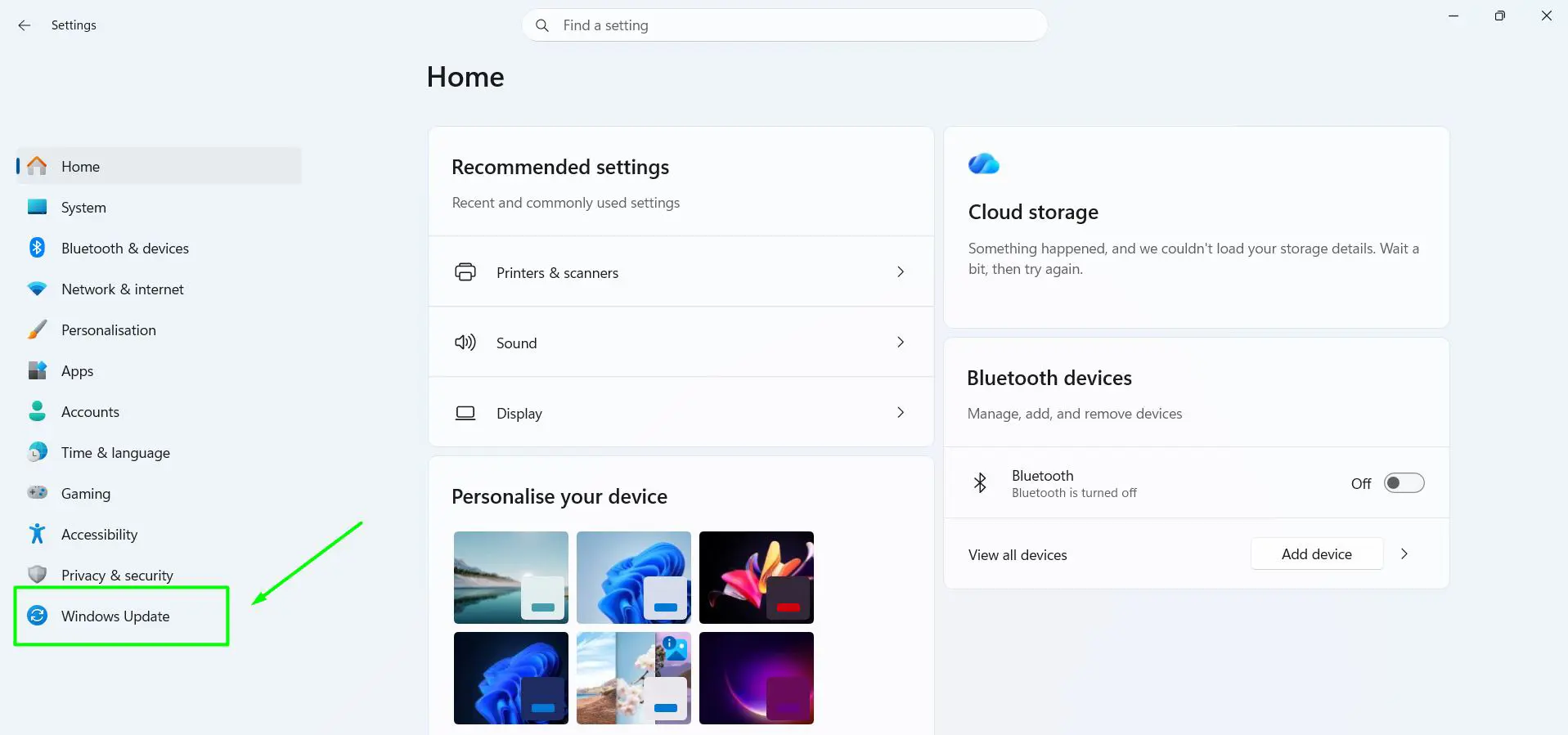
- Select Windows Update in the left pane.
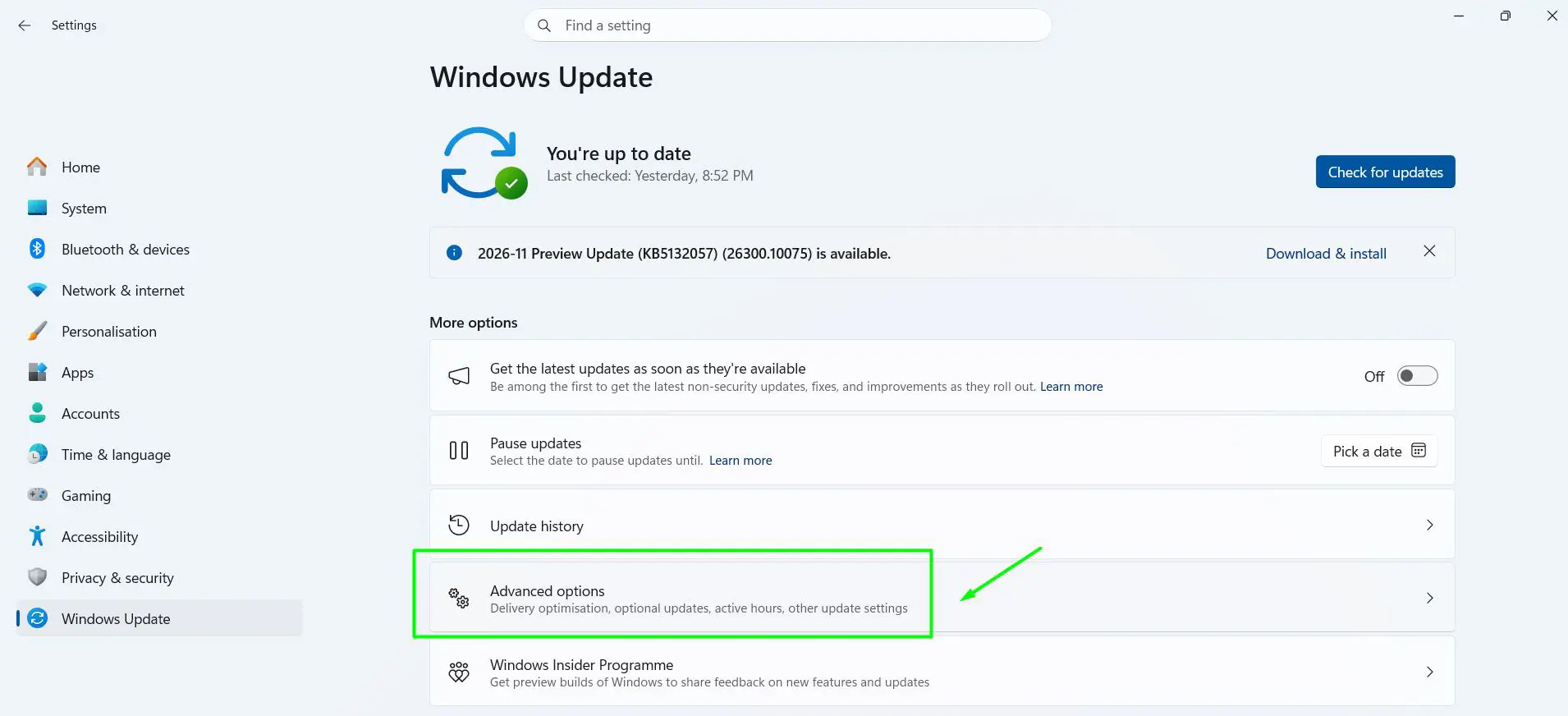
- Select Advanced options.
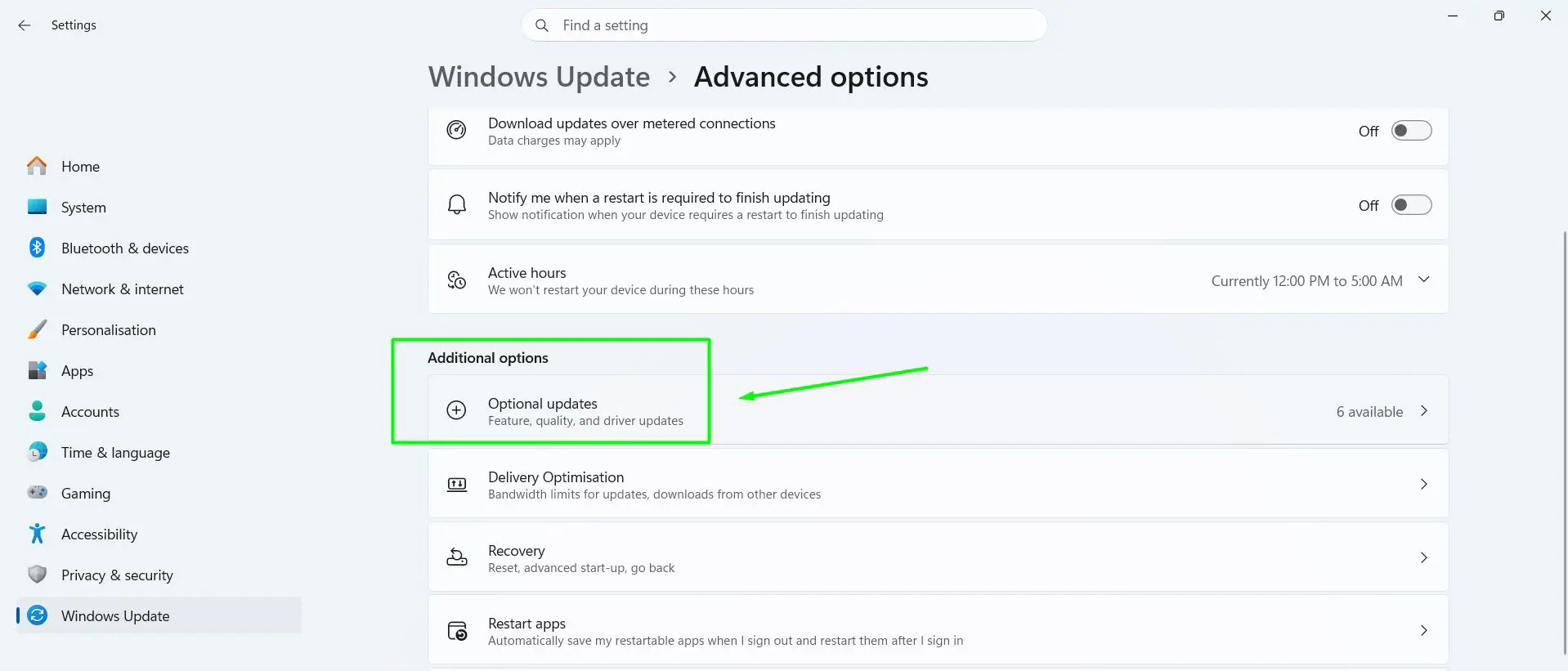
- Under Additional options, select Optional updates.
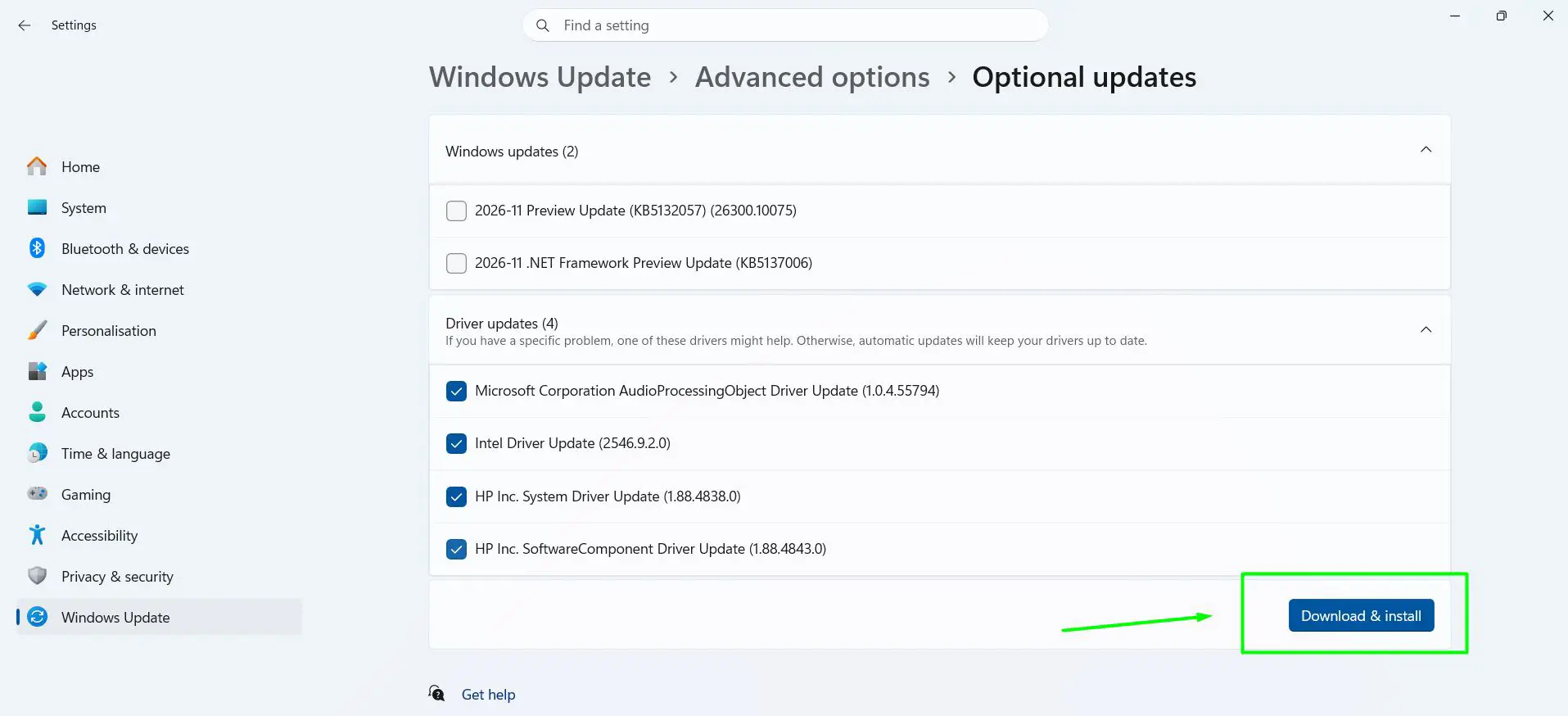
- Expand Driver updates and tick the driver you want.
- Select Download & install. Restart the PC if Windows asks you to.
If the Optional updates page says there is nothing available, Windows has no newer tested driver for that device right now. Move on to Method 2.
Method 2: Let Device Manager Search Automatically
- Press Windows + X and select Device Manager.
- Expand the category for the device, such as Display adapters, Network adapters or Bluetooth.
- Right-click the device and select Update driver.
- Select Search automatically for drivers.
- Wait while Windows checks. If it finds a newer driver, it installs it and shows a success message.
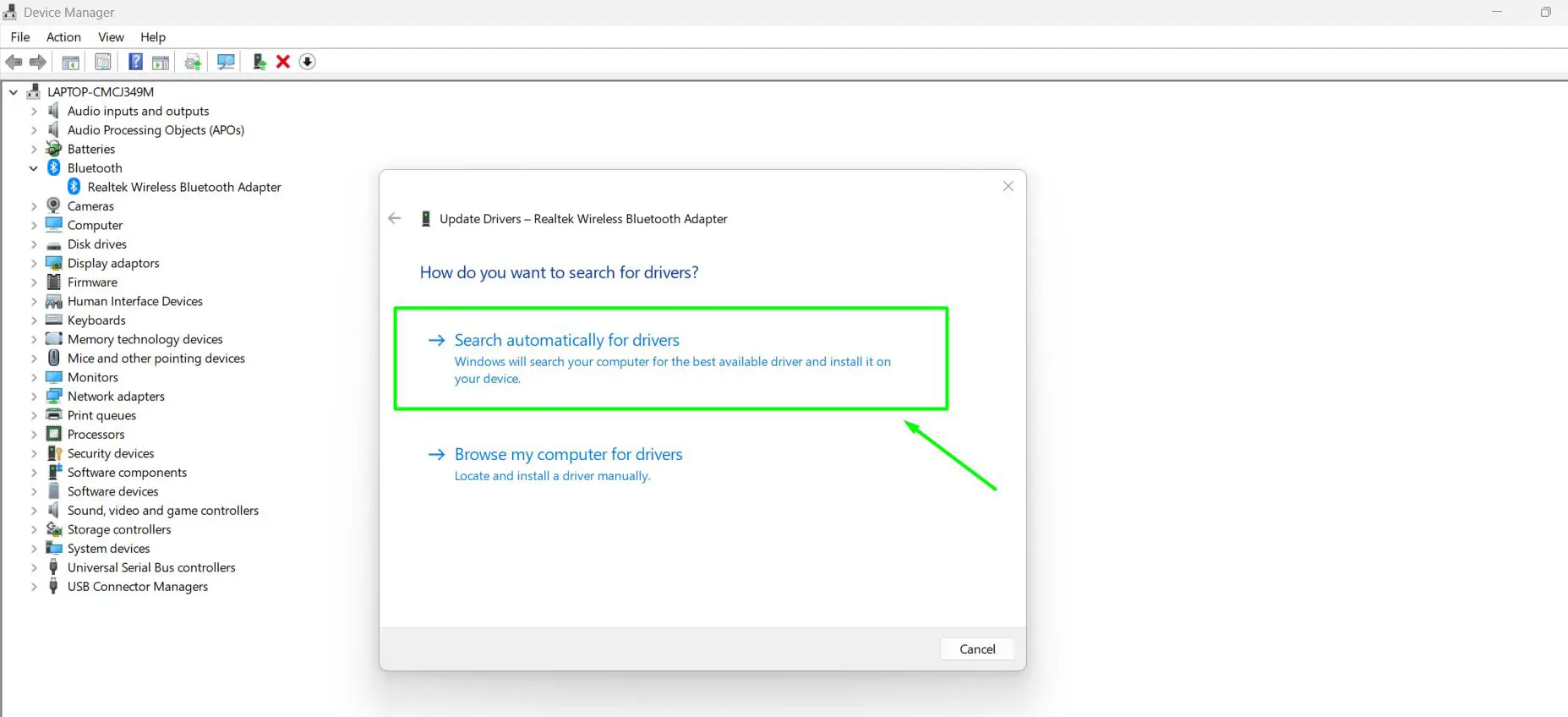
If the message says ‘The best drivers for your device are already installed’, that only means Windows has nothing newer stored on the PC. It does not mean the manufacturer has nothing newer. That is where Method 3 comes in.
Method 3: Install a Driver Downloaded from the Manufacturer
This is the true manual method, and the one to use for the newest graphics, Wi-Fi or printer drivers. The key is to download the driver for your exact model and for Windows 11. On a laptop, start with the laptop maker’s support page, because its drivers are tuned for that model.
- Download the driver from the support page of your PC maker or hardware maker.
- If the download is a setup file ending in .exe, double-click it and follow the on-screen prompts. That’s it – skip the remaining steps.
- If the download is a .zip file, right-click it, select Extract All and then Extract.
- Press Windows + X, select Device Manager, right-click the device and select Update driver.
- Select Browse my computer for drivers.
- Select Browse, choose the extracted folder and make sure Include subfolders is ticked.
- Select Next. When Windows says it has successfully updated your drivers, select Close.
Tip: To switch to a driver version that is already on the PC, select Let me pick from a list of available drivers on my computer in step 5 instead. This is handy when an older version worked better.
Method 4: Find the Driver with the Hardware ID and Microsoft Update Catalog
Most people find this method useful when Device Manager shows an Unknown device, or when the PC maker has stopped posting drivers for an older model. The hardware ID tells you exactly what the device is.
- In Device Manager, right-click the device and select Properties.
- Open the Details tab.
- In the Property drop-down, select Hardware Ids.
- Right-click the top value and select Copy.
- Open the Microsoft Update Catalog website in Microsoft Edge, paste the ID into the search box and press Enter. If nothing shows up, shorten the ID to just the VEN and DEV part, for example PCI\VEN_8086&DEV_51F0.
- Pick the newest entry that mentions Windows 11 and matches your PC, usually x64, or ARM64 on Arm-based laptops. Select Download, then the file link in the pop-up window.
- Double-click the downloaded .cab file to open it in File Explorer, press Ctrl + A to select every file and copy them into a new folder.
- Install the driver from that folder using steps 4 to 7 of Method 3.
Method 5: Install a Driver with a Command (Advanced)
This suits anyone comfortable with typing a command, or installing several driver files at once. It must run in an elevated (administrator) window.
- Extract the downloaded driver to a simple folder, for example C:\Drivers.
- Press Windows + X and select Terminal (Admin). Select Yes when User Account Control asks.
- Type this command and press Enter: pnputil /add-driver C:\Drivers\*.inf /subdirs /install
- Wait for the summary that shows how many driver packages were added, then restart the PC.
Windows only installs a driver package that matches hardware in the PC, so this command will not force a wrong driver onto a device.
How to Check the Driver Was Updated
- In Device Manager, right-click the device and select Properties.
- Open the Driver tab.
- Check Driver Date and Driver Version. They should match the driver you just installed.
Drivers installed through Windows Update also appear under Settings > Windows Update > Update history, in the Driver updates list, with the install date.
How to Undo a Driver Update
If the device works worse after the update, open Device Manager, right-click the device, select Properties, open the Driver tab and select Roll Back Driver. Pick a reason, select Yes and Windows restores the previous driver. If the button is greyed out, no earlier driver was kept, so reinstall the older version using Method 3.
Tips for Updating Drivers Safely
- Back up the drivers you have now before you manually update your device drivers in Windows. In Terminal (Admin), run pnputil /export-driver * C:\DriverBackup and every third-party driver is copied to that folder, ready to reinstall with Method 3.
- Create a restore point before updating a graphics, storage or chipset driver. If something goes wrong, the PC can go back to how it was.
- Update one driver at a time. If a problem shows up, it is obvious which update caused it.
- Read the release notes on the download page. If the fixes do not apply to your problem and the device works well, there is no need to update.
- For graphics cards, the NVIDIA, AMD or Intel website usually has newer drivers than Windows Update, which matters most for new games. The screen may flicker or go black for a few seconds during the install – that is normal.
- Keep the installer of a driver that works well. If a later update causes trouble, it is ready to reinstall.
- Avoid driver download sites and ‘driver updater’ apps that are not from the hardware maker. They often bundle unwanted software.
Frequently Asked Questions
How do I know if a driver needs updating in Windows 11?
Signs include a device that stops working, a yellow warning icon next to it in Device Manager, or a problem that started after a Windows update. Checking Optional updates in Windows Update also shows any newer tested drivers.
Why are there no driver updates in Optional updates?
Windows only lists a driver there when Microsoft has a newer tested version for your exact hardware. An empty list is normal. Check the manufacturer’s website for newer drivers instead.
What does ‘The best drivers for your device are already installed’ mean?
It only means Windows found nothing newer on the PC. The manufacturer may still have a newer driver on its website, which can be installed with Browse my computer for drivers.
Is a manufacturer driver better than the Windows Update driver?
Manufacturer drivers are often newer and add features, especially for graphics cards. Windows Update drivers are older but well tested. For laptops, the laptop maker’s driver is usually the best match.
Do I need a driver updater app?
No. Windows Update, Device Manager and the manufacturer’s website cover every device. Many driver updater apps push unneeded updates or bundle extra software.
How do I find a driver for an Unknown device?
Open the device’s Properties in Device Manager, go to the Details tab and select Hardware Ids. Search that ID in the Microsoft Update Catalog or on the maker’s website to find the matching driver.
Can I update a driver without an internet connection?
Yes. Download the driver on another computer, copy it to a USB drive, then install it with Device Manager > Update driver > Browse my computer for drivers.
Do I need to restart after updating a driver?
Not always. Many drivers work right away, but graphics, chipset and storage drivers usually need a restart. Windows tells you when a restart is required.
How do I roll back a driver in Windows 11?
In Device Manager, open the device’s Properties, go to the Driver tab and select Roll Back Driver. Windows restores the previous version within a few seconds.
Will Windows Update replace a driver I installed manually?
It can. Windows Update may later offer a different version of the same driver. If a driver installed this way causes problems, use Roll Back Driver to return to the one that worked.
