
Need to restore a previous version of a OneDrive file after a bad edit or an accidental overwrite? OneDrive keeps earlier copies automatically, so the version you want is usually only a few clicks away. The steps below work for Word, Excel, PowerPoint, PDFs, photos, and most other file types.
Key Takeaways
- Version history is built into OneDrive and works with Microsoft 365 files, PDFs, photos, videos, and more.
- Right-click the file, choose ‘Version history’, then select ‘Restore’ on the version you want.
- The restored version becomes the current file, and the version it replaced stays in the list.
- Only one file can be restored at a time.
How to Restore a Previous Version of a OneDrive File on the Web
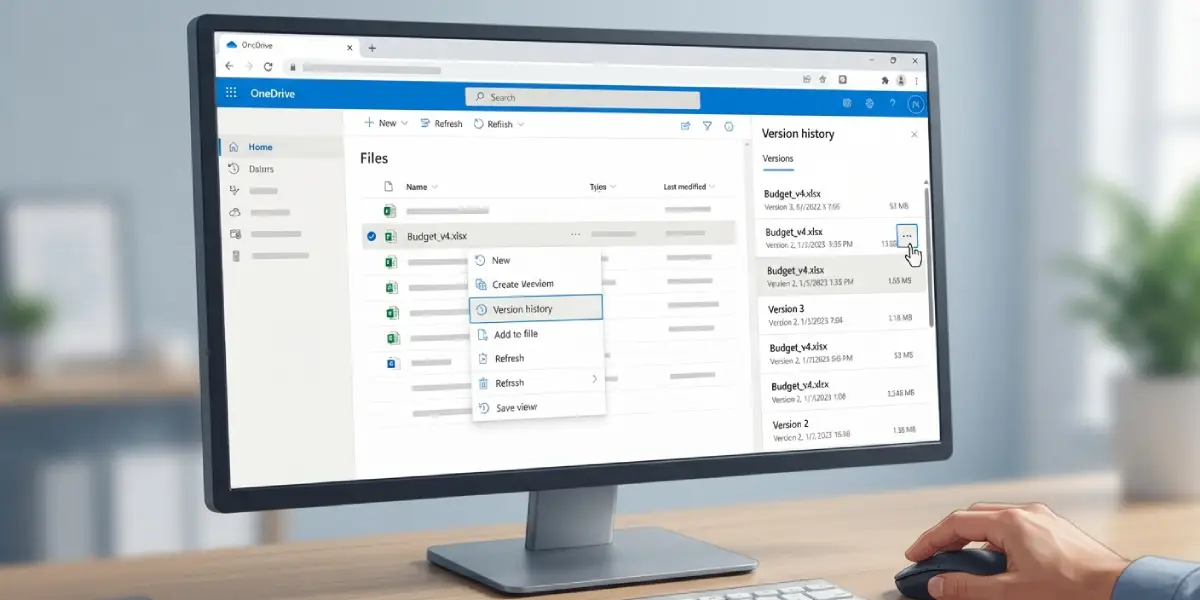
The OneDrive website is the most reliable place to do this, because it works from any device and does not depend on the sync app. This method suits situations like a shared budget spreadsheet that a colleague accidentally overwrote.
- Step 1: Sign in to OneDrive in a web browser with the Microsoft account (personal) or work or school account that holds the file.
- Step 2: Browse to the file that needs to go back to an earlier state. Only one file can be restored at a time, so select just that one.
- Step 3: Right-click the file and select ‘Version history’. A Version history pane or window opens and lists earlier versions with their dates.
- Step 4: Find the version or date to go back to. The list shows when each revision was saved, who changed it, and its size, which helps pinpoint the right one.
- Step 5: Select the ellipsis (…) next to that version, then select ‘Restore’.
- Step 6: Open the file and confirm the content looks right. The selected version is now the current version, and the version it replaced moves down the list as a previous version.
Tip: Before restoring, open or download the older version first if there is any doubt about whether it is the right one. Most people find that comparing the two side by side saves a second round of restoring.
Restore a Previous Version From File Explorer
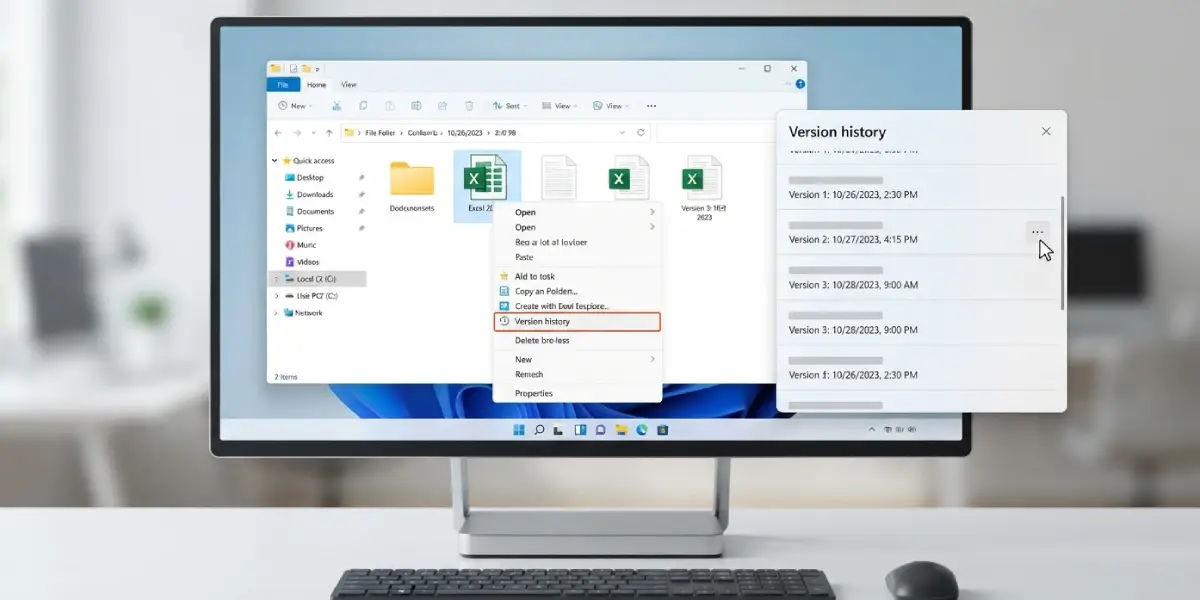
With the OneDrive sync app installed on a Windows PC, the same task can be done without opening a browser. This works best when the file is already sitting in the local OneDrive folder.
- Step 1: Open File Explorer and go to the OneDrive folder that contains the file.
- Step 2: Right-click the file and select ‘Version history’.
- Step 3: In the list of versions, select the ellipsis (…) next to the version to bring back.
- Step 4: Select ‘Restore’. The chosen version replaces the current one, just as it does on the web.
Restore a Previous Version From Inside an Office App
For Word, Excel, and PowerPoint files stored in OneDrive, the history is also reachable from the open document. This is handy when a mistake is spotted mid-edit and there is no reason to leave the app.
- Step 1: Open the file from OneDrive in the Office app.
- Step 2: Select File, then Info, then Version History. On a Mac, the option is called ‘Browse Version History’.
- Step 3: Select a version in the pane to view it, then choose the option to restore it.
Common Problems and Fixes
The ‘Version history’ option is missing
This usually happens when more than one file is selected. Select a single file and right-click again. A brand-new file that has never been edited after saving may also have no earlier versions to show.
The version needed is not in the list
Older versions do not stay forever. Personal OneDrive accounts keep earlier versions for a limited window, and work or school accounts follow the version limits set by the organization. If the date has passed, the version may already be gone, and an admin is the right contact for work or school accounts.
Version history is not available in File Explorer
The right-click option in File Explorer relies on the OneDrive sync app. Confirm that OneDrive is signed in and that the file sits inside the OneDrive folder. If it still does not appear, use the OneDrive website instead.
The old content does not show up after restoring
The change may still be syncing. Check the sync status icon on the file, wait until it shows as up to date, and reopen the file. Closing and reopening the document in the Office app also clears a stale view.
Frequently Asked Questions
Where do I find version history for a OneDrive file?
Right-click the file in OneDrive on the web, or in File Explorer with the sync app installed, and select ‘Version history’. For Office files, File, then Info, then Version History inside the open document also works.
Does restoring a previous version overwrite the current one?
The restored version becomes the current file. The version it replaced is not deleted, because it moves to the list of previous versions and can be restored again if needed.
Can I restore more than one file at a time?
No. Version history restores one file at a time, so each file needs its own restore.
How far back can I restore a OneDrive file?
It depends on the account type and settings. Personal accounts keep earlier versions for a limited period, and work or school accounts follow the limits configured by the organization.
Does version history work for PDFs, photos, and videos?
Yes. Version history works with all file types in OneDrive, including Microsoft 365 files, PDFs, CAD files, photos, and videos.
Can I preview an older version before restoring it?
Yes. Selecting a version in the history list lets it be opened and viewed first. Some views also offer a download option, which keeps a separate copy of the old version.
Can I restore a previous version from File Explorer?
Yes, when the OneDrive sync app is installed. Right-click the file, select ‘Version history’, select the ellipsis (…) next to the version, and choose ‘Restore’.
Why is the Restore option not showing up?
The file may have only one version, or more than one file may be selected. Select a single file with earlier versions and open Version history again.
