
Sending a file is easy. Making sure the link stops working afterward takes one extra setting. This guide shows how to set an expiring share link in OneDrive so access ends on a date you choose, with no cleanup needed later.
Key Takeaways
- Expiration dates are set in Link settings, which opens from the Share dialog.
- The option applies to Anyone links. Specific people links do not offer it.
- Personal OneDrive accounts need a Microsoft 365 subscription for this feature.
- The date can be changed or removed later from Manage access.
- Once the date passes, the link stops working and a new link is needed to grant access again.
Step-by-Step Guide to Set an Expiring Share Link in OneDrive
These steps use OneDrive on the web, which gives the most consistent results across personal and work or school accounts. Most people find that the whole process takes under a minute.
- Step 1: Go to onedrive.com and sign in with your Microsoft account or your work or school account.
- Step 2: Select the circle next to the file or folder you want to share.
- Step 3: Select Share on the toolbar (or right-click the item and choose Share).
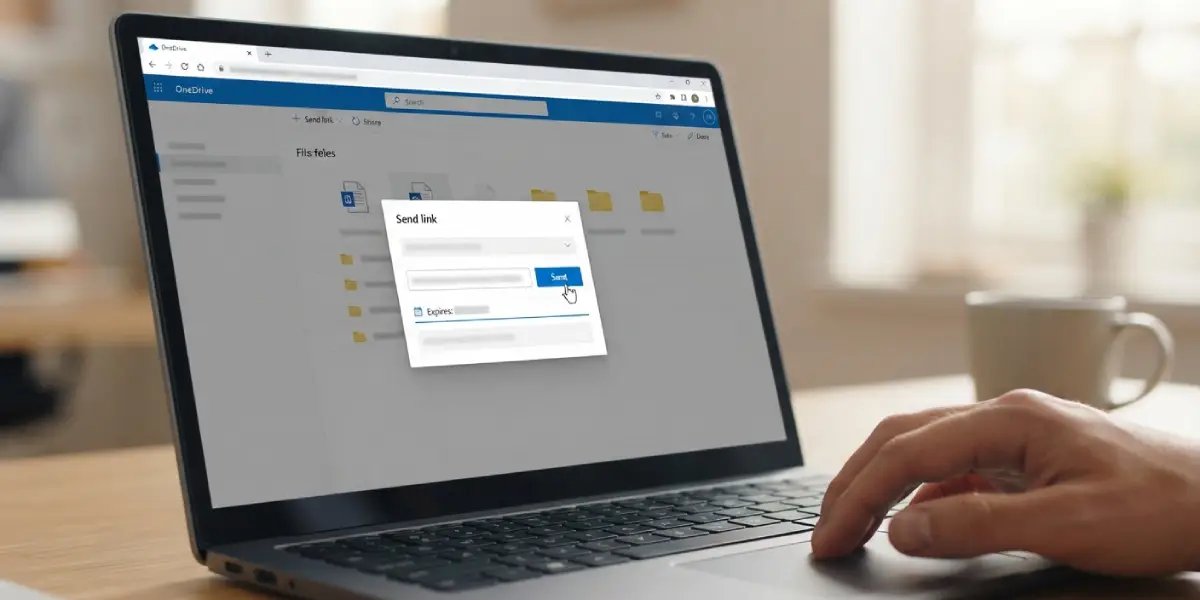
- Step 4: Open Link settings in the Share dialog.
- Step 5: Choose Anyone with the link. Expiration dates are not offered for Specific people links.
- Step 6: Under Other settings, select Set expiration date and pick the date the link should stop working.
- Step 7: Select Apply to save the settings.
- Step 8: Select Copy link to paste it anywhere, or type names or email addresses, add a message, and select Send.
Tip: Pick a date that gives the recipient a little breathing room. A link that expires on the exact day a client plans to download the file is an easy way to get a frustrated reply.
Setting an Expiry Date on a Folder
The same flow works for folders. Select the folder, choose Share, open Link settings, set the expiration date, and apply it. Everyone who opens the link can reach the folder contents until the date passes.
How to Change or Remove the Expiration Date Later
Plans shift, and a deadline that looked right on Monday can look wrong by Friday. The date can be adjusted without creating a new link.
- Step 1: Select the shared file or folder in OneDrive.
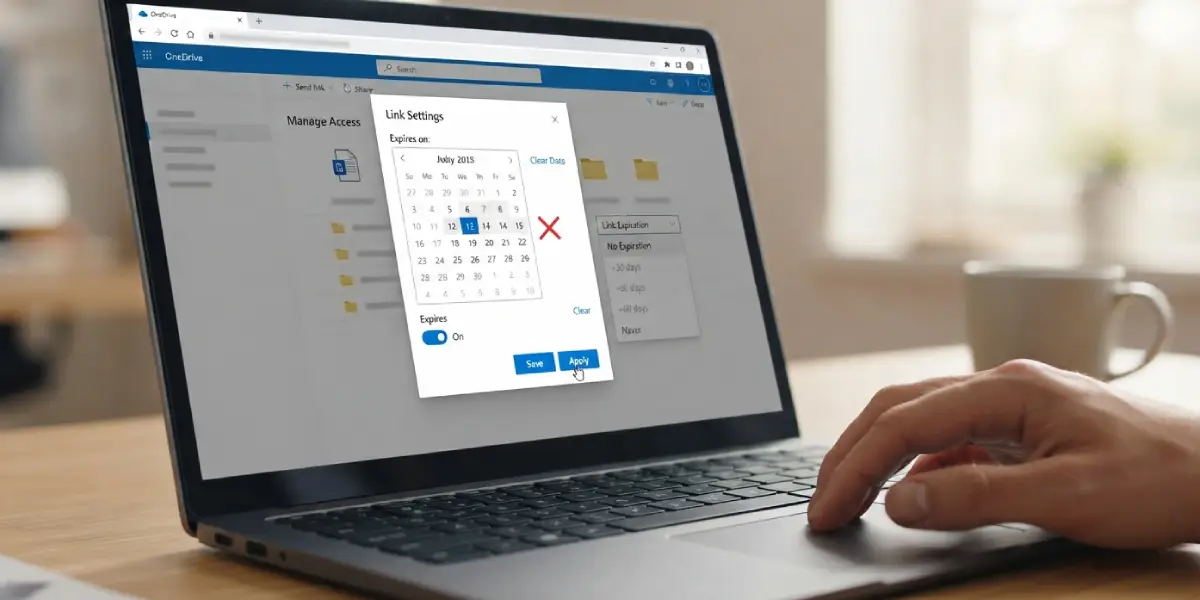
- Step 2: Open Manage access from the toolbar or the three-dot menu.
- Step 3: Go to the Links tab and find the link you shared.
- Step 4: Select the gear icon or the edit option for that link.
- Step 5: Change the expiration date, or clear the expiration setting to remove it.
- Step 6: Select Save or Apply.
Tip: The bin icon on the Links tab deletes the link entirely. That works like an emergency brake when access needs to end today, whatever date was originally set.
Common Problems and Fixes
The Set Expiration Date Option Is Missing
This usually comes down to the link type. Switch the link to Anyone with the link, since Specific people links do not include the option. On a personal account, confirm that an active Microsoft 365 subscription is attached, because the feature is limited to subscribers.
The Date Cannot Be Set as Far Out as Needed
Work and school accounts can have an expiration limit set by the organization’s administrator. A user can choose a date that is shorter than or equal to that limit, but not longer. If the limit is too short for the job, the administrator is the person to ask.
The Recipient Says the Link No Longer Works
The link has most likely passed its expiration date. Open Manage access to extend the date, or create a new link with a fresh date and send it again.
The Setting Did Not Save
Make sure Apply was selected before closing the Link settings panel. Closing it early discards the choice, and the link will keep working with no end date.
Frequently Asked Questions
Do you need a Microsoft 365 subscription to set an expiring share link in OneDrive?
On personal OneDrive accounts, yes. Expiration dates and passwords are available with a Microsoft 365 subscription. On work or school accounts, availability follows the organization’s sharing settings.
Can an expiration date be added to a Specific people link?
No. The Set expiration date option appears for Anyone with the link, and Specific people links do not include it.
What happens when a OneDrive share link expires?
The link simply stops working. Creating another link is the way to give access again, and the file itself is not deleted or changed.
Can the expiration date be changed after the link is shared?
Yes. Open Manage access for the file or folder, go to the Links tab, edit the link, and choose a new date.
Are recipients notified when an expiration date is changed or the link is deleted?
No. Recipients do not receive a notification, so it helps to tell them directly if the date moves.
Can an expiration date be removed from a link?
Yes. Edit the link from Manage access and clear the expiration setting, then save the change.
Is there a maximum expiration date for work or school accounts?
It depends on the policy set by the administrator. Users can pick a date shorter than or equal to the admin limit, but not beyond it.
Does the same process work for folders as well as files?
Yes. Select the folder, choose Share, open Link settings, set the expiration date, and apply it.
