
If the time has come to stop sharing Microsoft 365 Family with someone, the whole job takes about two minutes from the Microsoft account website. Only the subscription owner can do it. The steps below cover ending the sharing and, if needed, removing the person from the family group as well.
Key Takeaways
- Only the subscription owner can stop sharing, and it is done from account.microsoft.com/services.
- The Stop sharing button sits under Other people on the Sharing page.
- Stopping sharing does not remove the person from the family group. That is a separate step at account.microsoft.com/family.
- The person loses editing and creating in Office apps, and their OneDrive storage drops to 5 GB.
Steps to Stop Sharing Microsoft 365 Family With Someone
This works best when signed in with the Microsoft account that bought the subscription. A different account, even one inside the same family group, will not show the sharing controls.
- Step 1: Open a web browser and go to account.microsoft.com/services, then sign in with the subscription owner account.
- Step 2: Find the Microsoft 365 Family subscription and select Sharing.
- Step 3: Scroll to the Other people section and locate the person to remove.
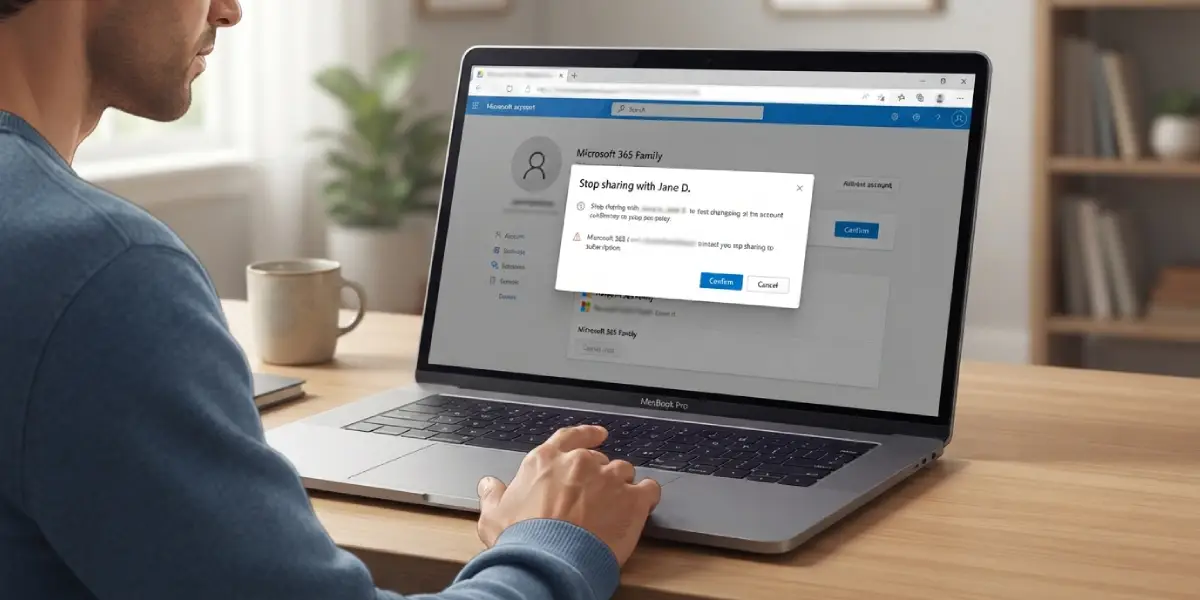
- Step 4: Select Stop sharing next to that person’s name.
- Step 5: Confirm the choice when prompted. Microsoft sends the person an email letting them know sharing has ended.
Tip: Think of sharing as a spare key to a house. Stopping sharing takes the key back, but the person is still listed as a family member until they are removed from the family group.
Remove the Person From the Family Group (Optional)
Stopping sharing leaves the person in the Microsoft family group. Most people find this fine, but a complete cleanup means removing them too. Only a family group organizer can do this.
- Step 1: Go to account.microsoft.com/family and sign in with an organizer account.
- Step 2: Select the three-dot (more options) icon next to the person’s name.
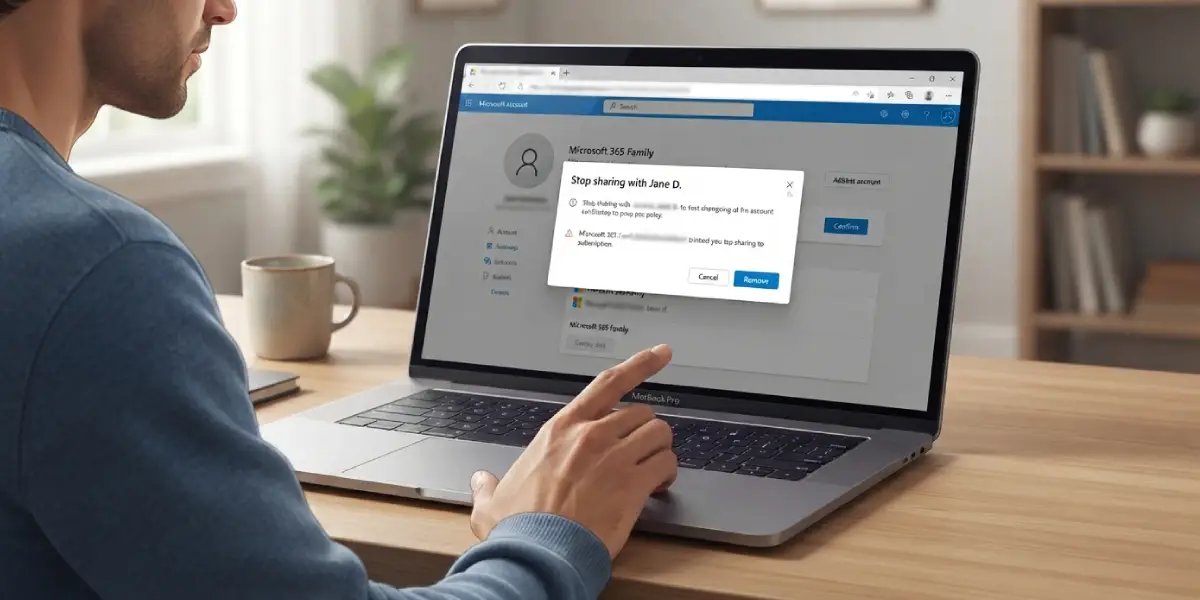
- Step 3: Choose Remove from family group.
- Step 4: Select Remove to confirm.
Removed members also lose Family Safety management and access to shared digital purchases, including Microsoft 365 Family.
What Changes for the Person You Stopped Sharing With
The effect is noticeable on their end, so a quick heads-up avoids surprises. A typical case is a relative who has been using Word on a laptop for a year and suddenly sees a licensing notice.
- They can no longer edit or create Microsoft 365 files, though they can still view and print them, and they will see Unlicensed Product notifications.
- Premium productivity features on iPad, Android tablet, and smartphone stop working, though the apps still open.
- Their OneDrive storage quota drops from 1 TB or 2 TB to 5 GB.
Tip: Before stopping sharing, ask the person to move any important files out of OneDrive if they are close to or above 5 GB. That avoids storage problems afterward.
Common Problems and Fixes
The Sharing Tab Is Missing
This usually means the signed-in account is not the subscription owner, or the plan is not Microsoft 365 Family, Premium, or Pro. Check which account purchased the subscription and sign in with that one. Microsoft 365 Personal does not include sharing at all.
The Person Is Not Listed Under Other People
Confirm the correct subscription is selected on the Services and subscriptions page. If the person was never given sharing benefits, there is nothing to stop, and only the family group membership needs managing.
The Person Still Appears in the Family Group
That is expected. Stopping sharing does not remove anyone from the group, so follow the optional family group steps above if the person should be removed entirely.
Remove From Family Group Is Unavailable
Only organizers can remove members. Sign in with the organizer account at account.microsoft.com/family and try again. If the member is a child account, the option to remove consent for the child’s account may need to be selected first.
Frequently Asked Questions
Can Microsoft 365 Family be unshared with just one person?
Yes. Each person under Other people on the Sharing page has their own Stop sharing option, so one person can be removed without affecting anyone else.
Does the person get notified when sharing stops?
Yes. After the subscription owner confirms, Microsoft sends the person an email saying sharing has ended.
Does stopping sharing remove someone from the family group?
No. They stay in the family group until an organizer removes them at account.microsoft.com/family.
What does the person lose when sharing stops?
They lose the ability to edit and create Microsoft 365 files, premium features on tablets and phones, and extra OneDrive storage, which drops to 5 GB.
Can the person still open their documents afterward?
Yes, they can still view and print files, but they will see Unlicensed Product notifications and cannot edit or create.
Why is the Sharing tab not showing?
The account is probably not the subscription owner, or the subscription is not Microsoft 365 Family, Premium, or Pro. Sign in with the account that bought the plan.
Can someone other than the owner stop the sharing?
No. Only the owner can end sharing, though a person who is being shared with can choose to leave the subscription or leave the family group themselves.
Can sharing be restarted with the same person later?
Yes. The owner can share again from the Sharing page, keeping in mind that a subscription can be shared with a maximum of five other people.
