
A crowded taskbar slows you down, and the fix takes seconds. Here is how to unpin apps from the taskbar in Windows 11 so only the icons you actually use stay in view. No administrator rights are needed, and the steps work on every edition of Windows 11, including Home and Pro.
Key Takeaways
- Right-click any pinned app on the taskbar and choose Unpin from taskbar.
- You can also unpin from the Start menu or with the keyboard.
- Unpinning only removes the shortcut. The app stays installed on the PC.
- Built-in items such as Search and Task view are hidden under Settings > Personalization > Taskbar instead.
Step-by-Step Guide to Unpin Apps from the Taskbar
Method 1: Use the Taskbar Right-Click Menu
This is the quickest route and the one most people use day to day.
- Find the app icon you want to remove on the taskbar.
- Right-click the icon. A small menu (called a jump list) pops up above it.
- Click Unpin from taskbar, usually the last option in the list.
The icon disappears right away and the remaining icons shift to fill the gap. If the app is currently open, its icon stays visible until the window is closed, then vanishes.
Tip: Not sure which icon is which? Hover over it for a second and the app name appears, which helps when several icons look alike.
Method 2: Use the Start Menu
This works well when the app is open and the taskbar looks cluttered, or when the icon is hard to spot.
- Click the Start button or press the Windows key.
- Find the app under Pinned, or click All and scroll to it. Typing the app name also works.
- Right-click the app.
- Click Unpin from taskbar.
The icon leaves the taskbar immediately. The app remains available in the Start menu.
Method 3: Use the Keyboard
This suits laptops without a mouse, or anyone who prefers staying on the keys.
- Press Windows + T to move focus to the taskbar. The first icon is highlighted.
- Press the arrow keys to move to the app you want to unpin.
- Press Shift + F10 to open the right-click menu for that icon.
- Use the arrow keys to select Unpin from taskbar, then press Enter.
The highlighted icon is removed as soon as Enter is pressed.
Remove Built-In Taskbar Items Like Search and Task View
Some icons on the taskbar are not apps at all, so they do not offer an unpin option. Items such as Search, Task view, and Widgets are controlled by switches in Settings instead.
- Press Windows + I to open Settings.
- Go to Settings > Personalization > Taskbar.
- Under Taskbar items, turn the switch Off for the item you want to hide.
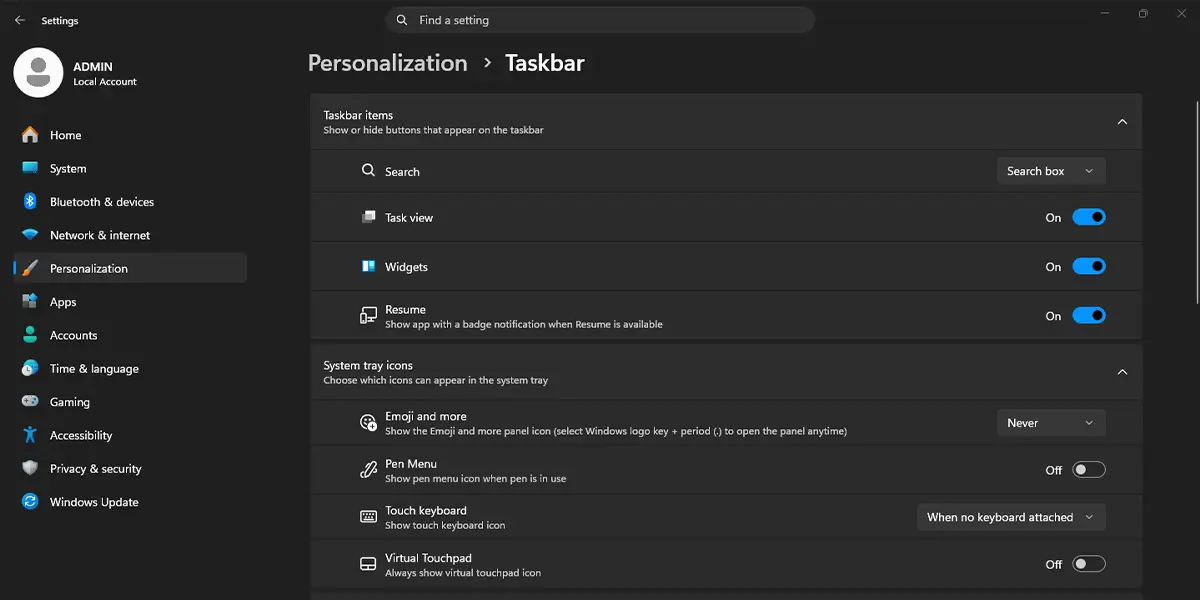
Tip: Right-clicking an empty area of the taskbar and choosing Taskbar settings opens this same page directly.
How to Undo or Reverse This Change
Changed your mind? Pinning an app back takes about as long as removing it.
- Open the Start menu and find the app.
- Right-click the app.
- Click Pin to taskbar.
If the app is already open, right-click its taskbar icon and choose Pin to taskbar instead. Pinned icons can then be dragged left or right to rearrange them.
Common Problems and Fixes
The Unpin from taskbar option is missing or greyed out
This usually happens on a work or school PC where an administrator controls which apps appear on the taskbar. In that case the layout is set by the organization and cannot be changed from the PC itself. Contact the IT department if a specific icon needs to go.
The icon is still there after clicking Unpin
If the app is open, its icon stays on the taskbar until the window closes. Close the app and the icon should disappear. If the icon remains after the app is closed, restart the PC and check again.
The app keeps coming back after a restart or update
Some apps re-pin themselves during setup or an update, and a managed PC may restore its layout at sign-in. Unpin the icon again, and if it keeps returning on a work or school computer, the layout is likely being enforced by the organization.
Right-clicking shows a different menu
Right-clicking the Start button, the clock, or an empty taskbar area shows different menus. Make sure the click lands directly on the app icon itself.
Frequently Asked Questions
Does unpinning an app from the taskbar uninstall it?
No. Unpinning only removes the shortcut from the taskbar. The app stays installed and can still be opened from the Start menu or by searching for it.
Do I need to restart my PC after unpinning an app?
No. The icon is removed immediately, with no restart or sign-out required.
Does this work on Windows 11 Home?
Yes. Unpinning apps works the same way on Windows 11 Home, Pro, Enterprise, and Education.
Can I unpin several apps at once?
No. Windows 11 has no multi-select for taskbar icons, so each app has to be unpinned one at a time.
What is the keyboard shortcut to unpin an app from the taskbar?
There is no single shortcut, but the keyboard route is quick. Press Windows + T, use the arrow keys to select the icon, press Shift + F10, and choose Unpin from taskbar.
Why is the Unpin from taskbar option missing?
The most common reason is that the PC is managed by work or school, which can lock the taskbar layout. Also confirm that the right-click landed on the app icon and not on an empty part of the taskbar.
How do I remove Search, Task view, or Widgets from the taskbar?
These are not pinned apps. Go to Settings > Personalization > Taskbar and turn off the switch for the item under Taskbar items.
Will unpinning apps make my PC faster or save battery?
Not noticeably. A pinned icon is just a shortcut and uses almost no resources, so unpinning mainly makes the taskbar tidier and easier to scan.
Can I pin an app back to the taskbar later?
Yes. Right-click the app in the Start menu and choose Pin to taskbar. The icon returns to the taskbar right away.
