
Learning how to show or hide the search box on the taskbar on Windows 11 takes less than a minute, and no special rights are needed. The option is available on every edition, including Home and Pro, so the same steps work on a laptop, a desktop, or a shared family PC.
Key Takeaways
- The quickest route is Settings > Personalization > Taskbar > Taskbar items > Search.
- The Search dropdown offers four choices: Hide, Search icon only, Search icon and label, and Search box.
- Pick Search box to show the full text field, or Hide to remove search from the taskbar completely.
- Hiding the box does not turn search off. Windows + S still opens it.
- A registry command offers a backup method when the Settings page cannot be used.
Step-by-Step Guide to Show or Hide the Search Box on the Taskbar
Method 1: Use the Settings App
This is the easiest method for most people, and the change appears instantly with no restart.
- Press Windows + I to open the Settings app.
- Click Personalization in the left sidebar.
- Click Taskbar on the right side of the window.
- Expand the Taskbar items section if it is collapsed.
- Click the dropdown menu next to Search.
- To show the search field, select Search box. A wide text field with the words ‘Search’ appears on the taskbar right away.
- To hide it, select Hide. The search field vanishes from the taskbar and the remaining icons shift to fill the gap.
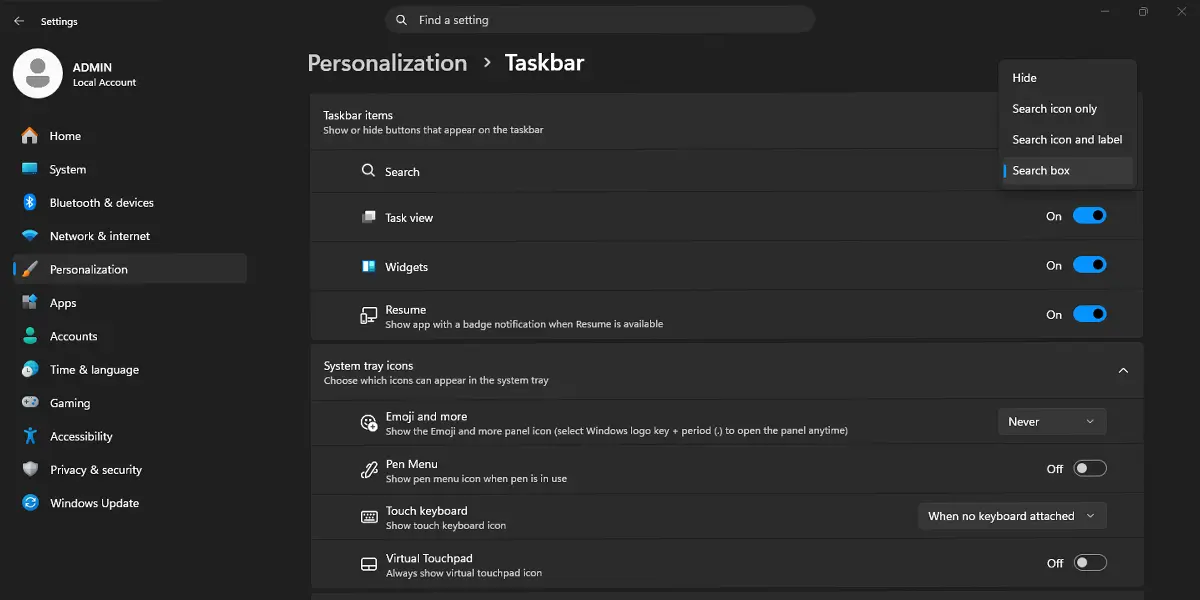
Tip: A faster way to reach the same page is to right-click an empty spot on the taskbar and choose Taskbar settings. That skips the first three steps above.
Method 2: Use a Command (Registry)
This method suits anyone who prefers typing a single line, or who needs to repeat the change on several PCs. It edits a value in the registry, so create a restore point first as a safety net. The command changes only the current user account, so an administrator window is not needed.
- Right-click the Start button and select Terminal. Command Prompt or Windows PowerShell also works.
- To show the search box, type or paste the command below and press Enter.
reg add HKCU\Software\Microsoft\Windows\CurrentVersion\Search /v SearchboxTaskbarMode /t REG_DWORD /d 2 /f
- To hide search instead, run the same command with the final number changed to 0, as shown below.
reg add HKCU\Software\Microsoft\Windows\CurrentVersion\Search /v SearchboxTaskbarMode /t REG_DWORD /d 0 /f
- Press Ctrl + Shift + Esc to open Task Manager.
- On the Processes tab, right-click Windows Explorer and select Restart. The taskbar flickers for a second and then shows the new search layout.
The number at the end of the command controls the style: 0 hides search, 1 shows the icon only, 2 shows the search box, and 3 shows the icon with a label. Signing out and back in also applies the change if restarting Windows Explorer is not preferred.
How to Undo or Reverse This Change
To go back, open Settings > Personalization > Taskbar, click the Search dropdown under Taskbar items, and pick the previous option. Anyone who used the command method can run it again with the number that matches the style they want, then restart Windows Explorer. Tip: Search icon only is a handy middle ground on small laptop screens, because it keeps search one click away while saving space for pinned apps.
Common Problems and Fixes
The Search Dropdown Is Greyed Out or Locked
This usually means the PC is managed by a work or school organization that controls taskbar layout through policy. The setting cannot be changed from the Settings page in that case. The IT administrator can adjust it, or a different account on a personal PC will not be affected.
The Registry Change Does Not Show on the Taskbar
The taskbar only reads the value when Windows Explorer starts. Restart Windows Explorer from Task Manager, or sign out and sign back in. Also check that the command was entered exactly as written, with the right number at the end.
The Search Option Is Missing From the Taskbar Page
Make sure the Taskbar items section is expanded, since the Search dropdown sits inside it. If the page still looks different, install pending updates under Settings > Windows Update so the PC matches the current version of Windows 11.
Frequently Asked Questions
Does this work on Windows 11 Home?
Yes. The Settings method and the registry command both work on Home, Pro, and Enterprise editions.
Do I need administrator rights to show or hide the search box?
No. A standard account can change the option from Settings > Personalization > Taskbar. The registry command also edits only the current user, so no elevated window is required.
Does the change need a restart?
Not when using the Settings app, because the taskbar updates immediately. The command method needs Windows Explorer to be restarted, or a sign out and back in.
Does hiding the search box turn off Windows search?
No. Search still works after the box is hidden. Press Windows + S, or open the Start menu and start typing, and results appear as usual.
Is there a keyboard shortcut to show or hide the search box?
No built-in shortcut toggles the box itself. Windows + S opens the search window whether the box is visible or not, and Windows + I gets to the Settings page quickly.
What is the difference between Search icon only and Search box?
Search icon only shows a small magnifying glass that opens search when clicked. Search box shows a wide text field that takes more room but invites typing straight from the taskbar.
Does showing the search box slow down the computer or drain the battery?
No noticeable effect should be expected. The setting only changes how search appears on the taskbar, so a laptop on battery runs the same either way.
Why is the search option greyed out on a work or school PC?
Organizations can lock taskbar settings through policy. When the dropdown is greyed out or keeps returning to its old value after a restart, the device is most likely managed, and the administrator controls that choice.
