
Ready to turn on passwordless sign-in for a Microsoft account and stop typing a password every time? The whole setup takes only a few minutes and needs a phone with the Microsoft Authenticator app. This guide covers each click and tap from start to finish.
Key Takeaways
- The Microsoft Authenticator app (or Outlook for Android) must be installed and linked to the account first.
- The switch lives in the account’s Additional security options, under Passwordless account.
- Selecting Turn on, verifying identity, and approving the request in the app finishes the setup.
- After the password is removed, sign-in relies on the app, Windows Hello, a security key, or SMS codes.
Step-by-Step Guide to Turn On Passwordless Sign-In for a Microsoft Account
Before Starting
This works best when the phone is nearby, unlocked, and connected to the internet. Passwordless sign-in depends on an approval prompt, so the account must already be set up in an authenticator app.
Set Up the Authenticator App
- Step 1: Download and install the Microsoft Authenticator app from the App Store or Google Play. Outlook for Android also works as the approval app.
- Step 2: Open the app and add the personal Microsoft account by following the on-screen prompts. Sign in with the same email address, phone number, or Skype name used for the account.
- Step 3: Confirm the account now appears in the app’s account list. A missing entry is the most common reason the next steps fail.
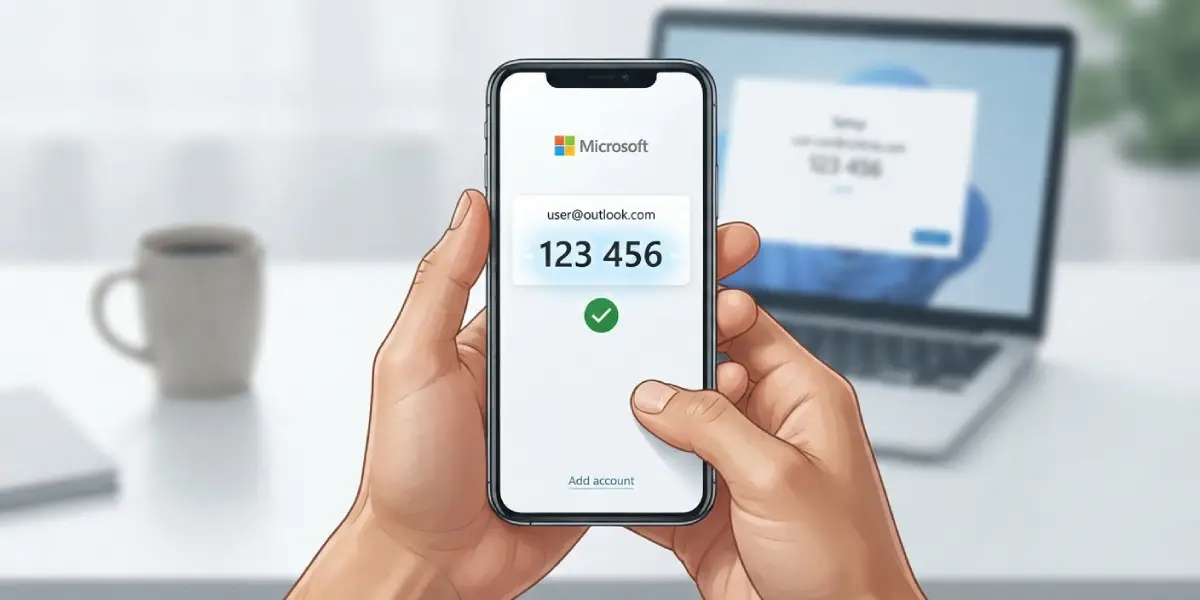
Tip: Add the account to the app while still signed in with the current password. That way, a failed prompt never locks anyone out mid-setup.
Turn On the Passwordless Account Setting
- Step 4: On a computer or phone browser, go to account.microsoft.com/security and sign in to the Microsoft account.
- Step 5: Open Advanced security options, then find Additional security options on that page.
- Step 6: Under Passwordless account, select Turn on.
- Step 7: Follow the prompts to verify the account. Microsoft may ask for a code sent to the email or phone number on file.
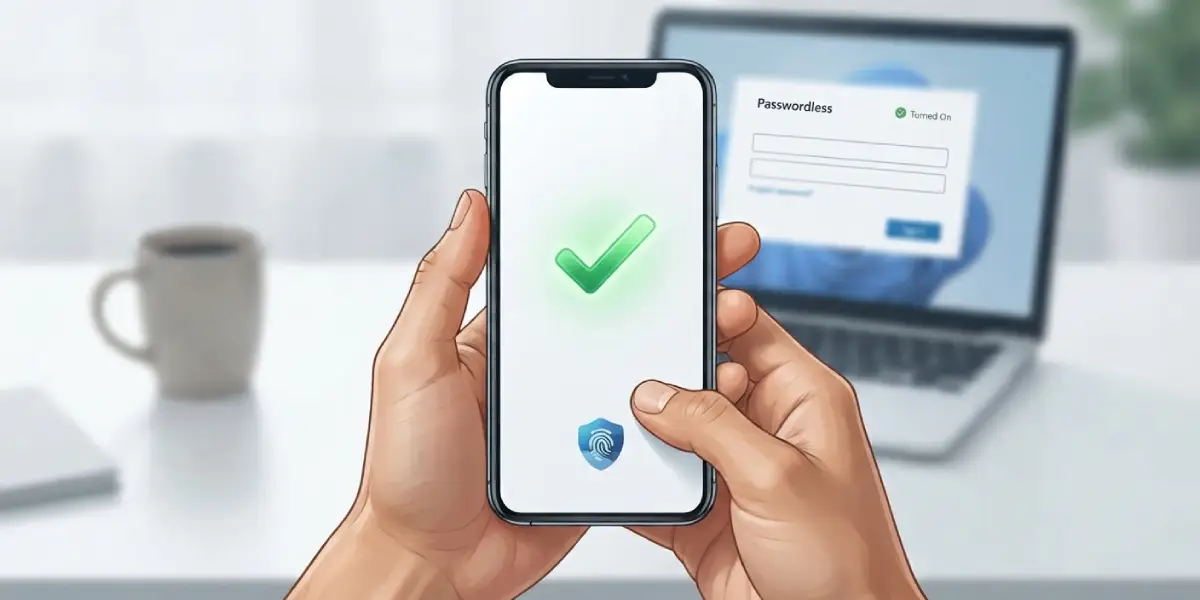
- Step 8: Approve the request that appears in the Microsoft Authenticator app. If the app shows a number prompt, enter the number displayed on the screen and confirm with fingerprint, face, or PIN.
- Step 9: Wait for the confirmation message. The password is now removed from the account.
Test the New Sign-In
- Step 10: Sign out, then sign back in to any Microsoft service such as Outlook.com or OneDrive.
- Step 11: Enter the account email and approve the notification in the app instead of typing a password.
Tip: Keep a second sign-in method ready, such as Windows Hello, a physical security key, or SMS codes. Think of it as a spare house key kept with a trusted neighbor, because phones do get lost or replaced.
Common Problems and Fixes
The Passwordless Account Option Does Not Appear
Most of the time, the account has not been added to the authenticator app yet, or the browser is signed in to a different Microsoft account. Add the correct account in the app, sign out of the browser, and sign in again on the security page.
No Approval Request Arrives on the Phone
Check that the phone has internet access and that notifications are allowed for the Authenticator app. Opening the app manually often brings up the pending request right away.
The Number Prompt Does Not Match
Approvals only work when the number entered in the app matches the one shown on the sign-in screen. Deny the request, restart the sign-in, and enter the fresh number.
Signing In on an Xbox Console
Xbox One and Xbox Series X/S support passwordless accounts, but Xbox 360 does not. On a supported console, select Use another device, open the microsoft.com link in a browser, enter the code shown on the console, and sign in with the passwordless method.
The Phone Is Lost or Replaced
Sign in with another passwordless method already linked to the account, such as an SMS code, Windows Hello, or a security key, then set up the Authenticator app on the new phone.
Frequently Asked Questions
What do I need before I can turn on passwordless sign-in for a Microsoft account?
The Microsoft Authenticator app or Outlook for Android must be installed, and the Microsoft account must already be added inside it.
Where is the passwordless setting located?
Sign in at account.microsoft.com/security, open Advanced security options, and look under Additional security options for the Passwordless account section.
How do I sign in after the password is removed?
Sign-in uses a passwordless method such as the Microsoft Authenticator app, Outlook for Android, Windows Hello, a physical security key, or SMS codes.
Can the password be added back later?
Yes. A password can be added back to the account at any time from the Microsoft account security settings.
Does passwordless sign-in work for Outlook, OneDrive, and Xbox?
It works across Microsoft services that use the account, including Outlook.com and OneDrive. Xbox One and Xbox Series X/S are supported, while Xbox 360 is not.
Is a passwordless Microsoft account secure?
Yes. Passwordless methods such as the Authenticator app, Windows Hello, security keys, and verification codes are considered more secure and more convenient than a typed password.
Which authenticator app should be used?
The Microsoft Authenticator app is the standard choice, and Outlook for Android can also receive the approval request.
Can passwordless sign-in be set up on a console without a browser?
Yes. On a supported Xbox, choose Use another device, open the microsoft.com link on a phone or computer browser, enter the code shown on the console, and approve with the passwordless method.
What happens if the phone with the Authenticator app is lost?
Another method linked to the account, such as an SMS code, Windows Hello, or a security key, can be used to sign in so the app can be set up again on a new device.
