
Want to remove the Widgets button from the taskbar in Windows 11? It takes less than a minute and needs no extra software. The Settings app method works on every edition and needs no administrator rights, while the Group Policy method needs Windows 11 Pro, Enterprise, or Education and an administrator account.
Key Takeaways
- The quickest route is Settings > Personalization > Taskbar, then switch the Widgets toggle to Off.
- Right-clicking the Widgets button and choosing Unpin from taskbar gives the same result in two clicks.
- Group Policy can hide the button for good on Pro, Enterprise, and Education editions.
- No restart is needed, and the button can be brought back at any time.
Step-by-Step Guide to Remove the Widgets Button from the Taskbar
Method 1: Use the Settings App
This is the easiest option for most people, and it works on Windows 11 Home, Pro, Enterprise, and Education.
- Press Windows + I to open Settings.
- Select Personalization in the left sidebar.
- Click Taskbar on the right side.
- Under Taskbar items, find the Widgets toggle.
- Switch the Widgets toggle to Off.
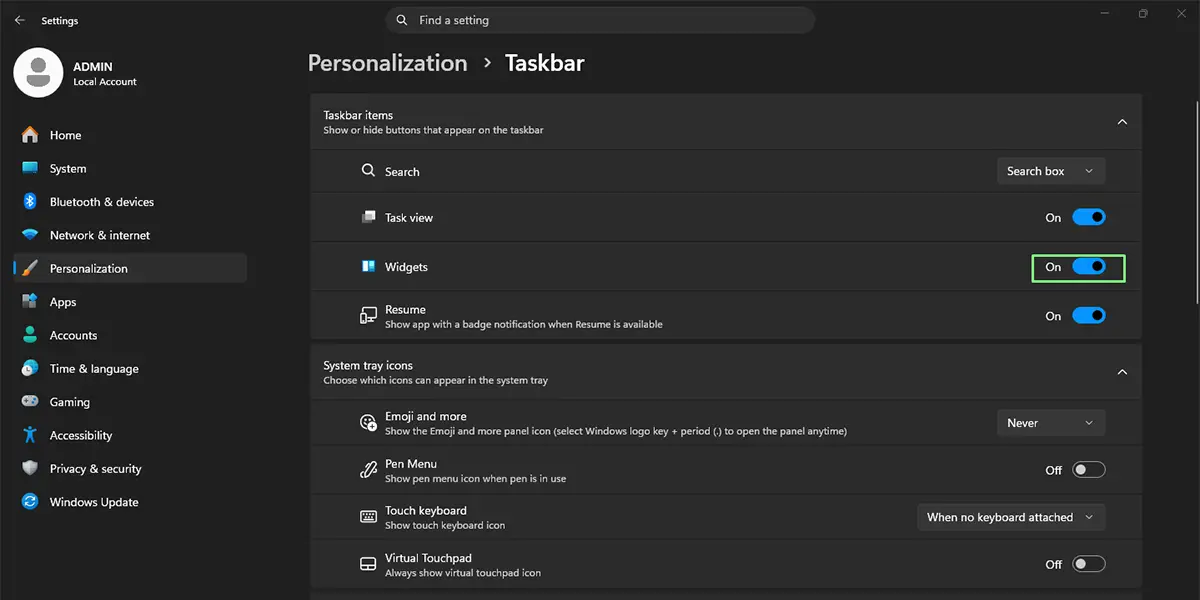
The Widgets button, including the weather icon that often sits at the left end of the taskbar, disappears right away. There is no need to sign out or restart.
Tip: Right-click an empty area of the taskbar and choose Taskbar settings to land on the same page without clicking through Settings.
Method 2: Right-Click the Widgets Button
This shortcut is handy when the button is already in front of you, for example on a shared family laptop where only a quick cleanup is needed.
- Right-click the Widgets button on the taskbar.
- Click Unpin from taskbar.
The button vanishes from the taskbar immediately. Behind the scenes, this flips the same switch as Method 1, so the toggle under Settings > Personalization > Taskbar will now show Off.
Method 3: Use Group Policy
This method suits a work PC or any computer where the button should stay hidden and not be switched back on by accident. It requires Windows 11 Pro, Enterprise, or Education, and it must be done from an administrator account. Home edition does not include the Local Group Policy Editor, so Method 1 is the right choice there.
- Press Windows + R to open the Run box.
- Type gpedit.msc and press Enter.
- Go to Computer Configuration > Administrative Templates > Windows Components > Widgets.
- Double-click the Allow widgets policy.
- Select Disabled.
- Click Apply, then click OK.
Changing a policy affects how Windows behaves for every user on the PC, so make a note of the change in case it needs to be reversed later. The Widgets button should disappear from the taskbar. If it is still showing, sign out and sign back in, or restart the PC.
How to Undo or Reverse This Change
To bring the Widgets button back after using Method 1 or Method 2, open Settings > Personalization > Taskbar and switch the Widgets toggle to On. If Group Policy was used, open the Allow widgets policy again, select Not Configured, then click Apply and OK. After that, the toggle in Settings works normally again.
Common Problems and Fixes
The Widgets toggle is missing or greyed out
The most common cause is a policy that controls widgets. This happens when the device is managed by work or school, or when the Allow widgets policy has been set on the PC. On a work computer, the administrator controls this setting. On a personal Pro PC, open the Local Group Policy Editor and check that Allow widgets is set to Not Configured.
The button comes back after a restart
If the button returns, a managed device may be applying a policy at sign-in that overrides the toggle. Check Settings > Personalization > Taskbar again. If the toggle keeps flipping back to On, contact the person who manages the device.
Unpin from taskbar is not in the right-click menu
If the right-click menu does not show that option, use Method 1 instead. The Settings toggle is the most reliable way to remove the button.
The Local Group Policy Editor will not open
If gpedit.msc reports that it cannot be found, the PC is most likely running Windows 11 Home, which does not include that tool. Use the Settings app method instead.
Frequently Asked Questions
Can the Widgets button be removed on Windows 11 Home?
Yes. The Settings app method and the right-click method both work on Windows 11 Home. Only the Group Policy method needs Pro, Enterprise, or Education.
Does removing the Widgets button need a restart?
No. The button disappears as soon as the toggle is switched Off or Unpin from taskbar is clicked. A sign-out or restart is only occasionally needed after changing the Group Policy setting.
Does this need administrator rights?
Not for the Settings app method or the right-click method. Group Policy changes require an administrator account.
Will the weather icon on the taskbar disappear too?
Yes. On many Windows 11 PCs the weather appears as part of the Widgets button, so switching the Widgets toggle to Off removes both from the taskbar.
Is there a keyboard shortcut to remove the Widgets button?
There is no dedicated shortcut that switches the button off. Pressing Windows + I opens Settings quickly, and from there the path is Personalization > Taskbar.
Why is the Widgets toggle missing or greyed out?
This usually means the device is managed by work or school, or a Group Policy setting is controlling widgets. In that case the setting has to be changed by the administrator or through the Allow widgets policy.
Can the Widgets button be added back later?
Yes. Go to Settings > Personalization > Taskbar and switch the Widgets toggle to On. If a policy was used, set Allow widgets to Not Configured first.
Is the Widgets feature uninstalled when the button is removed?
No. Switching the toggle Off only hides the button from the taskbar, and the setting can be reversed at any time. Only the Allow widgets policy turns the feature off for the whole PC.
