
Want to hide the Task View button in Windows 11 and free up some taskbar space? It takes only a few clicks, works on every edition including Home and Pro, and needs no administrator rights. The button disappears right away, while the Windows + Tab shortcut keeps working.
Key Takeaways
- The fastest route is Settings > Personalization > Taskbar > Taskbar items, then switch Task view to Off.
- Right-clicking an empty part of the taskbar and choosing Taskbar settings opens the same page.
- A registry value called ShowTaskViewButton can also hide the button for advanced users.
- Hiding the button does not disable Task View. Pressing Windows + Tab still opens it.
Step-by-Step Guide to Hide the Task View Button in Windows 11
Method 1: Use the Settings App
This is the easiest option for most people, and the change applies instantly.
- Press Windows + I to open Settings.
- Click Personalization in the left sidebar.
- Click Taskbar on the right side.
- Expand the Taskbar items section if it is collapsed.
- Find the Task view toggle.
- Switch the Task view toggle to Off.
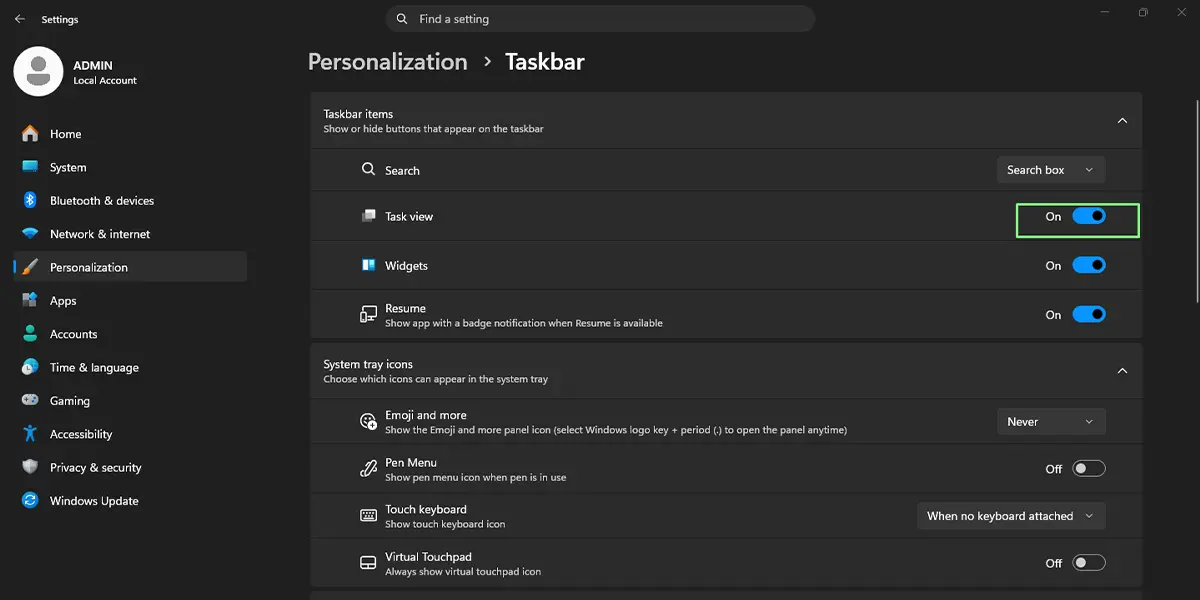
The Task View icon vanishes from the taskbar straight away, and the remaining icons shift over to fill the gap.
Tip: The same Taskbar items section holds the toggles for Search, Widgets, and other taskbar icons, so a cluttered taskbar can be tidied in one visit.
Method 2: Use the Taskbar Right-Click Menu
This shortcut skips the menu hunting and is handy on a laptop where the Settings window is already buried under other apps.
- Right-click an empty area of the taskbar.
- Click Taskbar settings.
- Under Taskbar items, switch the Task view toggle to Off.
The button disappears as soon as the toggle flips, exactly as it does with Method 1.
Method 3: Use a Registry Command
This method suits readers who prefer the command line or need to repeat the change on several PCs. It edits only the current user’s settings, so an elevated window is not required. Because this edits the registry, create a restore point first as a safety net.
- Right-click the Start button and select Terminal, or open Command Prompt.
- Type the following command and press Enter:
reg add HKCU\Software\Microsoft\Windows\CurrentVersion\Explorer\Advanced /v ShowTaskViewButton /t REG_DWORD /d 0 /f
- Press Ctrl + Shift + Esc to open Task Manager.
- Find Windows Explorer in the list of processes and right-click it.
- Click Restart.
The taskbar flickers for a moment and comes back without the Task View button. Signing out and back in has the same effect if restarting Windows Explorer feels unfamiliar.
How to Undo or Reverse This Change
To bring the button back, open Settings > Personalization > Taskbar > Taskbar items and switch Task view to On. Readers who used the registry command can run the same command with the value /d 1 instead of /d 0, then restart Windows Explorer.
Common Problems and Fixes
The Task View Toggle Does Not Appear
Make sure the Taskbar items section is expanded, since it can be collapsed by default. If the whole Taskbar page looks limited, the PC may be managed by a work or school organization that controls taskbar options, and the administrator would need to allow the change.
The Button Comes Back After a Restart
Check that the toggle in Settings > Personalization > Taskbar > Taskbar items is still set to Off. On a shared or work computer, a policy applied at sign-in can restore the default, and only the administrator can change that.
The Registry Command Did Not Hide the Button
The taskbar usually needs a refresh before a registry change shows. Restart Windows Explorer from Task Manager or sign out and back in, then check again.
Frequently Asked Questions
Does hiding the Task View button turn off Task View?
No. Only the taskbar icon is removed. Task View itself still works and opens with the Windows + Tab shortcut.
Does this work on Windows 11 Home?
Yes. The Task view toggle in Settings is available on Home, Pro, and the other editions.
Do I need administrator rights to hide the button?
No. The setting applies to the current user account, so a standard account can change it.
Does the change need a restart?
Not when using the Settings app, because the button disappears immediately. The registry method needs Windows Explorer restarted or a sign-out to refresh the taskbar.
Will hiding the button save battery or improve performance?
No noticeable difference should be expected. The change only affects how the taskbar looks and frees a little space for other icons.
How can Task View be opened without the button?
Press Windows + Tab on the keyboard. On a touchpad, a three-finger swipe up also opens it on supported devices.
Why is the Task view option missing from Settings?
The Taskbar items section may be collapsed, or the PC may be managed by a work or school organization that restricts taskbar settings. Expand the section first, then contact the administrator if the toggle is still missing.
Will other apps or windows disappear along with the button?
No. Open windows, virtual desktops, and pinned apps are unaffected. Only the Task View icon is removed.
Can the button be hidden for all users on the PC?
The Settings method applies per user account, so each person who signs in needs to switch the toggle off on their own profile.
