
Adding a Yahoo Mail account in New Outlook for Windows only takes a few minutes once the right menu is in view. This guide walks through the exact steps, from opening account settings to confirming Yahoo sync is working, so mail starts flowing into Outlook right away.
Key Takeaways
- New Outlook for Windows uses View settings, not the classic File tab, to add accounts.
- Most Yahoo accounts connect through a secure Yahoo sign-in page using the regular Yahoo password.
- Accounts with two-step verification need a Yahoo app password instead of the normal login password.
- Once added, Yahoo Mail appears as a separate account in the folder pane within a minute or two.
- Sync issues almost always trace back to an outdated password or a blocked sign-in attempt.
Step-by-Step Guide to Add a Yahoo Mail Account in New Outlook for Windows
These steps apply to New Outlook for Windows. Anyone still using classic Outlook will see a File tab instead of View settings, and the layout will look a bit different.
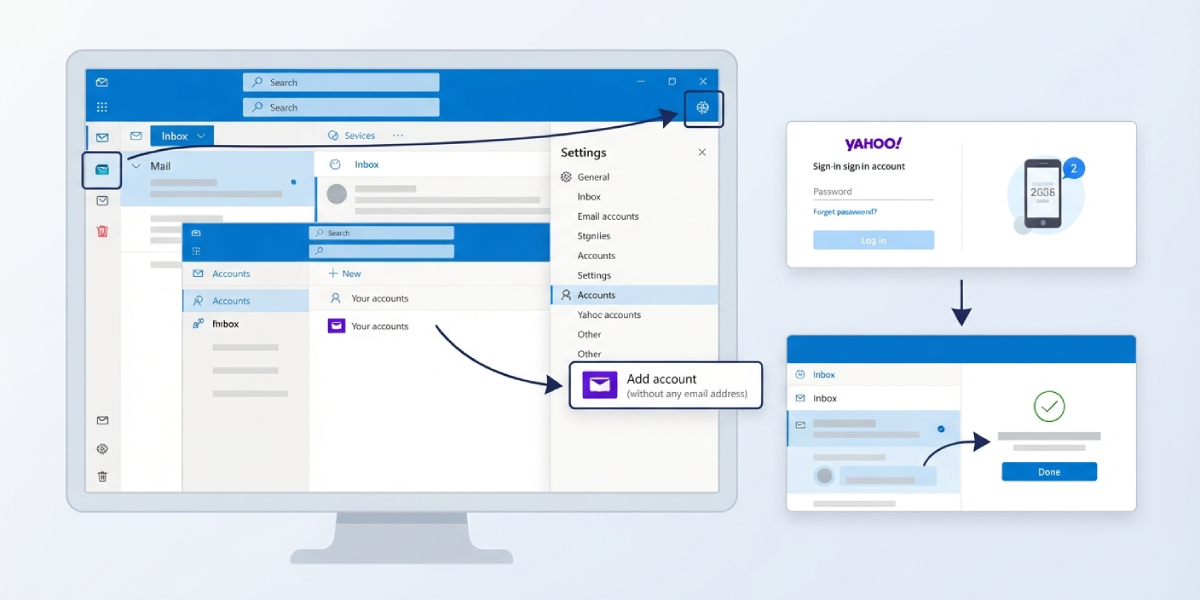
- Step 1: Open New Outlook for Windows and select the View tab at the top of the window.
- Step 2: Choose View settings from the ribbon. This opens a settings panel on the right side of the screen.
- Step 3: Select Accounts, then choose Your accounts from the list of options.
- Step 4: Under Email accounts, select Add Account.
- Step 5: Type the full Yahoo email address, including ‘@yahoo.com’, and select Continue.
- Step 6: On the next screen, select Continue again to move to the sign-in step.
- Step 7: A browser tab opens with Yahoo’s own sign-in page. Enter the Yahoo password there, not an Outlook password field.
- Step 8: Complete any two-factor authentication prompt if two-step verification is turned on for the Yahoo account.
- Step 9: Review the permissions screen and select Agree to let Outlook access Yahoo Mail, contacts, and calendar data.
- Step 10: Wait for Outlook to confirm the account was added, then select Done or Close to return to the main inbox view.
Tip: Keep the Yahoo password handy before starting, since the sign-in tab can time out after a couple of minutes of inactivity.
Using an App Password Instead
Some Yahoo accounts, especially older ones or those with strict security settings, will not accept the regular password through the sign-in page. In that case, an app password solves the problem cleanly.
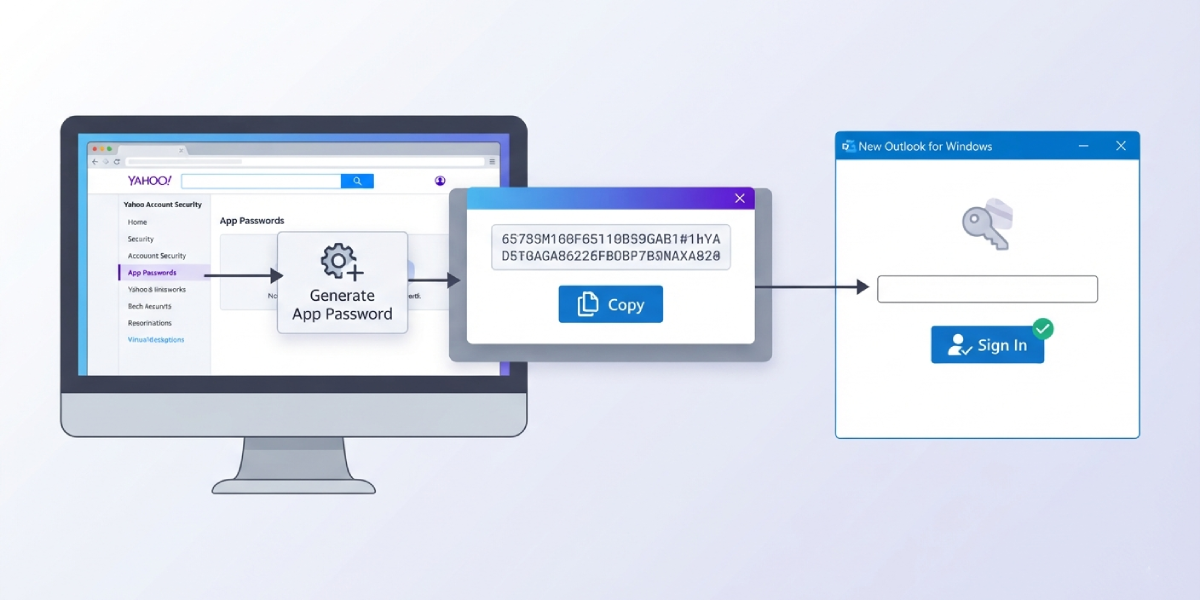
- Step 1: Sign in to Yahoo Mail in a web browser and open Account Info.
- Step 2: Select Account Security, then find the option for app passwords under External connections.
- Step 3: Choose Generate app password, give it a label such as ‘Outlook’, and select Generate.
- Step 4: Copy the 16-character password shown on screen.
- Step 5: Return to the New Outlook add-account screen and paste this app password when prompted for a password, instead of the regular Yahoo login.
Tip: Store the app password somewhere safe right after generating it. Yahoo does not display it again once the window closes.
Common Problems and Fixes
- The Yahoo sign-in tab never opens. This usually means a pop-up blocker is interfering. Allow pop-ups for Outlook and select Add Account again.
- Outlook rejects the regular Yahoo password. Two-step verification is likely enabled. Generate a Yahoo app password and use that instead.
- The account gets stuck on ‘Verifying’ during setup. Close the settings panel, restart Outlook, and try adding the account again after a minute.
- New emails are not syncing after setup. Check the Yahoo account status under Your accounts to confirm it shows as connected, then send a test email to trigger a sync.
- The Agree button does nothing when clicked. This can happen with a slow connection. Refresh the permissions page and select Agree again.
- Password keeps getting rejected even after resetting it. Old cached credentials can interfere. Remove any saved Yahoo credentials from Windows Credential Manager, then add the account again.
Frequently Asked Questions
Does New Outlook for Windows support Yahoo Mail?
Yes, New Outlook for Windows supports adding a Yahoo Mail account through a built-in sign-in flow that connects to Yahoo’s own login page.
Is an app password required to add Yahoo Mail?
Not always. Most accounts connect with the regular Yahoo password through the secure sign-in page. An app password is only needed when two-step verification blocks the standard login.
Where is the option to add an account in New Outlook?
It sits under View, then View settings, then Accounts and Your accounts, followed by Add Account under Email accounts.
Can more than one Yahoo account be added to New Outlook?
Yes, multiple Yahoo accounts can be added the same way. Each one shows up as a separate entry in the folder pane.
Why does Outlook show a plain password box instead of the Yahoo sign-in page?
This can happen depending on the Outlook update channel in use. When that occurs, a Yahoo app password should be used in place of the regular password.
How long does it take for Yahoo emails to appear after setup?
Most accounts sync within a minute or two. Larger mailboxes with years of stored mail can take longer for the initial sync to complete.
Does adding Yahoo Mail also bring over contacts and calendar events?
Yes, once permissions are agreed to during setup, Yahoo contacts and calendar data typically sync alongside the mailbox.
What should be done if the Yahoo account was already removed once before?
Add it again through the same Add Account steps. If the password is rejected, generating a fresh Yahoo app password usually resolves it.
Is a Yahoo app password different from the regular Yahoo password?
Yes. An app password is a 16-character code generated specifically for apps like Outlook, separate from the main Yahoo account password.
