
Trying to find where Outlook stores the PST file usually comes up when backing up email, moving to a new computer, or troubleshooting a corrupted mailbox. The good news is that Outlook makes this information easy to pull up, and there are two reliable ways to get to it. This guide walks through both, step by step.
Key Takeaways
- Outlook’s Account Settings menu shows the exact PST file path in just a few clicks.
- The default location for Outlook 2016 and newer is the Documents > Outlook Files folder.
- Older versions, like Outlook 2010, store the PST file inside a hidden AppData folder instead.
- Hidden items sometimes need to be turned on in File Explorer to browse to the folder manually.
- The redesigned ‘new Outlook’ for Windows does not use PST files at all.
Step-by-Step Guide to Finding the PST File Location
Method 1: Check the File Path Through Outlook Settings
This is the fastest and most accurate method, since it pulls the path directly from the account rather than guessing at a default folder.
- Step 1: Open Outlook and click ‘File’ in the top left corner.
- Step 2: Select ‘Account Settings’, then click ‘Account Settings’ again in the dropdown menu that appears.
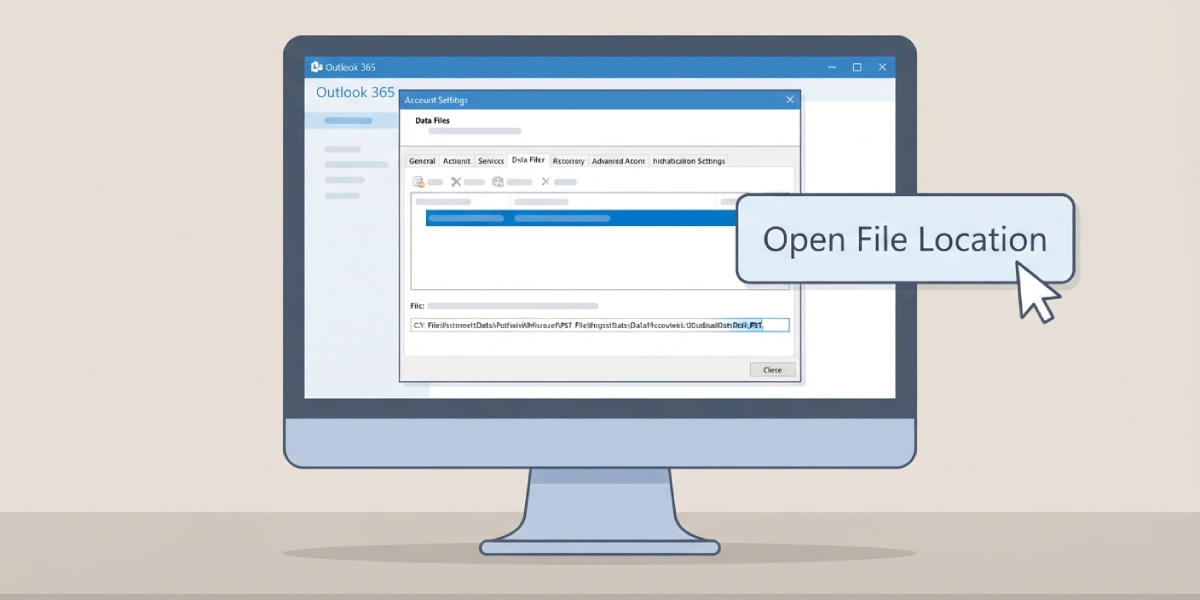
- Step 3: Click the ‘Data Files’ tab at the top of the window.
- Step 4: Look through the list and click once on the PST file to select it. The full file path is visible below the list once it’s selected.
- Step 5: Click ‘Open File Location’. File Explorer opens automatically and lands right in the folder that holds the PST file, with the file itself highlighted.
Tip: If more than one data file is listed, check the ‘Comment’ or ‘E-mail Address’ column to confirm which entry belongs to the account being searched for before opening its location.
Method 2: Locate the Default PST Folder Manually
This works well when Outlook won’t open, or when a quick path lookup is preferred without launching the app.
- Step 1: Open File Explorer on the Windows computer.
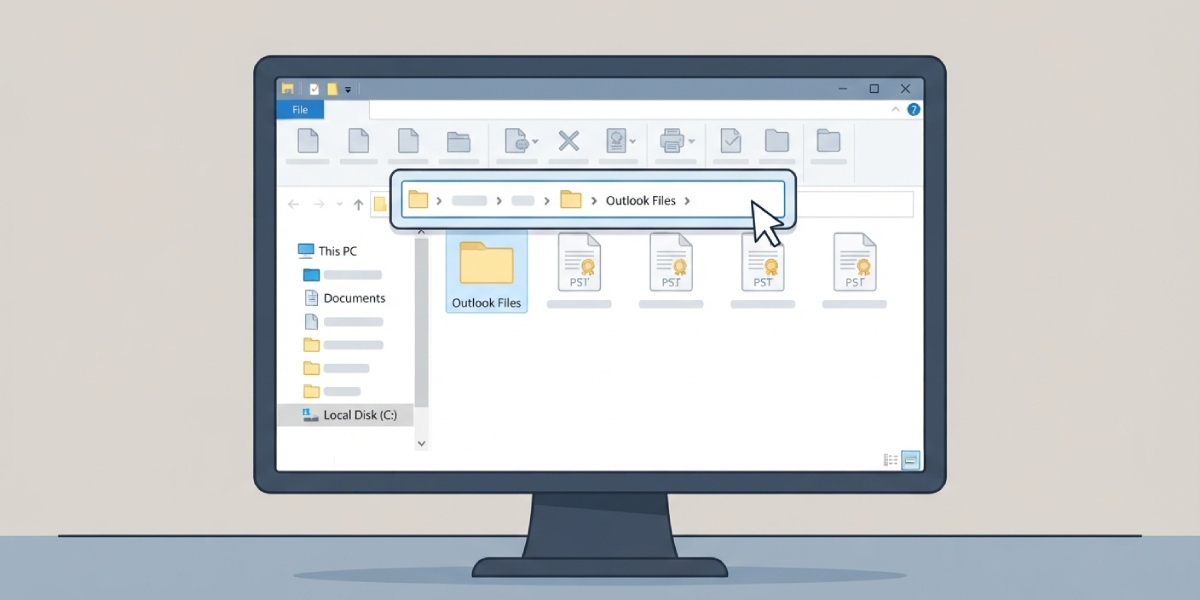
- Step 2: Click into the address bar and paste this path for Outlook 2016, 2019, 2021, or Microsoft 365: C:\Users\[username]\Documents\Outlook Files
- Step 3: For older installations, such as Outlook 2010, try this path instead: C:\Users\[username]\AppData\Local\Microsoft\Outlook
- Step 4: Replace [username] with the actual Windows login name for the account in use.
- Step 5: Press Enter. File Explorer jumps straight to the folder, and any .pst files inside will be visible right away.
Tip: Turn on ‘Hidden items’ from the View tab in File Explorer before browsing manually. The AppData folder is hidden by default on most Windows setups, so it won’t show up in a normal folder browse otherwise.
Common Problems and Fixes
- The Data Files tab shows no PST entries. This usually means the account is connected through Exchange or a modern connection that stores mail in an OST file rather than a PST. Check the file type listed next to each entry to confirm.
- The ‘Open File Location’ button is greyed out. Make sure a file is actually selected in the list first by clicking directly on its row before clicking the button.
- The AppData folder can’t be found manually. Hidden items are most likely still switched off in File Explorer. Enable them from the View tab, then repeat the search.
- File Explorer opens to the wrong folder or shows an error. Double check that the username in the path exactly matches the Windows login name, including capitalization and spelling.
- Several PST files appear in the same folder. Go back into Account Settings and check each file’s path individually to confirm which one is currently connected to the active account.
Frequently Asked Questions
What is the default location of the PST file in Outlook?
For Outlook 2016 and later, the default folder is C:\Users\[username]\Documents\Outlook Files. Older versions typically store it in C:\Users\[username]\AppData\Local\Microsoft\Outlook.
How can the PST file location be found without opening Outlook?
File Explorer can be used to browse directly to the default folder paths listed above, without needing to launch Outlook first.
Why is the Data Files tab empty or missing a PST file?
This typically happens when the account uses an OST file instead, which is common for Exchange, Microsoft 365, or IMAP connections that sync mail rather than storing it locally in a PST.
Does the new Outlook for Windows use PST files?
No. The redesigned new Outlook app stores data differently and does not use PST files, so this file type only applies to the classic version of Outlook.
Can the PST file be moved to a different folder after it’s found?
Yes, but Outlook needs to be closed first, and the data file will need to be reattached through the Data Files tab afterward using the ‘Add’ option so Outlook knows where to find it.
What if the AppData folder still isn’t visible after enabling hidden items?
Double check that ‘Hidden items’ is checked under the View tab in File Explorer, and confirm the exact username spelling in the path, since a small typo will cause the folder to not be found.
How can the primary PST file be identified when several are listed?
In the Data Files tab, the file marked as the default delivery location is usually indicated in the list. Selecting each entry and reviewing its file path helps confirm which one is currently active.
Is Outlook Mac’s PST file located the same way?
No. Outlook for Mac uses OLM files instead of PST, so this specific process applies only to Outlook running on Windows.
