
Outlook search running slowly is one of the most frustrating everyday annoyances in the app, especially when a spinning wheel replaces results that used to load instantly. The good news is that this problem almost always comes down to a broken or incomplete search index, and it can be fixed in a handful of straightforward steps.
Key Takeaways
- Slow Outlook search is usually caused by a corrupted or incomplete Windows Search index, not a broken mailbox.
- Rebuilding the index is the single most effective fix and resolves the issue in most cases.
- Indexing options and Outlook’s own search settings need to point to the correct mailbox folders.
- Large mailboxes and older PST/OST files may need extra time or extra steps to reindex fully.
- A restart after rebuilding the index makes a noticeable difference and should not be skipped.
How to Fix Outlook Search Running Slowly
This step-by-step process rebuilds the search index and resets the settings that most commonly cause sluggish results.
Step-by-Step Instructions
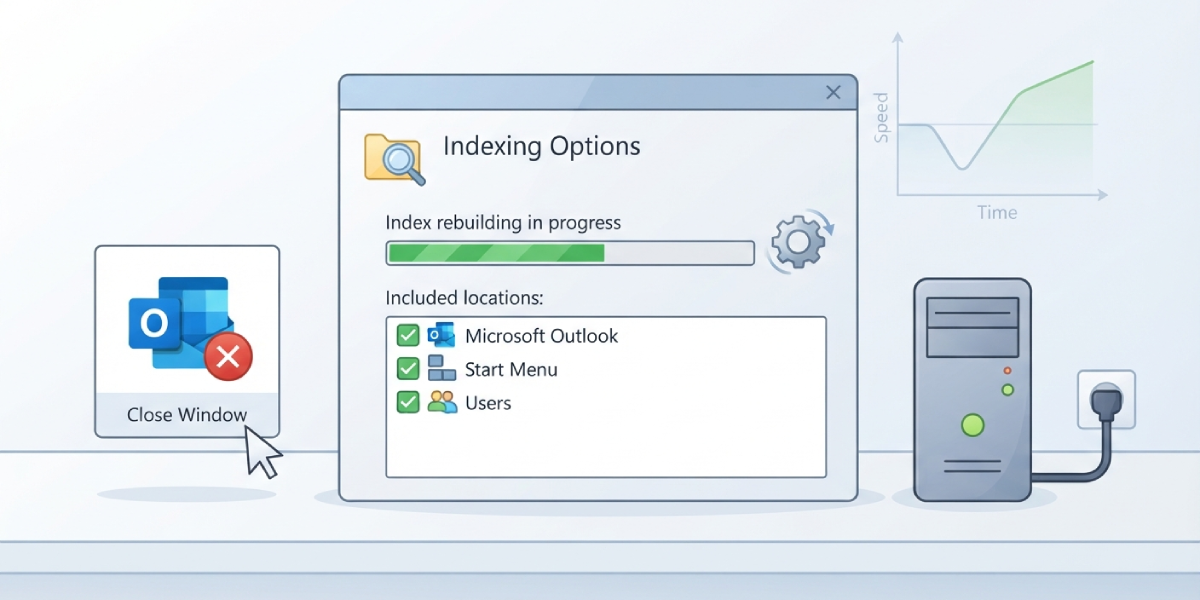
- Step 1: Close Outlook completely. Right-click the Outlook icon in the taskbar and choose Close window, or use Task Manager to end the process if it is still running in the background.
- Step 2: Open the Windows Control Panel and search for Indexing Options. Click the result to open the Indexing Options window.
- Step 3: Click Modify and confirm that Microsoft Outlook is checked in the list of locations. If it is missing, enable it and click OK.
- Step 4: Back in the main Indexing Options window, click Advanced. This opens the Advanced Options dialog where the rebuild happens.
- Step 5: Under the Index Settings tab, click Rebuild. Windows will warn that this process can take a while – confirm by clicking OK.
- Step 6: Leave the computer on and connected to power while the index rebuilds. Depending on mailbox size, this can take anywhere from a few minutes to several hours in the background.
- Step 7: Reopen Outlook and go to File, then Options, then Search. Click Indexing Options to confirm Outlook still shows as an indexed location.
- Step 8: Restart the computer once the index shows as fully built. This clears any cached search states left over from before the rebuild.
- Step 9: Test search by typing a keyword known to exist in an old email. Results should now appear within a second or two instead of stalling.
Tip: Check the indexing status directly inside Outlook by opening the Search tab and looking at the bottom left corner of the search results pane. It will say something like ‘Indexing complete’ once everything is finished, so there is no need to guess whether the rebuild is done.
Checking Mailbox Mode If Search Is Still Slow
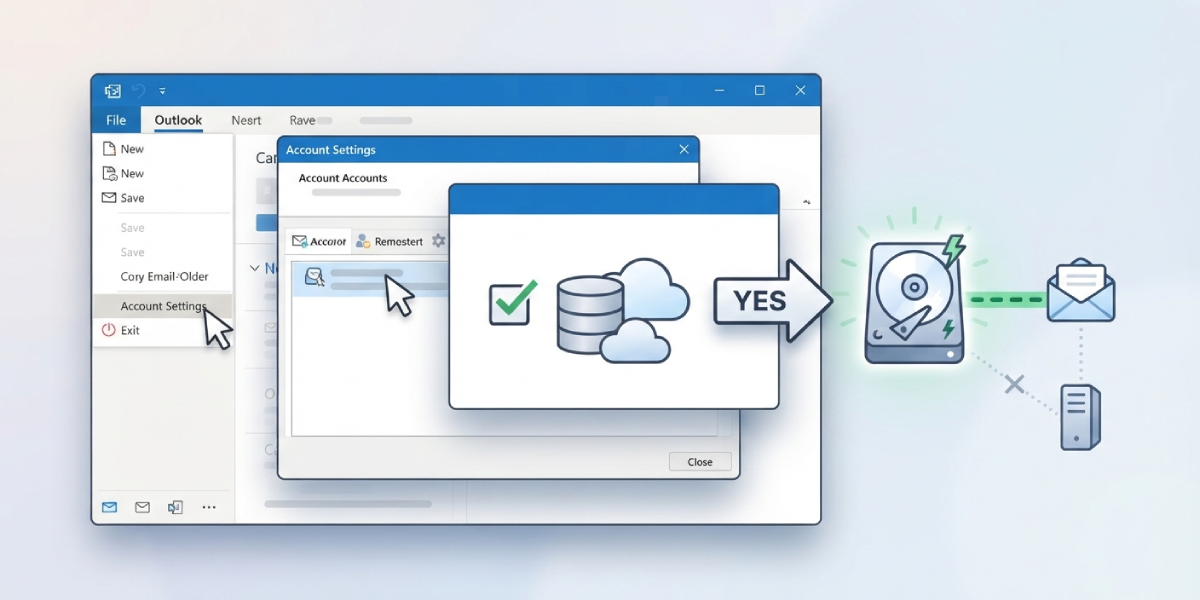
For accounts connected through Exchange or Microsoft 365, confirm that Cached Exchange Mode is turned on. Go to File, then Account Settings, then Account Settings again, double-click the email account, and make sure the Cached Exchange Mode box is checked. Searching against a locally cached copy of the mailbox is far faster than searching a mailbox that lives entirely on the server.
Common Problems and Fixes
- The rebuild option is greyed out: This usually means Outlook is still open or another process has the index file locked. Close Outlook fully, wait a minute, then reopen Indexing Options.
- Search stays slow even after rebuilding: Open Indexing Options and check the item count against the estimated total. If it is stuck at the same number for an extended period, restart the Windows Search service through Services.msc.
- Only recent emails show up in results: This points to an incomplete index rather than a search bug. Let the rebuild finish completely before testing, since partial indexes only return partial results.
- Search works for some folders but not others: Go back into Indexing Options, click Modify, and confirm every relevant mailbox folder is checked, including Archive or additional PST files if any are attached.
- Outlook is missing from the Indexing Options list entirely: Close Outlook, reopen Indexing Options, click Modify again, and look under ‘Change selected locations.’ It sometimes needs Outlook to have been opened at least once after installation before it appears.
Frequently Asked Questions
Why does Outlook search suddenly become slow?
The most common cause is a corrupted or outdated Windows Search index, often triggered by a large batch of new emails, a recent Windows update, or an interrupted sync.
How long does rebuilding the Outlook search index take?
It depends on mailbox size. Smaller mailboxes can finish in under an hour, while larger ones with years of email history may take several hours to fully reindex.
Can Outlook be used while the index is rebuilding?
Yes, Outlook can stay open during the process, but search results will be incomplete or slow until the rebuild finishes.
Does a larger mailbox make search permanently slower?
Not necessarily. A properly indexed large mailbox searches just as fast as a small one. Speed problems come from indexing issues, not mailbox size alone.
Will rebuilding the index delete any emails?
No. Rebuilding the index only affects how content is catalogued for search. It does not remove, move, or alter any messages.
Should Cached Exchange Mode be turned on for faster search?
Yes, for Exchange and Microsoft 365 accounts. Searching a local cached copy is significantly faster than querying the server directly for every search.
Why does search work on the web version of Outlook but not the desktop app?
This usually confirms the issue is local to the desktop index rather than the mailbox itself, since the web version relies on server-side search instead of the Windows index.
What if the search index keeps breaking after each rebuild?
Recurring corruption often points to a disk issue or a conflict with antivirus software scanning the index files. Running a disk check and adding an antivirus exclusion for the Outlook data folder usually resolves it.
Is there a way to check indexing progress without opening Control Panel?
Yes. Inside Outlook, the Search tab shows a live status message at the bottom of the results pane indicating whether indexing is still in progress or complete.
