
Outlook stuck on Updating This Folder is one of the most common sync errors Outlook users run into, usually showing up in the status bar right when a message needs to send or a folder needs to refresh. It typically points to a corrupted data file, an overloaded add-in, or a sync connection that has quietly stalled. The good news is that this is almost always fixable without losing any mail.
Key Takeaways
- The message usually means Outlook’s sync process has frozen, not that data has been lost.
- Starting Outlook in Safe Mode quickly reveals whether an add-in is the culprit.
- Rebuilding the OST file resolves most stubborn cases tied to corrupted local data.
- Switching Cached Exchange Mode settings can prevent the freeze from returning.
- A Quick Repair through the Office installer fixes issues a restart alone cannot.
How to Fix Outlook Stuck on Updating This Folder
These steps are listed in the order most likely to resolve the issue with the least effort first, so work through them one at a time rather than skipping ahead.
- Step 1: Close Outlook completely, wait about ten seconds, and reopen it. This clears a temporary sync hiccup and solves the problem more often than most people expect.
- Step 2: Check the internet connection. A weak or dropped connection is one of the most frequent reasons Outlook stalls mid-sync, especially on Wi-Fi that fluctuates between rooms or floors.
- Step 3: Restart Outlook in Safe Mode to rule out a misbehaving add-in. Close Outlook, press Windows key + R, type outlook.exe /safe, and press Enter. If the folder updates normally in Safe Mode, an add-in is the cause.
- Step 4: Disable add-ins one by one if Safe Mode fixed it. Go to File, then Options, then Add-ins, select COM Add-ins next to Manage, click Go, and clear the checkboxes for each add-in before restarting Outlook normally.
- Step 5: Run a Quick Repair on Office. Open Control Panel, go to Programs and Features, right-click Microsoft 365 or the Office version installed, choose Change, select Quick Repair, and click Repair.
- Step 6: Rebuild the OST file if the repair does not help. Close Outlook, open File Explorer, and navigate to the path shown under File, Account Settings, Account Settings, then the Data Files tab to find the OST location. Rename the file by adding .old to the end, then reopen Outlook so it creates a fresh OST and re-downloads mail.
- Step 7: Adjust Cached Exchange Mode settings for large mailboxes. Go to File, Account Settings, Account Settings, double-click the account, and under Cached Exchange Mode Settings, reduce the mail slider to a shorter time range, such as 3 months instead of All.
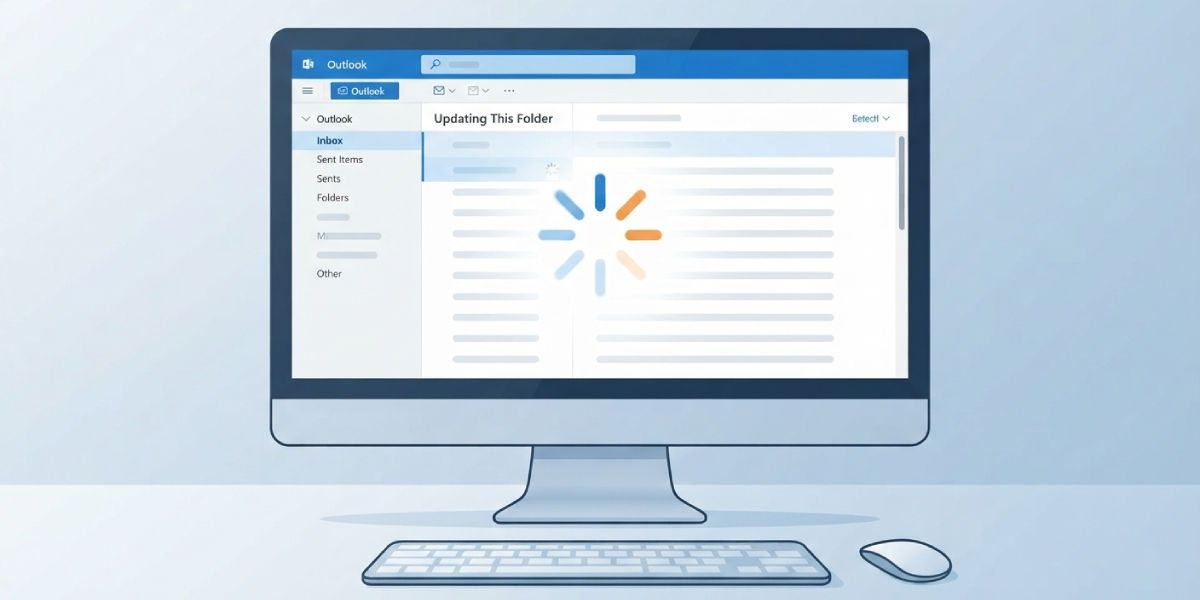
When Safe Mode Confirms an Add-in Problem
Add-ins for CRM tools, PDF converters, or antivirus scanning plugins are common offenders. Re-enable them one at a time, restarting Outlook after each, until the freeze returns and the source is identified.

Tip: Keep a short list of which add-ins were disabled and in what order. This makes it far easier to re-enable the safe ones later without repeating the whole test.
Rebuilding the OST File Safely
Renaming rather than deleting the OST file is important, since it preserves a backup in case the resync does not go as planned. Once Outlook confirms the new file is syncing correctly and the folder updates without hanging, the renamed .old file can be deleted.

Tip: Rebuilding an OST for a large mailbox can take a while over a slower connection, so it works best to start this step when stepping away from the desk is an option.
Common Problems and Fixes
- The status bar still shows Updating This Folder after a restart: Check Task Manager and confirm no leftover OUTLOOK.EXE process is running in the background before reopening the app.
- Safe Mode also freezes on the same folder: This points away from add-ins and toward a corrupted OST file, so move directly to the rebuild step.
- Outlook cannot find the OST file location: Enable hidden items in File Explorer, since the default AppData path is hidden by default on most Windows installs.
- Repair option is greyed out in Control Panel: Close Outlook and any other Office apps fully before attempting the repair again.
- Sync freezes again after a few days: Antivirus software scanning the OST file in real time is a frequent repeat cause, so add an exclusion for the Outlook data folder in the antivirus settings.
Frequently Asked Questions
What does Updating This Folder actually mean in Outlook?
It means Outlook is trying to sync a specific folder with the mail server, either downloading new messages or applying changes, and the process has become stuck rather than completing.
Will fixing this cause any emails to be lost?
No. The steps above work with local sync data, not the mail stored on the server, so messages remain safe on the mail server throughout the process.
How long should a full sync take after rebuilding the OST file?
This depends on mailbox size and connection speed, but a typical mailbox with a few gigabytes of mail usually finishes within 30 minutes to a couple of hours.
Is it safe to delete the old OST file right away?
It is better to wait until the new OST file has synced fully and folders update without freezing, then delete the renamed .old file afterward.
Does this issue affect Outlook on Mac the same way?
The underlying cause is similar, but the rebuild process differs since Outlook for Mac uses an Identity database rather than an OST file, so the exact steps are not identical.
Can a slow VPN connection cause this freeze?
Yes. A VPN with high latency or an unstable connection to the corporate network frequently causes Outlook to stall mid-sync, particularly with larger folders.
Why does only one folder get stuck while others sync fine?
A single folder freezing usually points to a corrupted item or a larger-than-usual folder size, both of which the OST rebuild step resolves.
Should Outlook be updated before trying these fixes?
Yes, checking for updates under File, Office Account, Update Options, Update Now is worth doing first, since known sync bugs are often patched in newer builds.
Does switching to Online Mode instead of Cached Mode help?
It can, since Online Mode relies on the server rather than a local OST file, though it also requires a consistently strong connection to work well.
