
Anyone who has switched computers, restored a backup, or merged old email archives has faced the same question: how to import a PST file into Outlook without losing folders, duplicating messages, or breaking the mailbox structure. The process itself is short, but a few settings decide whether the import goes smoothly or turns into a cleanup job.
Key Takeaways
- PST files are imported through Outlook’s built-in Import/Export wizard, not by dragging files into the app.
- Choosing ‘Do not import duplicates’ during setup prevents doubled emails and calendar entries.
- Closing other Outlook add-ins before a large import speeds up the process significantly.
- Password-protected PST files need the original password on hand before starting.
- Large PST files (over a few gigabytes) can take considerable time, so importing during downtime is smart.
How to Import a PST File into Outlook
This method works in current desktop versions of Outlook, including Outlook for Microsoft 365 and Outlook 2021/2019. The steps stay nearly identical across these versions, with only minor menu wording differences.
Step-by-Step Instructions
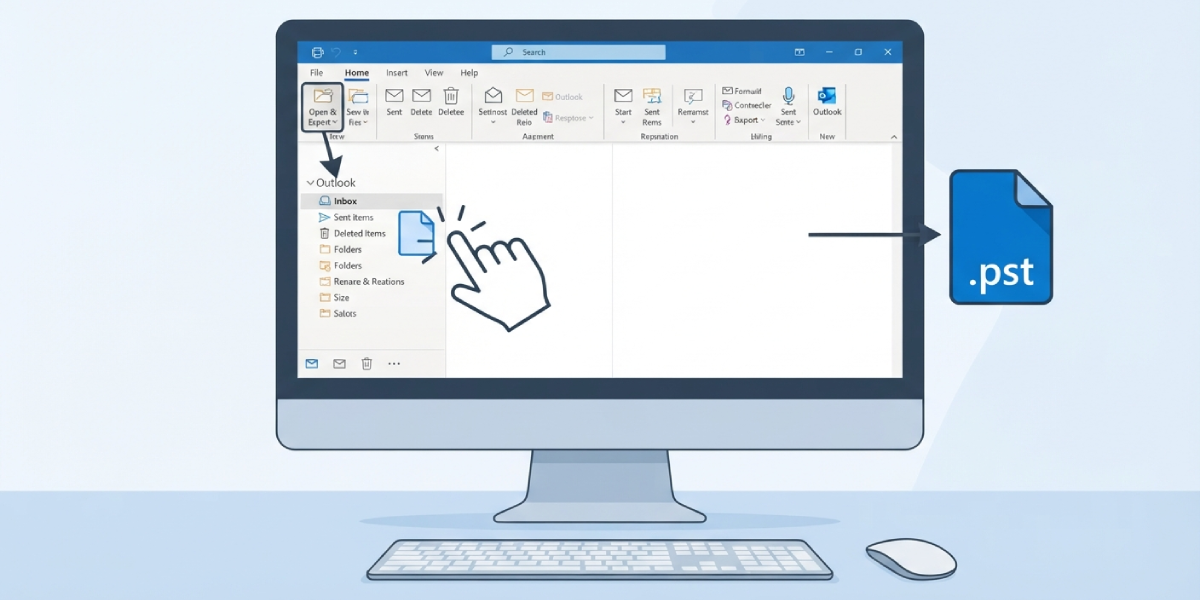
- Step 1: Open Outlook and click on the ‘File’ tab in the top-left corner of the ribbon.
- Step 2: Select ‘Open & Export’ from the left-hand menu, then choose ‘Import/Export’. This launches the Import and Export Wizard, which is the only supported way to bring a PST file into Outlook.
- Step 3: Choose ‘Import from another program or file’ and click ‘Next’.
- Step 4: Select ‘Outlook Data File (.pst)’ from the list and click ‘Next’ again.
- Step 5: Click ‘Browse’ and locate the PST file on the computer or external drive. Under import options, select ‘Do not import duplicates’ unless there is a specific reason to replace existing items.
- Step 6: Click ‘Next’. If the file is password-protected, enter the password when prompted.
- Step 7: Choose where the imported content should land. Most people find that selecting the top-level folder, such as the PST file name itself, and checking ‘Include subfolders’ keeps the original structure intact.
- Step 8: Decide on the destination. Importing into the current mailbox merges the content directly into existing folders, while importing into a new, separate data file keeps everything isolated for review first.
- Step 9: Click ‘Finish’ to start the import. A progress bar will appear, and depending on the file size, this can take anywhere from a few seconds to well over an hour.
Tip: For anyone importing a large archive, closing other memory-heavy programs beforehand gives Outlook more resources to work with and noticeably shortens the wait.
Verifying the Import Was Successful
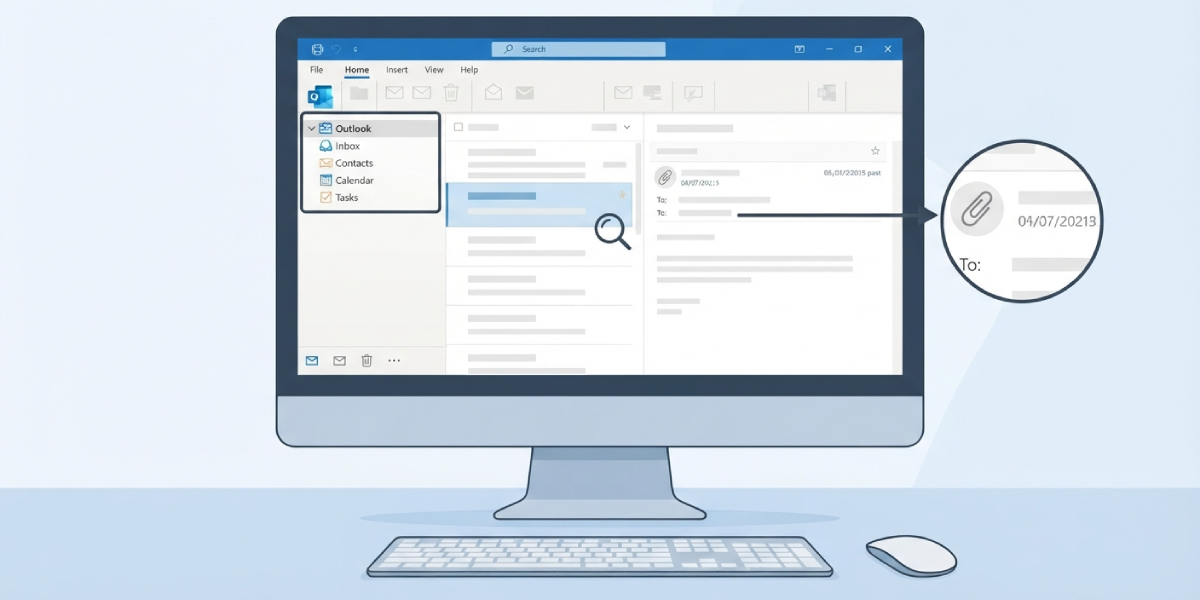
- Step 1: Check the folder pane on the left side of Outlook for the newly imported folder or data file.
- Step 2: Expand the folder and confirm that emails, contacts, and calendar items appear as expected.
- Step 3: Spot-check a few older emails to confirm attachments opened correctly and dates match the originals.
Common Problems and Fixes
The PST File Won’t Open or Shows as Corrupted
This usually happens when the file was moved improperly or came from an interrupted backup. Running the built-in Inbox Repair Tool (scanpst.exe), found in the Outlook installation folder, can often fix minor corruption before attempting the import again.
Duplicate Emails Appear After Import
This happens when ‘Allow duplicates to be created’ was selected instead of ‘Do not import duplicates’. There is no built-in undo for this, so the fix involves manually sorting the affected folder by sender or subject and deleting the extra copies, or using a clean re-import with the correct setting selected.
Outlook Freezes or Runs Slowly During Import
Large PST files, especially those over 5GB, can strain Outlook’s performance. Letting the import run without switching to other Outlook tasks in the meantime, and closing unnecessary add-ins beforehand, usually resolves this.
Password Prompt Won’t Accept the Correct Password
PST passwords are case-sensitive, and a stuck Caps Lock key is the most common culprit. Retyping the password carefully, rather than pasting it, often solves the issue.
Imported Folders Don’t Match the Original Structure
This typically means ‘Include subfolders’ was left unchecked during setup. Deleting the imported folder and repeating the process with that box checked restores the original layout.
Frequently Asked Questions
Can a PST file be imported into Outlook on Mac?
Outlook for Mac uses a different data file format called OLM, so a PST file needs to be converted or imported through Outlook on Windows first, then synced or exported for Mac use.
Is it necessary to close Outlook before importing a PST file?
No, Outlook needs to be open since the import runs through its Import/Export wizard. There is no need to close the application beforehand.
How long does importing a PST file usually take?
Small files with a few hundred emails typically finish in under a minute. Larger archives, especially several gigabytes in size, can take from 20 minutes to a few hours.
Will importing a PST file overwrite existing emails?
Not if ‘Do not import duplicates’ is selected. This setting compares items and skips anything that already exists in the mailbox.
What is the maximum PST file size Outlook can import?
Current versions of Outlook support PST files up to 50GB, though files that large tend to import more slowly and are more prone to performance issues during the process.
Can contacts and calendar items be imported along with emails?
Yes, a single PST file often contains emails, contacts, calendar entries, and tasks together, and the import wizard brings all of them in at once when ‘Include subfolders’ is selected.
What happens if the import is interrupted partway through?
Outlook usually resumes or allows a fresh attempt without data loss to the original PST file, since the import reads from the file rather than modifying it. Running the import again from the same file is safe.
Does importing a PST file require administrator access?
On most personal devices, no. On managed work computers with restricted permissions, an administrator may need to grant access to the Import/Export feature.
Can a PST file be imported into a shared or delegated mailbox?
Yes, as long as the mailbox is added to the Outlook profile first and has the necessary permissions, the same Import/Export wizard can target that mailbox as the destination.
