
A GPU fan not spinning under load is one of the more alarming things a PC owner can notice, since it usually means the card is running hotter than it should. The good news is that most cases come down to a handful of common, fixable causes rather than a dead graphics card.
Key Takeaways
- Many modern GPUs use a zero-RPM mode that keeps fans off at idle or light load, which is normal behavior, not a fault.
- Dust buildup, a failed fan connector, or outdated drivers are the most frequent real causes of a stuck fan.
- Software monitoring tools can confirm whether the fan is actually dead or simply idle.
- Cleaning, reseating cables, and updating drivers resolve the issue in most cases without opening the card.
- A fan that stays silent under heavy load and high temperature needs prompt attention to avoid thermal damage.
Common Causes of a GPU Fan Not Spinning
Before assuming the worst, it helps to understand why a fan might sit still. Several explanations are harmless, while others need action.
Zero-RPM or Fan-Stop Mode
Most current graphics cards, from budget models to high-end ones, include a feature that stops the fans entirely when the GPU is idle or under light load, such as browsing the web or watching video. This is intentional and helps reduce noise and dust intake. The fans only spin up once the card crosses a certain temperature threshold, which typically happens during gaming or rendering.
Dust and Debris Buildup
Dust can pack tightly around the fan hub and blades over time, especially in dusty rooms or homes with pets. This adds friction that a weak startup current cannot always overcome, so the fan hesitates or fails to spin even when it should.
Loose or Damaged Fan Connector
GPU fans typically connect to the card through a small header on the PCB. If that connector has worked loose, corroded, or been damaged during a previous cleaning session, the fan loses power entirely and will not spin no matter the temperature.
Outdated or Corrupted Drivers
Graphics drivers control fan curves alongside performance settings. A corrupted driver installation or a bad update can sometimes cause the fan curve to misbehave, leaving the fan at 0 RPM even under load.
Failed Fan Motor or Bearing
Fan motors wear out over years of use, particularly in cards that ran hot often. A seized bearing or a burnt-out motor will not respond to cleaning or software changes and typically needs a physical fix.
Before You Start
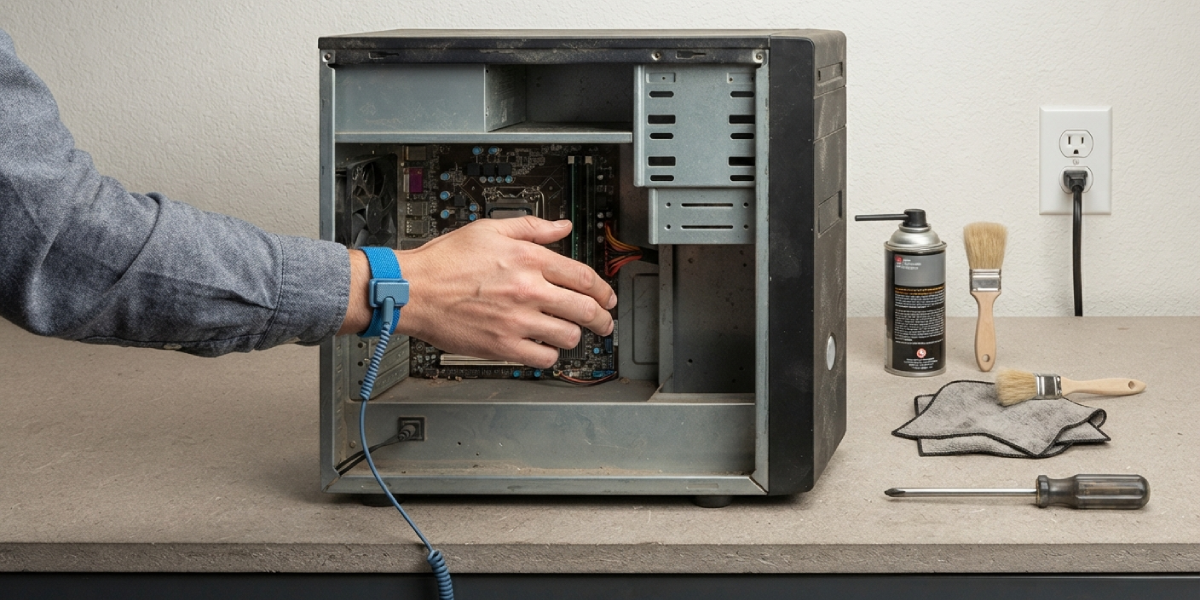
Power down the computer completely and unplug it from the wall outlet. Press the power button once the system is off to drain any residual charge, and touch a bare metal part of the case or use an anti-static wrist strap before touching any internal components. Let the GPU cool down fully if the system was just running, since heatsinks and fan blades can stay warm for several minutes after shutdown.
Tools and materials that come in handy for this task include compressed air, a soft-bristled brush, a microfiber cloth, and a Phillips screwdriver if card removal becomes necessary. If the issue turns out to be a burnt-out fan motor or damage to the PCB, replacing the fan assembly or sending the card to a professional repair service is the safer route rather than attempting a motor-level repair at home.
How to Fix a GPU Fan That Is Not Spinning
- Step 1: Confirm the fan is actually supposed to be spinning. Open the GPU manufacturer’s monitoring software or a third-party tool like HWiNFO or GPU-Z, then check the fan speed reading while the system sits idle. If the reading shows 0 RPM at idle, this is likely zero-RPM mode working as intended, not a fault.
- Step 2: Put the GPU under load to test the fan response. Run a demanding game or a benchmark for a few minutes while watching the temperature and fan speed in the monitoring tool. A healthy fan should spin up once the card crosses its fan-start temperature threshold, usually somewhere in the 50 to 60 degree Celsius range depending on the model.
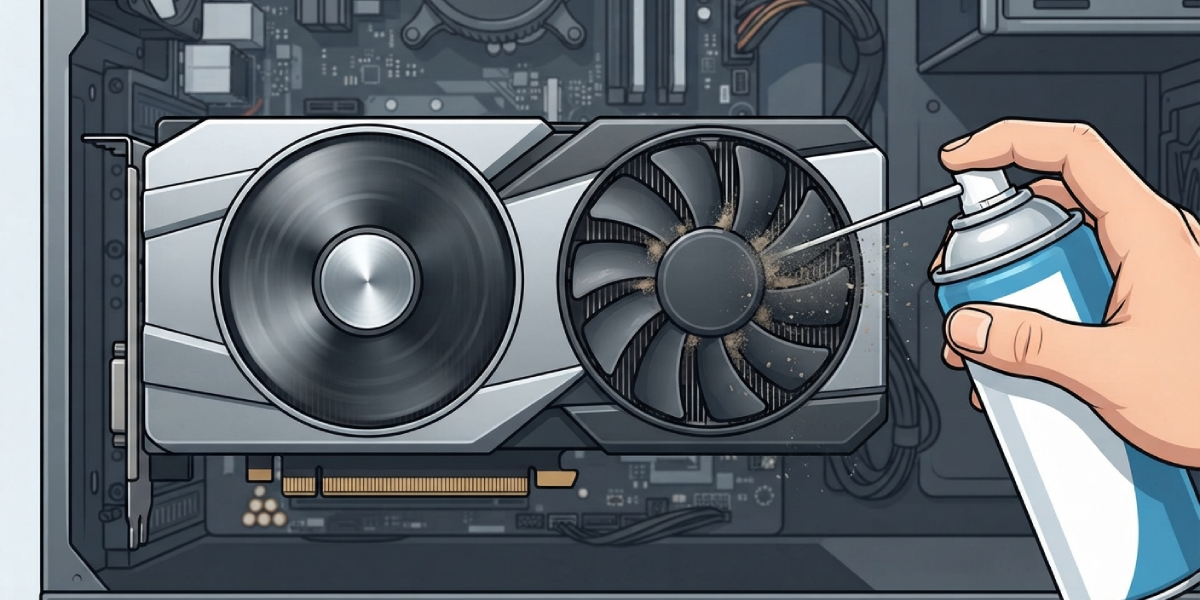
- Step 3: If the fan stays at 0 RPM while temperatures climb well past that threshold, shut the system down and inspect the fan for visible dust buildup around the blades and hub. Use compressed air in short bursts to clear debris, holding the fan blades still with a finger or a soft brush to prevent the motor from spinning too fast without lubrication.
- Step 4: With the system still off, remove the GPU from the motherboard if there is easy access to the fan connector without a full teardown. Locate the small fan header on the card’s PCB, usually near the edge close to the fan itself, and check that the connector is fully seated. Unplug it gently and plug it back in to clear any corrosion or loose contact.
- Step 5: Reinstall the GPU, power the system back on, and update the graphics driver to the latest version from the manufacturer’s official site. A clean driver reinstall using the manufacturer’s uninstall utility beforehand can rule out a corrupted fan curve profile as the cause.
- Step 6: Retest under load using the same monitoring software from Step 1. If the fan now spins normally as temperatures rise, the issue is resolved. If it still refuses to spin under real heat, the motor or the fan’s internal wiring has likely failed and the fan assembly needs replacement.
Tip: Never touch a spinning GPU fan to check if it works, since this can bend the delicate blades or throw off their balance.
Common Problems and Fixes
Fan Spins Briefly Then Stops
This pattern often points to a failing bearing that starts the motor but cannot sustain rotation. Cleaning helps in mild cases, but a fan that behaves this way repeatedly usually needs replacement.
Only One Fan Spins on a Multi-Fan Card
Many GPUs run two or three fans independently. One fan not spinning while the others work normally almost always points to that specific fan’s connector or motor, not a card-wide driver or power issue.
Fan Spins in Software but Not Physically
If monitoring software reports an RPM value yet the blades are visibly still, the fan sensor may be reporting a stale or cached value. Restarting the system and the monitoring software often clears this mismatch.
Temperatures Climb Fast With No Fan Response
This is the scenario that needs the fastest action, since the GPU can throttle performance or shut down to protect itself. If cleaning, reseating the connector, and a driver reset do not bring the fan back, stop using the card under heavy load until the fan is repaired or replaced.
Frequently Asked Questions
Is it normal for a GPU fan not to spin at idle?
Yes. Most modern graphics cards include a zero-RPM or fan-stop feature that keeps the fans off until the card reaches a certain temperature, which typically only happens under gaming or rendering loads.
How can someone tell if a GPU fan not spinning is a real problem?
Run the GPU under a demanding game or benchmark and watch temperatures using monitoring software. If temperatures climb past the normal load range while the fan stays at 0 RPM, that indicates a real fault rather than idle behavior.
Can dust alone stop a GPU fan from spinning?
Yes. Dust packed around the fan hub and blades adds enough resistance that the motor’s startup torque cannot always overcome it, especially in cards that have not been cleaned in a long time.
Is it safe to use compressed air on a GPU fan?
Yes, when used correctly. Short bursts held slightly away from the blades work well, and holding the fan still with a finger or brush prevents it from spinning too fast and damaging the bearing.
Will updating drivers fix a GPU fan not spinning?
It can, particularly if the fan curve itself is misbehaving due to a corrupted driver installation. It will not help if the cause is a physically failed motor or a disconnected fan cable.
Can a loose fan connector really stop a fan completely?
Yes. The fan header on a GPU’s PCB is small and can work loose or corrode over time, cutting power to the fan entirely even though the rest of the card functions normally.
Should the GPU be used if the fan is not spinning under load?
No. Running a GPU under heavy load without proper cooling risks thermal throttling and long-term damage. It is best to pause demanding use until the fan issue is resolved.
Can a single fan be replaced on a multi-fan GPU?
In many cases, yes. Individual fans on most GPUs are attached with small screws and a connector, making single-fan replacement possible, though it does require careful disassembly and a compatible replacement part.
Does opening a GPU to fix the fan void the warranty?
It can, depending on the manufacturer and whether a warranty seal is present on the card. Checking the specific warranty terms before opening the card is worth doing first.
When should a professional handle a GPU fan issue?
If cleaning, reseating the connector, and driver updates do not restore normal fan function, or if the fan motor itself appears seized or burnt out, a professional repair service or a fan replacement kit from the manufacturer is the safer path forward.
