
Before buying a new memory kit, it pays to check if RAM is compatible with your motherboard, since even a small mismatch in type or speed can stop a PC from booting. This guide walks through every factor that determines compatibility and shows exactly where to find the numbers that matter.
Key Takeaways
- RAM must match the motherboard’s supported memory type – DDR4 and DDR5 are not interchangeable.
- The motherboard’s manual or manufacturer website lists the maximum supported speed, capacity, and number of slots.
- Free tools like CPU-Z can identify the current RAM and motherboard specs directly from a running system.
- Form factor matters too – desktops use DIMM modules while laptops use SO-DIMM modules.
- Checking the motherboard’s Qualified Vendor List (QVL) confirms which specific kits have been tested and verified.
Before You Start
No disassembly is required for most of this process, since the bulk of it involves checking specifications rather than handling hardware. If opening the case to read a physical label on the motherboard becomes necessary, power the system down, unplug it, and touch a bare metal part of the case to discharge static before touching any internal components.
Steps to Check RAM Compatibility With a Motherboard
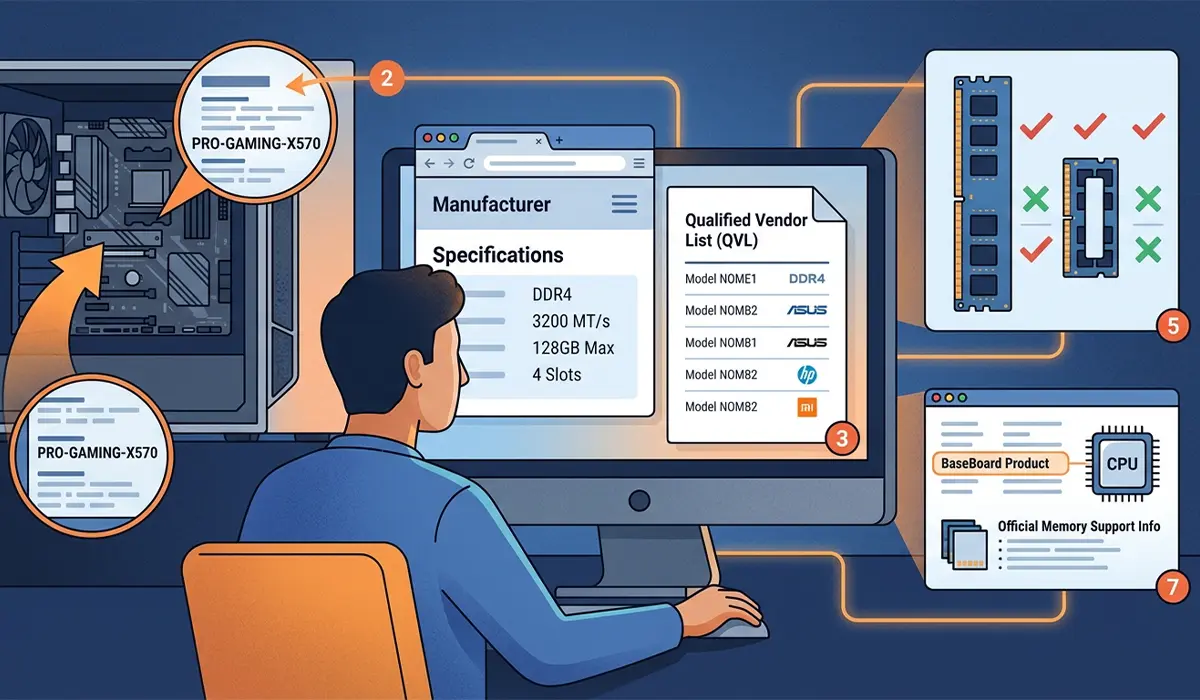
- Step 1: Identify the exact motherboard model. This is usually printed directly on the board itself, often near the RAM slots or the PCIe slots. It can also be found through Windows by opening the Start menu, typing ‘System Information’, and looking at the ‘BaseBoard Product’ field.
- Step 2: Look up the motherboard’s official specifications page on the manufacturer’s website using the exact model number. This page lists the supported memory type (DDR4 or DDR5), maximum supported speed in MT/s, maximum total capacity, and the number of memory slots available.
- Step 3: Check the Qualified Vendor List, often labeled QVL, on the same product page. This is a list of specific RAM kits the manufacturer has physically tested on that board. A kit on the QVL is about as close to a guarantee of compatibility as it gets, though plenty of kits not on the list still work fine as long as the specs align.
- Step 4: Confirm the RAM’s own specifications match what the board supports. Check the memory type, speed, capacity per stick, and total kit capacity printed on the packaging or listed in the product page.
- Step 5: Verify the physical form factor matches the system. Desktop towers and most mini-ITX builds use standard DIMM modules, while laptops and small form factor mini PCs typically use the shorter SO-DIMM modules. These are not interchangeable.
- Step 6: Use a free diagnostic tool such as CPU-Z to double-check both the installed RAM and the motherboard model from within Windows. The ‘Memory’ and ‘SPD’ tabs show detailed timing and speed information, while the ‘Mainboard’ tab confirms the exact board model and chipset.
- Step 7: Check CPU support for the memory speed being considered. The memory controller lives on the processor, so even if the motherboard technically supports a certain speed, the installed CPU may cap out lower. The processor manufacturer’s product page lists its officially supported memory speeds.
- Step 8: Factor in dual-channel or quad-channel requirements. Many boards perform best with two or four identical sticks installed in matching colored slots, so check the motherboard manual for the correct slot pairing to get full memory bandwidth.
Tip: When buying a RAM kit for a build that already has one stick installed, try to match the brand, capacity, and speed of the existing stick as closely as possible, since mixing mismatched sticks can lead to instability even when both are technically the same type.
Common Problems and Fixes
- New RAM installed but the PC will not boot or shows no display. This is often a speed mismatch or a stick seated incorrectly. Reseat each module firmly until the side clips click into place, and try running just one stick at a time to isolate a faulty module.
- System boots but only shows part of the installed capacity. This usually points to a slot not being fully seated or, less commonly, the motherboard reaching its maximum supported capacity. Check the specifications page again to confirm the total capacity limit was not exceeded.
- RAM runs at a lower speed than advertised on the box. This happens when XMP on Intel systems or EXPO on AMD systems has not been enabled in the BIOS. Without it, RAM defaults to a slower base JEDEC speed, so enabling the appropriate profile in the BIOS memory settings brings it up to its rated speed.
- System becomes unstable or crashes randomly after adding a second kit. Mixing two different kits, even at the same rated speed, can cause instability due to differing timings. Testing each kit separately, then together, helps identify whether one kit or the combination is the cause.
Frequently Asked Questions
Can DDR4 RAM be installed in a DDR5 motherboard?
No. DDR4 and DDR5 modules have different notch positions and pin counts, so they physically cannot fit into the wrong slot type.
Does more expensive RAM always mean better compatibility?
Not necessarily. Price often reflects speed, capacity, or aesthetic features like RGB lighting rather than compatibility. A less expensive kit that matches the motherboard’s supported specs will work just as reliably as a premium one.
What happens if RAM speed exceeds what the motherboard supports?
Most motherboards will simply run the RAM at the highest speed they do support rather than refusing to boot, though results can vary by board and BIOS version.
Is it necessary to buy RAM from the same brand as the motherboard?
No. Motherboard and RAM brands do not need to match. What matters is whether the memory type, speed, and capacity fall within the board’s supported specifications.
How can the maximum RAM capacity for a motherboard be found?
The maximum supported capacity is listed on the manufacturer’s official specifications page for that exact motherboard model, usually alongside the number of available slots.
Can RAM sticks of different capacities be mixed, such as 8GB and 16GB?
Most modern motherboards support mixed capacities without issue, though matching capacities generally gives more predictable dual-channel performance.
Does laptop RAM work in a desktop motherboard?
No. Laptop RAM uses the SO-DIMM form factor, which is physically shorter than the standard DIMM modules used in desktop motherboards, so the two are not interchangeable.
What is a Qualified Vendor List and why does it matter?
A Qualified Vendor List, or QVL, is a list published by the motherboard manufacturer showing specific RAM kits that have been tested directly on that board model. Choosing a kit from this list reduces the chance of running into compatibility issues.
Will incompatible RAM damage the motherboard or CPU?
Installing RAM that is the wrong type is not physically possible due to differing notch positions, so it typically will not cause damage. Compatible RAM that is simply misconfigured in the BIOS is very unlikely to cause hardware damage either.
