
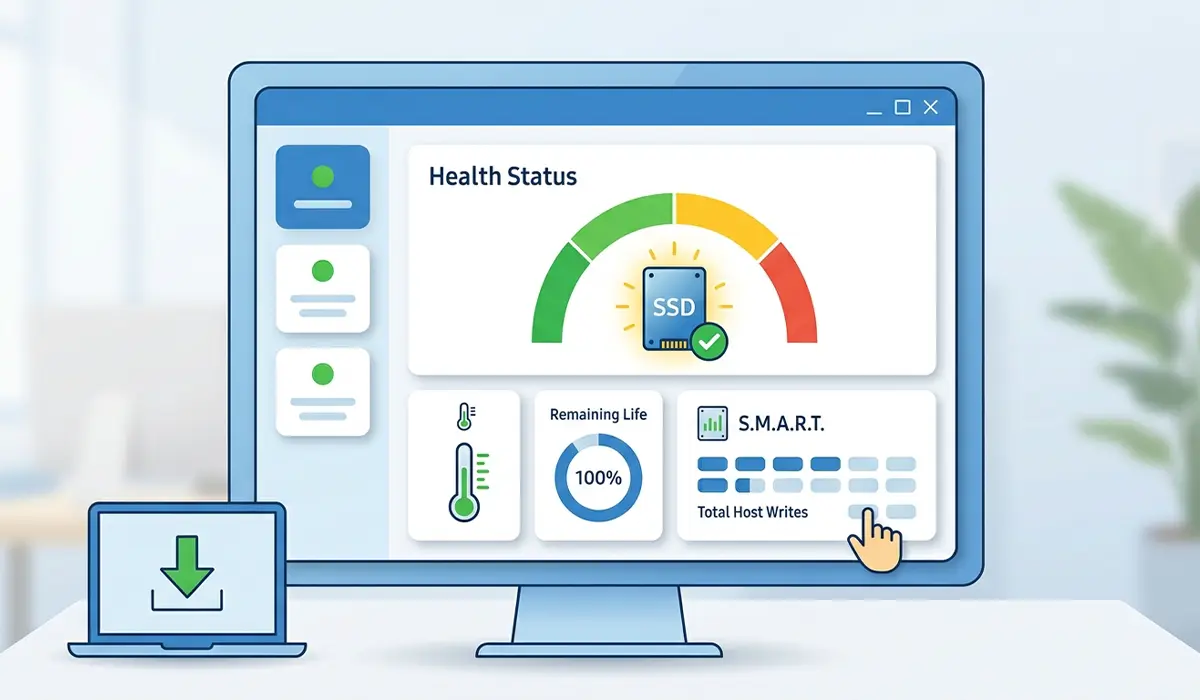
Checking SSD health and lifespan on a regular basis is the easiest way to catch a failing drive before it takes files down with it. Solid state drives rarely give obvious warning signs the way a clicking hard drive does, so the data has to be pulled directly from the drive itself.
Key Takeaways
- SSD health is measured through S.M.A.R.T. attributes, not visual symptoms, so a monitoring tool is required to see the real numbers.
- Percentage Used and Total Bytes Written (TBW) show how much of the drive’s rated lifespan has been consumed.
- Windows includes basic drive status checks built in, but a dedicated tool like CrystalDiskInfo gives a far more complete picture.
- Manufacturer software (Samsung Magician, WD Dashboard, Crucial Storage Executive) often reads more detailed attributes on that brand’s own drives.
- A healthy SSD can still fail without warning, so checking health monthly and keeping backups current matters more than chasing a perfect score.
How to Check SSD Health Using Built-In Windows Tools
Windows will not hand over every detail an SSD is tracking internally, but it offers a quick first look without installing anything.
Method 1: Check Drive Status With PowerShell
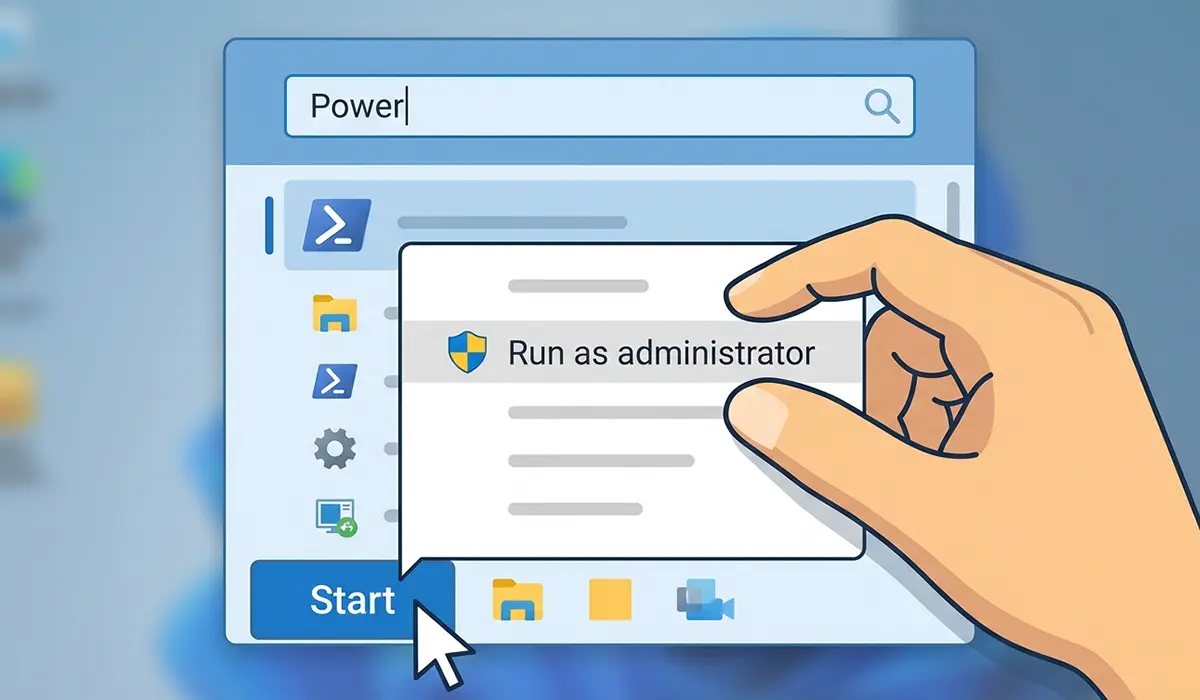
- Step 1: Click the Start menu, type ‘PowerShell’, right-click it, and choose ‘Run as administrator’.
- Step 2: Type Get-PhysicalDisk and press Enter.
- Step 3: Look at the ‘HealthStatus’ column next to the SSD in the list. It should read ‘Healthy’.
- Step 4: For more detail, type Get-PhysicalDisk | Get-StorageReliabilityCounter | Select-Object DeviceId, Wear, ReadErrorsTotal, Temperature and press Enter to see wear percentage and temperature.
Tip: A wear value close to 100 means the drive still has plenty of life left, since this figure typically counts down as the drive is used, depending on how the manufacturer reports it.
Method 2: Run Windows Optimize Drives
- Step 1: Open File Explorer, right-click the SSD, and select ‘Properties’.
- Step 2: Go to the ‘Tools’ tab and click ‘Optimize’.
- Step 3: Select the drive and click ‘Analyze’ to view its current condition.
This tool confirms Windows recognizes the drive as an SSD and is applying TRIM correctly, which matters for long-term performance, but it does not report detailed wear data on its own.
How to Check SSD Lifespan With CrystalDiskInfo
CrystalDiskInfo remains the most widely used free tool for reading full S.M.A.R.T. data on both mechanical and solid state drives, and it works with almost every brand.
- Step 1: Download CrystalDiskInfo from its official source and install it.
- Step 2: Open the program. It scans connected drives automatically and displays a health status of ‘Good’, ‘Caution’, or ‘Bad’ at the top.
- Step 3: Scroll down to the S.M.A.R.T. attribute table and locate ‘Total Host Writes’ or a similar attribute showing lifetime data written.
- Step 4: Check the ‘Percentage Used’ or ‘Media Wearout Indicator’ attribute if the drive reports one. Lower numbers on a wearout indicator mean more life remains.
- Step 5: Note the drive temperature shown near the top. Consistently high running temperatures can accelerate wear over time.

Tip: A single ‘Caution’ or ‘Bad’ reading on reallocated sectors or uncorrectable errors is worth acting on right away by backing up important files, even if the drive still seems to work normally.
How to Check SSD Health With Manufacturer Software
Most major SSD makers publish their own diagnostic tools, and these often expose brand-specific attributes that generic tools cannot read.
- Samsung drives: Samsung Magician shows health percentage, remaining life, and a built-in benchmark and firmware updater.
- Western Digital and SanDisk drives: WD Dashboard reports S.M.A.R.T. status, drive temperature, and a self-test option.
- Crucial drives: Crucial Storage Executive displays drive health, total bytes written, and firmware status.
- Kingston, Intel, and other brands: check the manufacturer’s support page for a dedicated SSD toolbox, since most major brands provide one.
Running the matching manufacturer tool alongside CrystalDiskInfo gives a more complete view, since some proprietary attributes only display correctly in the brand’s own software.
Common Problems and Fixes
SSD Shows as ‘Caution’ or ‘Bad’ but Still Boots Normally
This usually means one or more S.M.A.R.T. attributes have crossed a warning threshold. Back up all data immediately and plan a replacement, since a drive can still function for a while after this status appears but should not be trusted long-term.
Health Percentage Drops Faster Than Expected
Heavy write activity from large downloads, video editing, virtual machines, or a full page file can accelerate wear. Moving high-write workloads to a secondary drive and disabling unnecessary logging or caching on the SSD helps slow this down.
Different Tools Show Different Health Numbers
Not every tool reads the same S.M.A.R.T. attributes the same way, and some drives report wear using proprietary fields that generic software cannot interpret correctly. Trusting the manufacturer’s own tool over a generic one usually gives the more accurate number.
Drive Not Detected by Monitoring Software
This can happen with SSDs connected through certain USB enclosures or RAID controllers, since S.M.A.R.T. data does not always pass through those connections. Connecting the drive directly via SATA or NVMe, where possible, usually resolves it.
Frequently Asked Questions
How often should SSD health be checked?
Checking every one to three months is enough for most users. Anyone running heavy workloads like video editing or virtual machines may want to check monthly.
What is a normal lifespan for an SSD?
Most consumer SSDs are rated for several years of typical use, often expressed as a TBW (terabytes written) figure in the drive’s specifications. Actual lifespan depends heavily on how much data is written to the drive over time.
Does a low health percentage mean the SSD will fail immediately?
Not necessarily. A lower percentage means more of the drive’s rated write endurance has been used, but many SSDs continue working well past the point where health first drops below 100 percent. It is a signal to start planning ahead, not a countdown to failure.
Can SSD health be restored or reset?
No. Wear from data written to the memory cells is permanent and cannot be reversed through software. Freeing up space or reducing writes can only slow future wear, not undo what has already occurred.
What SSD health tools are safe to use?
CrystalDiskInfo and the manufacturer’s own utility, such as Samsung Magician or WD Dashboard, are considered safe and reliable. Downloading tools only from the official developer or manufacturer site avoids bundled software risks.
What does ‘Percentage Used’ actually measure?
It reflects how much of the drive’s total rated write endurance has been consumed, based on data written over its lifetime compared to its TBW rating. It does not measure storage capacity used.
Is a high SSD temperature a health concern?
Running consistently hot can shorten lifespan over time, though modern SSDs include thermal throttling to protect themselves. Improving airflow around the drive or adding a heatsink on NVMe drives that run hot helps keep temperatures in a safer range.
Should an SSD be replaced before it fails completely?
Yes, once health status reads ‘Caution’ or ‘Bad’, or S.M.A.R.T. attributes show reallocated sectors or uncorrectable errors, replacing the drive proactively avoids sudden data loss.
Do SSDs need special software to check health on Windows 11?
Windows 11 includes the same PowerShell and Optimize Drives tools available on Windows 10, but a dedicated tool like CrystalDiskInfo still gives far more detailed S.M.A.R.T. data than the built-in options.
