
Need to hear your own voice live while you talk, sing, or test a new mic? Learning how to listen to your microphone through your speakers in Windows 11 takes about a minute, thanks to a built-in option called Listen to this device. It works on every Windows 11 edition and needs no administrator rights, only a working microphone and speakers or headphones.
Key Takeaways
- Open Settings > System > Sound > More sound settings to reach the classic Sound window.
- On the Recording tab, open your microphone’s properties and go to the Listen tab.
- Tick Listen to this device, pick an output under Playback through this device, then click Apply.
- Headphones are the best choice, because speakers placed near the mic can cause a screeching echo.
How to Listen to Your Microphone Through Your Speakers in Windows 11 – Step-by-Step
Each method below opens the same Sound window and ends with the same result, so pick whichever feels easiest.
Method 1: Use the Settings App
- Press Windows + I to open Settings.
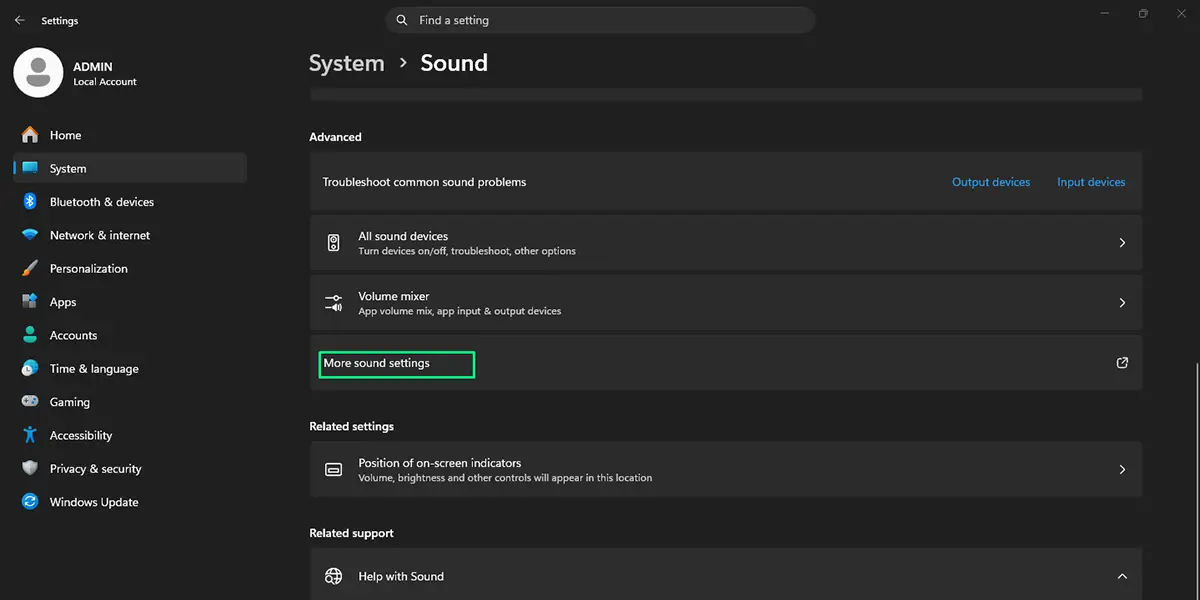
- Go to Settings > System > Sound.
- Scroll down to the Advanced section and click More sound settings. A small window titled Sound opens.
- Click the Recording tab.
- Select your microphone from the list. While you talk, the green level bar next to it should move.
- Click Properties.
- Switch to the Listen tab.
- Tick the box for Listen to this device.
- Open the Playback through this device drop-down and choose Default Playback Device, or pick your speakers or headphones by name.
- Click Apply, then click OK.
Speak into the mic right away. Your voice should come out of the chosen speakers or headphones with only a slight delay.
Tip: Plug in headphones before ticking the box. A laptop with its built-in mic and speakers is the classic setup for a loud feedback squeal, because the sound loops straight back into the microphone.
Method 2: Use the Control Panel
- Click Start, type Control Panel, and open it.
- Set View by to Category if needed, then click Hardware and Sound.
- Under Sound, click Manage audio devices.
- Open the Recording tab and double-click your microphone.
- Go to the Listen tab and tick Listen to this device.
- Choose the output under Playback through this device, then click Apply and OK.
Method 3: Use the Run Command
This is the quickest route if the Sound window is something you open often.
- Press Windows + R to open the Run box.
- Type the command below and press Enter. It does not need an elevated window.
mmsys.cpl
- In the Sound window, click the Recording tab and double-click your microphone.
- Open the Listen tab, tick Listen to this device, pick the output device, and click Apply, then OK.
How to Undo or Reverse This Change
Stopping the feature is just as simple. Open the Sound window using any method above, double-click your microphone on the Recording tab, and go to the Listen tab. Untick Listen to this device, then click Apply and OK. Your voice stops playing through the speakers immediately.
Common Problems and Fixes
The microphone plays no sound through the speakers
First check that the right device is selected under Playback through this device. Then open the Levels tab in the same Properties window and make sure the microphone is not muted and the volume slider is above zero. Also confirm that microphone access is allowed in Settings > Privacy & security > Microphone.
A loud echo or screeching feedback starts
This happens when the mic picks up its own output. Switch the playback device to headphones, move the microphone farther from the speakers, or lower the speaker volume until the squeal stops.
The voice is delayed behind the speaker
A small delay is normal with this feature. A Bluetooth speaker or headset adds more lag, so a wired output gives the most natural result when timing matters.
The Listen tab is missing
The Listen tab appears only for recording devices. Make sure the selected item is the actual microphone and not a disabled or virtual entry. If the tab is still missing, the audio driver may be incomplete, and reinstalling or updating the audio driver from the PC maker usually brings it back.
The setting turns off by itself on a laptop
The Listen tab includes a power management option that controls whether listening continues when the laptop runs on battery. Check that option on the same tab, then click Apply.
Frequently Asked Questions
Does Listen to this device work on Windows 11 Home?
Yes. The Sound window is part of every Windows 11 edition, including Home, Pro, and Enterprise, so no upgrade is needed.
Do I need to restart the PC after turning it on?
No. The change takes effect as soon as Apply or OK is clicked, and no restart or sign-out is needed.
Why do I hear an echo or squealing noise?
The microphone is picking up sound from the speakers and feeding it back in a loop. Using headphones, lowering the volume, or moving the mic away from the speakers solves it.
Can I hear the microphone through headphones instead of speakers?
Yes. Choose the headphones from the Playback through this device drop-down on the Listen tab. Headphones are the safest option because they prevent feedback.
Is there a keyboard shortcut for this?
There is no dedicated shortcut for the setting itself. The fastest route is pressing Windows + R, typing mmsys.cpl, and pressing Enter to jump straight to the Sound window.
Why is there a delay between my voice and the sound I hear?
The audio has to travel from the microphone through Windows to the output device, which adds a short delay. Bluetooth outputs add noticeably more, while wired speakers and headphones keep it low.
Does this save or record my voice?
No. The feature only plays the microphone signal through the chosen output in real time. Recording needs a separate app, such as a voice recorder.
Does it drain the battery on a laptop?
Live monitoring keeps the audio path running, so it uses a little more power than leaving it off. The Listen tab also has a power management option that controls what happens when the laptop is on battery.
Why can I not find the Listen tab for my microphone?
The tab only shows up when a recording device is opened from the Recording tab. If it is still missing, the selected entry may not be a real microphone, or the audio driver may need updating.
