
Learning how to change system sounds in Windows 11 takes only a couple of minutes, and the result is a PC that chimes, dings, or stays silent exactly the way you want. The steps work on every edition of Windows 11, including Home and Pro, and no administrator rights are needed. Custom sounds must be in .wav format.
Key Takeaways
- The fastest route is Settings > System > Sound > More sound settings > Sounds tab.
- Each Windows event, such as Notification or Critical Stop, can have its own sound.
- Only .wav files can be used as custom sounds.
- Choosing the No Sounds scheme silences every system sound at once.
- Changes apply immediately, with no restart required.
Step-by-Step Guide to Change System Sounds in Windows 11
Method 1: Use the Settings App
- Press Windows + I to open Settings.
- Click System in the left sidebar.
- Click Sound.
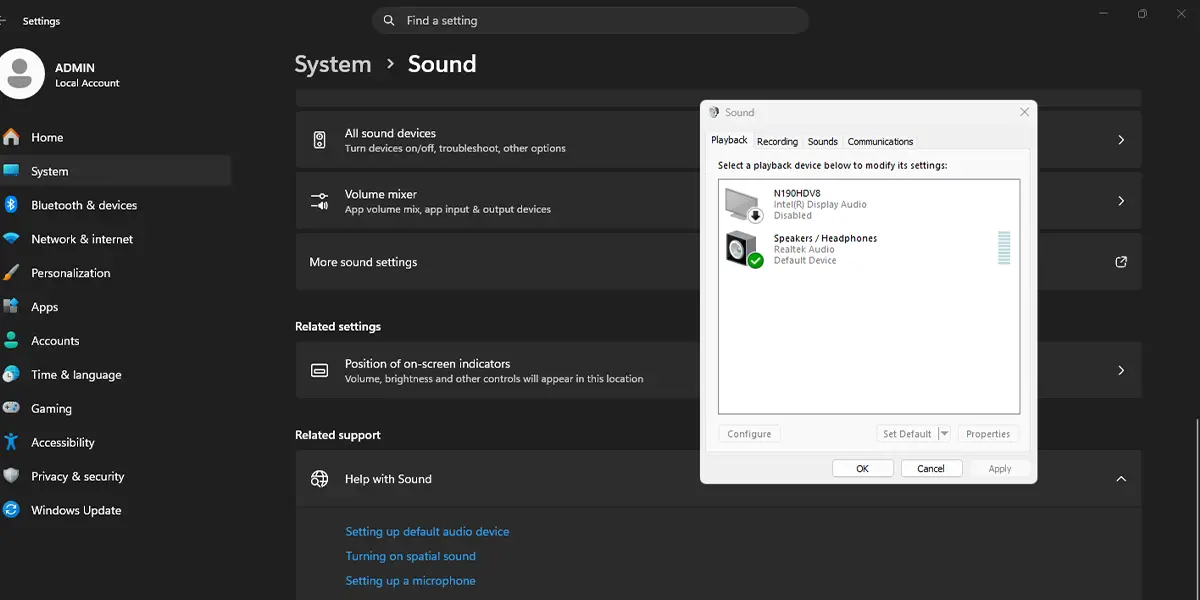
- Scroll down to the Advanced section and click More sound settings. A small window titled Sound opens.
- Click the Sounds tab.
- Under Program Events, click the event to change, for example Notification.
- Open the Sounds drop-down list and pick a sound. To use a personal file, click Browse, select a .wav file, and click Open.
- Click Test to hear the sound. The chosen sound plays right away.
- Click Apply, then click OK.
Tip: To switch a whole set of sounds at once, open the Sound Scheme drop-down list on the same tab and pick a different scheme. It is the quickest way to move between the default sounds and silence.
Method 2: Use Control Panel
- Click Start, type Control Panel, and open it.
- Click Hardware and Sound.
- Under Sound, click Change system sounds. The Sound window opens on the Sounds tab.
- Select an event under Program Events.
- Choose a sound from the Sounds drop-down list, or click Browse to pick a .wav file.
- Click Test, then click Apply and OK.
Method 3: Use the Run Dialog
- Press Windows + R to open the Run dialog.
- Type the following command and press Enter. It does not need an elevated window.
mmsys.cpl
- Click the Sounds tab in the window that appears.
- Select an event, choose a new sound, click Test, then click Apply and OK.
Tip: This shortcut is handy on a work PC or a shared family computer where clicking through menus feels slow. Once memorized, the Sound window is always two keystrokes away.
Save Your Own Sound Scheme
After customizing several events, the changes can be stored so they are easy to restore later. On the Sounds tab, click Save As, type a name for the scheme, and click OK. The new scheme then appears in the Sound Scheme drop-down list.
How to Undo or Reverse This Change
To return to the original sounds, open the Sound window using any method above, click the Sounds tab, open the Sound Scheme drop-down list, and select Windows Default. Click Apply, then OK. To silence a single event instead, select it and choose (None) at the top of the Sounds drop-down list.
Common Problems and Fixes
The custom sound file does not show up
Windows accepts only .wav files for system sounds. Files in MP3 or other formats will not appear in the Browse window by default. Convert the audio to .wav, then browse to it again.
No sound plays when clicking Test
Check that the volume is not muted and that the correct speakers or headphones are selected as the output device in Settings > System > Sound. Also confirm the Sound Scheme is not set to No Sounds, since that scheme silences every event.
The Sounds tab changes do not stick
Make sure Apply or OK was clicked before closing the window, because closing it with the X discards the changes. On a work or school PC, an organization policy may also reset the sounds, in which case the IT department controls the setting.
Frequently Asked Questions
Can system sounds be changed on Windows 11 Home?
Yes. The Sound window is available on every edition of Windows 11, including Home, Pro, and Enterprise.
Does changing system sounds require a restart?
No. The new sounds take effect as soon as Apply or OK is clicked.
What file format works for custom system sounds?
Only .wav files can be assigned to events. Other audio formats need to be converted to .wav first.
How can all system sounds be turned off?
Open the Sound window, go to the Sounds tab, set the Sound Scheme to No Sounds, and click Apply, then OK.
Can the startup sound be turned on or off?
Yes. On the Sounds tab, tick or untick the Play Windows Startup sound checkbox, then click Apply and OK. The checkbox switches the startup sound on or off.
Is there a keyboard shortcut to open the sound settings window?
Press Windows + R, type mmsys.cpl, and press Enter. The Sound window opens, and the Sounds tab is one click away.
Does changing system sounds affect battery life or performance?
No. System sounds are tiny audio files, so swapping them has no noticeable effect on battery life or speed on a laptop or desktop.
Can the volume of system sounds be adjusted separately?
Yes. Open Settings > System > Sound > Volume mixer and use the System sounds slider to raise or lower the volume without touching music or video volume.
