
Outlook error 0x80070005 usually shows up when Outlook cannot access a file, folder, or registry key because of a permissions conflict. It’s frustrating when it hits mid-task, but the fix is quicker than most people expect once the right cause is targeted.
Key Takeaways
- Error 0x80070005 is almost always a permissions or access-denied issue tied to Outlook data files, the registry, or antivirus interference.
- Running Outlook as an administrator resolves the issue in many cases.
- Checking and repairing PST or OST file permissions is a core part of the fix.
- Antivirus and third-party add-ins are common hidden culprits.
- A quick registry permission reset can clear stubborn cases.
How to Fix Outlook Error 0x80070005
Step 1: Close Outlook Completely
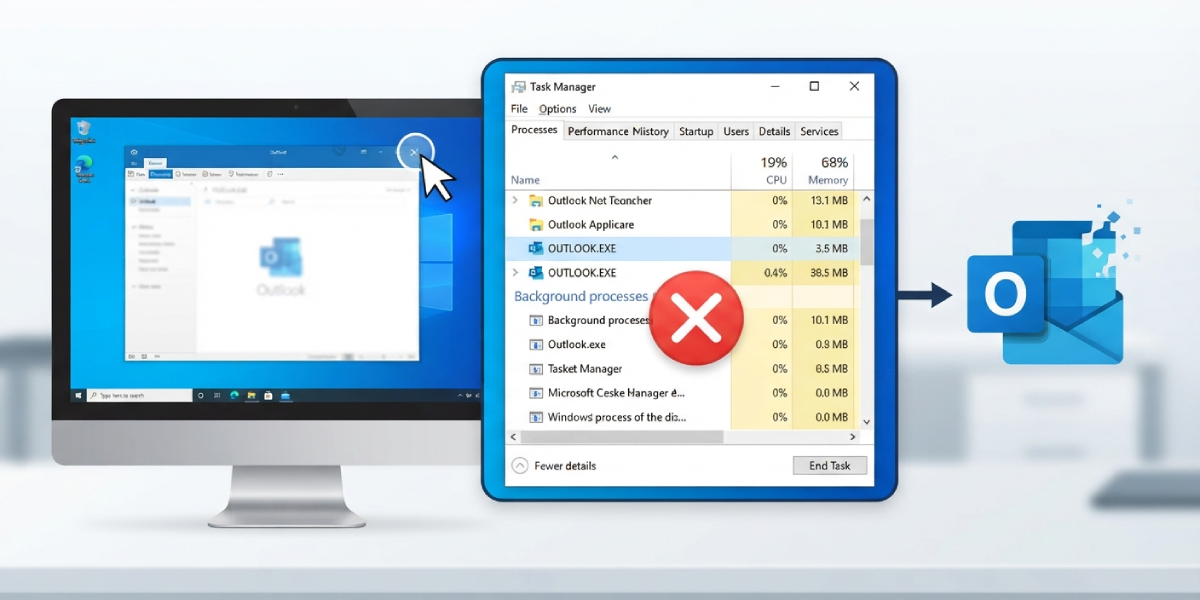
- Right-click the taskbar and open Task Manager, then check the Processes tab for any lingering OUTLOOK.EXE process. End it if Outlook is still listed even after closing the window. Starting fresh avoids file lock conflicts that trigger this error.
Step 2: Run Outlook as an Administrator
- Right-click the Outlook shortcut or search result and select ‘Run as administrator’. This grants Outlook elevated permissions, which often clears the access-denied trigger behind 0x80070005 on the first try.
Tip: If Outlook opens without the error while running as administrator, the root cause is confirmed as a permissions issue, which points directly to Step 3 and Step 4 below.
Step 3: Check File Permissions on the Outlook Data File
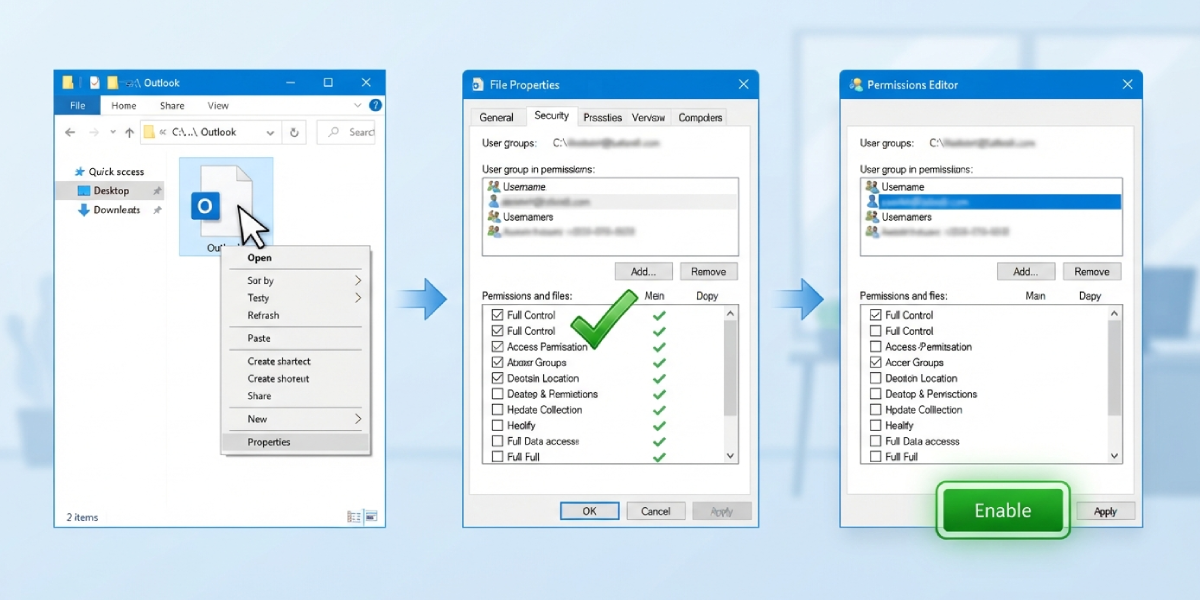
- Locate the PST or OST file, typically found in C:\Users\[username]\AppData\Local\Microsoft\Outlook. Right-click the file, select Properties, then open the Security tab.
- Select the current user account and confirm that Full Control is checked under Allow. If it isn’t, click Edit, select the account, and enable Full Control, then click Apply.
Step 4: Repair the Outlook Data File
- Close Outlook, then open File Explorer and search for SCANPST.EXE, which is included with every Office installation.
- Open the tool, browse to the PST or OST file identified in Step 3, and click Start to scan for errors. Let the scan finish and repair any issues it finds before reopening Outlook.
Step 5: Temporarily Disable Antivirus Email Scanning
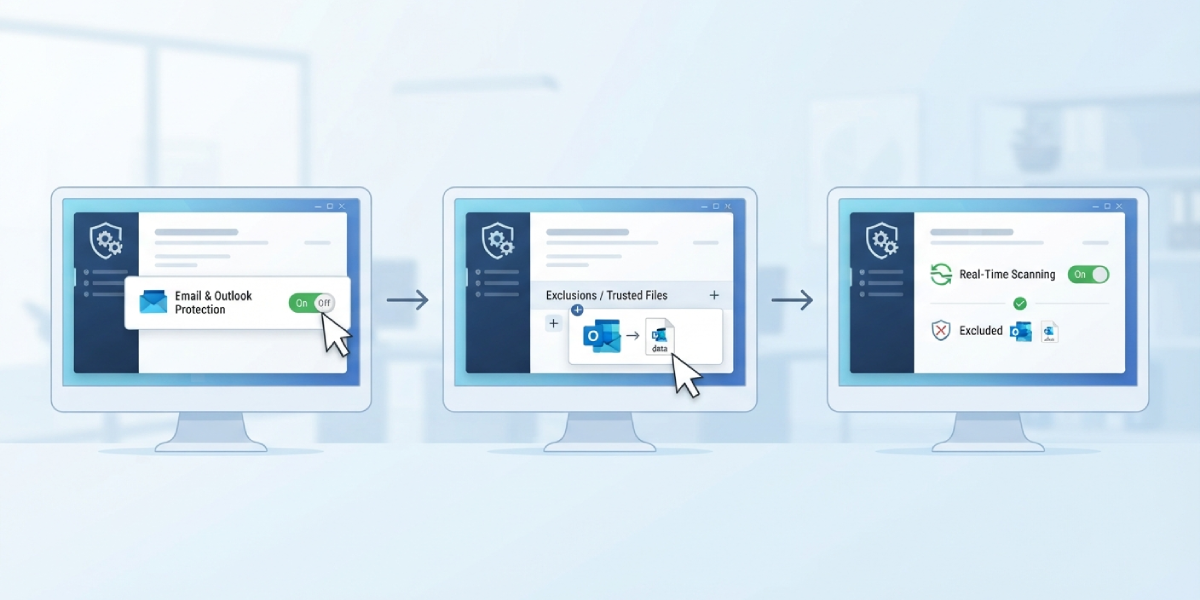
- Open the antivirus software’s settings and locate the email or Outlook protection module. Disable it temporarily, then relaunch Outlook to see if the error clears.
- If Outlook opens normally, add Outlook and its data files to the antivirus exclusion list before turning real-time scanning back on.
Tip: Security software that inspects PST files in real time is one of the most overlooked causes of this error, especially after a recent antivirus update.
Step 6: Reset Registry Permissions for Outlook
- Press Windows key + R, type regedit, and press Enter. Navigate to HKEY_CURRENT_USER\Software\Microsoft\Office\[version number]\Outlook.
- Right-click the Outlook key, select Permissions, and confirm the current user has Full Control listed under Allow. Apply the change and restart the computer before opening Outlook again.
Step 7: Create a New Outlook Profile
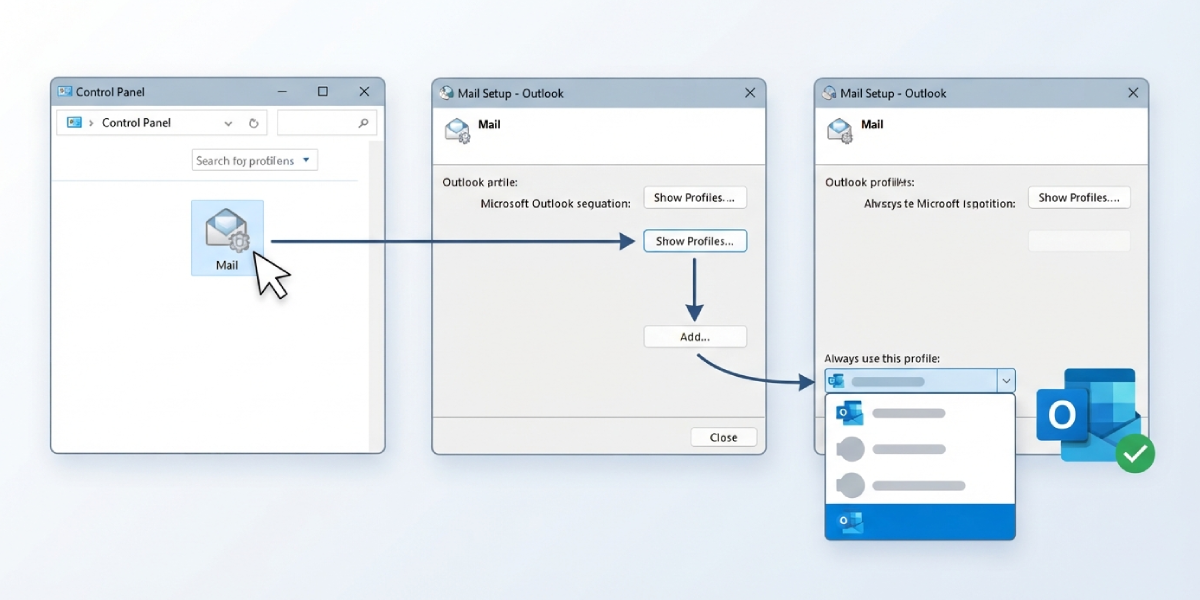
- Open the Control Panel and search for Mail. Select ‘Show Profiles’, then click Add to create a new profile and follow the setup prompts to reconnect the email account.
- Step 12: Set the new profile as default and launch Outlook to confirm the error is gone.
Common Problems and Fixes
- Error persists even as administrator: This usually means the PST file itself is corrupted rather than a permissions setting. Repeat the SCANPST.EXE repair in Step 4 and run it twice if the first pass reports fixed errors.
- Security tab missing in file properties: This happens when the file is stored on a network drive with restricted access. Move the PST file to a local folder such as Documents before retrying Step 3.
- Registry key not found: A missing Outlook key under the expected path usually means the version number in the path is different. Check the correct Office version folder (16.0 for most current installs) and adjust the path accordingly.
- Error returns after a Windows update: Updates sometimes reset file permissions. Rerun Step 3 and Step 4 to restore Full Control access after any major Windows or Office update.
Frequently Asked Questions
What causes Outlook error 0x80070005?
It’s caused by Windows denying Outlook access to a file, folder, or registry key, most often due to permission settings, antivirus interference, or a corrupted PST file.
Is Outlook error 0x80070005 related to a virus?
Not directly, but antivirus software scanning Outlook’s data files in real time is a common trigger, since it can lock the file Outlook needs to access.
Can this error cause data loss?
No, the error itself simply blocks access. Running the SCANPST.EXE repair tool as described in Step 4 protects existing data rather than removing it.
Does running Outlook as administrator fix this permanently?
It often resolves the immediate error, but the permissions on the data file or registry should still be corrected so the issue doesn’t return each time Outlook opens.
Why does the error appear only on one computer?
This typically points to a local permissions or profile issue on that specific machine rather than a problem with the email account or server.
Should the PST file be moved to fix this error?
Moving the file to a local drive helps when it’s stored on a network location with restricted access, since that setup often blocks the Security tab needed for Step 3.
How long does the SCANPST.EXE repair take?
It depends on file size, but most personal PST files finish scanning within a few minutes.
Does creating a new Outlook profile delete emails?
No, creating a new profile in Step 7 does not delete existing emails, since the data remains in the original PST or OST file and simply reconnects through the new profile.
Can this error happen with a Microsoft 365 account?
Yes, the error is tied to local file and permission access, so it can occur regardless of whether the account is Microsoft 365, Exchange, or IMAP based.
