
Learning how to undervolt a laptop CPU is one of the simplest ways to cut heat, quiet the fans, and squeeze out a bit more battery life without touching a single screw. It only takes free software and about fifteen minutes of careful testing. This guide walks through the entire process safely, from picking the right tool to confirming the new settings hold up under load.
Key Takeaways
- Undervolting lowers the voltage sent to the CPU while keeping clock speeds the same, which reduces heat and power draw.
- Intel laptops typically use software like Intel XTU or ThrottleStop; many AMD laptops use Ryzen Controller or similar tools.
- Small, gradual voltage reductions paired with stress testing are the safest way to find a stable offset.
- Instability shows up as crashes, blue screens, or freezes, and the fix is always to dial the offset back.
- Undervolting is reversible and does not physically alter the hardware, but results vary by CPU silicon.
Before You Start
This is a software adjustment, not a teardown, so the prep work is light. A few things still matter for a clean, safe result.
- Plug the laptop into power. Testing on battery can produce inconsistent readings and unnecessary drain cycles.
- Close background programs, especially anything that spikes CPU usage unpredictably.
- Update the laptop’s BIOS and chipset drivers first, since some manufacturers lock or restrict voltage control on certain firmware versions.
- Note that some OEM laptops, particularly newer ones with locked-down firmware, block third-party voltage tools entirely. Check compatibility before spending time on this.
Tip: Undervolting through software does not void a hardware warranty, since nothing physical changes, but always confirm the manufacturer’s policy if that is a concern.
How to Undervolt a Laptop CPU Step by Step
Step 1: Pick the Right Tool for the CPU
Intel-based laptops generally work well with Intel Extreme Tuning Utility (Intel XTU) or the widely used third-party tool ThrottleStop. AMD-based laptops usually rely on Ryzen Controller or manufacturer-specific power tools. Download only from the official source or a well-established, verified repository.

Step 2: Establish a Baseline
Before changing anything, run a short stress test using a tool like Cinebench or a built-in benchmark, and record idle and load temperatures along with clock speeds. This baseline makes it easy to measure whether the undervolt actually helped.
Step 3: Apply a Small Voltage Offset
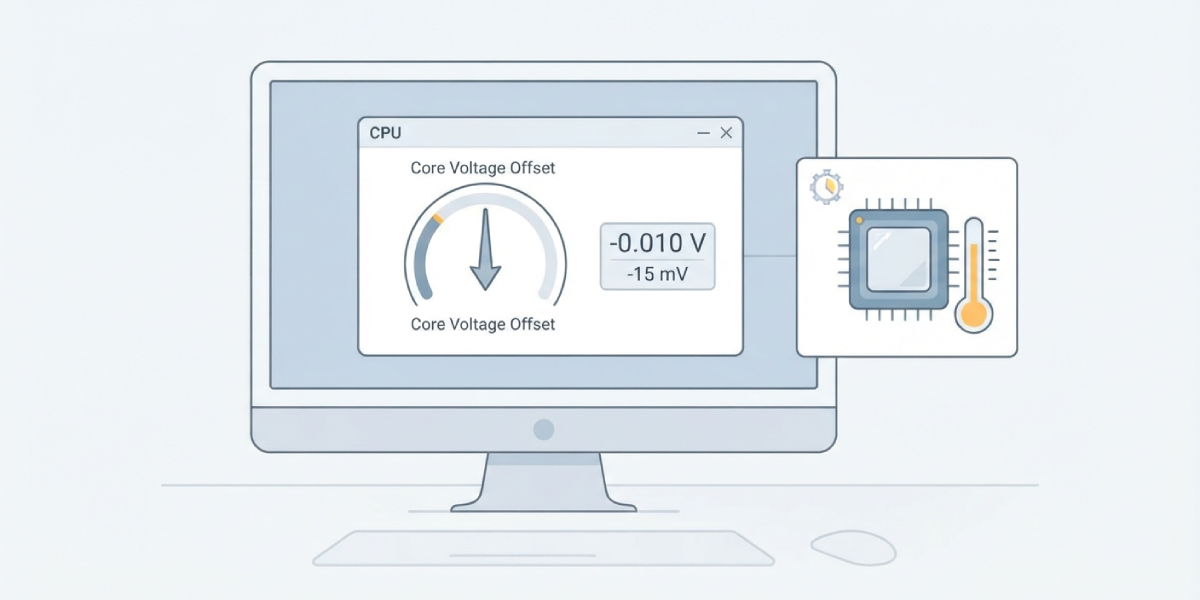
In the CPU core voltage section of the chosen tool, apply a small negative offset, commonly starting around -10 to -20 millivolts. Resist the urge to jump straight to an aggressive number. Small steps prevent instability and make troubleshooting far easier if something goes wrong.
- Open the undervolting tool and locate the core voltage offset setting.
- Enter a conservative negative value, such as -10 mV.
- Apply the setting without saving it as a permanent profile yet.
- Run a stress test for at least ten to fifteen minutes while watching for crashes, screen artifacts, or system freezes.
- If the system stays stable, lower the offset a bit further in small increments and repeat the stress test.
- Stop reducing the voltage as soon as instability appears, then move back up to the last fully stable value.
Step 4: Confirm Stability Over Time
A single successful stress test is not proof of long-term stability. Use the laptop normally for a day or two, including demanding tasks like video calls, gaming, or exporting files, to see how the offset holds up under real-world conditions rather than just synthetic benchmarks.
Step 5: Save the Profile and Set It to Launch on Startup
Once the offset proves stable, save it as a profile and enable the option to apply it automatically at Windows startup. Without this step, the voltage resets to default every time the laptop reboots, and the benefit disappears.

Tip: Keep a written note of the final stable offset value. If a future driver or BIOS update resets the settings, reapplying the known-good number takes seconds instead of requiring another round of testing.
Step 6: Recheck Temperatures
Run the same benchmark used in Step 2 and compare the new load temperatures and fan behavior against the baseline. A noticeably cooler CPU under the same workload confirms the undervolt is doing its job.
Common Problems and Fixes
Laptop Crashes or Blue-Screens Under Load
This almost always means the voltage offset is too aggressive for that specific chip. Reduce the negative offset by 5 to 10 mV and retest. Every CPU has slightly different tolerances even within the same model line, so what works on one laptop may not work on another.
Settings Reset After Restart
If the offset does not stick, check that the software’s startup task or service is enabled, since Windows updates and driver refreshes sometimes disable these background processes. Reapplying the saved profile and re-enabling the auto-start option usually resolves it.
No Noticeable Temperature Drop
Some laptops already ship with limited voltage headroom, especially thin ultrabooks with locked-down firmware. If temperatures barely change even after a moderate offset, the CPU may already be running close to its efficient limit, or the tool may not have full write access on that model.
Third-Party Software Won’t Detect the CPU
This typically happens on OEM systems with vendor-locked firmware or on very new CPU architectures the tool has not yet added support for. Checking for a software update or trying an alternative tool built for that specific CPU generation often fixes it.
Frequently Asked Questions
Is it safe to undervolt a laptop CPU?
Yes, when done gradually and tested properly. Undervolting reduces voltage rather than increasing it, so there is no risk of damaging the CPU from excess power. The main risk is a temporary crash if the offset is too aggressive, which is fixed by simply raising the voltage back up.
Does undervolting reduce CPU performance?
No, undervolting keeps the same clock speeds while lowering the voltage required to hit them. In many cases, performance actually improves slightly because the CPU runs cooler and avoids thermal throttling during sustained workloads.
How much can a laptop CPU typically be undervolted?
This varies significantly by CPU model and even by individual chip due to silicon quality differences. Some laptops tolerate offsets beyond -100 mV, while others become unstable much sooner. Testing gradually is the only reliable way to find the safe limit for a specific machine.
What tools are best for undervolting a laptop CPU?
Intel XTU and ThrottleStop are widely used for Intel processors, while Ryzen Controller and similar utilities cover many AMD laptops. The right choice depends on the CPU brand and whether the manufacturer allows third-party voltage control.
Will undervolting void the laptop’s warranty?
Software-based undervolting does not physically modify hardware, so it generally does not void a warranty on its own. Policies differ between manufacturers, so checking the specific warranty terms is a good idea for peace of mind.
Why does the laptop still get hot after undervolting?
Undervolting reduces heat generated by the CPU itself, but it cannot fix poor airflow, dust buildup, or degraded thermal paste. If temperatures stay high, cleaning the vents or checking the cooling system may be needed alongside the voltage adjustment.
Can undervolting improve laptop battery life?
Yes, in most cases. Lower voltage means less power draw from the CPU during everyday tasks, which can noticeably extend battery life, especially during light workloads like browsing or document editing.
What happens if the voltage offset is set too low?
The system may freeze, crash, or blue-screen, particularly under heavy load. This is not damaging to the hardware. Restarting and raising the offset back toward zero in small steps restores stability.
Does every laptop support undervolting?
No. Some manufacturers lock voltage control in the BIOS or firmware, especially on newer thin-and-light models and certain business laptops. If the software cannot detect or adjust the CPU voltage, that laptop likely has this feature restricted.
How often should the undervolt settings be checked?
It is worth rechecking after major BIOS updates, driver updates, or Windows updates, since these can occasionally reset voltage settings back to default. Keeping the stable offset value written down makes reapplying it quick.
