
The Outlook this folder hasn’t been updated message usually appears when Outlook loses its connection to the mail server or gets stuck mid sync. It looks alarming, but in most cases it clears up with a few simple checks rather than a full account rebuild.
Key Takeaways
- The message almost always points to a sync interruption, not lost mail.
- A manual Send/Receive or a quick restart resolves the issue in many cases.
- Work Offline mode being accidentally enabled is one of the most common triggers.
- A damaged Outlook data file or profile may need a repair if the message keeps returning.
- Persistent cases often trace back to connectivity settings or an outdated Outlook version.
How to Fix the Outlook This Folder Hasn’t Been Updated Message
Step-by-Step Guide
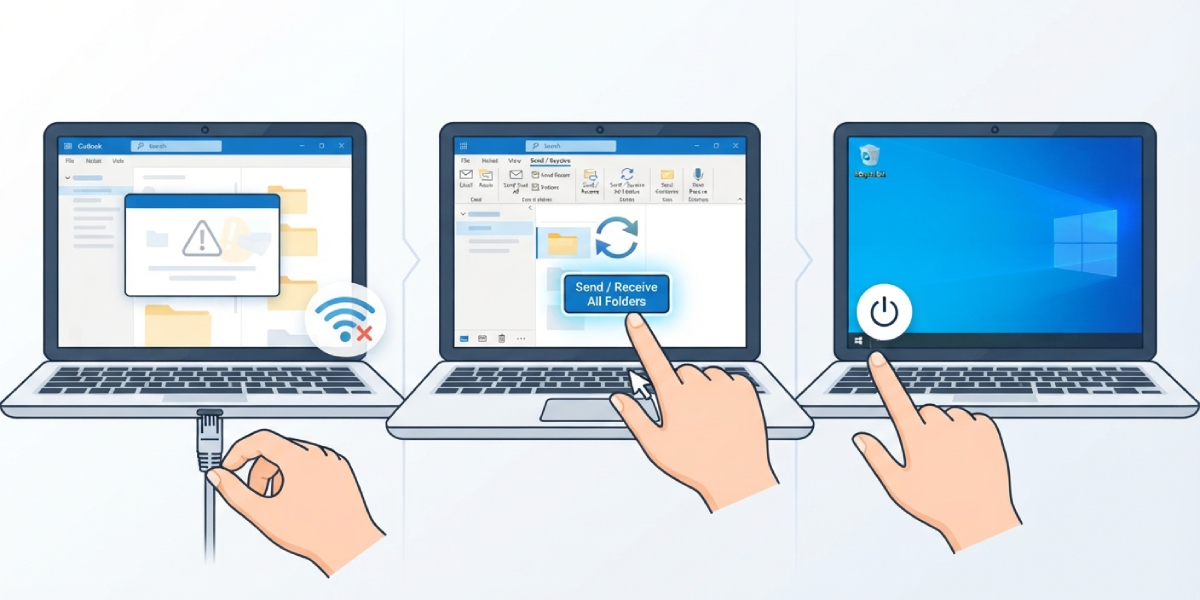
- Step 1: Check the internet connection first. Open a browser and load any website to confirm the network is actually working, since Outlook will show this message the moment it cannot reach the mail server.
- Step 2: Confirm Outlook is not set to Work Offline. Go to the ‘Send / Receive’ tab on the ribbon and look at the ‘Work Offline’ button. If it appears highlighted or pressed in, click it once to switch back to online mode.
- Step 3: Force a manual sync. Press F9, or select ‘Send / Receive All Folders’ from the Send / Receive tab. This often clears the message within a few seconds if the connection was simply lagging behind.
- Step 4: Check the connection status. Hold Ctrl and click the Outlook icon in the system tray, then choose ‘Connection Status’ to see whether Outlook is actually communicating with the Exchange or Microsoft 365 server.
- Step 5: Restart Outlook completely. Close the app fully (including any background process still running), wait a few seconds, and reopen it. A fresh session frequently reinitiates the sync that got stuck.
- Step 6: Update Outlook to the latest version. Go to ‘File’, then ‘Office Account’, then ‘Update Options’, and select ‘Update Now’. Sync bugs tied to older builds get patched regularly.
- Step 7: Rebuild the local data file if the folder still will not update. Close Outlook, rename the existing OST file (found under the AppData\Local\Microsoft\Outlook folder) by adding ‘.old’ to the end, then reopen Outlook so it creates a brand new one and redownloads the mailbox.
- Step 8: Repair the Office installation as a last step. Open Control Panel, select ‘Programs and Features’, find Microsoft Office in the list, choose ‘Change’, and run ‘Quick Repair’. If that does not help, run ‘Online Repair’ instead.
Tip: Renaming the OST file instead of deleting it keeps a backup available in case anything looks off after the new file finishes downloading.
When Using Outlook on Mobile
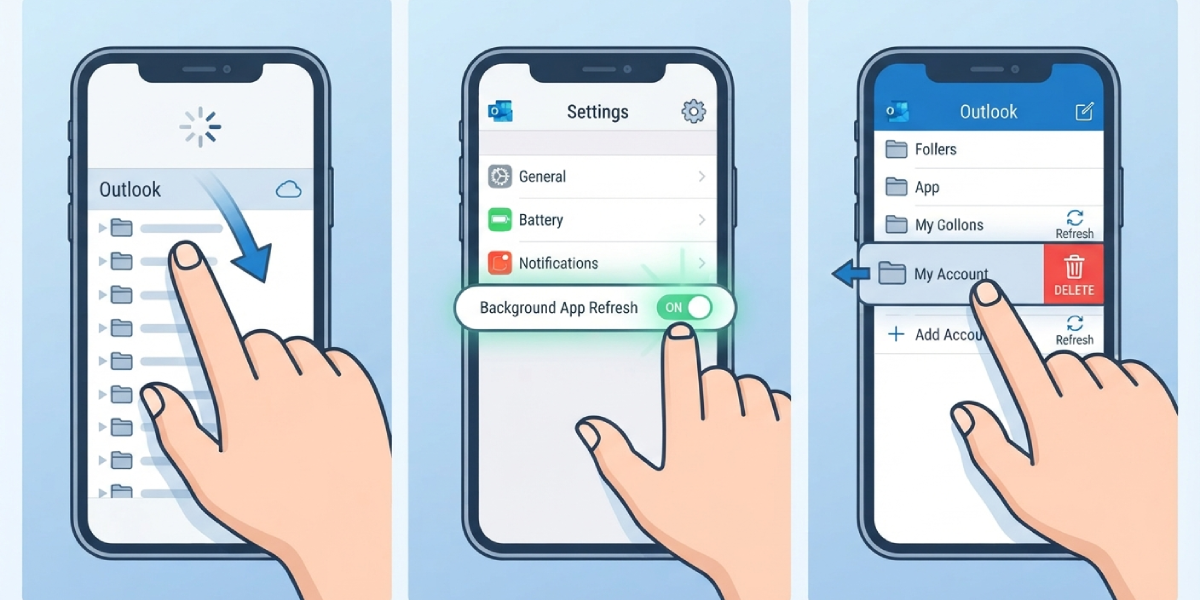
- Step 1: Pull down on the folder list to trigger a manual refresh.
- Step 2: Check that background app refresh is turned on for Outlook in the device settings.
- Step 3: Remove the account from the app and add it again if the folder still shows as outdated after a refresh.
Common Problems and Fixes
- The message returns right after a restart: This usually points to an unstable connection between Outlook and the server. Running the ‘Connection Status’ check again will confirm whether the server is actually reachable.
- Send/Receive appears to freeze partway through: A large attachment or a corrupted item in the queue can stall the process. Go to ‘Send / Receive’, select ‘Send/Receive Groups’, then ‘Show Progress’ to see which folder is stuck and cancel it manually.
- The OST file will not rename because it is in use: Outlook is still running in the background. Open Task Manager, end any ‘OUTLOOK.EXE’ process, then try renaming the file again.
- The folder updates but shows old messages: Cached Exchange Mode may be set to sync a limited date range. Go to ‘File’, ‘Account Settings’, double-click the account, and check the ‘Mail to keep offline’ slider.
- An add-in is interfering with sync: Start Outlook in safe mode by holding Ctrl while opening it. If the folder updates normally in safe mode, disable recently added add-ins under ‘File’, ‘Options’, ‘Add-ins’.
Frequently Asked Questions
Why does Outlook show the this folder hasn’t been updated message?
It appears when Outlook cannot complete a sync with the mail server, usually because of a connection drop, an outdated cache, or Work Offline mode being turned on by mistake.
Does this message mean emails have been lost?
No. The message refers to a display sync delay, not missing mail. Messages remain on the server and reappear once the sync completes.
How long does a manual Send/Receive take to fix it?
Most manual syncs clear the message within a few seconds to a couple of minutes, depending on connection speed and mailbox size.
Is it safe to delete the OST file?
Renaming rather than deleting is safer, since it preserves a backup. Outlook automatically rebuilds a fresh OST file once the old one is renamed or removed.
Will rebuilding the OST file delete any emails?
No. The OST file is just a local cache of the mailbox that already lives on the mail server. Rebuilding it forces Outlook to redownload everything from scratch.
Why does the message keep appearing even after a restart?
Recurring instances usually point to a deeper connectivity or authentication issue, which is why checking ‘Connection Status’ and repairing the Office installation are useful next steps.
Can antivirus or firewall software cause this message?
Yes. Security software that scans or blocks Outlook’s connection to the mail server can interrupt sync. Temporarily disabling it to test is a reasonable way to confirm this as the cause.
Does this issue happen on both Exchange and Microsoft 365 accounts?
Yes, it can occur on any account type that relies on server sync, including Exchange, Microsoft 365, and IMAP accounts configured with Cached Exchange Mode equivalents.
Why does the mobile app show this message differently?
Mobile versions of Outlook rely on background refresh settings and app permissions, so a stalled folder there is often fixed with a manual pull-to-refresh or by re-adding the account.
What should be tried first before rebuilding the data file?
Confirming the internet connection, checking that Work Offline is disabled, and running a manual Send/Receive should always come before rebuilding the OST file, since these three steps resolve most cases.
