
A laptop stuck on loading screen usually points to a corrupted boot file, a failing update, or a driver conflict that is blocking Windows from finishing startup. The good news is that most cases can be resolved without professional repair or a full reinstall. This guide walks through the exact causes and the fixes, starting with the safest and fastest options first.
Key Takeaways
- Most loading screen freezes come from a stuck update, corrupted system file, or driver conflict rather than hardware failure.
- A forced restart followed by a check for pending updates solves the problem in many cases.
- Safe Mode and Startup Repair are the two most reliable built-in tools for clearing a stuck boot.
- Recently added hardware, such as new RAM or an external drive, is a common and often overlooked trigger.
- System Restore or a repair install should only come after the simpler fixes have been ruled out.
Common Causes of a Laptop Stuck on the Loading Screen
Before jumping into fixes, it helps to understand what typically causes this. A loading screen that spins indefinitely, freezes on the manufacturer logo, or hangs on the Windows animation almost always traces back to one of a few culprits.
- An interrupted or partially installed Windows update.
- Corrupted system files affecting the boot process.
- A driver that failed to load correctly, often after a recent update.
- Newly connected hardware, such as a second monitor, USB drive, or memory upgrade, conflicting with startup.
- A failing or loose storage drive connection.
- Malware interfering with system processes during boot.
Most of these are software-related and fixable at home. Hardware causes are less common but worth ruling out once the software fixes have been tried.
Fix 1: Force Restart and Disconnect Extra Hardware
This is the starting point for almost every stuck loading screen, and it resolves the issue more often than people expect.
- Step 1: Hold the power button for about ten seconds until the laptop shuts off completely.
- Step 2: Unplug any external devices, including USB drives, external monitors, printers, and docking stations.
- Step 3: Wait about thirty seconds, then power the laptop back on and watch whether it clears the loading screen.
- Step 4: If it boots normally, reconnect one device at a time to identify which one caused the conflict.
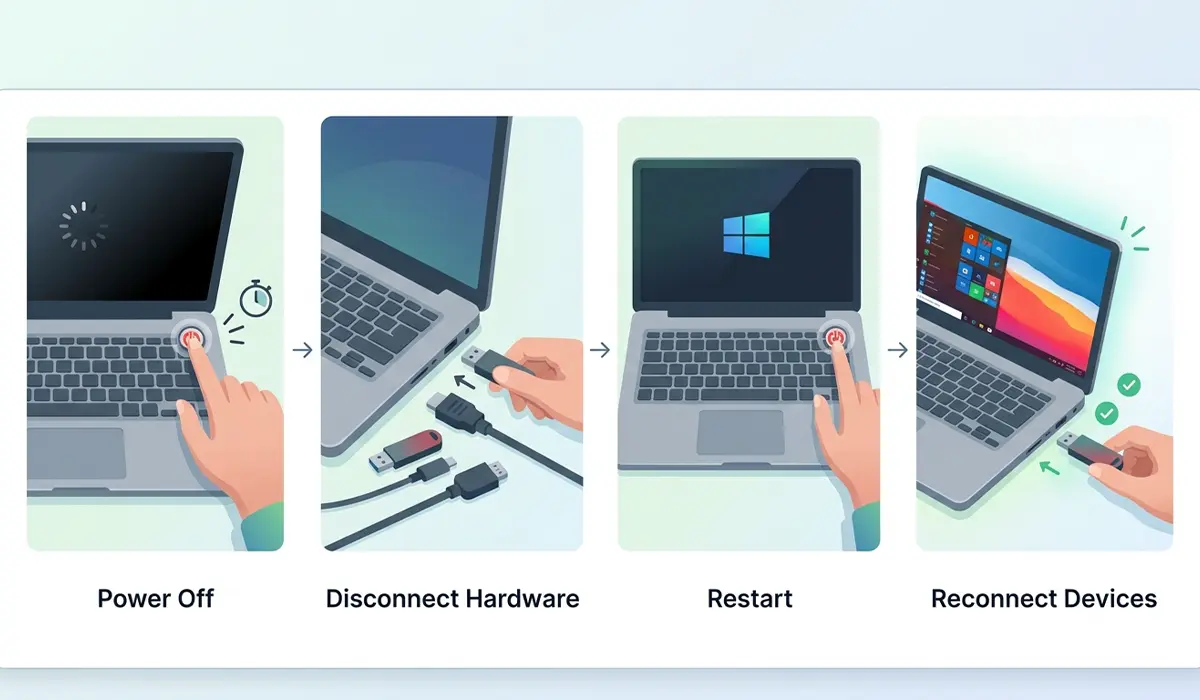
Tip: A stuck loading screen right after connecting a new external drive or monitor is almost always a hardware conflict, not a system failure.
Fix 2: Boot into Safe Mode
Safe Mode loads Windows with only the essential drivers running, which makes it useful for isolating whether a third-party driver is the source of the freeze.
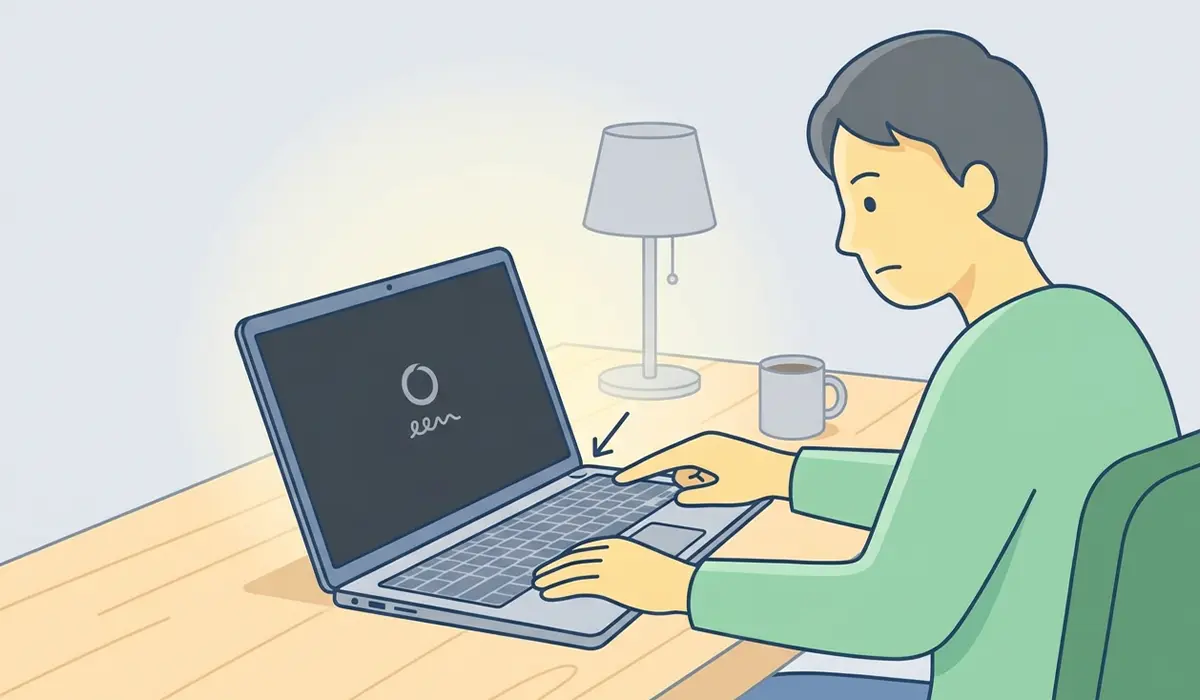
- Step 1: Force shut down the laptop by holding the power button, then power it on and immediately force shut it down again as soon as the manufacturer logo appears. Repeat this two or three times to trigger the Windows Recovery Environment.
- Step 2: On the recovery screen, select ‘Troubleshoot’, then ‘Advanced options’, then ‘Startup Settings’, and click ‘Restart’.
- Step 3: Once the laptop restarts, press the number key for ‘Safe Mode with Networking’.
- Step 4: If the laptop boots successfully into Safe Mode, the issue is very likely a driver or software conflict rather than failing hardware.
- Step 5: From Safe Mode, open Device Manager and update or roll back any recently changed drivers, particularly display and storage drivers.
Fix 3: Run Startup Repair
Startup Repair scans for the specific files and settings that prevent Windows from loading and attempts to fix them automatically.
- Step 1: Enter the Windows Recovery Environment using the same force shutdown method described in Fix 2.
- Step 2: Select ‘Troubleshoot’, then ‘Advanced options’, then ‘Startup Repair’.
- Step 3: Allow the tool to run its diagnostic scan, which can take several minutes depending on the drive size.
- Step 4: Restart the laptop once the process finishes and check whether the loading screen clears normally.
Tip: Running Startup Repair twice in a row occasionally catches issues the first pass misses, so it is worth a second attempt before moving on.
Fix 4: Check Internal Hardware Connections
If software fixes do not resolve the freeze, a loose internal connection could be the reason. This applies mainly to laptops with accessible panels for RAM or storage.
Before You Start
Power off the laptop fully and unplug the charger. Remove the battery if it is user-removable. Touch a bare metal surface or use an anti-static wrist strap before touching any internal components to prevent static discharge.
- Step 1: Remove the back panel using the correct screwdriver for the laptop model.
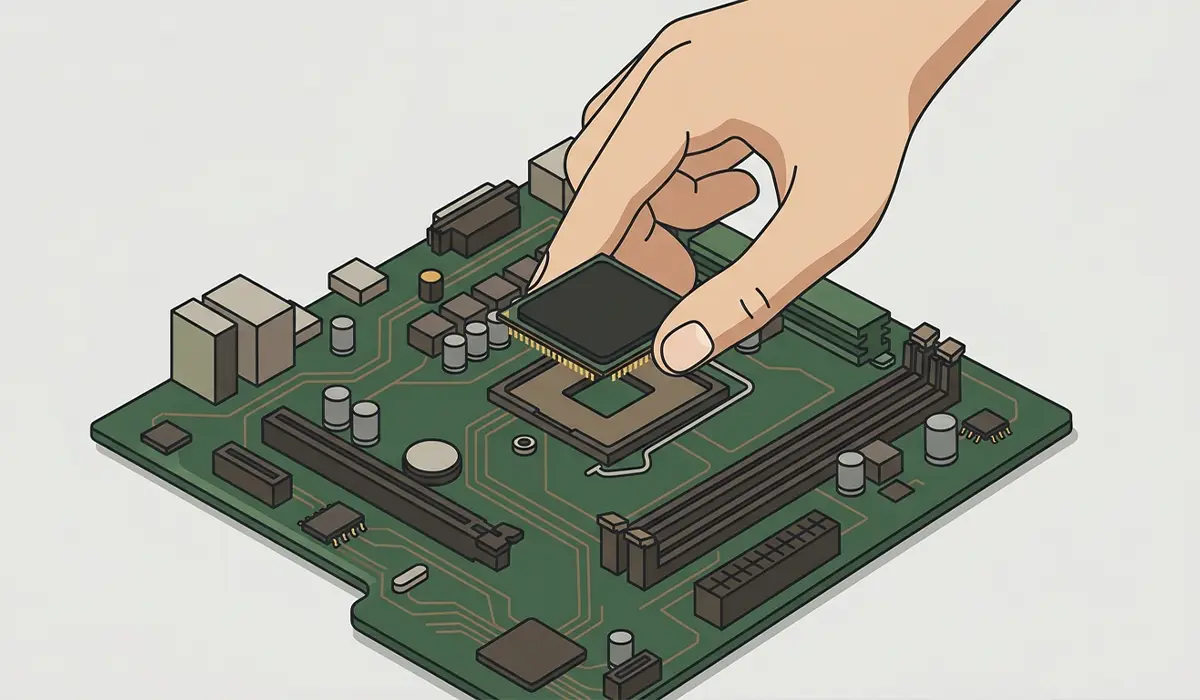
- Step 2: Locate the RAM modules and gently press outward on the retaining clips to release each stick, then reseat them firmly until the clips click into place.
- Step 3: Check that the storage drive, whether SSD or hard drive, is seated securely in its slot or connector.
- Step 4: Reattach the back panel and power the laptop on to see if the loading screen clears.
If the laptop still will not pass the loading screen after reseating internal components, or if there is visible damage such as a swollen battery or burnt smell, stop and have a qualified repair technician inspect it. Opening the case may also affect the manufacturer warranty on newer laptops.
Common Problems and Fixes
- Loading screen freezes again after Startup Repair reports success: Boot into Safe Mode and uninstall the most recently installed update through Settings, since a partially failed update is a frequent repeat offender.
- Laptop reaches the loading screen but restarts on a loop: This points to a deeper system file issue. Run the System File Checker tool from the Command Prompt in Safe Mode using the sfc /scannow command.
- Safe Mode also freezes or will not load: This suggests the issue may be storage-related rather than driver-related, and a drive health check from the recovery environment is the next step.
- Loading screen clears but the laptop is noticeably slower afterward: Leftover corrupted update files can linger even after a successful repair. Running Disk Cleanup and clearing the Windows Update cache usually restores normal speed.
Frequently Asked Questions
Why does a laptop get stuck on the loading screen after an update?
Updates sometimes fail partway through installation due to a power interruption or a conflicting driver, leaving the system in an incomplete state that cannot finish booting normally.
Is it safe to force restart a laptop that is stuck loading?
Yes, a forced restart is safe in this situation and is the standard first step. It does carry a small risk of file corruption if done repeatedly during active writes, but it is far safer than leaving a frozen system running indefinitely.
How long should a laptop be left on the loading screen before taking action?
If there is no disk activity light blinking and no progress for more than fifteen to twenty minutes, it is reasonable to assume the boot process has stalled and a forced restart is appropriate.
Can a failing hard drive cause a laptop to get stuck loading?
Yes, a drive that is beginning to fail can cause exactly this symptom, especially if the freeze happens inconsistently or is accompanied by unusual clicking or grinding sounds.
Will Safe Mode fix the stuck loading screen permanently?
Safe Mode itself does not fix the underlying cause, but it provides access to tools like Device Manager and System Restore that can resolve the driver or software conflict responsible.
Does a laptop stuck on loading screen mean data has been lost?
Not usually. In most cases, the data on the storage drive remains intact, and the issue is limited to the boot process rather than the files themselves.
Should System Restore be used before or after Startup Repair?
Startup Repair is worth trying first since it targets boot files specifically. System Restore is a good second option if Startup Repair does not resolve the issue and a recent change is suspected.
Can newly installed RAM cause a laptop to get stuck on the loading screen?
Yes, RAM that is incompatible or not fully seated can prevent a successful boot, which is why reseating memory modules is part of the hardware troubleshooting steps.
What should be done if none of these fixes work?
If the laptop still will not pass the loading screen after trying Safe Mode, Startup Repair, and a hardware check, a repair install using installation media or professional diagnostic service is the appropriate next step.
Can malware cause a laptop to freeze on the loading screen?
Yes, malware that interferes with startup processes can cause this symptom. Running a malware scan from Safe Mode is a useful step if other causes have been ruled out.
