
Knowing how to fix ‘disk is write protected’ error messages saves a lot of frustration when a USB drive, SD card, or external disk suddenly refuses to accept files. The error means Windows has marked the drive as read-only, so copying, deleting, or formatting is blocked. The cause is usually a simple switch, setting, or file system problem, and most cases can be solved in a few minutes.
Key Takeaways
- The error is triggered by a physical lock switch, a read-only attribute, a registry or policy setting, file system errors, or a failing drive.
- Always check the physical lock switch and test a different USB port before changing any settings.
- The DiskPart command ‘attributes disk clear readonly’ fixes the most common software cause.
- Back up readable data before running repairs or formatting.
- If the drive turns read-only again after every fix, the flash memory is likely wearing out and the drive should be replaced.
Before You Start
A few minutes of preparation prevents data loss and avoids touching the wrong drive.
- Copy any important files off the drive first. Most write-protected drives can still be read, even though they cannot be written to.
- Disconnect other external drives so the correct disk is easy to identify in the commands below.
- Sign in with an administrator account, since several fixes need elevated permissions.
- Note the drive letter and the total capacity of the affected drive. Both are used later to confirm the right disk is selected.
Tip: A drive that suddenly turns read-only and holds files that cannot be replaced is a warning sign. Copy the data off immediately and skip any repair that rewrites the drive until the files are safe.
Common Causes of the Disk Is Write Protected Error
This is a diagnostic problem, so understanding the cause points straight to the right fix.
- A physical lock switch on an SD card, SD card adapter, or some USB flash drives is in the locked position.
- The disk or volume carries a read-only attribute that was set by Windows or a previous tool.
- The WriteProtect value in the Windows registry is set to 1, which blocks writing to removable storage.
- A Group Policy setting denies write access to removable drives, which is common on work or school computers.
- File system corruption forced Windows to mount the drive as read-only.
- Malware or third-party security software is blocking writes to external storage.
- The drive’s flash memory is failing, and the controller has switched the drive to read-only mode to protect the remaining data.
How to Fix the ‘Disk Is Write Protected’ Error Step by Step
Work through the fixes in order. They run from the quickest checks to the more involved repairs, so many people can stop after the first two or three.
Quick Checks First
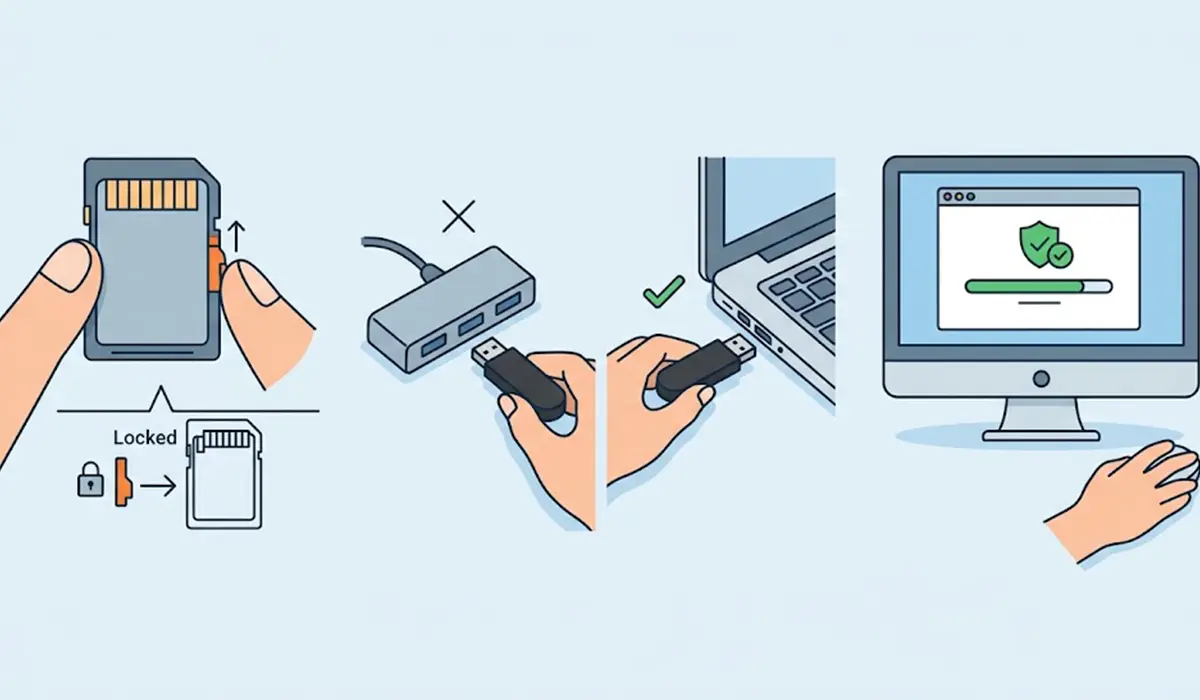
- Step 1: Check for a physical lock switch. Look along the side of the SD card, the SD card adapter, or the USB drive body for a small slider. Slide it away from the ‘Lock’ position, reinsert the drive, and try copying a file again. Worn adapters sometimes slide back to the locked position on their own, so a different adapter is worth trying.
- Step 2: Rule out the port and the computer. Plug the drive into a different USB port, ideally one directly on the PC rather than a hub or front-panel extension. If possible, test the drive on another computer. A drive that is writable elsewhere points to a Windows setting rather than a hardware fault.
- Step 3: Scan for malware and review security software. Run a full scan with Windows Security or the installed antivirus. Some security suites include a ‘block USB writes’ or device control feature, so check its settings if one is installed.
Clear the Read-Only Attribute With DiskPart
- Step 4: Open Command Prompt as administrator. Search for ‘cmd’ in the Start menu, right-click Command Prompt, and choose Run as administrator.
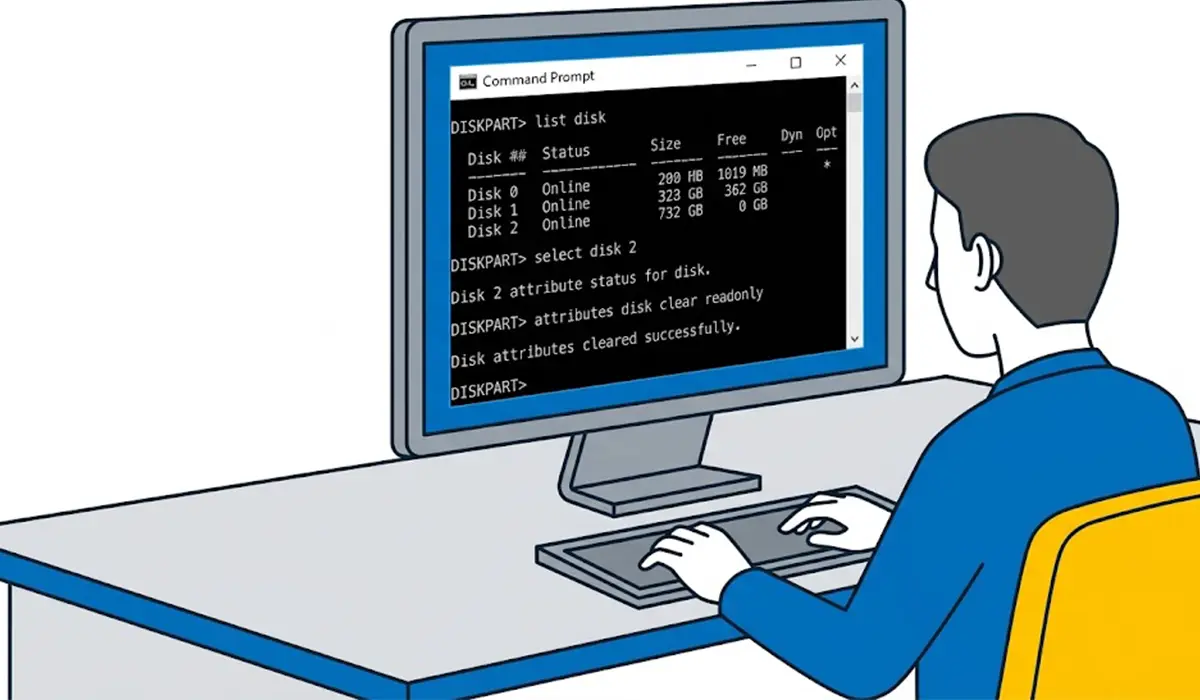
- Step 5: Type diskpart and press Enter, then type list disk and press Enter. Find the affected drive by matching its size. Selecting the wrong disk is the biggest risk in this process, so confirm the capacity before moving on.
- Step 6: Type select disk 2 and press Enter, replacing 2 with the number of the affected drive.
- Step 7: Type attributes disk clear readonly and press Enter. DiskPart should report that the disk attributes were cleared successfully. Type exit twice to close DiskPart and the Command Prompt, then reconnect the drive and test it.
Tip: If the disk-level command succeeds but the error remains, repeat the process at volume level. In DiskPart, type list volume, then select volume followed by the volume number, then attributes volume clear readonly.
Check the Registry and Policy Settings
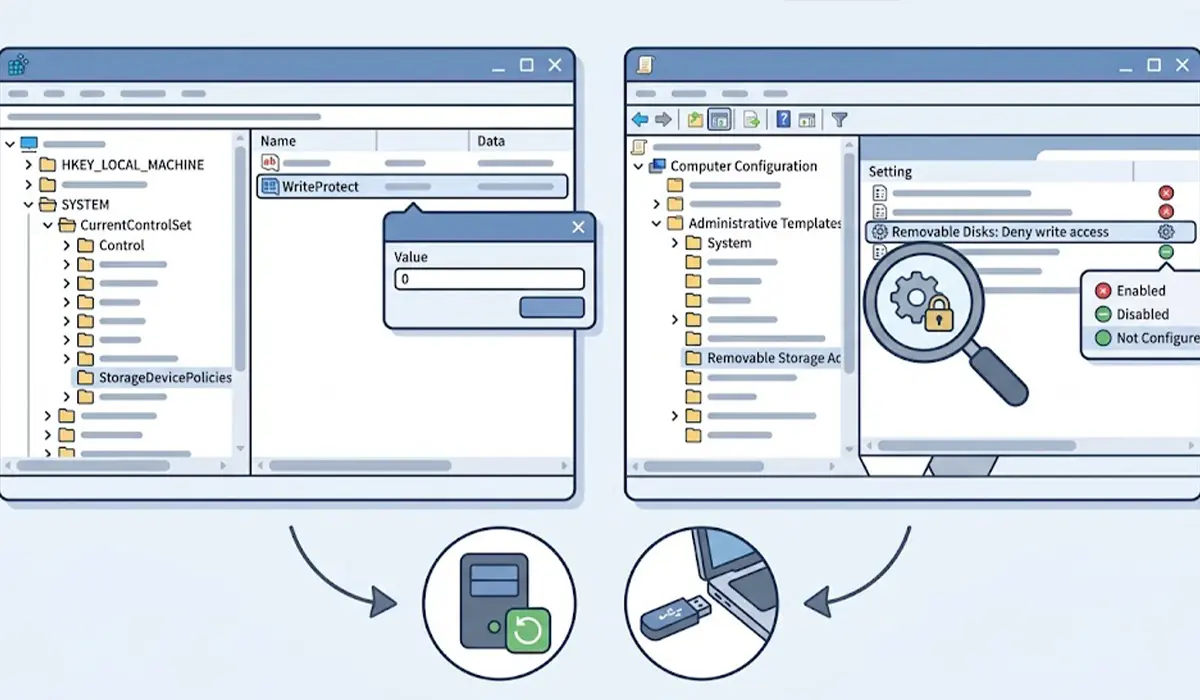
- Step 8: Check the WriteProtect registry value. Press Windows + R, type regedit, and press Enter. Browse to HKEY_LOCAL_MACHINE, then SYSTEM, then CurrentControlSet, then Control, then StorageDevicePolicies. If a WriteProtect value exists, double-click it and set the value data to 0. Restart the computer and test the drive. If the StorageDevicePolicies key does not exist, this is not the cause, and the next step is the better place to look. Exporting the key first through File and then Export gives a quick way back if anything needs to be undone.
- Step 9: Check Group Policy on Pro, Enterprise, and Education editions of Windows. Press Windows + R, type gpedit.msc, and press Enter. Go to Computer Configuration, Administrative Templates, System, then Removable Storage Access. Open ‘Removable Disks: Deny write access’ and set it to Not Configured or Disabled. Also check the BitLocker setting that denies write access to removable drives not protected by BitLocker, found under Windows Components, BitLocker Drive Encryption, Removable Data Drives. On a work or school PC, these policies are usually set on purpose, so check with the IT administrator before changing them.
Repair or Replace the Drive
- Step 10: Repair file system errors. Open Command Prompt as administrator and type chkdsk E: /f, replacing E with the drive letter of the affected drive. Let the scan finish, then reconnect the drive and try writing again.
- Step 11: Format the drive after backing up the data. Right-click the drive in File Explorer, choose Format, and pick NTFS or exFAT for general use. Formatting erases everything on the drive, so this step comes only after the files are safe. If Windows refuses to format because of the write protection, the Disk Management tool is worth trying before moving on.
- Step 12: Replace the drive if it still will not accept writes. Flash drives and SD cards often switch to permanent read-only mode when the memory wears out, and no setting can reverse that. If the files on the drive are valuable and cannot be read, a professional data recovery service is the safest option, since repeated repair attempts can reduce the chance of recovery.
Common Problems and Fixes
DiskPart Says the Attributes Were Cleared, but the Error Returns
This pattern usually points to a failing drive or a policy that reapplies the setting. Check Step 9 for a Group Policy that is enforcing the restriction, and if none exists, treat the drive as unreliable and move the data off it.
The WriteProtect Registry Key Is Missing
A missing StorageDevicePolicies key is normal on many systems. It simply means the registry is not the cause, so move on to the DiskPart, Group Policy, and file system checks instead.
Windows Will Not Format the Drive Because of Write Protection
Clear the read-only attribute with DiskPart first, then try formatting again. DiskPart also offers a clean command, but it wipes the partition table, so it belongs only on a drive that has already been backed up and that is confirmed as the selected disk.
The gpedit.msc Command Is Not Found
The Local Group Policy Editor is not included in Windows Home editions. In that case, the registry method in Step 8 is the available route for checking write restrictions.
The Drive Works on Another Computer but Not on This One
That result points to a setting on the affected PC. Review the registry value, the Group Policy settings, and any installed security software that controls USB devices.
An SD Card Is Write Protected Only in One Adapter
The adapter’s lock slider is the likely culprit. Try a different adapter or reader, since slider tabs wear down and can report a locked state even when positioned correctly.
Frequently Asked Questions
What does ‘the disk is write protected’ mean?
It means Windows or the drive itself has blocked any changes. Files can usually be read and copied off, but nothing can be added, edited, deleted, or formatted until the protection is removed.
How do I remove write protection from a USB drive?
Start with the physical lock switch if the drive has one, then clear the read-only attribute with the DiskPart command ‘attributes disk clear readonly’. If that does not work, check the WriteProtect registry value and Group Policy settings.
Why is my SD card write protected when the lock switch is unlocked?
The adapter or card reader may be reporting the wrong state, or the card itself may have a read-only attribute or file system error. Testing a different adapter and running the DiskPart and chkdsk steps usually isolates the cause.
Can a virus cause the disk is write protected error?
Yes. Some malware blocks writing to removable drives, and some security tools include a USB protection feature that does the same. A full malware scan and a review of the security software settings can rule this out.
Is it safe to edit the registry to fix this error?
It is safe when only the WriteProtect value is changed and the key is exported first as a backup. Incorrect registry edits can cause other problems, so changes should stay limited to the steps described.
Will formatting remove the write protection?
It can when the cause is a read-only attribute or file system error, but it will not fix a physical lock switch, a policy restriction, or a drive in permanent read-only mode. Formatting also erases all data, so a backup must come first.
Why did my flash drive suddenly become read-only?
A sudden switch to read-only often means the memory cells are worn out or the controller detected errors. Many drives do this deliberately to protect the remaining data, so copying files off right away is the best response.
Can an internal hard drive or SSD show the disk is write protected error?
Yes. The same causes apply, including read-only attributes, policy settings, file system errors, and hardware failure. Internal drives that suddenly turn read-only should be backed up promptly and checked for health problems.
