
Need a profit margin, a commission, or a unit price that does not exist in the source data? The fastest way to add a calculated field to a PivotTable in minutes is through the built-in Calculated Field dialog in Excel. The whole process takes about a minute once the right menu is open.
Key Takeaways
- The Calculated Field command lives on the PivotTable Analyze tab under Fields, Items and Sets.
- A formula is built from existing field names, numbers, and operators such as + – * /.
- The new field must be ticked in the PivotTable Fields pane before it shows up in the report.
- Calculated fields run on the sum of each source field, not on individual rows.
- The source data stays untouched, and the field updates whenever the PivotTable is refreshed.
Step-by-Step Guide to Add a Calculated Field to a PivotTable
The example below creates a Profit Margin field from two existing fields named Profit and Sales. The same steps work for any formula, such as Price * Quantity or Revenue – Cost.
- Step 1: Click any cell inside the PivotTable. The PivotTable Analyze tab only appears on the ribbon when a PivotTable cell is selected.
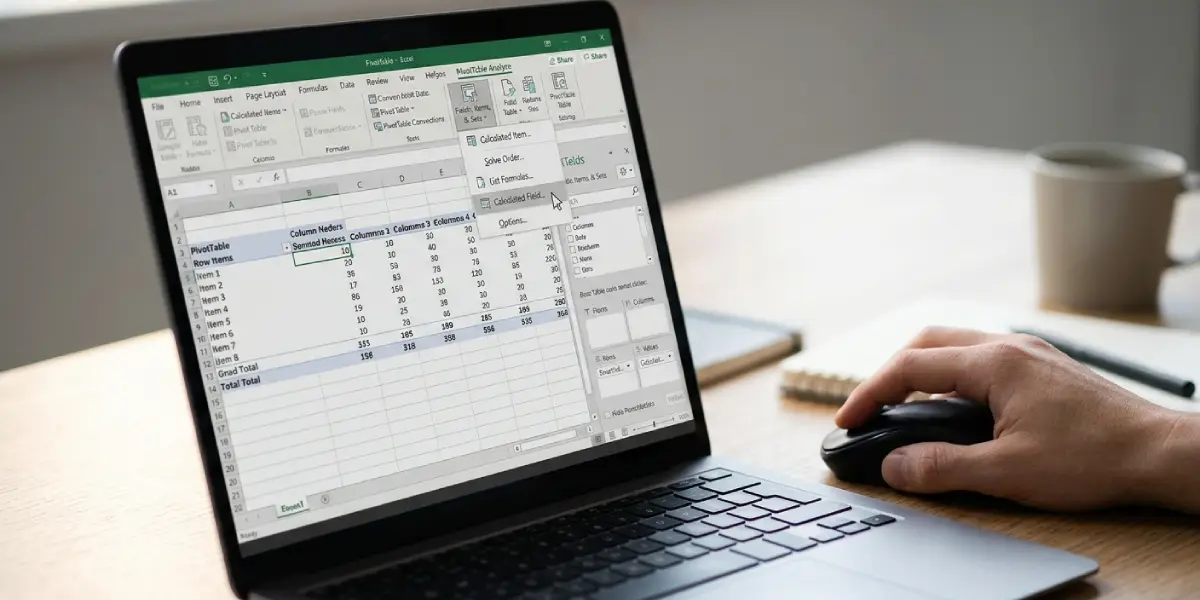
- Step 2: Open the PivotTable Analyze tab and, in the Calculations group, click Fields, Items and Sets.
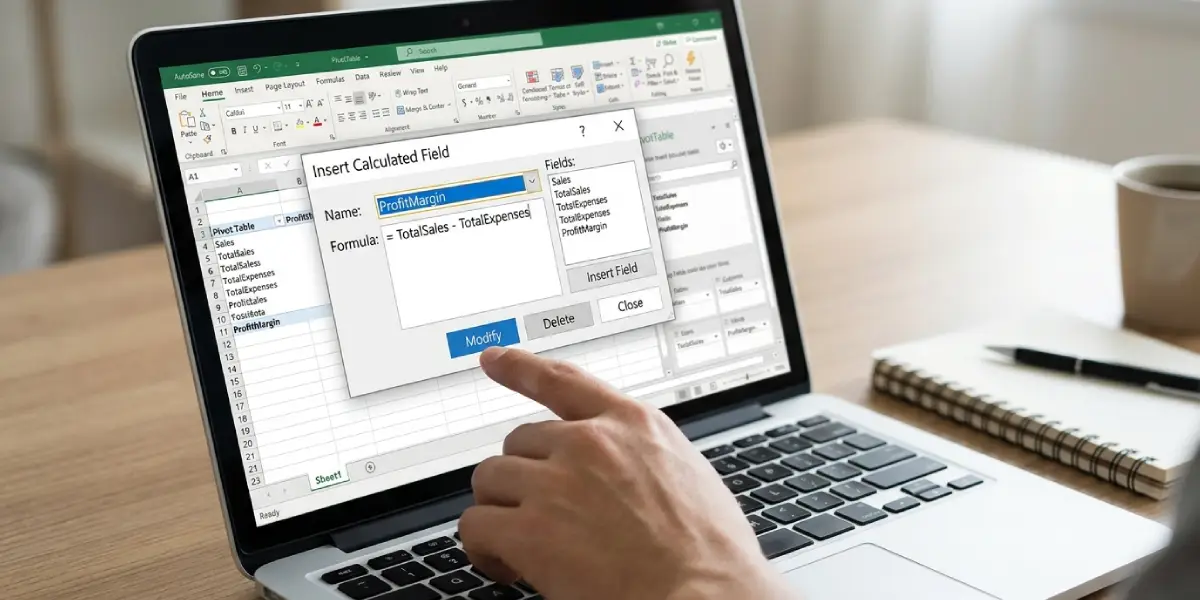
- Step 3: Choose Calculated Field from the drop-down list. The Insert Calculated Field dialog box opens.
- Step 4: Click the Name box and type a clear name for the new field, such as Profit Margin. Pick a name that does not match any existing field.
- Step 5: Click inside the Formula box and delete the default text, which reads = 0. Keep the equals sign, then build the formula.
- Step 6: Select a field from the Fields list, such as Profit, and click Insert Field. The field name drops into the formula. Type the operator, for example a forward slash, then insert the next field, such as Sales. The finished formula reads =Profit/Sales.
- Step 7: Click Add to save the field, then click OK to close the dialog box.
- Step 8: In the PivotTable Fields pane, find the new field at the bottom of the field list and tick its checkbox. It lands in the Values area and appears in the report.
Tip: Double-clicking a field name in the Fields list inserts it into the formula, which is quicker than clicking Insert Field every time. Inserting fields this way also avoids typos, since field names with spaces are wrapped in single quotes automatically.
Format the New Field So It Reads Correctly
A margin formula returns a decimal such as 0.25 instead of 25%. Right-click any value in the new column, choose Value Field Settings, click Number Format, select Percentage, and click OK twice. Currency and number formats are set the same way.
Edit or Delete a Calculated Field Later
Open the same Calculated Field dialog from the PivotTable Analyze tab. Choose the field from the Name drop-down list, change the formula and click Modify to update it, or click Delete to remove it entirely.
Tip: Formulas can include the IF function. Using =IF(Sales=0,0,Profit/Sales) prevents division errors when a row has no sales, which is a common situation in monthly or regional reports.
Common Problems and Fixes
The Calculated Field Option Is Greyed Out
This usually means no cell inside the PivotTable is selected, so click a cell within the report and try again. It also happens when the PivotTable was built from the Data Model or an OLAP source, because those use measures instead of calculated fields.
The Field Was Added but Does Not Show in the PivotTable
Creating the field only adds it to the field list. Tick its checkbox in the PivotTable Fields pane, or drag it into the Values area.
The Total Does Not Match the Rows
Calculated fields work on the sum of each underlying field. A margin total is therefore the total profit divided by the total sales, not the average of the row margins. This is expected behavior, and it is usually the more accurate figure for a ratio.
The Result Shows #DIV/0!
The formula is dividing by a field that sums to zero. Wrap the formula in an IF test, such as =IF(Sales=0,0,Profit/Sales), and the error disappears.
Excel Rejects the Formula When Clicking Add
Check that the equals sign is still at the start, that every field name matches the Fields list exactly, and that no cell references such as B2 were typed in. Only field names, numbers, and operators are accepted.
Frequently Asked Questions
Where is the Calculated Field option in a PivotTable?
Select a cell inside the PivotTable, open the PivotTable Analyze tab, click Fields, Items and Sets in the Calculations group, and choose Calculated Field.
Can a calculated field use cell references?
No. A calculated field can only use the names of fields in the PivotTable source data, along with numbers and mathematical operators. Cell references such as A1 or B2 are not accepted.
Does a calculated field change the original data?
No. The calculation exists only inside the PivotTable, and the source table or range is never altered.
How do I edit a calculated field after creating it?
Open the Calculated Field dialog again, pick the field from the Name drop-down list, change the formula, and click Modify.
How do I delete a calculated field?
Open the Calculated Field dialog, select the field from the Name drop-down list, and click Delete. The field disappears from the PivotTable and the field list.
Can a calculated field be placed in the Rows or Columns area?
No. A calculated field can only be used in the Values area of a PivotTable.
Why is the Calculated Field command greyed out?
The most common causes are having no PivotTable cell selected, or using a PivotTable built from the Data Model or an OLAP source, which does not support calculated fields.
Does the calculated field update when the data changes?
Yes. After the source data changes, refresh the PivotTable by right-clicking it and choosing Refresh, or by using Refresh All on the Data tab. The formula recalculates automatically.
Can the IF function be used in a calculated field formula?
Yes. Functions that do not rely on cell references, such as IF, work in the formula. A formula like =IF(Sales=0,0,Profit/Sales) helps avoid division errors.
