
Setting up a Microsoft 365 Exchange account in Classic Outlook only takes a few minutes once the right menu is found. This guide walks through the exact steps needed to connect a work or school mailbox, sign in securely, and start syncing mail, calendar, and contacts right away.
Key Takeaways
- Adding a Microsoft 365 Exchange account works through the File menu’s Add Account option in Classic Outlook.
- Outlook uses Autodiscover to configure server settings automatically, so manual server entry usually is not needed.
- A Microsoft 365 work or school sign-in, including multi-factor authentication, is required to finish setup.
- Outlook may need a restart after the account finishes syncing for the first time.
- Existing accounts can stay untouched while a new Exchange account is added alongside them.
Step-by-Step: Add a Microsoft 365 Exchange Account in Classic Outlook
The process below applies to Classic Outlook for Windows connected to a Microsoft 365 work or school subscription.
Starting the Account Setup
- Step 1: Open Classic Outlook on the desktop. If this is the very first time Outlook has been launched, the account setup wizard appears automatically, so this step can be skipped.
- Step 2: Select the ‘File’ tab in the top-left corner of the ribbon.
- Step 3: On the Info screen, select ‘Add Account’. This button sits near the top of the account information panel.

Entering the Microsoft 365 Sign-In Details
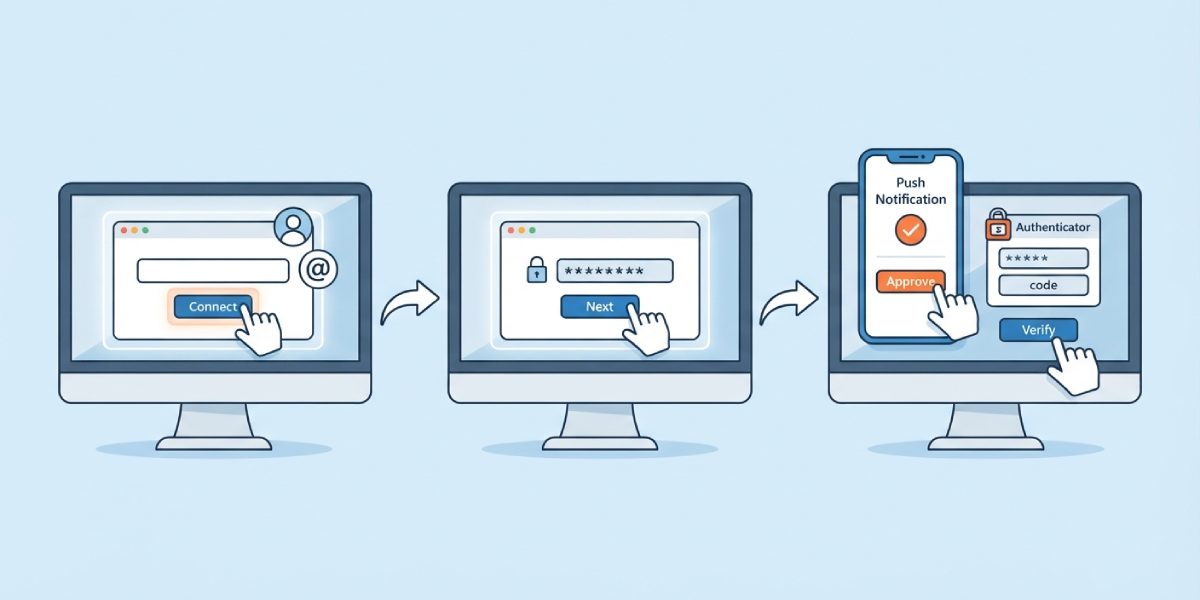
- Step 4: Type the full Microsoft 365 email address (the work or school account, such as name@company.com) into the box that appears, then select ‘Connect’.
- Step 5: Outlook passes the request to Microsoft 365, which prompts for a password on the next screen. Enter the password tied to that account.
- Step 6: Complete multi-factor authentication if the organization requires it. This might mean approving a push notification, entering a code from an authenticator app, or confirming a text message.
Tip: Keep a phone or authenticator app handy before starting this process. Getting stuck at the MFA screen without a second device is one of the most common reasons setup stalls halfway through.
Finishing and Syncing the Account
- Step 7: Once sign-in succeeds, Outlook automatically detects Exchange server settings through Autodiscover and configures the account without any manual input.
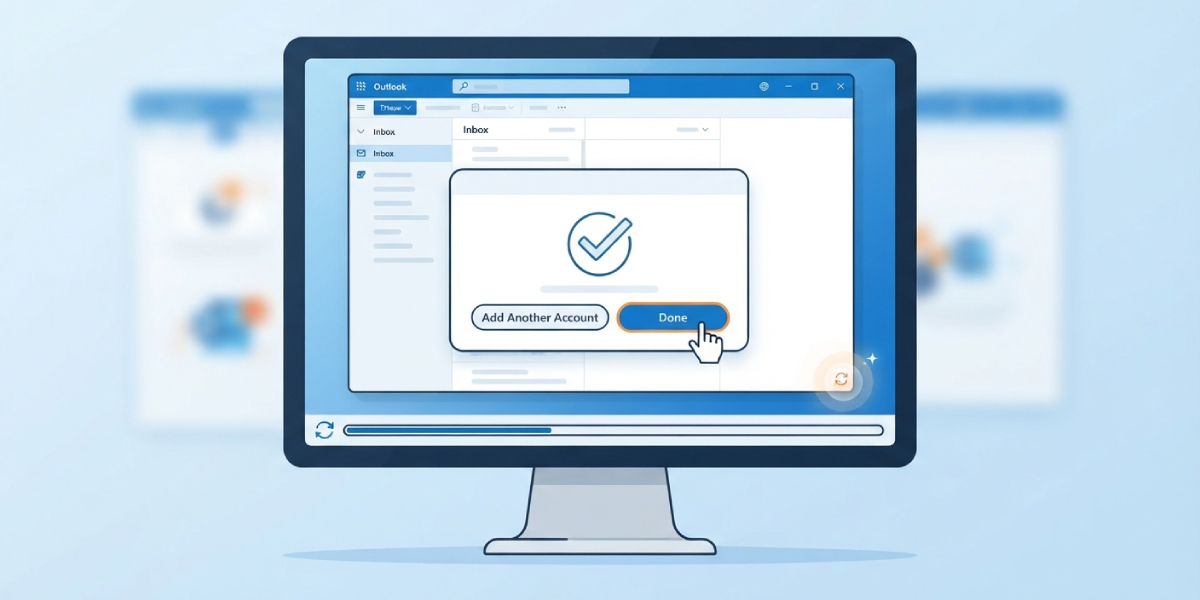
- Step 8: A confirmation screen shows the account was added successfully. Select ‘Done’ to close the wizard, or choose to add another account first if needed.
- Step 9: Restart Outlook if prompted. This step lets the new profile load correctly and lets the mailbox begin its initial sync.
- Step 10: Watch the status bar at the bottom of the Outlook window for a moment. It shows a sync progress message while mail, calendar, and contacts download for the first time.
Tip: The first sync after adding a large mailbox can take a while, especially with years of email history. Leaving Outlook open and connected to the internet for 15 to 30 minutes usually lets it finish on its own.
Common Problems and Fixes
Outlook Cannot Find the Server Settings
This usually happens when Autodiscover cannot resolve properly, often due to a firewall or an unusual DNS setup on the network. Switching to a different network, such as a mobile hotspot, and retrying the setup often resolves it.
Password Is Accepted but Sign-In Fails
This points to an expired password or an account that has been disabled by an administrator. Signing in through a web browser at office.com first confirms whether the account itself is working before trying Outlook again.
Multi-Factor Authentication Prompt Never Appears
A stuck or delayed MFA prompt is often caused by a slow connection or a background app blocking the notification. Closing and reopening the sign-in window, or checking the authenticator app manually for a pending request, usually clears it.
Account Adds Successfully but Mail Does Not Sync
An account can appear connected in the account list while the inbox stays empty. Restarting Outlook first solves this in most cases, since Outlook sometimes needs to reload the profile before syncing kicks in properly.
Duplicate Account Error Appears
This shows up when the same Microsoft 365 address was added to Outlook previously, even under an older profile. Removing the old, unused entry from account settings before adding the account again clears the conflict.
Frequently Asked Questions
Is a Microsoft 365 subscription required to add this type of account?
Yes. Adding a Microsoft 365 Exchange account requires an active work or school subscription that includes Exchange Online mailbox access.
Does adding a Microsoft 365 account remove existing accounts in Outlook?
No. Classic Outlook supports multiple accounts at once, so existing personal or work accounts stay exactly as they were.
Why does Outlook ask for a password twice during setup?
The first entry confirms the email address, while the second is the actual Microsoft 365 sign-in step. This two-part flow is standard for modern authentication.
Can this account be added without an internet connection?
No. An active internet connection is required the entire time, since Outlook needs to reach Microsoft 365 servers to verify credentials and configure settings.
How long does the initial sync usually take?
Smaller mailboxes often finish within a few minutes, while larger mailboxes with years of stored mail can take up to an hour depending on connection speed.
What happens if multi-factor authentication is not set up yet?
Some organizations require MFA to be configured before Outlook access is granted. In that case, setting up MFA through the organization’s sign-in portal first is necessary before returning to Outlook.
Is manual server configuration ever needed for a Microsoft 365 account?
Rarely. Autodiscover handles nearly all Microsoft 365 Exchange setups automatically, so manual server entry is only needed in unusual network configurations.
Can this same process be used to add a second Microsoft 365 mailbox?
Yes. Repeating the same steps under ‘Add Account’ connects an additional Microsoft 365 Exchange mailbox alongside the first one.
