
A slow hard drive can turn everyday tasks like opening a browser or saving a file into a frustrating waiting game. This guide walks through the real causes behind sluggish drive performance and the practical fixes that actually restore speed.
Key Takeaways
- Most slow hard drive problems come from fragmentation, a nearly full drive, background processes, or a failing drive nearing the end of its life.
- Running disk cleanup, checking for malware, and defragmenting a traditional hard drive can bring back noticeable speed in minutes.
- Drive health tools reveal whether a drive is simply overloaded or actually failing.
- Upgrading to a solid state drive remains the single biggest speed improvement available for an aging system.
- Persistent slowness paired with clicking noises or frequent freezes usually signals hardware failure, not a software fix.
Common Causes of a Slow Hard Drive
Before jumping into fixes, it helps to understand what typically causes a hard drive to slow down over time.
Fragmentation
Traditional spinning hard drives (HDDs) store file pieces in scattered locations as data is added and removed. The drive head has to jump around to piece files back together, and that extra travel time adds up. This does not apply to solid state drives, which have no moving parts.
Low free space
A drive running above roughly 85 to 90 percent capacity has less room to organize data efficiently, which slows both reading and writing.
Background programs and startup bloat
Too many applications launching at startup, along with cloud sync tools and antivirus scans running in the background, compete for the same limited read and write speed.
Malware or unwanted software
Malicious programs often run hidden processes that hammer the drive constantly, which shows up as constant activity light flickering and a sluggish system even when nothing appears to be open.
Drive age and wear
Mechanical hard drives have moving parts that wear down. As a drive ages, bad sectors can develop, and the drive slows down as it tries to work around damaged areas.
Outdated or corrupted drivers and firmware
An outdated storage controller driver or old drive firmware can prevent a system from getting the full read and write speed the hardware is capable of.
How to Fix a Slow Hard Drive: Step-by-Step
These fixes are ordered from quickest and safest to more involved. Most people find that the first few steps resolve the issue without needing any hardware changes.
Before You Start
Close all open programs and save any active work. If checking internal components later in this guide, power the system off, unplug it, and let any recently running hardware cool down before opening the case. Touching a bare metal part of the case or using an anti-static wrist strap helps prevent static discharge from damaging components.
- Step 1: Check available storage space. Open the file manager or system settings and confirm at least 10 to 15 percent of the drive remains free. Remove large unused files, uninstall unused programs, and empty the recycle bin or trash.
- Step 2: Run the built-in disk cleanup tool. On Windows, search for ‘Disk Cleanup’ and select the system drive to clear temporary files, old update files, and cached data. On macOS, use the storage management panel under About This Mac.
- Step 3: Scan for malware. Run a full scan using a trusted, up to date antivirus or anti-malware tool. Hidden background processes are a common and often overlooked cause of a slow hard drive.
- Step 4: Defragment the drive, but only if it is a traditional HDD. Search for ‘Defragment and Optimize Drives’ on Windows and run it on the correct drive. Never run a defragmentation tool on a solid state drive, since it does not need it and the process only adds unnecessary wear.
- Step 5: Disable unnecessary startup programs. Open the task manager or activity monitor, go to the startup tab, and disable programs that do not need to launch automatically. This frees up drive activity during boot.
- Step 6: Update storage drivers and firmware. Check the device manager for the storage controller driver and update it if an outdated version is listed. Visit the drive manufacturer’s website for any available firmware updates specific to the exact model.
- Step 7: Check drive health with a diagnostic tool. Use the manufacturer’s own utility, or a widely used tool such as CrystalDiskInfo on Windows, to review the drive’s SMART status. A status other than ‘Good’ or ‘Healthy’ is a warning sign worth taking seriously.
- Step 8: Back up important data immediately if health readings look poor. This step matters more than any speed fix, since a failing drive can stop working with little warning.
- Step 9: Consider a fresh operating system reinstall if the drive tests healthy but performance remains poor after every other step. A clean install clears out years of accumulated background bloat that cleanup tools cannot fully reach.
- Step 10: Upgrade to a solid state drive if the current drive is an aging HDD. This is the change that delivers the most noticeable, lasting improvement in everyday speed, far beyond what any software fix can achieve.
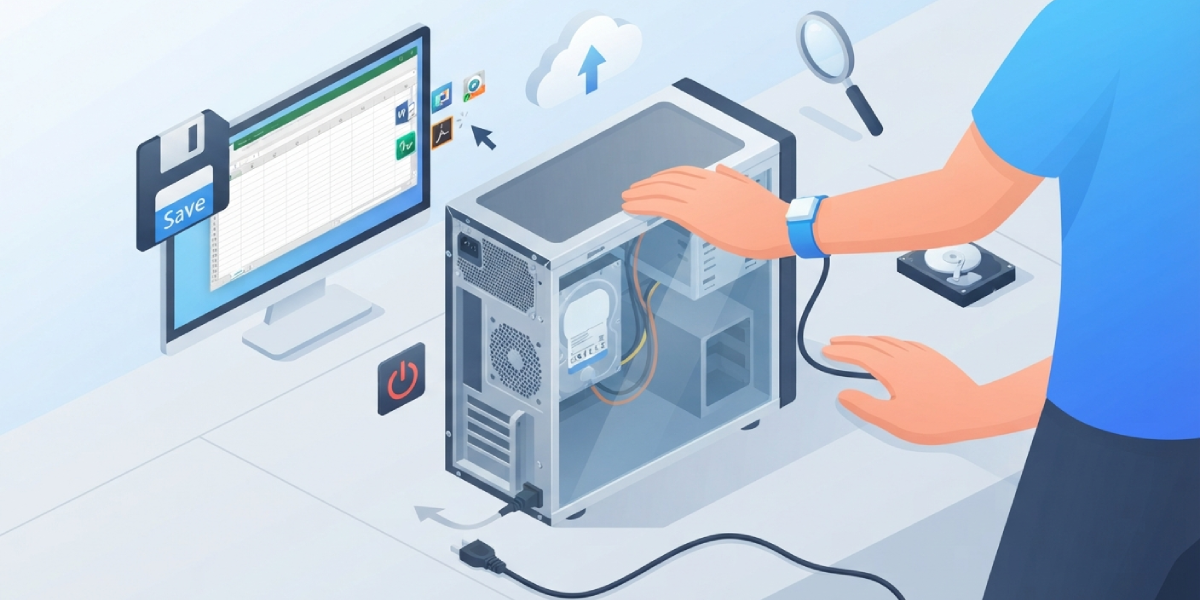
Tip: Run the drive health check before spending time on cleanup and optimization steps. There is little point in polishing a drive that is already failing.
Common Problems and Fixes
Drive still feels slow after cleanup and defragmentation
This usually points to an aging mechanical drive simply reaching its performance ceiling, or a background process that was missed during the malware scan. Recheck the task manager for any single process consuming high disk activity.
SMART status shows warnings after checking drive health
Back up all data right away. A warning status does not always mean immediate failure, but it does mean the drive is no longer reliable for long term storage.
System freezes or the drive makes clicking or grinding noises
Stop using the drive for anything beyond a single backup attempt. Clicking or grinding sounds usually indicate a mechanical problem inside the drive itself, and continued use risks permanent data loss.
Startup takes just as long even after disabling startup programs
Check for a full drive or a pending Windows update running quietly in the background. Large system updates can consume drive activity for a noticeable stretch after a restart.
New solid state drive still feels sluggish after an upgrade
Confirm the drive is connected to the correct port, since plugging a fast SSD into an older, slower interface limits its potential speed. Also confirm the drive’s firmware is current, since manufacturers sometimes release updates that improve performance.
Frequently Asked Questions
What is the fastest way to speed up a slow hard drive?
Freeing up storage space and running a malware scan usually deliver the quickest noticeable improvement, but replacing an aging HDD with a solid state drive provides the biggest long term gain.
Does defragmenting actually help a slow hard drive?
Yes, but only on traditional mechanical hard drives. Defragmenting a solid state drive provides no benefit and simply adds unnecessary write cycles.
Why is a hard drive slow even with plenty of free space?
Background processes, malware, an aging drive, or outdated drivers are the most likely causes when free space is not the issue.
Can a virus make a hard drive run slowly?
Yes. Malicious software often runs hidden processes that constantly read from or write to the drive, which shows up as sluggish overall performance.
How can drive health be checked at home?
A SMART diagnostic tool such as the drive manufacturer’s own utility or a widely used third party tool can reveal the drive’s health status and warn of developing problems.
Is it normal for an older hard drive to slow down over time?
Yes. Mechanical wear, accumulated bad sectors, and years of fragmented data all naturally reduce a hard drive’s performance as it ages.
Will upgrading to a solid state drive fix a slow computer?
In most cases, yes. Replacing an aging mechanical hard drive with a solid state drive is widely considered the most effective single upgrade for overall system speed.
Should a failing hard drive be repaired or replaced?
Replaced. Hard drives are not practical to repair at the component level, and attempting to do so risks further data loss. Back up important files and replace the drive.
How much free space should a hard drive have to run well?
Keeping at least 10 to 15 percent of the drive’s total capacity free helps maintain efficient read and write performance.
When should a professional be called in for a slow or failing drive?
If the drive shows SMART warnings, makes unusual noises, or data recovery is needed, a professional data recovery service is the safer option rather than attempting further troubleshooting.
