
Adding a Microsoft 365 Exchange account in Outlook on the Web lets a person read and manage mail from a second account without switching browsers or signing out. This comes in handy for anyone juggling a work mailbox and a secondary department account. The process takes just a few minutes once the right settings menu is open.
Key Takeaways
- The Exchange account gets added through Settings, not through the sign-in screen.
- The ‘Sync email’ section under ‘Mail’ settings controls connected accounts.
- Multi-factor authentication may require an app password instead of a regular password.
- New mail from the added account can be routed into the main inbox or a dedicated folder.
- Shared or delegated mailboxes use a different feature and are not covered here.
Step-by-Step: Add a Microsoft 365 Exchange Account in Outlook on the Web
- Step 1: Sign in to Outlook on the Web at outlook.office.com using the primary Microsoft 365 account.
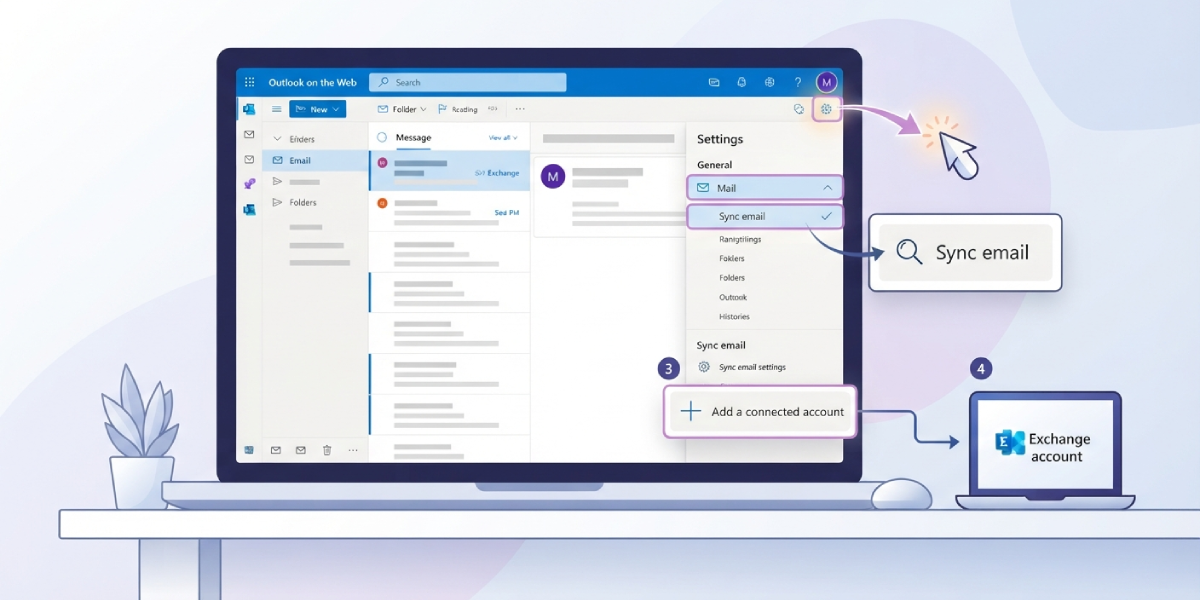
- Step 2: Select the gear icon in the top right corner to open Settings.
- Step 3: Choose ‘General’, then select ‘Mail’, then select ‘Sync email’. Typing ‘sync email’ into the settings search bar also jumps straight there.
- Step 4: Under ‘Connected accounts’, select ‘Add a connected account’ (this may also appear as a plus sign or ‘New’).
- Step 5: Enter the email address of the Microsoft 365 Exchange account to be added, then select ‘OK’ or ‘Continue’.
- Step 6: Enter the password for that account. If multi-factor authentication is enabled on it, an app password generated from that account’s security settings will be needed instead of the regular sign-in password.
- Step 7: Choose how incoming mail from the connected account should be handled, such as arriving in the main inbox or a separate folder created just for that account.
- Step 8: Select ‘Save’ to finish. Mail typically starts appearing within a few minutes, though the first sync can take a little longer if the mailbox is large.
Tip: Naming the destination folder after the connected account (for example, ‘Marketing Inbox’) makes it far easier to tell messages apart once both accounts start feeding the same view.
Confirming the Account Synced Correctly
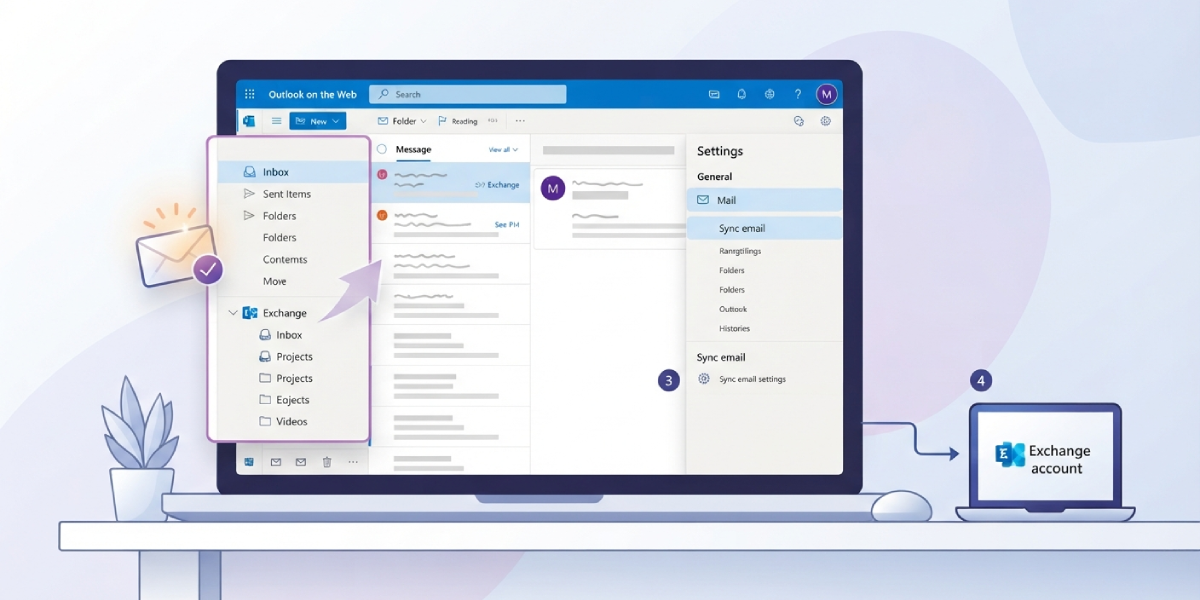
Once the connected account is saved, check the folder list on the left side of Outlook on the Web. A new folder or subfolder should appear, and messages should begin populating shortly after. Sending a test email to the newly added account is the quickest way to confirm the connection is live.
Common Problems and Fixes
- The account won’t authenticate: This usually happens when the added account has multi-factor authentication turned on. Generate an app password from that account’s security settings and use it instead of the normal password.
- No new mail is showing up: Sync can lag behind, especially right after setup. Give it fifteen to twenty minutes, then refresh the browser. If nothing changes, remove the connected account and add it again.
- Duplicate messages appear: This can occur if the same account was accidentally added twice or if a forwarding rule already sends copies to the primary inbox. Check ‘Connected accounts’ for duplicates and review any existing mail rules.
- The ‘Add a connected account’ option is missing: Some Microsoft 365 organizations disable this feature through admin policy. A quick message to the IT administrator will confirm whether connected accounts are allowed on that tenant.
- Sent items from the connected account don’t show up in the right place: Connected accounts sync incoming mail, but sent mail behavior can vary. Checking the connected account directly for sent items is the most reliable way to track them down.
Frequently Asked Questions
Can more than one Exchange account be added this way?
Yes. Outlook on the Web allows multiple connected accounts to be added under the same ‘Sync email’ settings, each with its own folder if preferred.
Is this the same as switching between two Microsoft 365 accounts?
No. Switching accounts means signing out and signing back in as a different user. Adding a connected account keeps the primary account signed in while pulling mail from another account into the same view.
Does adding a connected account also sync calendars and contacts?
No. The ‘Sync email’ feature only pulls in mail. Calendar and contact data from the added account stay separate and are not merged into the primary account’s calendar or contacts.
Why is a password not working even though it’s correct?
If the account being added has multi-factor authentication enabled, the standard password will be rejected. An app password created from that account’s security settings needs to be used instead.
Can a connected account be removed later?
Yes. Returning to ‘Settings’, then ‘Mail’, then ‘Sync email’ shows the list of connected accounts, each with an option to remove it.
How long does it take for mail to start syncing after setup?
Most accounts begin syncing within a few minutes. Larger mailboxes with years of message history can take longer for the initial sync to complete.
Is this the right method for accessing a shared mailbox?
No. Shared and delegated mailboxes use the ‘Open another mailbox’ option instead, which is a separate feature from adding a connected account.
Will replying to a message from the connected account show the correct sender address?
This depends on how the account was set up during the connection process. It’s worth sending a test reply after setup to confirm the ‘From’ address matches expectations.
Does the organization’s IT policy affect this feature?
It can. Some Microsoft 365 tenants restrict or disable connected accounts through admin policy, which would prevent the ‘Add a connected account’ option from appearing at all.
