
Outlook syncing very slowly on Exchange usually points to a handful of common culprits: an oversized offline data file, a stuck cache setting, or an add-in quietly eating bandwidth in the background. The good news is that most of these issues can be fixed in under fifteen minutes without touching the server side at all.
Key Takeaways
- Slow sync is often caused by an oversized OST file, outdated Outlook build, or a misbehaving add-in.
- Adjusting Cached Exchange Mode to store less offline mail can dramatically speed up sync times.
- Antivirus software scanning the OST file in real time is a frequent hidden cause of lag.
- Rebuilding the Windows Search index and updating Outlook resolve a large share of sync complaints.
- Persistent slowness after these fixes usually means the mailbox itself needs archiving or a fresh profile.
Step-by-Step Guide to Fixing Outlook Syncing Very Slowly on Exchange
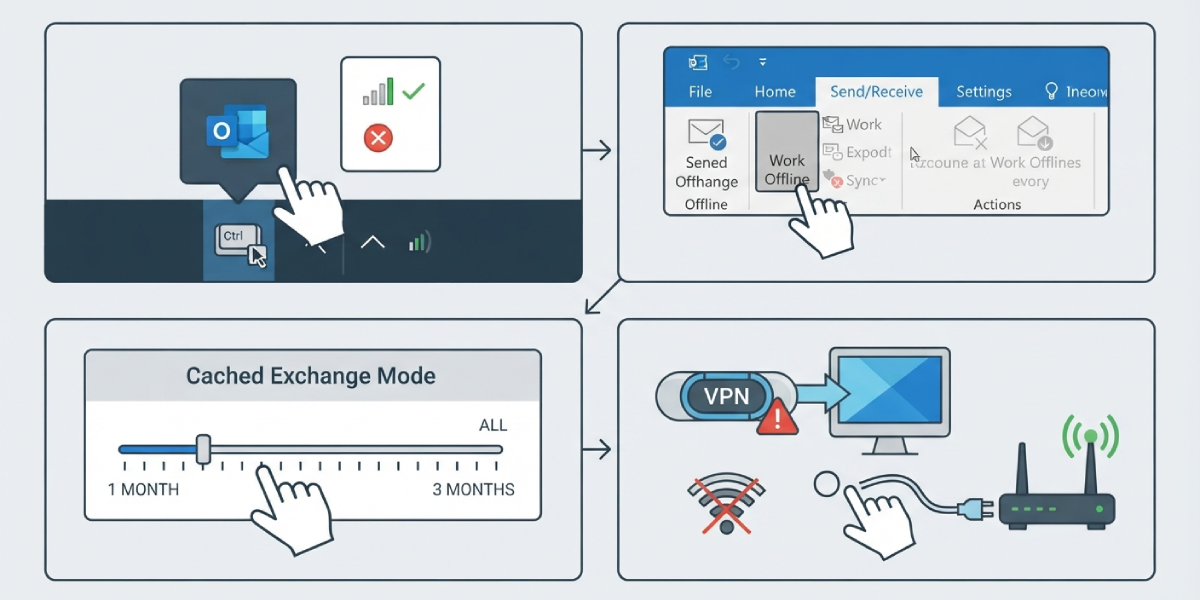
- Step 1: Check the connection status first. Right-click the Outlook icon in the Windows system tray while holding Ctrl, then choose ‘Connection Status’. This shows whether Outlook is actually talking to the Exchange server or silently retrying in the background.
- Step 2: Confirm Work Offline is turned off. Open the Send/Receive tab and look for the ‘Work Offline’ button. If it is highlighted, click it once to bring Outlook back online.
- Step 3: Open File, then Account Settings, then Account Settings again, and double-click the Exchange account. Under Cached Exchange Mode settings, drag the ‘Mail to keep offline’ slider down to 1 or 3 months instead of ‘All’. A smaller offline window means less data to sync on every check-in.
- Step 4: Disable unnecessary add-ins. Go to File, Options, Add-ins, then select ‘COM Add-ins’ from the Manage dropdown and click Go. Uncheck anything not actively needed, since some add-ins scan or process every incoming message and slow the sync queue.
- Step 5: Update Outlook to the latest build. Go to File, Office Account, Update Options, and select Update Now. Microsoft regularly patches sync performance issues, so an outdated build is a common hidden cause.
- Step 6: Rebuild the Windows Search index. Open Control Panel, go to Indexing Options, click Advanced, and choose Rebuild. Outlook relies on this index for search and background sync tasks, and a corrupted index can create noticeable delays.
- Step 7: Exclude the Outlook data file from real-time antivirus scanning. Locate the OST file path under File, Account Settings, Account Settings, then the Data Files tab, and add that folder as an exception in the antivirus software settings.
- Step 8: Test on a wired or stronger network connection if possible. VPN tunnels and weak Wi-Fi signals both throttle the amount of data Outlook can pull from Exchange per second.
When to Rebuild the OST File
If sync still crawls after the steps above, the OST file itself may be bloated or corrupted. Close Outlook completely, locate the .ost file through the Data Files tab mentioned in Step 7, rename it, and restart Outlook. A fresh OST will rebuild automatically, and while the first sync takes longer, performance afterward is usually much smoother.
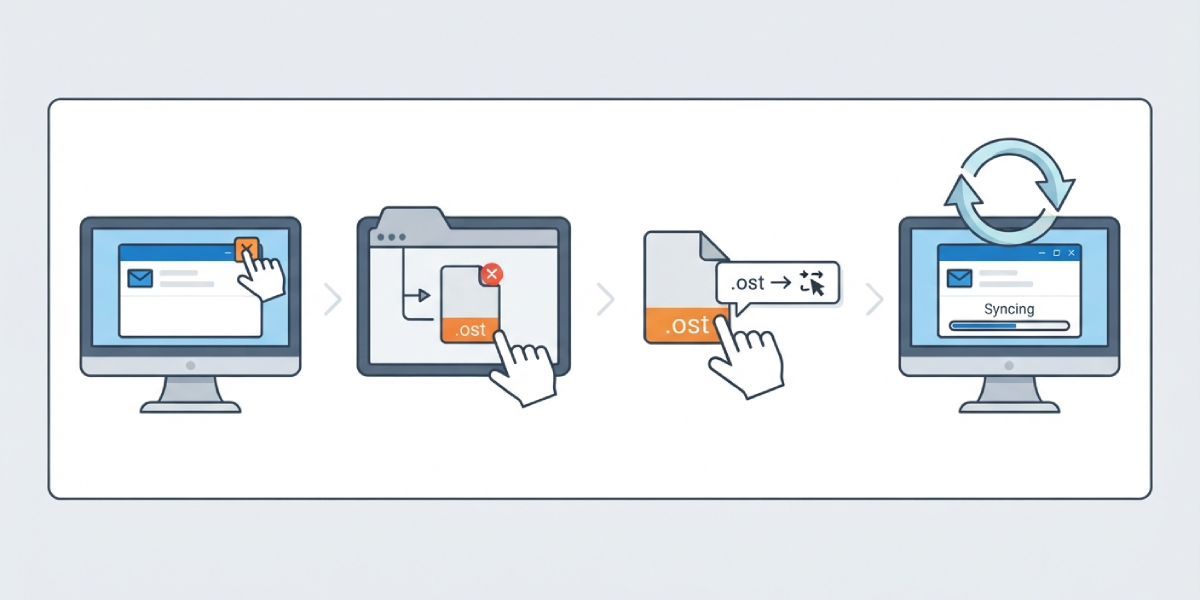
Tip: Note the exact file path before renaming anything, since Outlook will need to recreate the file in that same location.
Adjusting Shared and Public Folder Downloads
Under the same Cached Exchange Mode settings from Step 3, check whether ‘Download shared folders’ or ‘Download Public Folder Favorites’ is enabled. Turning these off when they are not actively needed removes extra sync overhead that many users never realize is running.
Tip: Mailboxes shared for delegate access are often the biggest offline sync load, so review that list every few months.
Common Problems and Fixes
- Sync stuck on ‘Updating Inbox’ indefinitely: Close Outlook, restart it while holding Ctrl to launch in Safe Mode, and check if sync resumes. If it does, an add-in disabled in Step 4 was the cause.
- Mailbox near or over its storage quota: Archive or delete older items using the built-in Archive tool under the Home tab, since a full mailbox slows every sync request against Exchange.
- Outlook shows ‘Disconnected’ despite active internet: Reset the Outlook profile through Control Panel, Mail, Show Profiles, and create a new profile to force a clean reconnection.
- Sync speeds up then slows again after a few minutes: This pattern often points to antivirus real-time scanning re-triggering on the OST file; recheck the exclusion set up in Step 7.
- Large attachments cause repeated timeouts: Set Outlook to download headers first, then full items, under Send/Receive Groups settings, so smaller messages sync while large ones catch up in the background.
Frequently Asked Questions
Why is Outlook syncing very slowly on Exchange all of a sudden?
A sudden slowdown usually follows a recent update, a growing mailbox, or a new add-in being installed. Checking Connection Status and reviewing recently added add-ins is the fastest way to narrow down the cause.
Does reducing the Cached Exchange Mode slider delete old email?
No. Older mail stays safely on the Exchange server and remains searchable online; it simply is not stored locally, which reduces the amount of data Outlook has to sync on the device.
How long should rebuilding the OST file take?
This depends on mailbox size and connection speed, but most users see the initial rebuild finish within thirty minutes to a few hours for very large mailboxes.
Will disabling add-ins affect other Outlook features?
Only the specific add-in that is disabled loses its functionality; core Outlook features like mail, calendar, and contacts continue working normally.
Is a VPN connection always the reason for slow sync?
Not always, but VPNs frequently reduce available bandwidth and add latency, which can noticeably slow down large sync operations with Exchange.
Can antivirus software really cause Outlook to sync slowly?
Yes. Real-time scanning that repeatedly opens and checks the OST file competes with Outlook for access to that same file, which creates a bottleneck during sync.
What if Outlook is still slow after trying every step?
At that point, a full profile reset or a fresh Outlook installation is usually the next step, since it clears any deeper configuration issue not resolved by adjusting individual settings.
Does mailbox size on the server affect local sync speed?
Yes. A mailbox close to or over its storage quota tends to sync more slowly across every connected device, not just the one showing symptoms.
Should Outlook be updated before trying other fixes?
Updating first is a good habit, since many sync-related bugs are resolved directly through Microsoft’s regular Outlook patches.
