
Outlook not syncing with an Android phone usually comes down to a handful of account, permission, or connectivity settings that have quietly drifted out of place. This guide walks through the exact fix, step by step, so mail, calendar, and contacts start updating normally again.
Key Takeaways
- Most sync failures trace back to an expired sign-in token, a paused account, or blocked background data.
- Removing and re-adding the account resolves the majority of stubborn sync issues.
- Battery optimization settings on Android are a frequent, overlooked culprit.
- Clearing the app cache is safer and faster than reinstalling in most cases.
- A stable internet connection and updated app version are worth confirming before any deeper troubleshooting.
How to Fix Outlook Not Syncing with an Android Phone
Check the Basics First
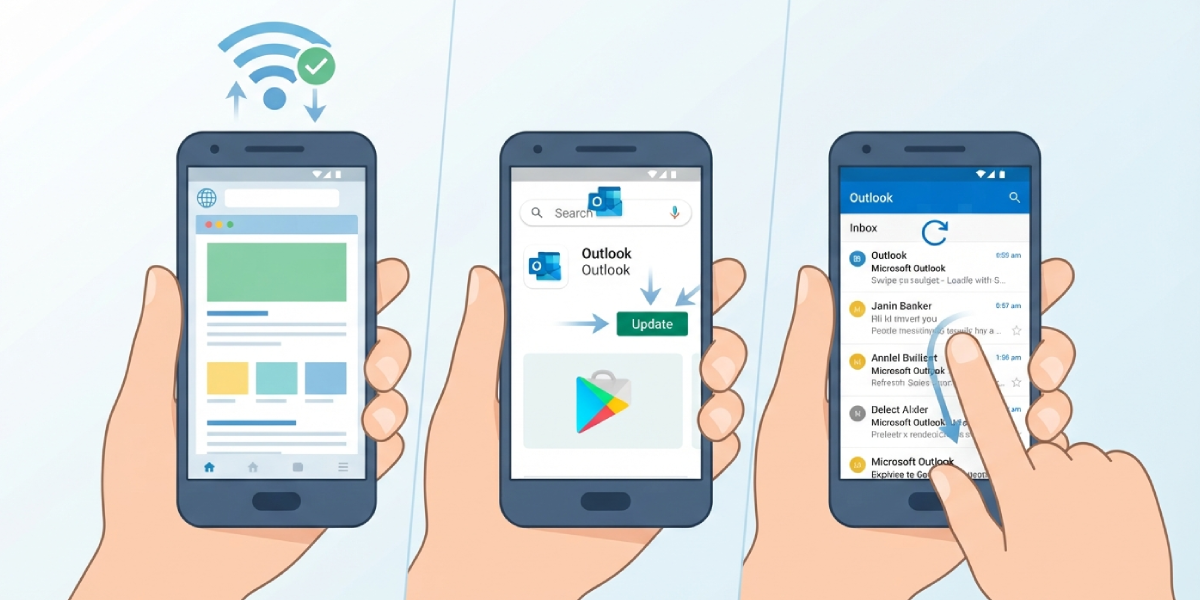
- Step 1: Confirm the Android phone has a working internet connection by opening a browser and loading any website. A weak or dropped connection is one of the most common reasons Outlook stalls mid-sync.
- Step 2: Open the Play Store and check whether an update is waiting for the Outlook app. Search for ‘Outlook’, tap the app listing, and select Update if it appears. An outdated build often loses compatibility with current sync protocols.
- Step 3: Open Outlook and pull down on the inbox screen to trigger a manual refresh. This confirms whether the app is fully frozen or just slow to sync on its own.
Fix the Account Settings
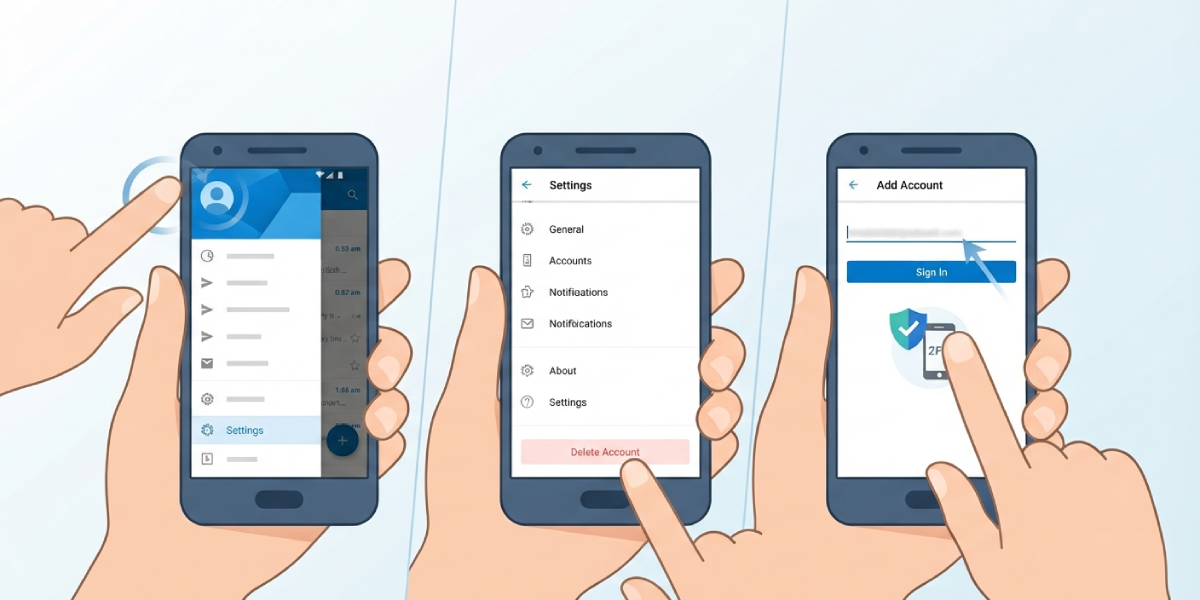
- Step 4: Tap the profile icon in the top-left corner of Outlook, then select the gear icon for Settings. Choose the account that has stopped syncing from the account list.
- Step 5: Scroll down and tap ‘Delete Account’. This removes the account from Outlook without deleting any mail from the server, since everything stays stored with the email provider.
- Step 6: Tap ‘Add Email Account’ from the Settings screen, enter the same email address, and complete the sign-in prompts, including any two-factor verification. This forces Outlook to request a fresh authentication token, which clears out most sync errors caused by expired credentials.
Tip: Write down or screenshot any custom folder settings, signatures, or focused inbox preferences before deleting the account, since these sometimes reset after re-adding it.
Adjust Android System Settings
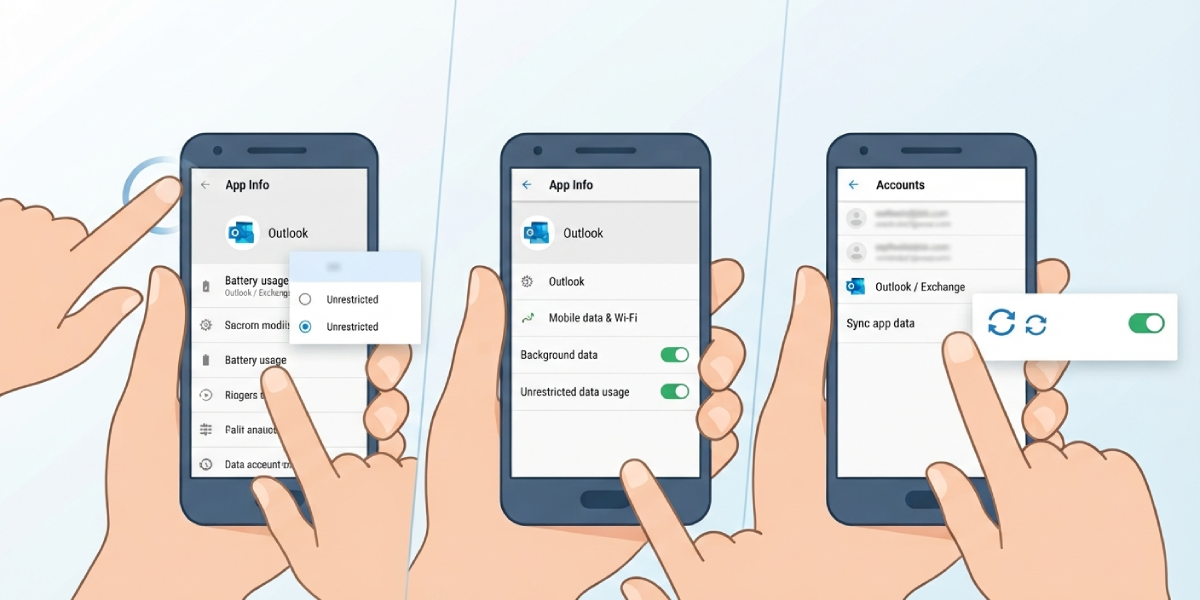
- Step 7: Open the phone’s Settings app, tap Apps (or ‘Apps & notifications’ depending on the Android version), find Outlook in the list, and tap Battery. Select ‘Unrestricted’ or ‘Not optimized’. Android’s battery-saving features are notorious for quietly pausing background sync on mail apps to save power.
- Step 8: While still in the App Info screen for Outlook, tap Mobile Data & Wi-Fi (or Data usage) and make sure ‘Background data’ and ‘Unrestricted data usage’ are both switched on.
- Step 9: Return to the main Settings app, go to Accounts (sometimes listed as ‘Passwords & accounts’), select the Outlook or Exchange account, and confirm ‘Sync app data’ or a similar sync toggle is switched on.
Clear Cache and Confirm Sync Frequency
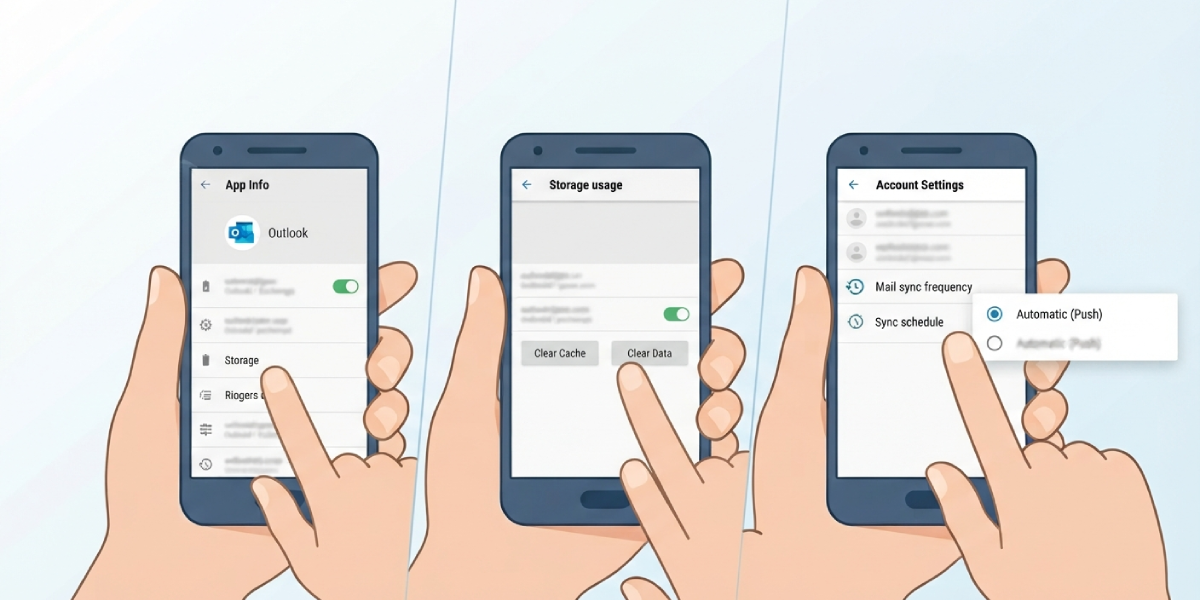
- Step 10: In the Android Settings app, go to Apps, tap Outlook, select Storage, then tap ‘Clear Cache’ (not ‘Clear Data’, which would remove the signed-in account). This clears out corrupted temporary files without affecting the account itself.
- Step 11: Reopen Outlook, tap the profile icon, go to Settings, select the account, and check the ‘Mail sync frequency’ or ‘Sync schedule’ option. Set it to ‘Automatic (Push)’ or the shortest available interval, since a schedule set to manual or a long interval can look identical to a broken sync.
Common Problems and Fixes
Sync Works on Wi-Fi but Not Mobile Data
This points directly to the ‘Background data’ or ‘Unrestricted data usage’ toggle from Step 8 being switched off. Turning both on for Outlook specifically, rather than relying on the phone’s general data settings, usually resolves it.
Account Re-Add Fails with a Sign-In Error
This typically happens when a company or school account has Conditional Access policies in place. Restarting the phone and trying the sign-in again often clears a stuck token; if it persists, the organization’s IT administrator may need to approve the device.
Sync Is Slow but Not Fully Broken
A cluttered inbox with thousands of unread items can slow sync noticeably. Archiving or deleting old mail, then checking the sync frequency setting from Step 11, usually brings performance back to normal.
New Emails Show in the Browser but Not on the Phone
This is a strong sign the mobile app itself has lost its connection while the server side is working fine. Repeating the account removal and re-add process in Steps 4 through 6 almost always fixes this specific pattern.
Frequently Asked Questions
Why is Outlook not syncing with my Android phone all of a sudden?
A sudden stop in syncing is most often caused by an expired sign-in token, a Wi-Fi or mobile data interruption, or Android’s battery optimization pausing the app in the background.
Will removing and re-adding the account delete any emails?
No. Deleting the account from Outlook only removes it from the app; all mail, folders, and calendar items remain safely stored on the email server.
Does clearing the cache remove any account information?
No. Clearing the cache only removes temporary files. Clearing ‘Data’ instead of ‘Cache’ is what would sign the account out, so it is important to select the correct option.
Why does Outlook sync on Wi-Fi but not on mobile data?
This usually means background data or unrestricted data usage is disabled for the app under the phone’s data settings, which blocks Outlook from syncing outside of Wi-Fi.
How can battery optimization stop Outlook from syncing?
Many Android phones automatically restrict background activity for apps to save battery life, and Outlook is frequently caught by this feature, which pauses its ability to check for new mail.
Is it necessary to reinstall the Outlook app to fix sync issues?
Usually not. Clearing the cache and removing and re-adding the account resolves the vast majority of sync problems without a full reinstall.
How long should it take for Outlook to sync after these fixes?
With sync frequency set to Automatic (Push), new mail typically appears within a minute or two of arriving on the server.
What if the account is a work or school account managed by an organization?
Some sync failures on managed accounts stem from Conditional Access or mobile device management policies, which may require approval from the organization’s IT administrator before the device can sync again.
Does a weak internet connection affect Outlook sync on Android?
Yes. A weak or intermittent connection can cause sync to stall or fail entirely, so confirming a stable connection is a useful first step before adjusting any settings.
