
Adding an iCloud email account in Classic Outlook takes just a few minutes once the right settings are in place. The process relies on an app-specific password rather than a regular Apple ID password, which trips up a lot of first-time users. This guide walks through the exact steps needed to get iCloud mail syncing smoothly inside Outlook.
Key Takeaways
- Classic Outlook requires an app-specific password from the Apple ID account page, not the standard iCloud password.
- Two-factor authentication must be turned on for the Apple ID before an app-specific password can be generated.
- iCloud mail connects to Outlook through IMAP, so incoming and outgoing server settings need to be entered manually in most cases.
- Outlook may auto-detect server settings, but it is worth double-checking them if mail does not sync right away.
- Once set up, iCloud mail, sent items, and folders sync automatically between iCloud.com and Outlook.
Step-by-Step Guide to Add an iCloud Email Account in Classic Outlook
Generate an App-Specific Password
Before opening Outlook, an app-specific password needs to be created through the Apple ID account portal. Outlook cannot connect using the regular Apple ID password because Apple blocks third-party apps from using it directly.
- Step 1: Go to appleid.apple.com in a web browser and sign in with the Apple ID linked to the iCloud account.
- Step 2: Under the ‘Sign-In and Security’ section, select ‘App-Specific Passwords’.
- Step 3: Select ‘Generate an App-Specific Password’ and give it a label, such as ‘Outlook Mail’, so it is easy to identify later.
- Step 4: Copy the generated password exactly as shown. This code will be entered into Outlook in place of the usual iCloud password.
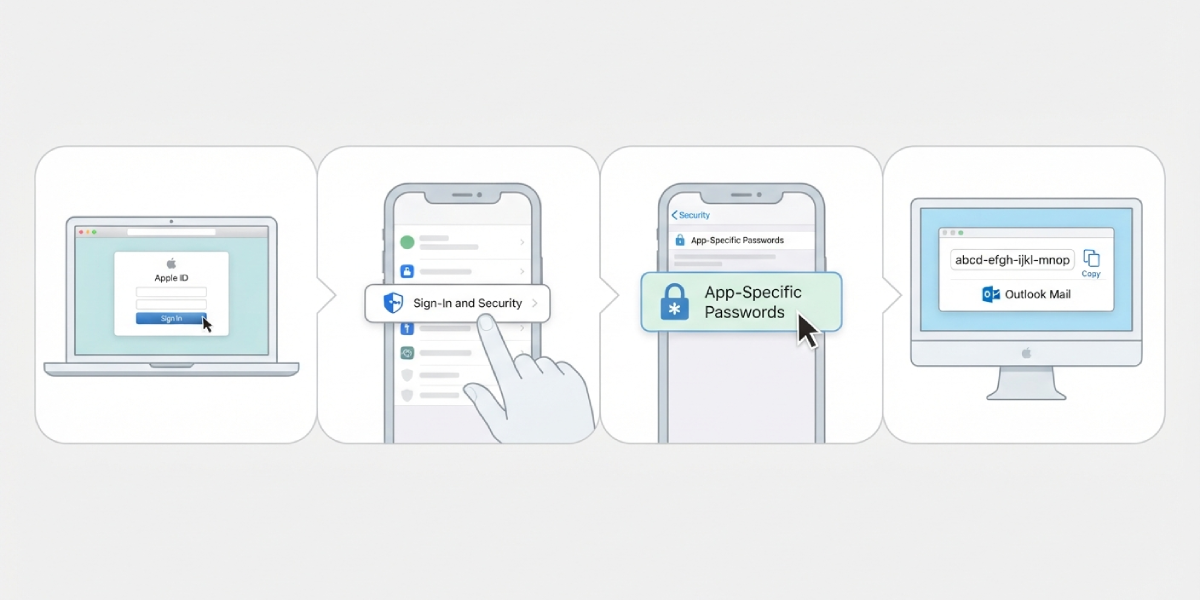
Tip: Save the app-specific password in a secure password manager right away, since Apple only shows it once and it cannot be viewed again after closing the page.
Add the iCloud Account in Classic Outlook
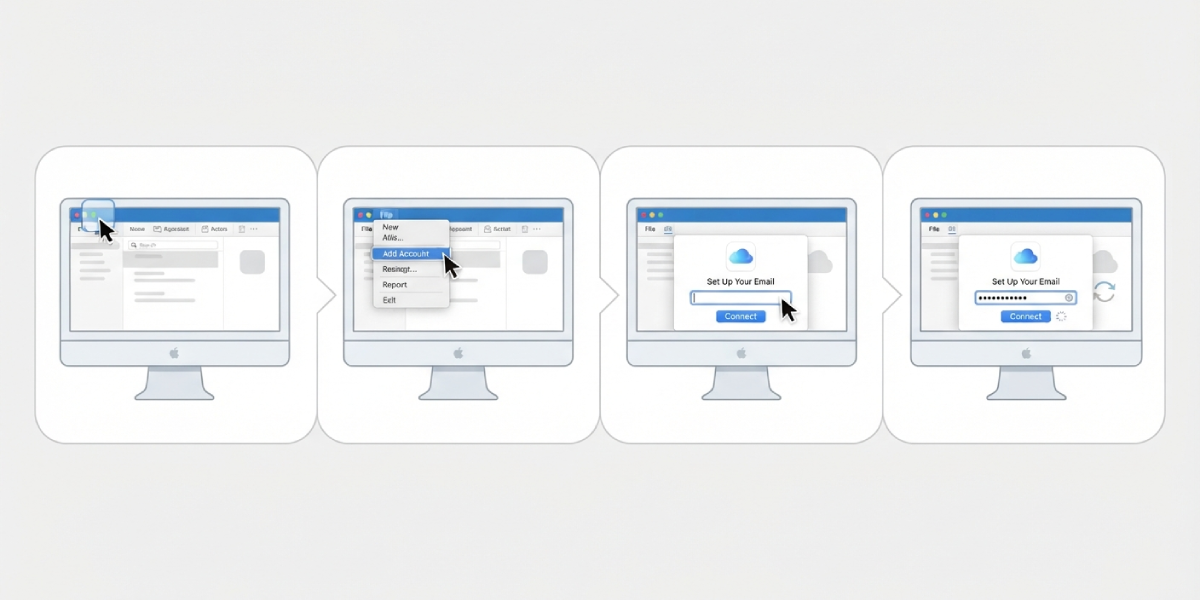
- Step 5: Open Classic Outlook and select ‘File’ in the top-left corner.
- Step 6: Select ‘Add Account’ under the Account Information screen.
- Step 7: Type in the full iCloud email address and select ‘Connect’.
- Step 8: When prompted for a password, paste in the app-specific password generated earlier, not the regular Apple ID password.
- Step 9: Select ‘Connect’ again and allow Outlook a moment to verify the account and sync existing folders.
Confirm the Server Settings (If Needed)
Most versions of Outlook detect iCloud’s IMAP settings automatically. If prompted to enter them manually, the following values apply.
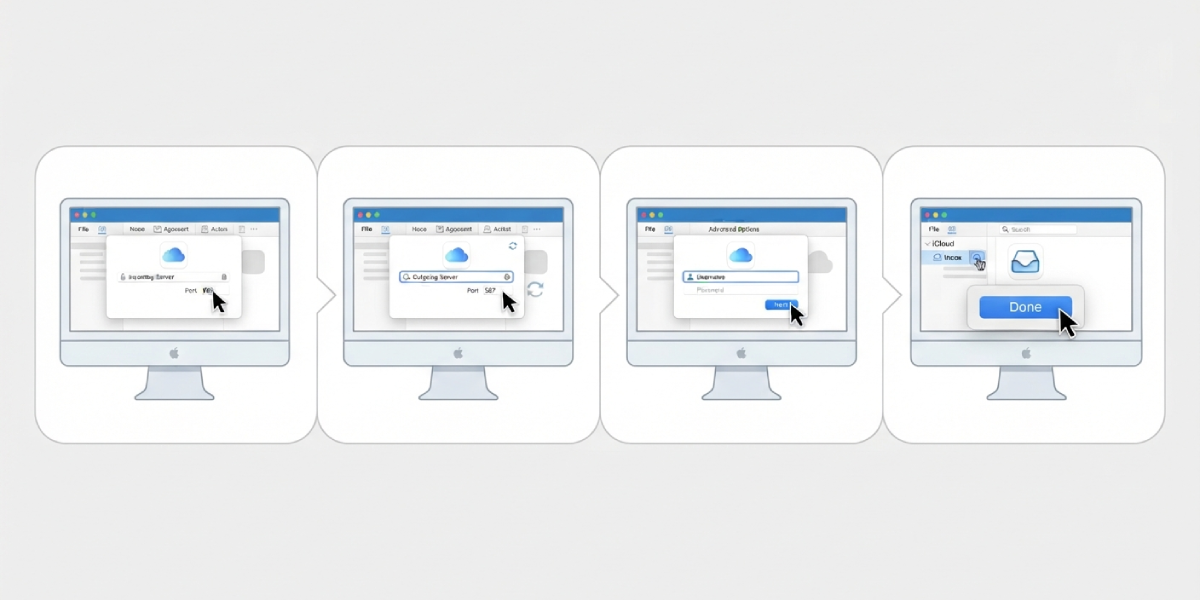
- Step 10: For the incoming mail server, enter imap.mail.me.com and set the port to 993 with SSL enabled.
- Step 11: For the outgoing mail server, enter smtp.mail.me.com and set the port to 587 with TLS enabled.
- Step 12: Enter the full iCloud email address as the username, then select ‘Next’ to finish account verification.
- Step 13: Select ‘Done’ once Outlook confirms the account has been added successfully, then check the folder pane for the new iCloud inbox.
Tip: If mail does not appear right away, give Outlook a minute or two to complete the initial sync, especially for accounts with years of stored messages.
Common Problems and Fixes
- Outlook rejects the password: This almost always means the regular Apple ID password was entered instead of the app-specific password. Generate a new app-specific password and try again.
- Two-factor authentication is not set up: App-specific passwords cannot be created without two-factor authentication turned on for the Apple ID. Enable it in the Apple ID security settings first.
- Account adds but folders do not sync: Close and reopen Outlook, or manually trigger a send/receive by pressing F9. Large mailboxes can take longer to populate fully.
- Server settings are not detected automatically: Switch to manual setup within the account wizard and enter the IMAP and SMTP details listed above.
- Duplicate emails appear after setup: This usually clears up on its own after the first full sync completes. If it persists, remove the account and re-add it using the same app-specific password.
Frequently Asked Questions
Can the regular iCloud password be used instead of an app-specific password?
No. Apple requires an app-specific password for any third-party email client, including Classic Outlook, once two-factor authentication is enabled on the account.
Is two-factor authentication required to add iCloud email to Outlook?
Yes. App-specific passwords can only be generated when two-factor authentication is active on the Apple ID, so it needs to be turned on before starting the setup.
Does adding an iCloud account in Outlook use IMAP or POP?
iCloud mail connects to Outlook using IMAP, which keeps folders, sent items, and read status synced across devices.
What are the correct iCloud server settings for Outlook?
The incoming server is imap.mail.me.com on port 993 with SSL, and the outgoing server is smtp.mail.me.com on port 587 with TLS.
Why does Outlook keep asking for the iCloud password repeatedly?
This typically happens when the wrong password type was entered. Generate a fresh app-specific password from the Apple ID account page and re-enter it when prompted.
Can more than one iCloud account be added to the same Outlook profile?
Yes. Each additional iCloud account needs its own app-specific password, and the same ‘Add Account’ steps apply for each one.
How long does it take for iCloud mail to fully sync in Outlook?
Small mailboxes usually sync within a minute or two, while larger accounts with years of email history can take longer to fully populate.
Will removing the iCloud account from Outlook delete the emails?
No. Removing the account from Outlook only disconnects the app. All emails remain safely stored on iCloud and remain accessible from iCloud.com or any other connected device.
