
Outlook search only finding recent emails is one of the most common frustrations in Outlook, and it usually points to a caching or indexing setting rather than a lost message. This guide walks through the exact steps to get older emails showing up in search results again.
Key Takeaways
- Cached Exchange Mode settings often limit search to a set time window, like three or six months.
- A corrupted or incomplete Windows Search index is the second most common cause.
- Search scope can be accidentally set to ‘Current Folder’ instead of ‘All Outlook Items’ or ‘All Mailboxes’.
- Rebuilding the search index resolves most cases, though it can take time to finish running in the background.
- Online archives need to be added separately to the search scope if older mail has been auto-archived.
Fix Outlook Search Only Finding Recent Emails: Step-by-Step Guide
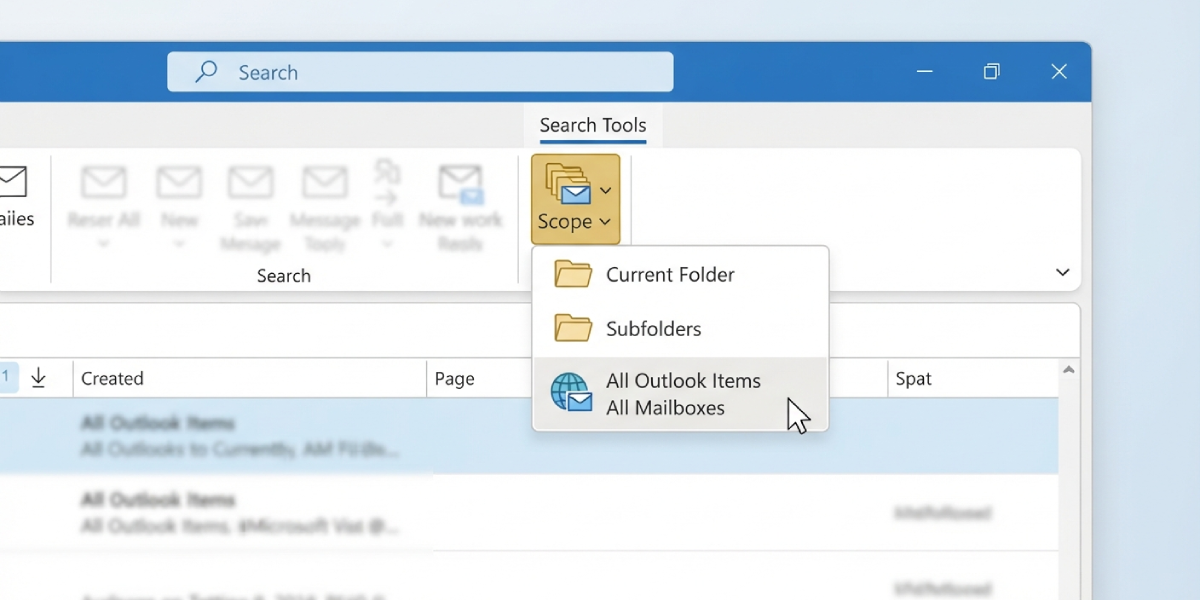
- Step 1: Open Outlook, click into the search bar at the top of the window, and check the ‘Search Tools’ ribbon that appears. Look at the ‘Scope’ dropdown and confirm it is set to ‘All Outlook Items’ or ‘All Mailboxes’ rather than ‘Current Folder’ or ‘Current Mailbox’. A narrow scope is the quickest explanation for a search that only turns up recent messages, since older mail may live in folders the current scope skips entirely.
- Step 2: Go to File, then Account Settings, then Account Settings again, and double-click the Exchange account. Look for the slider labeled ‘Mail to keep offline’. If it is set to something like 3 Months or 6 Months, only mail within that window gets cached locally, and Outlook can only search what it has cached. Drag the slider to ‘All’ or the longest available option, then click Next and Finish. Tip: this change requires Outlook to resync the mailbox, which can take anywhere from a few minutes to several hours depending on mailbox size and connection speed, so plan this step for a time when the computer can stay on and connected.
- Step 3: Once the sync from Step 2 finishes, rebuild the Windows Search index so it catches up with the newly downloaded messages. Open Control Panel, search for ‘Indexing Options’, and click ‘Advanced’. Under the Index Settings tab, click ‘Rebuild’. Tip: indexing a large mailbox from scratch can take a while, so search results may still look incomplete for the first hour or two after starting this process.
- Step 4: While still in Indexing Options, click ‘Modify’ and confirm that Outlook is listed and checked under the included locations. If Outlook does not appear in the list, click the arrow next to ‘Microsoft Outlook’ to expand it and make sure the checkbox is selected, then click OK.
- Step 5: Clear the search box completely and try a fresh, simple search term rather than reusing a previous query. Search operators like received: or a leftover date range from a prior advanced search can silently restrict results to a recent window even after the box looks empty.
- Step 6: If search results are still limited to recent items, run the built-in repair tool. Go to Control Panel, then Programs and Features, select the Microsoft Office installation, and choose ‘Change’, then ‘Quick Repair’. This fixes underlying data file issues without removing any installed settings or accounts.
Checking an Online Archive
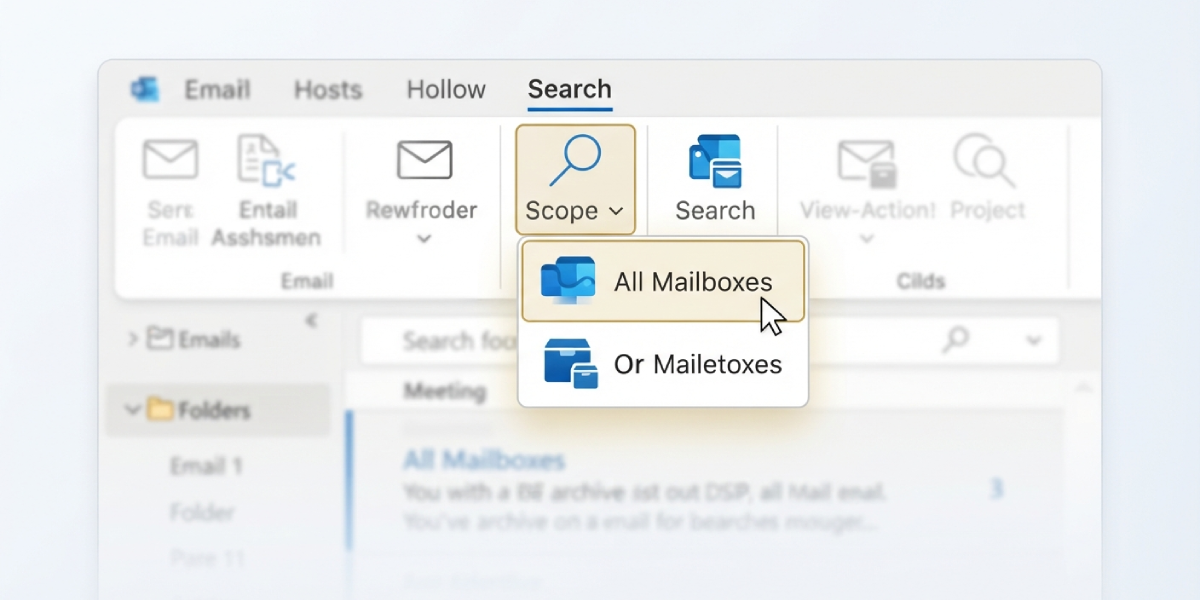
Anyone using an Online Archive or an auto-archive .pst file needs to add that location to the search scope separately, since Outlook treats it as a distinct data file. In the Search Tools ribbon, select ‘All Mailboxes’ rather than just ‘This Mailbox’ so both the primary account and the archive get searched together.
Common Problems and Fixes
- Rebuild option is greyed out: This usually means indexing is already in progress. Wait for the current process to finish before starting another rebuild.
- Search bar shows ‘Search Results May Be Incomplete’: This message appears while the index is still catching up after a rebuild or after increasing the Mail to keep offline setting. It clears on its own once indexing finishes.
- Older emails appear in Outlook on the web but not desktop: This points directly to a local caching or indexing problem, since the server clearly has the messages. Steps 2 and 3 above resolve this in most cases.
- Search still limited after rebuilding the index: Double-check that the ‘Mail to keep offline’ slider from Step 2 was actually saved, since Outlook sometimes needs a restart before the new setting takes effect.
- Shared mailboxes not returning older results: Shared mailboxes follow their own separate cache settings in some Outlook versions, so the scope and offline mail settings need to be checked for that mailbox specifically, not just the primary account.
Frequently Asked Questions
Why does Outlook search only show emails from the last few months?
This typically happens because Cached Exchange Mode is set to keep only a limited window of mail offline, such as 3 or 6 months. Search can only find what has been downloaded locally, so older mail outside that window will not appear.
How long does rebuilding the search index take?
It depends on mailbox size, but it commonly takes anywhere from 30 minutes to a few hours. Larger mailboxes with years of history can take longer to fully re-index.
Will changing the Mail to keep offline setting delete old emails?
No. That setting only controls what is cached locally for offline access and search. All mail remains safely stored on the mail server regardless of this setting.
Does setting Mail to keep offline to All use more storage?
Yes, since more messages get downloaded and stored on the local device. This is worth considering on devices with limited disk space.
Why does search work fine in Outlook on the web but not the desktop app?
Outlook on the web searches directly on the server, while the desktop app searches its local cache and index. A mismatch usually means the desktop cache or index needs to be refreshed using the steps above.
Can a full Outlook data file cause search problems?
Yes, an oversized or nearly full .pst or .ost file can cause indexing to stall or behave inconsistently. Running a Quick Repair or checking file size limits can help in that situation.
Do search operators like received: affect results?
Yes, leftover search operators or filters from a previous advanced search can restrict results to a specific date range even if the search box appears empty. Starting with a completely fresh search term avoids this.
Is a full rebuild always necessary, or can indexing be refreshed instead?
A full rebuild is only needed when search results are clearly missing older items. For minor sync gaps, simply waiting a few minutes or restarting Outlook is often enough.
Does this issue affect shared and delegate mailboxes too?
Yes, shared mailboxes can have their own offline mail and indexing behavior separate from the primary account, so the same scope and cache settings should be checked there as well.
