
When advanced search operators in Outlook stop returning results, it usually points to a broken index or a settings mismatch rather than a permanent bug. This guide walks through the exact fixes that restore operators like from:, subject:, and hasattachment: so search works the way it should again.
Key Takeaways
- Most broken search operators trace back to a corrupted or incomplete Windows search index.
- Outlook needs to be explicitly included in Indexing Options for operators to function properly.
- Search scope settings (current folder vs. all mailboxes) often get mistaken for a broken operator.
- Rebuilding the index and confirming Outlook’s cached mode settings solves the majority of cases.
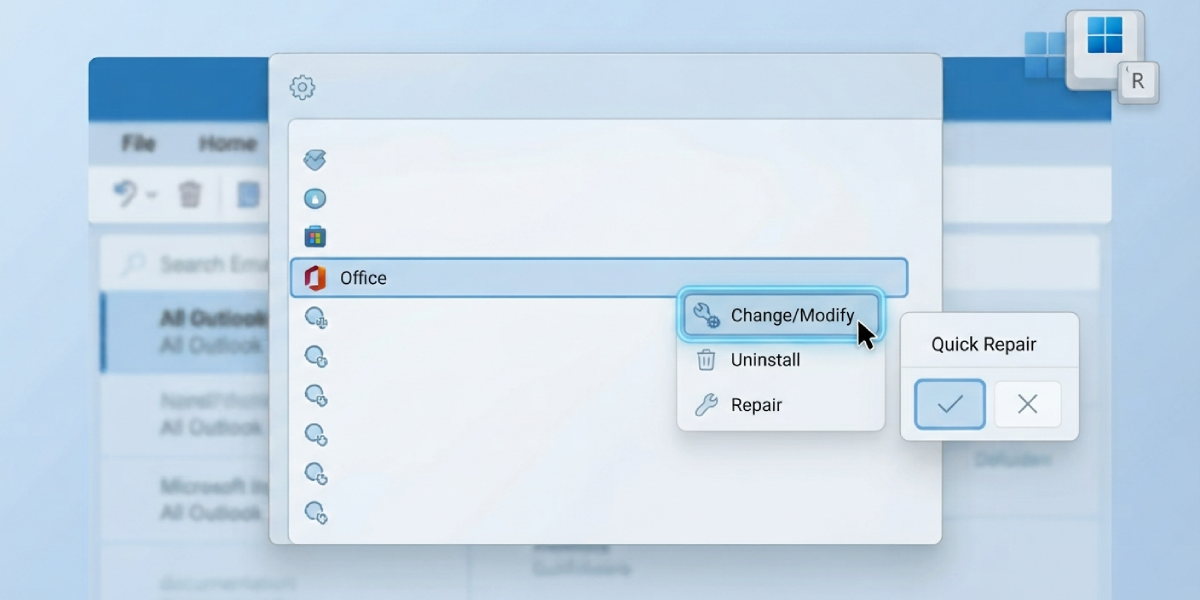
- A quick repair of Office resolves operator issues tied to a corrupted installation.
Step-by-Step Guide to Fixing Advanced Search Operators in Outlook
Work through these steps in order. Most people find the problem gets resolved within the first three or four steps, so there’s no need to jump straight to reinstalling anything.
Check the Current Search Scope
- Step 1: Open Outlook and click into the search bar at the top of the window.
- Step 2: Look at the Search Tools tab that appears, then select the Search Scope dropdown.
- Step 3: Choose ‘All Outlook Items’ or ‘All Mailboxes’ instead of ‘Current Folder’ so operators search across the full mailbox rather than a single folder.
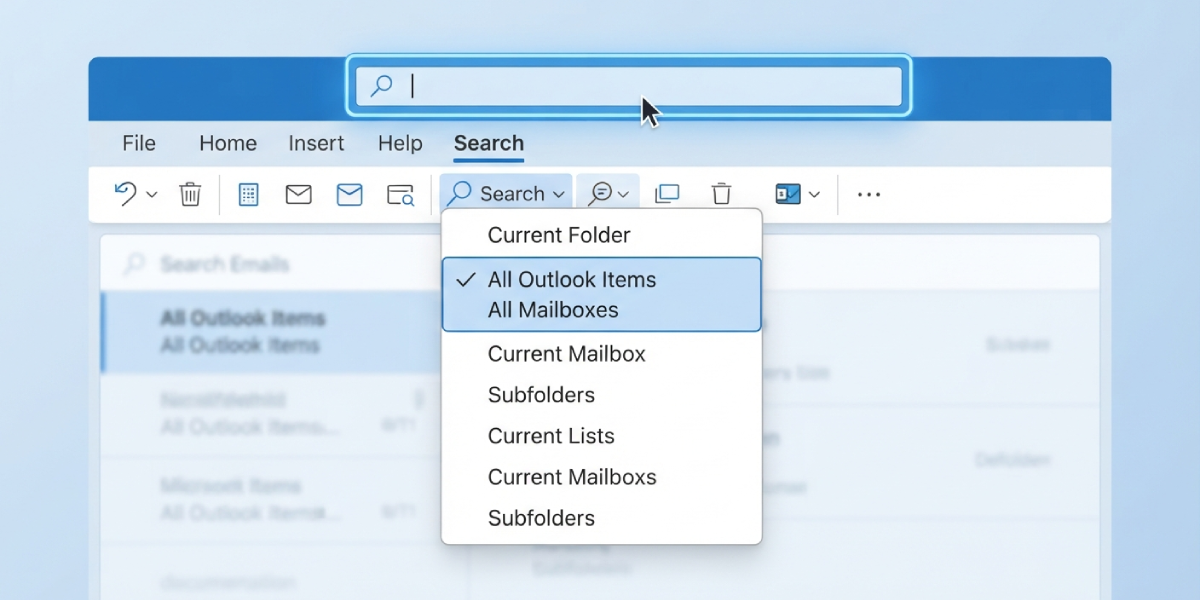
Tip: A search that seems ‘broken’ is sometimes just scoped to one folder, which makes operators like from: appear to return nothing when the sender’s messages are actually stored elsewhere.
Confirm Outlook Is Included in Windows Indexing
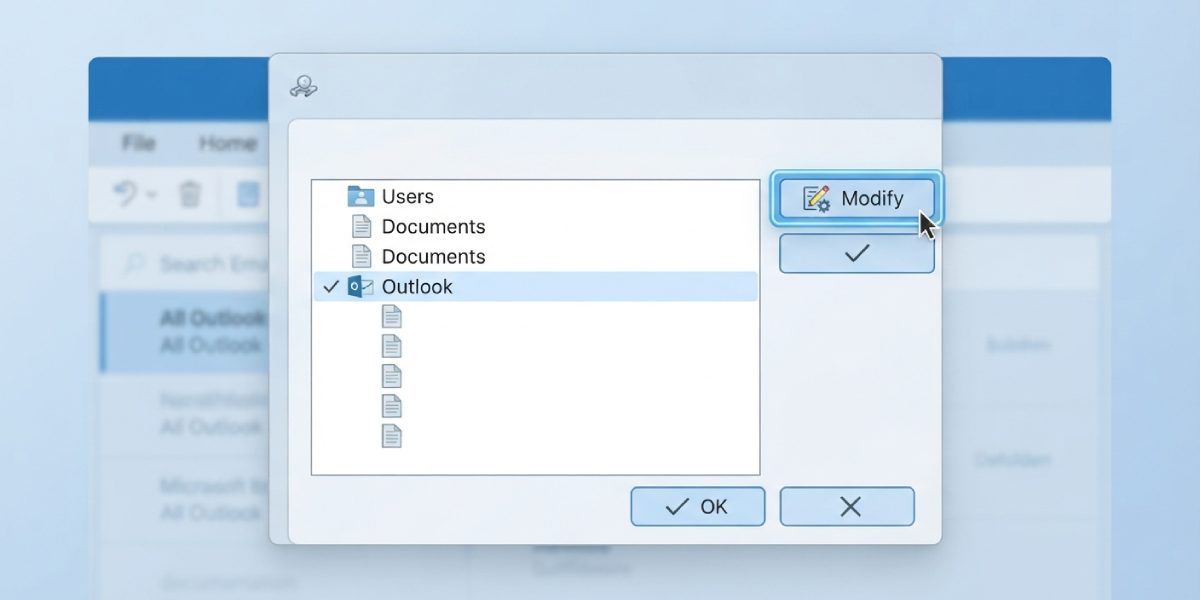
- Step 4: Open the Start menu, type ‘Indexing Options’, and open the Control Panel result.
- Step 5: Click ‘Modify’ and confirm that Microsoft Outlook is checked in the list of locations.
- Step 6: If it isn’t checked, select it, click OK, then close the Indexing Options window.
Rebuild the Search Index
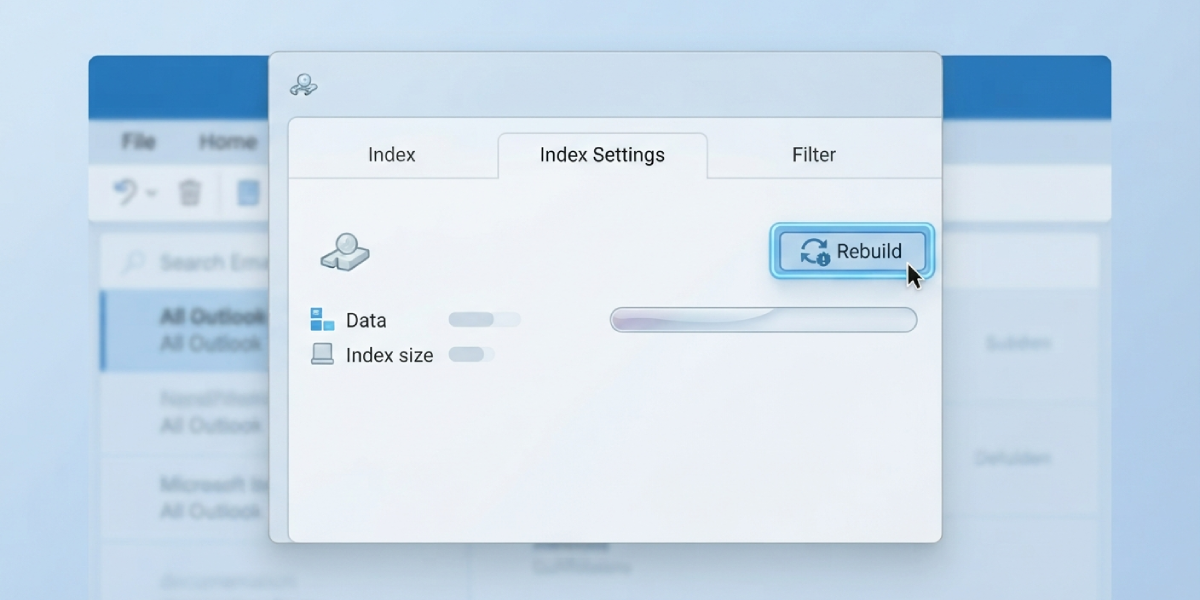
- Step 7: Return to Indexing Options and click ‘Advanced’.
- Step 8: Under the Index Settings tab, click ‘Rebuild’ and confirm the prompt.
- Step 9: Allow the rebuild to run in the background. Depending on mailbox size, this can take anywhere from a few minutes to several hours.
Tip: Indexing status can be checked directly inside Outlook by going to the Search Tools tab and selecting ‘Indexing Status’ – it will show how many items are left to index.
Restart the Windows Search Service
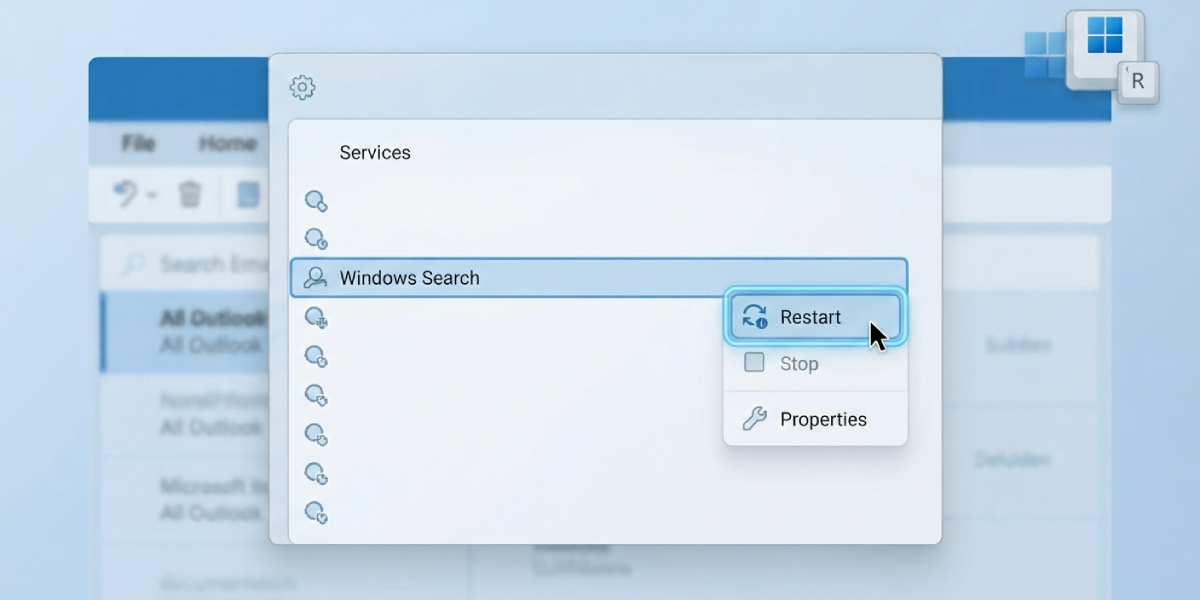
- Step 10: Press Windows key + R, type ‘services.msc’, and press Enter.
- Step 11: Find ‘Windows Search’ in the list, right-click it, and choose ‘Restart’.
- Step 12: Reopen Outlook and test an operator, such as typing subject:invoice into the search bar.
Run a Quick Repair on Office
- Step 13: Open Control Panel, go to ‘Programs and Features’, and locate the Microsoft Office installation.
- Step 14: Select it, click ‘Change’, then choose ‘Quick Repair’ and confirm.
- Step 15: Once the repair finishes, restart the computer and reopen Outlook to test search operators again.
Common Problems and Fixes
- Operators return zero results even after rebuilding the index: The rebuild may still be in progress. Check Indexing Status in Outlook before assuming the fix failed.
- Search works for received emails but not sent ones: The Sent Items folder often needs to be added separately under Indexing Options if it lives in a different data file.
- Operators work on a desktop but not through Outlook on the web: Web-based search relies on server-side indexing rather than the local Windows index, so a local rebuild has no effect there.
- Typing an operator shows plain text instead of filtering results: This usually means there’s a stray space after the colon, such as from: name instead of from:name.
- Search is slow but eventually works: Large mailboxes in cached mode can take time to index fully; leaving Outlook open and idle overnight often clears a backlog.
Frequently Asked Questions
Why did advanced search operators suddenly stop working in Outlook?
This typically happens after a Windows update, an index corruption event, or a change to Outlook’s data file location that Windows Search hasn’t caught up with yet.
How long does rebuilding the search index take?
It depends on mailbox size and item count. Small mailboxes may finish in under an hour, while large ones with years of email can take several hours running in the background.
Can advanced search operators be used while the index is still rebuilding?
Yes, but results will be incomplete until indexing finishes, so it’s best to wait for the Indexing Status to show ‘Outlook has finished indexing all items.’
Do search operators work the same way in Outlook on the web?
Mostly yes, though web-based search depends on server indexing rather than the local Windows index, so fixes applied on a desktop won’t affect the web version.
What is the correct syntax for combining multiple search operators?
Operators can be combined by separating them with a space, such as from:John hasattachment:yes, without adding extra spaces after each colon.
Does a Quick Repair delete any emails or settings?
No. A Quick Repair only fixes the Office installation files and does not remove emails, accounts, or custom settings.
Why do operators work in one folder but not another?
This is almost always a search scope issue. Switching the Search Scope dropdown to ‘All Outlook Items’ resolves it in most cases.
Is it necessary to restart the computer after rebuilding the index?
A restart isn’t required, but restarting the Windows Search service through services.msc often speeds up the process of getting operators working again.
Can antivirus software interfere with search operators in Outlook?
Yes, some antivirus programs scan and lock the Outlook data file, which can disrupt indexing. Temporarily excluding the .pst or .ost file from active scanning can help.
