
Anyone who needs to remove a forgotten PST password in Outlook usually hits the same wall: the file still opens on this computer, but retyping that old password from memory is no longer possible. The good news is that as long as the PST file is still accessible inside Outlook right now, the password can be stripped out without ever having to recall it. This guide walks through the exact steps, in order, so the data file stays intact and usable.
Key Takeaways
- A forgotten PST password can only be removed while the file is still accessible and open inside Outlook.
- The removal happens through Account Settings, not through any recovery email or Microsoft account reset.
- Leaving the ‘New Password’ and ‘Verify Password’ fields blank clears protection entirely.
- A backup copy of the PST file should be made before making any changes.
- If the PST can no longer be opened at all, Outlook has no built in way to bypass that password.
How to Remove a Forgotten PST Password in Outlook
This process works because Outlook only asks for a PST password once per session. If the file opened without a prompt this time around, or a prompt was answered earlier in the same Outlook session, that session already ‘trusts’ the file. That trust is what makes password removal possible without retyping the original password.
- Step 1: Open Outlook normally and confirm the PST file in question is listed and accessible in the folder pane. Do not close Outlook or restart the computer before finishing these steps, since a fresh session may prompt for the password again.
- Step 2: Go to the File tab, then select Account Settings, and choose Account Settings again from the dropdown menu.
- Step 3: Click the Data Files tab. This lists every PST and OST file connected to the current Outlook profile.
- Step 4: Select the password protected PST file from the list, then click Settings.
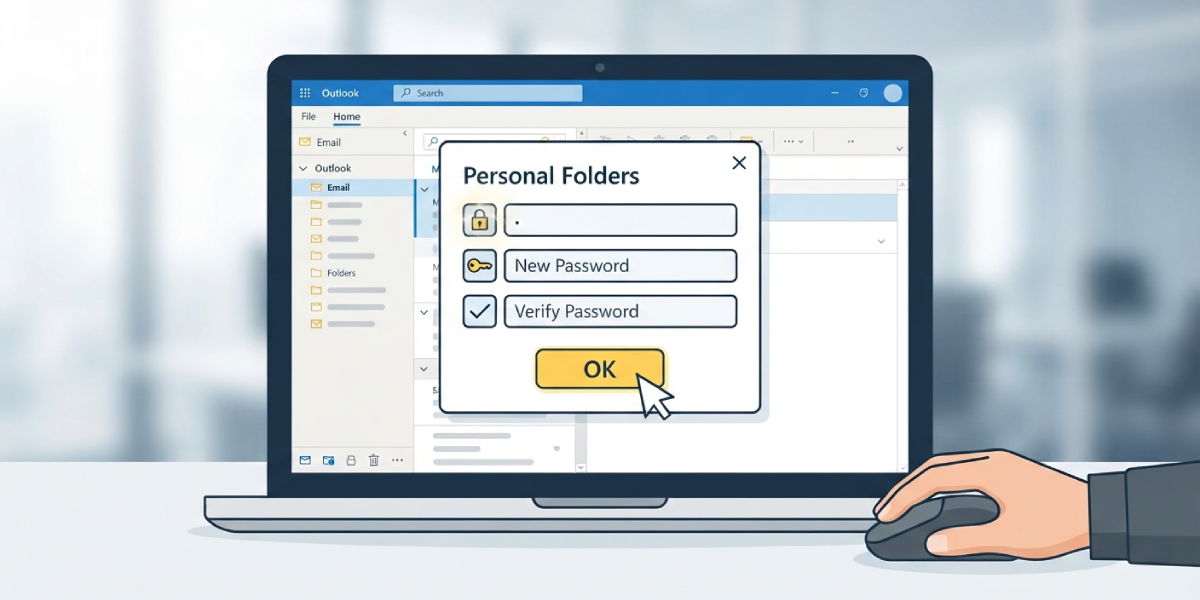
- Step 5: In the Personal Folders dialog box, click Change Password.
- Step 6: Leave the Old Password field empty, and also leave New Password and Verify Password blank. Click OK to confirm.
- Step 7: Close the dialog boxes and restart Outlook once to confirm the file now opens without any password prompt.

Tip: Before touching anything, copy the PST file to a separate backup location. If a step is entered incorrectly or Outlook needs to be restarted mid process, having an untouched copy prevents any risk of losing the file entirely.
If the Change Password Dialog Won’t Accept a Blank Old Password
Some versions of Outlook still expect a value in the Old Password field even when the file is already unlocked for the session. When that happens, try typing a single space in the Old Password field, then leave New Password and Verify Password blank before clicking OK. This small workaround satisfies the field validation without requiring the actual forgotten password.
If the PST File Cannot Be Opened at All
Outlook does not include a built in password reset or recovery feature for PST files. If the file is already closed, was never opened in the current session, or Outlook is prompting for the password on every attempt, there is no official Microsoft method to bypass it. At that point, the only realistic paths are locating an old note or password manager entry with the original password, or using a reputable third party PST password recovery utility designed specifically for Outlook data files.
Common Problems and Fixes
- The Change Password option is greyed out: This usually means the PST file is currently set as read-only or is an OST file rather than a true PST. Confirm the file type and location under Account Settings before continuing.
- Outlook prompts for the password again after restarting: This means the password removal step did not complete before Outlook was closed. Repeat the process, and this time confirm the file opens without a prompt before closing Outlook.
- Clicking OK produces no visible change: Close the Account Settings window fully, reopen Outlook, and check the Data Files tab again. Some changes only reflect after Outlook restarts.
- The PST file appears but shows an error when clicked: The file path may have changed, or the PST may be corrupted. Run the Inbox Repair Tool (scanpst.exe) on a copy of the file before attempting password removal again.
- Multiple PST files are listed and it is unclear which one is protected: Right click each entry and choose Open File Location to confirm the exact file path before selecting Settings.
Frequently Asked Questions
Can Microsoft reset a forgotten PST password directly?
No. Microsoft does not store or manage PST passwords on any server, so there is no reset or recovery option available through a Microsoft account.
Does removing a PST password delete any emails or folders?
No. Removing the password only changes the file’s protection setting. Emails, folders, and attachments inside the PST remain untouched.
Is it possible to remove a PST password without Outlook currently having the file open?
Not through any official Microsoft feature. The removal steps only work because the file is already accessible in the current Outlook session.
Why does Outlook only ask for the PST password once per session?
Outlook caches the password validation for the duration of the current session to avoid repeated prompts. Closing Outlook or restarting the computer clears that cache.
Is scanpst.exe the same as a password removal tool?
No. Scanpst.exe repairs structural corruption in a PST file. It does not remove, bypass, or recover passwords.
What happens if the wrong value is entered in the Change Password fields?
Outlook will simply reject the change and the file will keep its existing password. No data is lost from an incorrect entry in this dialog.
Can a PST password be removed on a different computer than the one it was created on?
Yes, as long as the PST file can be opened in Outlook on that computer without being prompted for the password, meaning it was already unlocked or is not currently locked at all.
Should the PST file be backed up before removing the password?
Yes. A backup copy should always be made first, since it provides a safety net if any step is interrupted or the file needs to be restored.
Does this process work the same way for OST files?
OST files are not typically password protected in the same way PST files are, since they sync directly with a mailbox. This process applies specifically to PST files.
