
A Bluetooth mouse lagging or disconnecting mid-task is one of the most common wireless peripheral complaints, and it almost always traces back to a small, fixable cause rather than a dying mouse. This guide walks through why it happens and exactly how to stop it for good.
Key Takeaways
- Bluetooth mouse lagging or disconnecting is usually caused by signal interference, outdated drivers, or Windows power-saving settings.
- Low batteries and worn-out pairing profiles are overlooked but frequent culprits.
- Updating Bluetooth drivers and disabling USB selective suspend resolves most persistent disconnects.
- Re-pairing the mouse from scratch often clears stubborn connection glitches that simple restarts do not fix.
Common Causes of Bluetooth Mouse Lag and Disconnects
Before jumping into fixes, it helps to understand what is actually going wrong. Most cases fall into a short list of causes.
- Physical distance from the laptop or receiver, or obstructions like metal desks and other electronics sitting between them.
- Wireless interference from Wi-Fi routers, USB 3.0 devices, or other Bluetooth accessories competing on the same frequency band.
- Outdated, corrupted, or mismatched Bluetooth drivers.
- Windows power management settings that let the system turn off the Bluetooth radio to save battery.
- A low or failing battery in the mouse itself.
- A cluttered pairing list with too many previously connected devices confusing the connection.
- Outdated mouse firmware that has not been updated since purchase.
How to Fix a Bluetooth Mouse That Keeps Lagging or Disconnecting
Work through these steps in order. Most people find the issue resolves within the first three or four steps, but the later ones matter for cases that keep coming back.
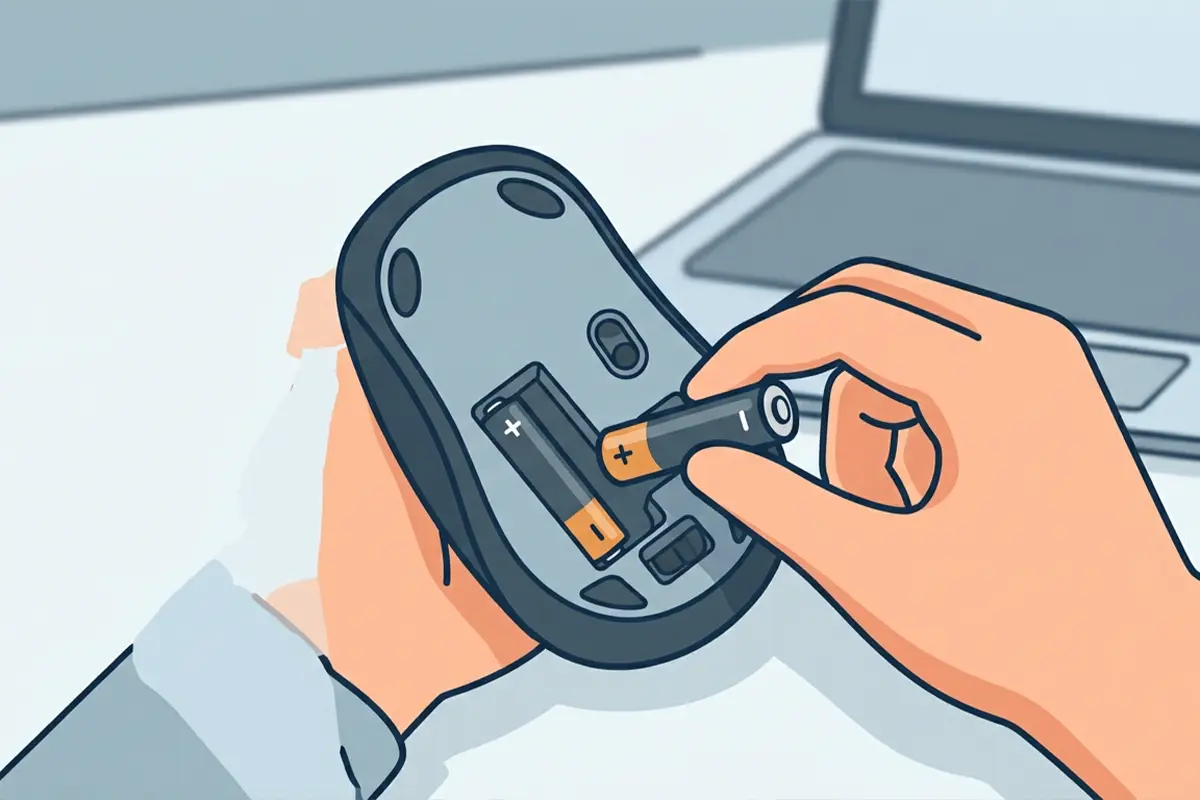
- Step 1: Check the mouse battery first. Swap in a fresh battery or fully charge a rechargeable mouse, since a battery under roughly 20 percent is a frequent hidden cause of intermittent lag.
- Step 2: Move the mouse closer to the laptop or receiver and clear away obstructions. A stack of books, a laptop stand made of metal, or a phone sitting nearby can all weaken the signal.
- Step 3: Reduce interference from other devices. Temporarily move Wi-Fi routers, wireless headphones, or other Bluetooth gadgets away from the immediate work area to see if the lag improves.
- Step 4: Open Device Manager, expand the Bluetooth section, right-click the Bluetooth adapter, and select ‘Update driver.’ Choose ‘Search automatically for drivers’ and let Windows install anything available.
- Step 5: Disable USB selective suspend so Windows cannot power down the Bluetooth controller mid-session. In Control Panel, open Power Options, select ‘Change plan settings,’ then ‘Change advanced power settings,’ expand ‘USB settings,’ and set ‘USB selective suspend setting’ to Disabled for both plugged in and on battery.
- Step 6: Remove and re-pair the mouse. In Windows Settings, go to Bluetooth and other devices, select the mouse, click Remove device, then turn the mouse off and back on and pair it again from scratch.
- Step 7: Check for mouse firmware updates through the manufacturer’s companion software, if one is provided. Firmware updates often specifically address connection stability.
- Step 8: Make sure Windows itself is fully updated. Go to Settings, then Windows Update, and install any pending updates, since Bluetooth stack fixes are regularly bundled into these updates.
Tip: If the mouse came with a small USB Bluetooth dongle instead of relying on the laptop’s built-in Bluetooth, try switching to a different USB port, preferably a USB 2.0 port rather than USB 3.0, since USB 3.0 ports are a known source of 2.4GHz interference.
When the Problem Points to Hardware
If every step above has been tried and the mouse still lags or drops out, the issue may sit with the laptop’s internal Bluetooth adapter rather than the mouse. This is more likely on older laptops or ones that have never had their Bluetooth driver updated. A USB Bluetooth dongle is often the simplest workaround in that case, since it bypasses the built-in adapter entirely.

Common Problems and Fixes
Cursor still stutters even after re-pairing
This usually points to bandwidth competition from another connected Bluetooth device, such as headphones or a keyboard. Disconnect other Bluetooth accessories one at a time to identify which one is causing the conflict.
Mouse only disconnects while running on battery
This is almost always the power plan. Revisit the USB selective suspend setting and confirm it is disabled for the ‘On battery’ column specifically, not just ‘Plugged in.’
Mouse reconnects automatically but input feels delayed
Try a different USB port for the receiver or dongle, ideally one physically farther from other plugged-in USB 3.0 devices like external drives.
Mouse will not reconnect after the laptop wakes from sleep
Remove the device from Bluetooth settings and re-pair it. This clears a stale connection profile that sleep and wake cycles sometimes corrupt.
Frequently Asked Questions
Why does a Bluetooth mouse lag more than a wired one?
Bluetooth transmits over radio frequency and shares bandwidth with other nearby wireless devices, which introduces small delays that a wired connection does not have to deal with.
Can a low battery cause lag before the mouse fully dies?
Yes. Many Bluetooth mice reduce their transmission power as the battery drops, which shows up as lag or occasional missed movements well before the battery is completely empty.
Does USB 3.0 really interfere with Bluetooth?
Yes. USB 3.0 ports and cables can emit radio frequency noise in the same range Bluetooth uses, which is why switching a receiver to a USB 2.0 port sometimes fixes lag immediately.
Is it better to use a USB dongle or built-in Bluetooth?
A dedicated USB dongle often gives a more stable connection than a laptop’s built-in Bluetooth, especially on older laptops, since it uses its own dedicated radio rather than sharing the system’s Bluetooth stack.
Why does re-pairing sometimes fix the issue when nothing else does?
Re-pairing clears out a corrupted or outdated connection profile stored by Windows, which forces a completely fresh handshake between the mouse and the computer.
Should Bluetooth drivers be updated through Windows Update or the manufacturer’s site?
Windows Update covers most cases well. For laptops from major manufacturers, checking the manufacturer’s support site for a chipset-specific Bluetooth driver can sometimes resolve issues Windows Update misses.
Can too many paired Bluetooth devices cause lag?
A long list of old paired devices does not usually cause lag directly, but removing devices that are no longer used reduces the chance of Windows attempting to reconnect to the wrong one.
Does closing other Bluetooth-heavy apps help?
Yes. Apps that stream audio or transfer files over Bluetooth in the background can compete with the mouse for bandwidth, so closing them can noticeably reduce lag.
How often should Bluetooth mouse firmware be updated?
Checking for a firmware update once every few months, or whenever lag issues appear, is a reasonable habit, since manufacturers periodically release fixes for exactly this kind of connectivity problem.
